How to close your Outlook account safely and permanently



Closing an Outlook account is a permanent step that affects more than just email access. Understanding what happens before, during, and after the closure process can help prevent data loss and make the transition smoother. This guide explains how to close an Outlook account safely and permanently, along with the key precautions to take beforehand.
Note: This article covers closing a personal Outlook.com email account, which Microsoft handles as part of its broader account closure process. Work, school, and other organization-managed accounts follow a separate process.
Understanding when to close your Outlook account
A personal Outlook.com address is more than an inbox. It can serve as the username for a Microsoft account, a recovery address for other accounts, a login for subscriptions and online platforms, and a destination for receipts, password resets, and security alerts.
Common reasons for closing an Outlook account
People close email accounts for many reasons, including:
- Consolidating multiple addresses: Managing several inboxes gets harder over time, and old accounts can accumulate forgotten logins, newsletters, and notifications.
- Switching providers: A different provider may offer stronger privacy features, encryption, or a better fit overall. For Outlook.com, this can also mean stepping away from the broader Microsoft ecosystem.
- Reducing exposure from an old inbox: An address used for many years may have appeared in data breaches and old mailing lists.
- Separating personal and work use: An old address may tie together work tools, client portals, and personal accounts that no longer belong in one place.
- Cleaning up unused accounts: Dormant accounts add to a person's digital footprint without serving a real purpose.
- Responding after suspicious activity: After recovering and securing a compromised account, some people may choose to close it if they no longer trust or need it.
What closing your Outlook account really means
If the Outlook.com address is the primary email associated with your Microsoft account, closing it will close the entire Microsoft account. Microsoft first marks the account for closure and gives you a 30- or 60-day window to reopen it. After that period passes, the account and its data are permanently deleted.
If the Outlook.com address is only an alias, you may be able to remove the alias instead of closing the whole account. However, Microsoft-domain aliases, such as @outlook.com, @hotmail.com, @live.com, and @msn.com, are permanently deleted when removed and can’t be reused.
Depending on how the account is used, closing it may remove access to:
- Emails, folders, contacts, and calendar items.
- OneDrive files.
- Microsoft 365 subscriptions tied to that account.
- Xbox and Microsoft Store purchases.
- Saved BitLocker recovery keys.
- Security settings, aliases, and account preferences.
Important things to check before account closure
Before closing your Outlook account, review where the address is still being used. This helps avoid losing access to accounts, files, subscriptions, or recovery codes that depend on it.
Managing Microsoft subscriptions
The email address may be used for Microsoft subscriptions and purchases, as well as third-party accounts such as streaming services, shopping sites, software trials, client portals, and domain registrations.
Start with Microsoft billing:
- Sign in to your Microsoft account and go to Subscriptions or Services & subscriptions.
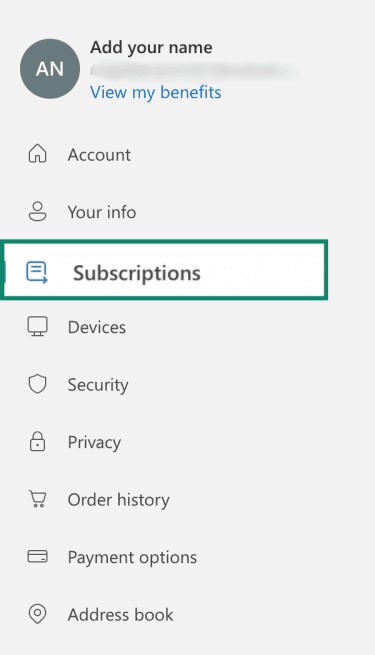
- Review each active subscription, such as Microsoft 365, Copilot Pro, Xbox Game Pass, or OneDrive storage. If needed, save copies of order details, invoices, receipts, or product keys where available. Product keys usually apply only to certain software purchases, not every subscription.
- Select Manage subscription for each subscription, then choose Cancel subscription, Cancel, or Upgrade or Cancel depending on what Microsoft shows. If the page shows Turn on recurring billing, the subscription is already set to expire and shouldn’t renew automatically.
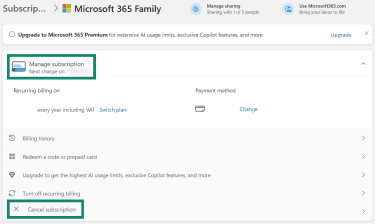
Microsoft treats subscription cancellation and account closure as separate steps. First, canceling or turning off recurring billing can help avoid future charges and check refund eligibility, though not all cancellations result in a refund. Refund availability depends on the subscription, purchase method, country or region, and timing. If the subscription was bought through a third party, such as Apple, Google Play, Amazon, or another retailer, manage cancellation and refund requests through that provider.
Updating accounts that use your Outlook address
A personal Outlook.com address can be a login, a recovery address, or the destination for receipts and security alerts. Before closing the account, find every place the address is used, then update or close each one so nothing important gets cut off.
Take inventory first:
- Inbox search: Try terms like "receipt," "invoice," "renewal,, "subscription," "trial," "payment," "confirmation," "booking," "statement," "reset password," "one-time password (OTP)," and "security code" to surface accounts tied to the address.
- Password manager: Filter your password manager by the Outlook address to find every saved login and recovery entry. Browsers also store saved logins worth checking.
- Two-factor authentication (2FA) and recovery: Note any accounts that send 2FA codes to the Outlook address or use the Outlook address for account recovery. Save backup codes and move recovery options to an email address, an authenticator app, a passkey, or a security key you’ll keep using.
- Microsoft account devices: List Windows PCs, Xbox consoles, phones, browsers, and apps signed in with the Microsoft account.
Then update or close each account:
- Financial and government accounts: Change the email address and confirm the new one before closing Outlook.
- Password manager and authenticator accounts: Update recovery email addresses and save recovery codes.
- Apple, Google, and other main accounts: Move the recovery address away from Outlook.
- Shopping, travel, and delivery accounts: Change the login email so receipts and return notices go to the right inbox.
- Healthcare, school, and family services: Update contact details, then send a test message if the service gives that option.
- Social and creator accounts: Change the email used for password resets and security alerts.
- Devices signed in with the Microsoft account: Set up another sign-in option where possible, such as switching a Windows device to a local account or using a different Microsoft account, to avoid sign-in, sync, or service-access issues after closure.
For accounts you no longer need, close them directly through the provider.
How to safeguard your data before closing Outlook
Once you know what the account touches, save what you still need. A backup is only useful if you can open it later, so check the files after export and store them somewhere you control.
Read more: How to back up files and encrypt them.
Backing up your emails and contacts
To export an Outlook.com mailbox, add the account to Outlook and let it fully sync first. On Windows, Microsoft supports personal storage table (PST) export in new Outlook and classic Outlook, though the steps differ. Classic Outlook can export email, contacts, calendar items, and tasks to a PST file when the whole account is selected, including subfolders. New Outlook can export mailbox data to a PST file, but Microsoft notes that calendar and contact items saved in PST files aren’t available in new Outlook at this time.
On Mac, Outlook for Mac can export mailbox data to an Outlook for Mac archive file (OLM), depending on the Outlook version and account setup. Outlook on the web doesn’t provide a built-in option to export an entire mailbox, though Outlook.com contacts can be exported separately as a CSV file.
Microsoft states that, before exporting in classic Outlook, Outlook may be set by default to download only the past year of email, so change the sync setting to All to include the full mailbox.
On Windows
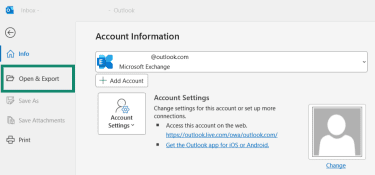
- Go to File > Open & Export.
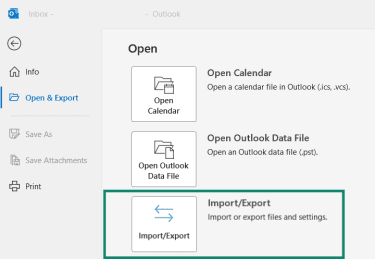
- Choose Import/Export.
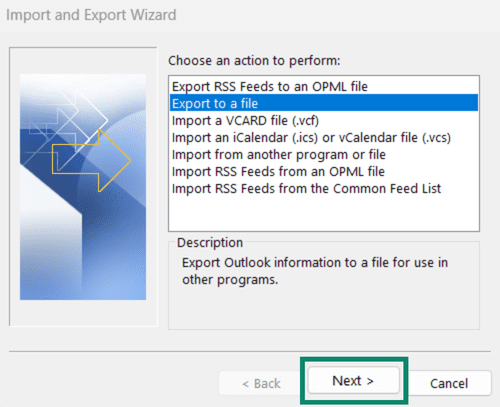
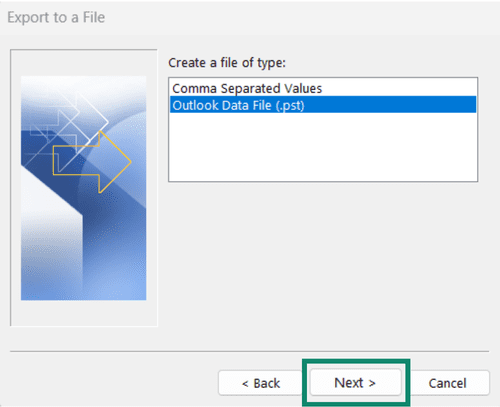
- Choose Export to a file and click Next.
- Select Outlook Data File (.pst) and click Next.
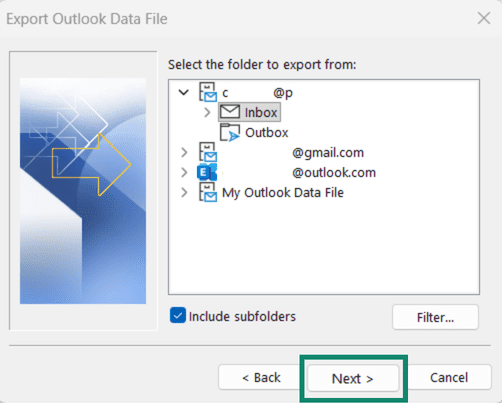
- Pick the mailbox or folders you want to export. To export the full account, select the account name and make sure Include subfolders is checked.
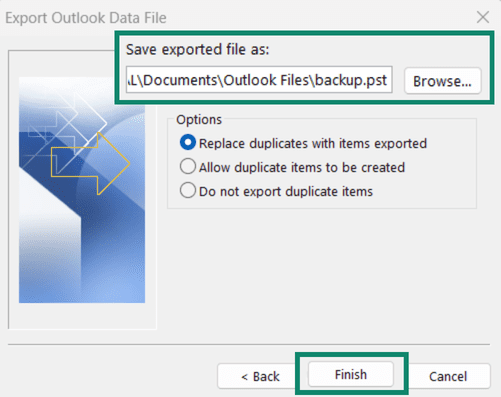
- Save the file and click Finish.
On Mac
If you're using Outlook on a Mac, keep in mind that Microsoft currently offers both the newer Outlook experience and Legacy Outlook. At the time of writing, mailbox export to an OLM is available in Legacy Outlook, so you may need to switch to it before creating a backup.
According to Windows Central, Legacy Outlook for Mac is expected to stop working with Exchange Online mailboxes after October 2026. It may still remain available for some users who need features not yet fully supported in the newer Outlook experience, such as mailbox import and export, but support and availability may depend on the account type and organization settings.
If you need to change to Legacy Outlook first, open new Outlook for Mac and go to Help > Revert to Legacy Outlook. Click Revert when prompted.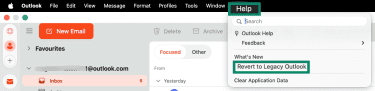
Once Legacy Outlook is enabled:
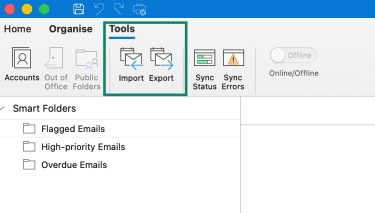
- Select Tools > Export.
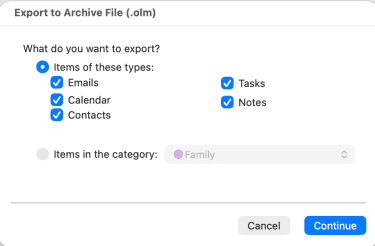
- Choose the items to export, such as Email, Contacts, and Calendar. Click Continue.
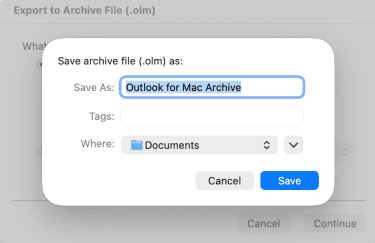
- Choose a location to save the OLM file and click Save.
After exporting, verify that the backup worked. For an OLM file, this usually means importing it into Outlook for Mac to confirm that the expected mail, contacts, or calendar items are present. Store a second copy somewhere you control, such as an external drive or another cloud storage service.
For the full account-closure checklist, see our complete guide on how to delete a Microsoft account.
Steps to close your Outlook account
- Go to Microsoft’s account closure page and select Close your account.
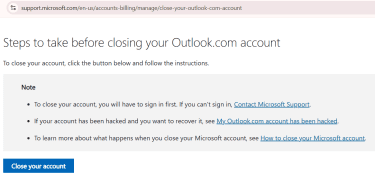
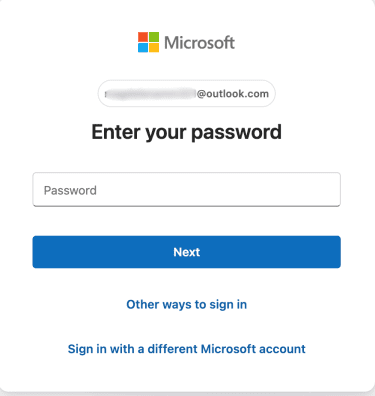
- Sign in with the Outlook.com address you want to close and select Next. If prompted, verify your identity using a security code sent to your email address, phone, or authenticator app.
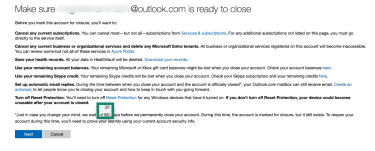
- Review Microsoft's Ready to close your account page. Choose whether Microsoft should wait 30 or 60 days before permanently closing the account. The longer option provides more time to recover the account if the closure request was made by mistake. Then select Next.
- Read through the account closure checklist and select each checkbox to confirm that you understand the effects of closing the account. Choose a reason for closing the account, then select Mark Account for Closure.
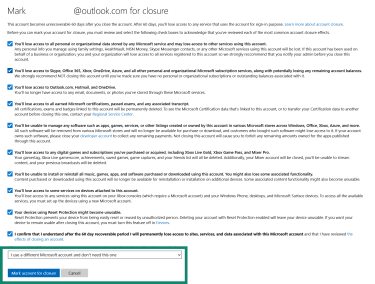
Once confirmed, the account enters Microsoft's waiting period. During this time, signing back in starts the account-reopening process and cancels the closure request. If the decision changes, sign in before the waiting period ends and follow Microsoft's instructions to reopen the account.
If there is any uncertainty about permanently deleting the account, consider setting a reminder before the waiting period expires. This provides one final opportunity to recover the account if an important file, subscription, or login was overlooked.
Once the waiting period expires, Microsoft permanently closes the account and removes access to the Outlook.com mailbox and associated Microsoft services. Closing the account doesn’t remove emails already sent to other people, erase the email address from marketing databases or from past data breaches, or delete third-party accounts that used the address. Those accounts must be updated or removed separately.
Learn more: How to delete yourself from the internet.
Alternatives to closing your Outlook account
Depending on the reason for closing the account, a less drastic option may solve the problem without losing access to emails, files, purchases, or Microsoft services.
Removing Outlook from an email app
If the goal is simply to remove Outlook from a device, the mailbox can be removed from the email app without closing the Microsoft account. This removes the account from that app or device, but it doesn’t deactivate the email account. The mailbox and its contents remain available through Outlook.com or another signed-in email app. In some cases, locally downloaded or cached Outlook data may be removed from the device.
Note: The steps below vary slightly by app and platform.
New Outlook on Windows
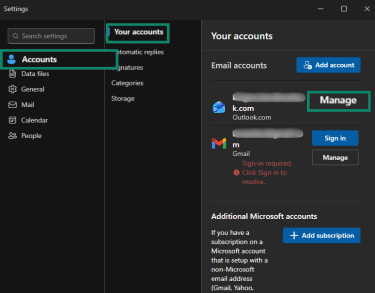
- Open Outlook and select View settings.
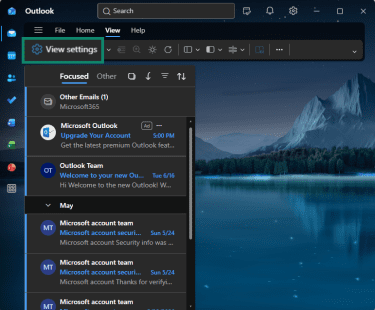
- Go to Accounts > Your accounts, find the account you want to remove, and click Manage.
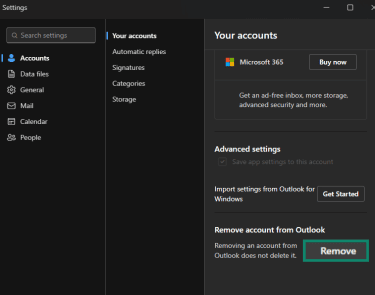
- Select Remove, then confirm the prompt.
Classic Outlook on Windows
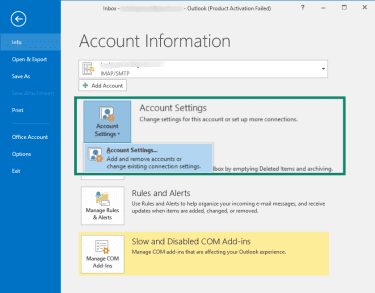
- Click File, then select Account Settings > Account Settings.
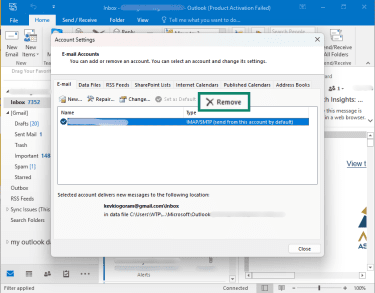
- Choose the account you want to remove, then select Remove. Confirm the prompt. If this is the only email account in classic Outlook, Outlook may ask you to create a new location for your data before removing it.
New Outlook on Mac
- Open Outlook.
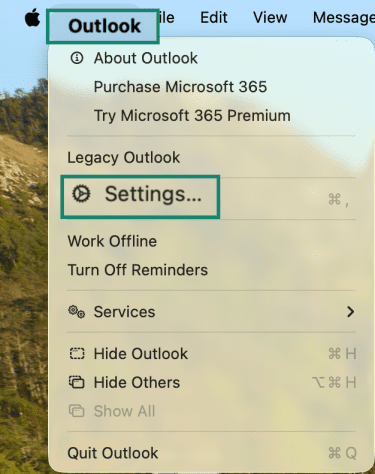
- Select Outlook > Settings.
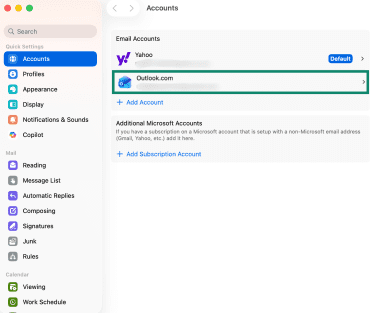
- Go to Accounts and select the account you want to remove.
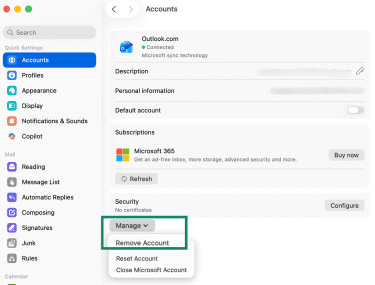
- Click Manage and then Remove Account.
Legacy Outlook on Mac
- Open Outlook.
- Select Tools > Accounts.
- Select the account you want to remove.
- Click the minus (-) button.
- Confirm the prompt to remove or sign out of the account by clicking Sign Out.
Outlook on iOS or Android
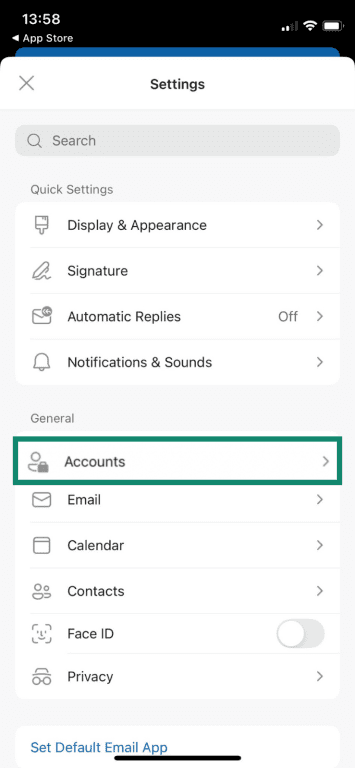
- Open Outlook, tap on your profile picture or account icon, and go to Settings.
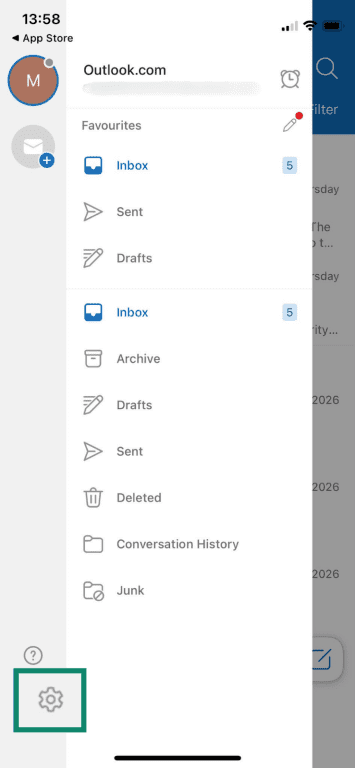
- Go to Accounts or Email accounts, and select the account you want to remove.
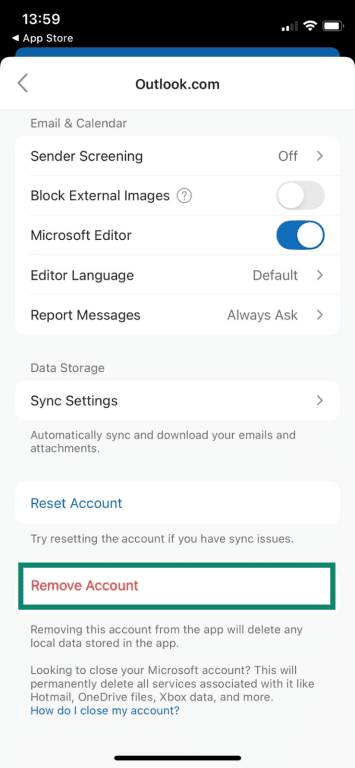
- Tap Remove Account or Delete Account, then confirm the prompt.
Changing your primary email address
If you like the Microsoft account but dislike your Outlook address, consider adding an alias. It’s an additional email address tied to the same Microsoft account. Microsoft email aliases share the same Microsoft account, including the same Outlook.com mailbox, contacts, storage, subscriptions, and account settings.
You can also add an email address you already control (a Gmail or Yahoo account, for example) and set it as the primary alias for the Microsoft account. This lets you keep the Microsoft account without using the old Outlook address as the main account username, which is useful if you want to keep OneDrive, Xbox, Microsoft 365, or Microsoft Store purchases. However, adding a third-party email address as an alias doesn’t move that external mailbox into Outlook.com or automatically make it the default “From” address for Outlook email.
Setting a new primary alias doesn't stop mail sent to the old Outlook.com address from arriving. The old address still uses the same Outlook.com inbox until it's removed as an alias. If the goal is to stop people from contacting the old address, removing it is the next step. If the goal is only to stop the old alias from being used to sign in, changing sign-in preferences may be safer than deleting it.
Be careful: per Microsoft's alias policy, removing a Microsoft-domain alias, such as an @outlook.com, @hotmail.com, @live.com, or @msn.com address, is permanent. The address can’t be added back to your account later, used on a new account, or claimed by anyone else. If the alias is currently the primary alias, set another alias as primary before removing the old one.
Securing your inbox without closing the account
If privacy or security prompted the closure plan, you may be able to keep the account and make it safer. Start with Outlook privacy settings and Microsoft account security settings. Review saved activity, recovery details, sign-in methods, devices, and privacy dashboard controls.
Work through these steps:
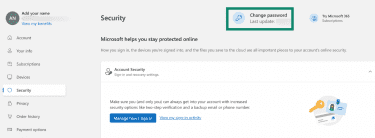
- Change the password: Sign in at account.microsoft.com/security, select Change Password at the top of the page, enter the current password, then set a new long, unique password you don't use anywhere else.
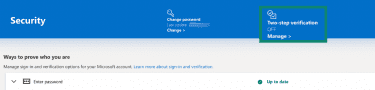
- Turn on stronger sign-in protection: On the same Security page, click Manage how I sign in, choose Two-step verification, and follow the prompts. Where possible, use an authenticator app, passkey, or security key rather than relying only on SMS.
- Review recent activity: Open the Microsoft account Recent activity page and look for account changes you don’t recognize. Microsoft shows recent account activity for the last 30 days. If anything looks suspicious, follow Microsoft’s prompts to secure the account.
- Sign out everywhere: In your Microsoft account security dashboard, open Additional security options, scroll to Sign out everywhere, and select Sign out. This can take up to 24 hours and may not sign the account out of Xbox consoles.

- Check forwarding and rules: In Outlook.com, open Settings (gear icon) > Mail > Forwarding and IMAP to check for unknown forwarding addresses. Then open Mail > Rules and remove rules that send messages to unfamiliar addresses.
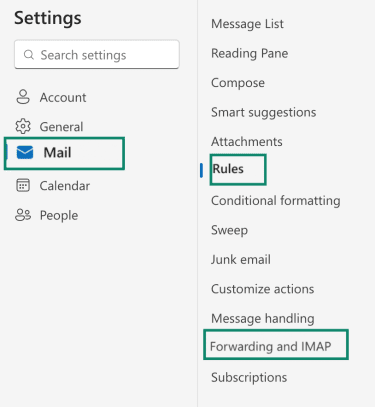
- Review connected devices: On account.microsoft.com/devices, remove or unlink any devices you no longer own or use. Use this alongside Sign out everywhere, since removing a device from the device list doesn’t necessarily end every active session.
- Use email masking for sign-ups: Email aliases or masking tools can hide your real address, which is useful for web activity such as newsletters, online shopping, or forums.
- Check exposure beyond Outlook: Identity-alert and data-monitoring tools can help detect whether your personal information appears in monitored breach or exposure sources. ExpressVPN’s ID Alerts, for example, monitors for exposed personal details and alerts eligible users if sensitive information is found. It’s available to ExpressVPN Advanced and Pro users in the U.S.
FAQ: Common questions about closing your Outlook account
Can I close Outlook without deleting my Microsoft account?
How long does it take to close an Outlook account?
Can someone email me after I close my Outlook account?
Will closing Outlook delete my OneDrive files?
Can I use the same Outlook email address again later?
What should I do if I cannot access my Outlook account?
Is removing Outlook from my device the same as closing the account?
Take the first step to protect yourself online. Try ExpressVPN risk-free.
Get ExpressVPN