
How to disable Windows Recall and protect your privacy on Windows 11


AI features can make Windows 11 feel smarter and easier to use, but they can also change how your data is handled. Tools that remember, summarize, or search your activity need access to information about what you do on your device.
That’s why Windows Recall is worth taking a closer look at. It helps to understand what information it collects, how that data is stored, and who may access it.
This guide explains how Windows Recall works, what privacy and security risks to consider, and how to disable or remove it if you decide you don’t need a searchable history of your PC activity.
What is Windows Recall?
Windows Recall is a Copilot+ PC feature that saves periodic snapshots of your screen and lets you search them using natural language. You might search for something you once saw in an app, website, image, or document.
Recall is switched off by default, so it won’t save snapshots unless you turn it on. It also doesn’t record audio or save continuous video.
How Windows Recall works
Once enabled, Recall creates a searchable timeline of recent PC activity from saved snapshots. When you enter a search, Recall looks through those snapshots and returns results that match or relate to the query.
Recall can show both text matches and visual matches. Text matches come from words that appear in snapshots, while visual matches can include images or objects related to the search. Results that closely match the search usually appear first, while related matches may include similar content.
When you choose a result, Recall opens the saved snapshot. From there, depending on the snapshot, you can interact with it. For example, you can copy recognized text, open the result in another app, edit it if it’s an image, or return to the webpage, document, or app that was open when the snapshot was saved.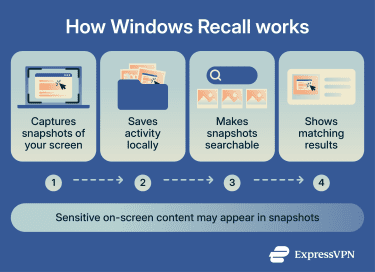
Recall also includes privacy controls that limit what gets captured. It includes a setting called Sensitive information filtering that filters out snapshots with information such as passwords or credit card numbers. It can also prevent specific websites from appearing in snapshots and stop capturing private browsing activity in Microsoft Edge, Firefox, Opera, and Chrome. In other Chromium-based browsers, Recall can filter private browsing activity but doesn’t support filtering specific websites.
You can pause Recall snapshots from the system tray until the next day. Windows stops saving snapshots during that time and requires Windows Hello authentication before they can be resumed manually.
Which devices support Windows Recall?
To use Windows Recall, a device needs to be a Copilot+ PC and meet Microsoft’s hardware requirements:
- 40 trillions of operations per second (TOPs) NPU
- 16GB of RAM
- 256GB of storage capacity
- At least 50GB of free storage
- Device Encryption or BitLocker enabled
- Windows Hello Enhanced Sign-in Security enabled
- At least one biometric sign-in option, such as fingerprint or facial recognition, enabled
Windows automatically stops saving screenshots when your device has less than 25 GB of available storage.
Should you keep Windows Recall enabled?
Whether Recall is worth keeping enabled depends on how much value you get from a searchable activity history compared with the privacy tradeoff of saving screen snapshots.
Recall may be useful if you often lose track of where you saw something, switch between many apps, or need to return to information without remembering the exact file, website, or app. In that case, its snapshot history can act like a visual memory for recent activity on your PC.
It may be less useful if you mostly use your device for simple tasks, regularly handle sensitive information, or share your Windows profile with someone else.
Privacy and security considerations
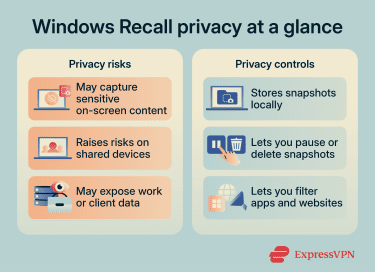
Recall can make it easier to return to past activity on your PC, but it may capture more than the specific content you want to find later. Before enabling Recall, consider what could appear in the snapshots and who may be able to access them, especially if you work with sensitive data:
- Sensitive information may appear in snapshots: Recall may capture private messages, work documents, health information, or other sensitive content that appears on-screen.
- Shared devices increase privacy risks: If multiple people use the same Windows profile, Recall snapshots could make it easier for someone else to see past activity on that device.
- Work devices may need extra controls: Businesses may need to disable or restrict Recall when employees handle client data, regulated information, internal systems, or confidential files.
How to check if Windows Recall is enabled
You can check whether Windows Recall is enabled from the Recall settings page:
- Open Settings (Press Start and type “Settings”).
- Click Privacy & security.
- Select Recall & snapshots.
- Check the Save snapshots setting.
You can also check the Recall icon in the system tray. If snapshots are paused, the icon shows a slash through it. If you don’t see Recall & snapshots in Settings, your device may not support it, or your system specs don’t meet the minimum requirements.
How to disable Windows Recall
There are several ways to disable Windows Recall on your AI PC, depending on your device, Windows edition, and how much control you need. For most people, Windows Settings is the simplest option.
Advanced methods like Group Policy or Registry Editor may work better for IT admins, managed work devices, or users who want to enforce the setting more strictly.
Disable Recall in Windows Settings
This is the best option for most users because it uses the standard Windows privacy controls and doesn’t require admin tools or system-level changes.
- Open Settings > Privacy & security.
- Go to Recall & snapshots.
- Find Save snapshots.
- Move the toggle to Off.
Remove Recall from Windows Features
This option is useful if you don’t ever plan to use Recall and want to remove the feature from Windows completely.
- Select the search box on your taskbar.
- Type “Turn Windows features on or off” and open it.
- Find Recall in the list and uncheck it.
- Select OK.
- Restart your PC.
Any previously saved snapshots will be deleted when Recall is removed this way. To turn Recall back on later, open Turn Windows features on or off again, check Recall, and restart your PC.
Manage Recall snapshots, pauses, and filters
The Recall & snapshots page also lets you manage what Recall saves without fully removing the feature. This can help if you want to keep Recall available but limit what appears in your snapshot history.
From Settings > Privacy & security > Recall & snapshots, you can:
- Delete saved snapshots: Remove snapshots from a specific time period or delete all saved snapshots from your device.
- Pause snapshots: Stop Recall from saving new snapshots temporarily.
- Filter apps: Choose installed apps that Recall shouldn’t include in future snapshots.
- Filter websites: Block specific websites from appearing in future snapshots when you use a supported browser.
- Manage storage: Set how much disk space Recall can use for saved snapshots.
These controls are useful if you don’t want to disable Recall completely but want to reduce how much sensitive activity it can save. For example, you may want to filter banking websites, private work apps, medical portals, or messaging apps before using Recall regularly.
Disable Recall with Group Policy
This method works best for IT administrators who manage Windows Pro, Enterprise, or Education devices in a workplace, school, or other managed environment. Group Policy lets admins block Recall more firmly than the regular Settings app and apply the same rule across user accounts or devices.
- Open Start.
- Search for “Edit group policy."
- Open the Local Group Policy Editor.
- Go to either User Configuration (applies at the user level) or Computer Configuration (applies at the device level), followed by Administrative Templates > Windows Components > Windows AI.
- Open Turn off saving snapshots for Recall.
- Select Enabled.
- Click Apply.
- Click OK.
- Restart your PC or run gpupdate /force from the Command Prompt.
Disable Recall with Registry Editor
This method is best for advanced users who don’t have access to Group Policy. Be careful when editing the registry, since changing the wrong value can cause Windows issues.
- Press Windows + R to open the Run dialog.
- Type “regedit” and press Enter.
- In Registry Editor, go to: HKEY_CURRENT_USERSoftwarePoliciesMicrosoftWindows and look for a key named WindowsAI.
- If you don’t see it, right-click Windows, select New > Key, and name it WindowsAI.
- Select the WindowsAI key.
- In the right-hand panel, right-click and select New > DWORD (32-bit) Value.
- Name the value DisableAIDataAnalysis.
- Double-click DisableAIDataAnalysis.
- Set the value data to 1.
- Click OK.
- Restart your PC to apply the change.
This applies the setting for the current user. For organization-wide control, Group Policy or device management tools are usually better because they’re easier to apply, audit, and update across multiple PCs.
How organizations can disable Recall
Organizations should use centralized management tools rather than asking each employee to disable Recall manually. This is especially important for teams that handle client files, regulated data, confidential documents, or shared workstations.
- Review whether any company devices support Recall.
- Decide whether Recall should be blocked, allowed, or limited.
- Configure Recall policies through Group Policy, Microsoft Intune, or another device management tool.
- Apply the policy to the relevant device groups.
- Confirm the setting on a test device.
- Roll out the policy across managed PCs.
- Document the policy for IT, security, and compliance teams.
For business environments, ensure the setting stays consistent across devices and aligns with your organization’s privacy and security requirements.
What happens after disabling Windows Recall?
Disabling Windows Recall stops the feature from saving new snapshots, but what happens next depends on how you disable it. Turning off snapshots in Settings is different from removing Recall from Windows Features.
Are existing snapshots deleted?
If you remove Recall from Windows Features, the screenshots are deleted; if you just disable it, you’ll need to manually delete the snapshots. To find the images for deletion, go to Settings > Privacy & security > Recall & snapshots and look for the option to delete snapshots.
Does disabling Recall improve performance?
Recall is a program that constantly runs in the background and requires a dedicated NPU to process the screenshots. It can drain the device battery and use up storage, causing the device to run more slowly. By disabling it, you can improve your device's performance.
That said, Recall is designed for Copilot+ PCs with dedicated AI hardware, so many users won’t notice a major performance difference. The bigger benefit is usually privacy control.
Can Windows Recall be turned back on later?
Yes. If Recall is still installed, it can be turned back on later from Windows Settings. If Recall was removed from Windows Features, you’ll need to reinstall it before it can be enabled again. Work or school devices may also behave differently, especially if an administrator has disabled Recall through Group Policy, Registry settings, or device management tools.
Windows Recall vs. Windows Search
Windows Recall and Windows Search both help you find information on your PC, but they work in different ways. Windows Search helps you find files, apps, settings, and indexed content. Recall searches saved snapshots of what appeared on your screen, including activity from apps, websites, images, and documents.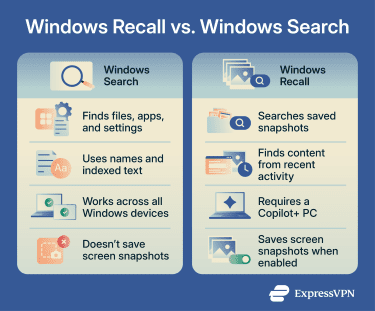
The main difference is how much context each tool can search. Windows Search usually depends on file names, app names, settings, and indexed text. Recall can help you find something even if you don’t remember the file name, website, or app where it appeared, because it searches a visual history of your recent activity.
That extra context is also why Recall creates different privacy considerations. Windows Search can save local search history and may use search permissions to manage cloud content results, but it doesn’t create periodic screenshots of your activity. Recall does once you turn snapshot saving on.
Disabling Recall won’t turn off Windows Search. You can still search from the taskbar, Start menu, Settings, and File Explorer to find files, apps, and Windows settings.
FAQ: Common questions about Windows Recall
Is Windows Recall enabled by default?
Can I permanently remove Windows Recall?
Can Windows Recall capture sensitive information?
Does Recall work on all Windows 11 PCs?
Will disabling Windows Recall affect Windows 11 features?
Can IT administrators disable Recall across multiple devices?
What is the fastest way to disable Windows Recall?
Explore the web with greater privacy
Get ExpressVPNSign up today for a chance to win FIFA World Cup 2026™ tickets.