
Can a Wi-Fi owner see what websites you visit on your phone?


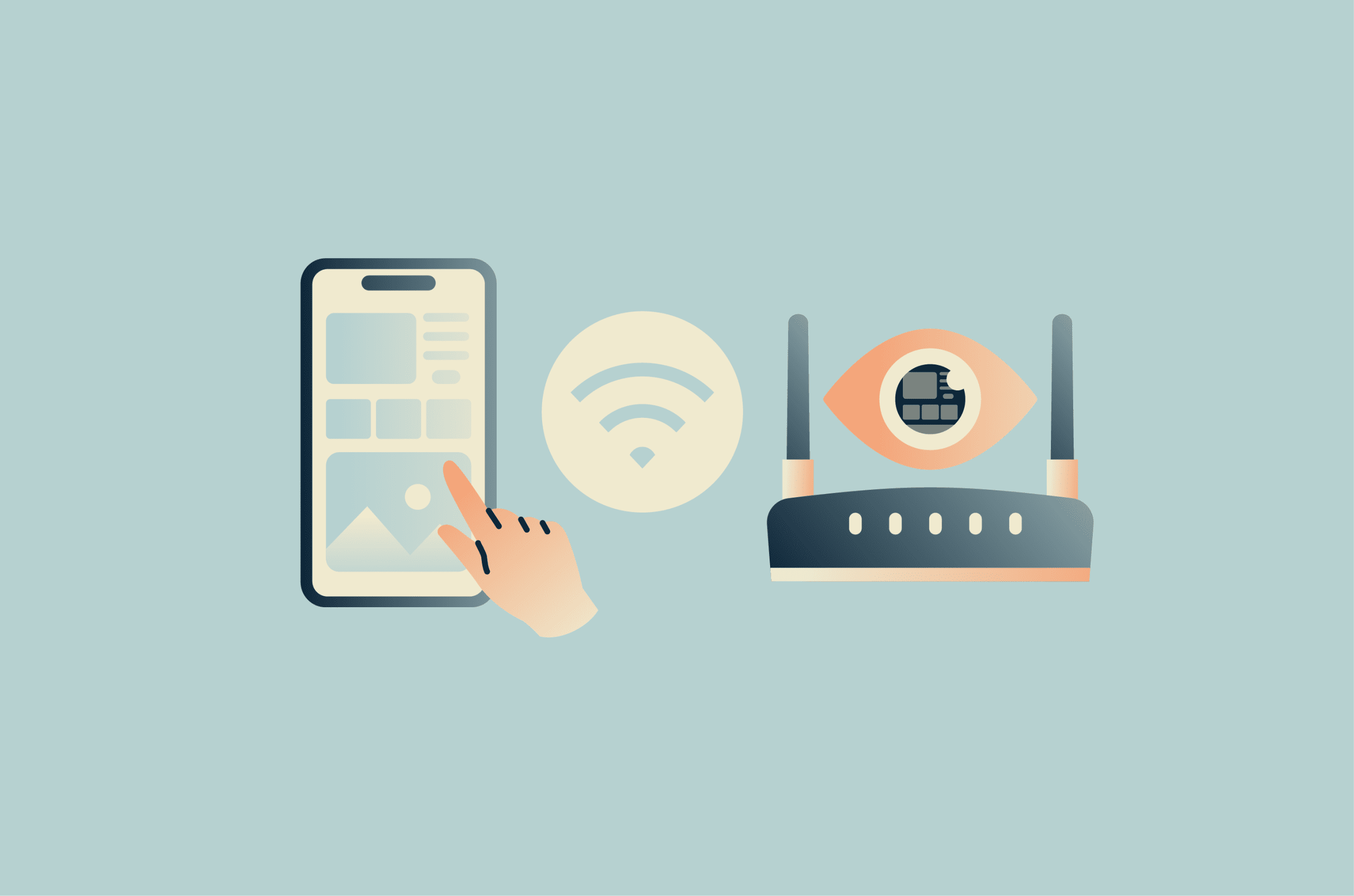
When you connect your phone to someone else’s Wi-Fi, you hand part of your internet connection to a network you don’t control because your traffic passes through a third-party network that can log metadata. That's worth keeping in mind even if you’re only checking a few sites or scrolling in apps.
What a Wi-Fi owner can monitor is often misunderstood. People picture a neat browsing history report or assume “private browsing” hides everything. The reality sits in the middle. A Wi-Fi network can log connection details in router logs, Domain Name System (DNS) logs, or firewall logs, and some setups can log more than others. Modern encryption keeps a lot of what you do private, but it doesn't erase every clue.
This article breaks down what Wi-Fi tracking can reveal, what usually stays hidden on encrypted sites, what your internet service provider (ISP) can still see, and what you can do to improve privacy and security on public Wi-Fi.
Understanding Wi-Fi monitoring and privacy
Wi-Fi monitoring usually means passively observing or logging traffic and network metadata that passes through the local network. Although some setups also apply active controls such as filtering, blocking, or deep packet inspection (DPI).
That can include which devices are connected, how much data they use, which IP addresses they contact, and, sometimes, which domains they look up via the DNS. That said, domain visibility depends on where DNS resolution happens, since queries routed through the router are more exposed than those resolved by the device using encrypted DNS.
The amount of detail depends on the router or monitoring tools in use, the network settings, and whether protections such as HTTPS, encrypted DNS, or a virtual private network (VPN) are in use. You should also keep in mind that some networks can interfere with or block these protections through DNS interception, firewall rules, or the use of additional inspection tools (more about that later).
How do Wi-Fi owners monitor online activity?
On a typical home network, ISP-provided routers, mesh systems like Eero or Google Nest, and most off-the-shelf routers have an admin panel that will usually show the basics: which devices are connected, their local IP addresses, and sometimes simple logs or traffic data.
Some consumer routers can do more, but features such as category blocking, app limits, or browsing history usually depend on parental-control settings. These settings often rely on DNS filtering or third-party services rather than the router's own capabilities or add-on tools, and they are not part of the default router view. In most home setups, that means the owner is more likely to see device activity at a high level than a detailed record of every page someone opened.
On school and work networks, monitoring is often broader, but that usually reflects extra setup and dedicated systems rather than Wi-Fi alone. Administrators may use content filtering, browser management, endpoint security, or device management tools to classify sites, block categories or specific sites, and log access attempts across multiple devices. That level of monitoring is most common on managed networks and managed devices, not on ordinary public hotspots or home routers.
Router admin view and basic logs (common by default)
On a standard home network, the Wi-Fi owner can usually see that your phone is connected and may be able to identify it by device name, Media Access Control (MAC) address (which, on modern devices, is typically randomized per network and not a stable hardware identifier), or local IP address. Many consumer routers also provide basic logs or activity records, but the details vary by model. Some logs focus on system or security events, while others may also show connection times, source IP addresses, or blocked access attempts.
That still doesn’t mean the router keeps a complete, easy-to-read record of every page you visited. On many home routers, logs are limited in scope and storage. Some routers note that long-term log retention may require saving logs locally or sending them to a remote server, suggesting that long-term history isn’t always automatically maintained on the router itself.
DNS logs and filtering (common on some networks, not always on by default)
DNS is the system that turns names like example.com into IP addresses. If your phone uses the network’s standard DNS resolver, the network operator can often see those lookups or use DNS-based filters to block or categorize them. Just don’t forget that some routers can force or redirect DNS queries, which means you can't always choose which resolver your device uses. On some home networks, that happens through parental controls, DNS filtering services, or router-level web filters rather than as a universal default setting.
This is one of the main reasons you might wonder whether a Wi-Fi owner can see which sites you visit when connected to their network. In many cases, DNS activity can reveal the domain a device is trying to reach, though typically only at the domain level, not the full URL or page contents. That's true even when the page content itself is encrypted. That said, DNS visibility isn’t guaranteed. If the phone or browser uses encrypted DNS, such as private DNS or DNS over HTTPS (DoH), the local network has less visibility into those lookups. Keep in mind that encrypted DNS isn't always reliable on managed or restrictive networks, which may intercept or block those queries entirely. The network may still infer some destinations from other connection data.
Advanced monitoring tools (rare on home Wi-Fi, common on managed networks)
Advanced monitoring is far more common on managed networks than on an ordinary home Wi-Fi router. Enterprise tools can classify sites or URLs, apply content policies, block categories, and log access attempts across many users and devices. That’s why school or workplace Wi-Fi often has more visibility and control than a family router bought off the shelf.
Even so, modern encryption still matters. A network admin may be able to identify the destination domain or service and enforce rules around it, but encryption still limits access to the contents of secure traffic. Reading the full URL or page data usually requires Transport Layer Security (TLS) decryption, which works by routing traffic through a man-in-the-middle proxy that uses a root certificate installed on the managed device.
This is an added inspection setup typically used on managed networks and devices that trust an inspection certificate.
What data a Wi-Fi owner can see
The clearest way to think about this is to separate content from metadata. Content is the actual page text, message text, search terms, or app data. Metadata is the surrounding information, such as which device connected, when it connected, the packet frequency, how much data it used, and which domain or IP address it contacted. A Wi-Fi owner is far more likely to see metadata than the contents of a secure session.
The websites and services you connect to (domains and IPs)
A Wi-Fi owner may be able to see the domains or services your device connects to, especially if the network can observe DNS lookups or other connection records. They may also see destination IP addresses, though IP addresses alone don’t always clearly identify a single site, since many sites and services use shared infrastructure through content delivery networks (CDNs) and cloud platforms such as Cloudflare and Amazon Web Services (AWS).
So, one IP address may be tied to more than one site or service. Even so, that can still be enough to make reasonable guesses about your online activity, even when the network can’t see the actual page content.
HTTPS improves privacy, but it doesn’t erase every visible signal. In some cases, the hostname can still be exposed through DNS or through Server Name Indication (SNI) in TLS handshake data. In practice, that means a network can sometimes infer which site a device is trying to reach even when the connection itself is encrypted, though protections such as Encrypted Client Hello (ECH) can reduce that visibility on supported connections. Still, ECH isn’t widely deployed yet, so that protection has limited reach for now.
Searches, messages, and app activity
On a secure website or app, a Wi-Fi owner usually can’t read the contents of your searches, messages, or in-app activity. HTTPS encrypts the connection between your device and the service, intended to prevent people on the network path from easily reading or altering that traffic. So if you search inside a secure search engine or send a message through a secure app, the local Wi-Fi owner normally can’t see the exact words you typed just by owning the Wi-Fi network.
What they may still see is that your phone is connected to a search engine, a messaging service, or a social app, along with timing and data volume. That kind of inference usually comes from domain-level visibility or other connection metadata, not from direct visibility into what you searched for, sent, or did in the app. In some cases, the domain itself gives away quite a lot. In others, it only shows that you used a service, not what you did inside it.
How HTTPS changes what’s visible
HTTPS protects the contents of web traffic from ordinary network snooping. On a secure HTTPS site, the network generally can’t read the page contents, form entries, messages, or search terms sent within that encrypted session.
What HTTPS may still reveal:
- The fact that your device is connected to the network.
- The timing and size of traffic.
- Destination IP addresses.
- In some cases, the domain name (signaled through DNS or TLS handshake signals).
What HTTPS usually hides:
- The exact page contents.
- The text of messages sent through secure web services.
- Search terms submitted.
- Login credentials and form data in transit.
Common misconceptions about Wi-Fi privacy
Many myths about Wi-Fi privacy come from confusing what your phone saves with what the network can still see. This section clears up some of the most common misunderstandings.
What incognito mode really does
Incognito mode or private browsing mainly affects what your device and browser save locally and doesn’t change the network-layer signals your connection still exposes, such as IP traffic, DNS requests, or TLS metadata. It can stop the browser from keeping local history, form entries, and similar traces on the device after the session ends. It doesn’t make your activity invisible to the Wi-Fi network, your ISP, your school or employer, or the websites you visit.
Does deleting history stop Wi-Fi tracking?
Deleting browsing history removes records from your phone or browser account. It doesn’t reach back in time and erase router logs, DNS logs, filtered network records, or ISP-side records that may already exist. That said, retention varies by router and setup. Some home routers expose only basic local system logs, and longer-term log storage may require extra features or sending logs to a remote server. Device history and network history are different things.
That means a deleted browser history doesn’t necessarily answer the question people are really asking: whether someone on the network could still have seen the connection. If the network logged it at the time, deleting your local history later won’t remove that network-side record.
Does a VPN guarantee complete privacy?
No. A VPN can hide your browsing destinations from the local Wi-Fi network by encrypting your traffic between your device and the VPN server. Common VPN protocols such as WireGuard and OpenVPN are used to create that encrypted tunnel. That means the Wi-Fi owner usually can’t see which websites you visit through that tunnel.
The network can still see that your device is connected and exchanging encrypted traffic with a VPN server. Websites typically see the VPN’s IP address rather than yours, and the VPN provider is now handling that traffic between your device and the wider internet. A VPN improves privacy on Wi-Fi, but it doesn’t guarantee total invisibility.
Related: Can your ISP see what you do with a VPN?
Public vs. private Wi-Fi risks
The privacy risks on Wi-Fi depend a lot on whose network you’re using and how that network is set up. A home router, a public hotspot, and a school or workplace network can all expose different kinds of data and apply different levels of monitoring or control.
Public Wi-Fi owners and hotspot providers
Public Wi-Fi calls for more caution than a trusted home network, especially when you’re handling sensitive information. But it isn’t automatically unsafe. The important point is to err on the side of caution: treat public networks as less trustworthy, verify the network name where possible, and be careful about what you do on them.
That doesn’t mean every café or hotel network is hostile. It means the network is shared, the operator may still have visibility into some connection data, and public hotspots can be easier targets for abuse, misconfiguration, or impersonation than a well-secured home network. One example is a rogue or “evil twin” hotspot, where an attacker sets up a fake network that mimics a legitimate one to trick people into connecting to it.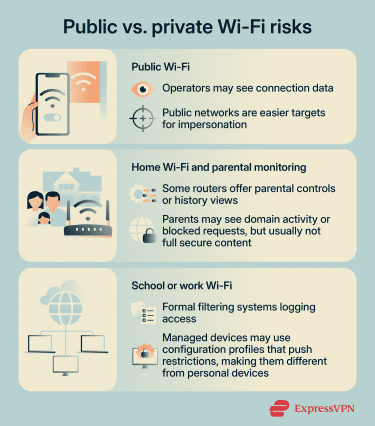
Home Wi-Fi and parental monitoring
Home networks are usually less complex than school or work networks, but they can still include monitoring or filtering features. Some consumer routers and mesh systems offer parental controls, content filters, safe browsing tools, usage reports, or browsing-history views tied to device or family profiles. Those features depend on the product and settings, and they’re not always turned on by default.
So can your parents see what websites you visit on Wi-Fi? Sometimes, yes, especially at the level of domains, categories, blocked requests, or activity tied to a managed profile. But that’s different from reading the full contents of secure traffic.
School or work Wi-Fi monitoring
School and workplace networks often use more formal filtering and monitoring than home Wi-Fi. Enterprise systems can classify domains, block categories, and log access attempts across many users and devices. Depending on the setup, they may do that through DNS filtering, secure web proxies, or endpoint agents on managed devices.
On HTTPS traffic, those systems may still be limited to domains rather than full URLs unless the organization uses additional inspection controls. In setups that decrypt and inspect HTTPS traffic, they may see more than just the domain.
In some environments, a device may also be managed through configuration profiles or mobile device management. For example, configuration profiles define settings for using an iPhone with corporate or school networks or accounts, and they can also install certificates or apply proxy and VPN settings that route traffic through organization-managed controls.
On managed devices, those controls can support HTTPS inspection in environments set up for it. Device management services can push settings, credentials, restrictions, and commands to enrolled devices. That’s one reason a managed school or work device should be treated differently from a personal phone on a home router.
What your ISP can see
Your ISP is in a different position than the owner of a local Wi-Fi router. The router owner sees activity on the local network. The ISP carries traffic between that network and the wider internet. Those are related, but not identical, roles.
Without extra protections, an ISP may be able to see or infer the sites and services you connect to through DNS lookups, destination IP addresses, and other connection metadata. That inference can also draw on traffic analysis, such as correlating IP addresses with connection timing, traffic volume, or packet sizes, though those signals usually support informed guesses rather than perfect certainty.
How to protect your privacy on Wi-Fi
You can’t make yourself completely invisible on Wi-Fi, but you can reduce how much the network can see and lower the chance of avoidable risks. A few simple settings and habits make a real difference, especially on public or unfamiliar networks.
1. Use a VPN to protect your privacy on public or shared Wi-Fi
A VPN is one of the most effective ways to stop a local Wi-Fi owner from seeing which websites you visit, because it encrypts traffic between your device and the VPN server. On public Wi-Fi, that can be especially useful. But it doesn’t make you invisible. The network can still see that you’re connected to a VPN server.
2. Use mobile data for sensitive activity
If you don’t trust a public hotspot, switching to mobile data for banking, logins, or other sensitive activity cuts the local Wi-Fi operator out of the connection. It doesn’t remove network visibility altogether. It shifts that visibility away from the Wi-Fi operator and onto your mobile carrier, which is in an ISP-like position for that connection.
3. Stick to HTTPS websites
HTTPS doesn’t hide everything, but it does protect the contents of your browsing session from interception in transit. If a site still uses plain HTTP, don’t enter passwords, payment details, or other sensitive information on it.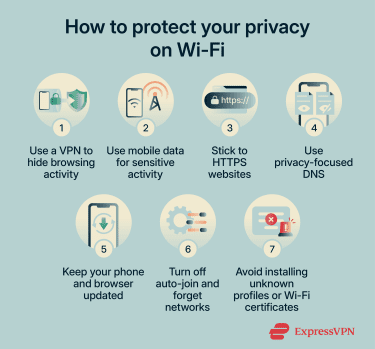
4. Use privacy-focused DNS
Encrypted DNS, such as DoH or Android’s Private DNS, helps stop local networks and ISPs from seeing plain DNS queries in transit. That removes one of the easiest ways for a network to infer which domains you visit.
It doesn’t hide destination IP addresses or broader traffic patterns, so it doesn’t prevent every kind of network-level inference. And it doesn’t hide all connection data, but it does close off an important source of visibility.
5. Keep your phone and browser updated
Updates matter because they patch security flaws that can make web and network attacks easier. Monthly Android security updates and Apple’s security releases are an important tool for keeping you safe.
6. Turn off auto-join for public Wi-Fi and forget networks you no longer use
Public Wi-Fi risks aren’t limited to monitoring. Devices that reconnect automatically can join networks you didn’t mean to use, including spoofed hotspots using familiar names. That’s why you should confirm the name and password of a public hotspot before use and remove saved networks you no longer want to join.
7. Avoid installing unknown profiles or “Wi-Fi certificates”
Be cautious with any prompt to install a configuration profile or certificate, especially on a school, work, or public network. Some organizations legitimately use them to connect devices to managed Wi-Fi or VPN services, but they can also change which networks, services, or certificates your device trusts.
FAQ: Common questions about what a Wi-Fi owner can see
Can the Wi-Fi owner see what I search on my phone?
Can the Wi-Fi owner see my browsing history if I delete it?
Can my parents see what websites I visit on Wi-Fi?
Can my school or workplace see what I do on Wi-Fi?
Can a Wi-Fi owner see what I do in apps?
Can the Wi-Fi owner see what websites I visit if I use a VPN?
Can the Wi-Fi owner see my history if I use mobile data?
How can I check what my ISP can see?
What should I do if I think my Wi-Fi owner is monitoring me?
Explore the web with greater privacy
Get ExpressVPNSign up today for a chance to win FIFA World Cup 2026™ tickets.