
Location services explained: How they work and how to protect your privacy


Location data plays a central role in how modern devices and apps function, supporting features such as navigation, local results, and personalized content. At the same time, it can involve ongoing access to sensitive information about a device’s position, raising important privacy and control considerations.
This article explains how location settings work and how to manage them across devices and apps. It outlines factors that affect accuracy and the trade-offs between convenience and privacy. It also covers practical ways to control permissions, limit data sharing, and reduce unnecessary exposure of location information.
What are location services?
Location services are built-in features that allow a device and its installed apps to determine its geographical position. They do this by using a combination of technologies, including GPS, Wi-Fi, cellular networks, Bluetooth, IP-based signals, and onboard sensors.
Virtually all modern devices include this capability: phones, computers, tablets, and wearables. Many apps also depend on it to deliver location-based services (LBS). For example, when you open a maps app on your phone, and it shows where you currently are, that's location services at work.
Some system-level emergency features, such as Android's Emergency Location Service (ELS), may be enabled by default, depending on your device and region. But most regular apps request access permissions when they first need them. In practice, you can turn the location access on or off for individual apps.
How do location services work?
Location services work by combining signals from multiple sources, such as GPS satellites, Wi-Fi access points, cell towers, and nearby Bluetooth devices, with onboard sensors such as accelerometers (which detect changes in movement) and gyroscopes (which track orientation and rotation).
They use this data to estimate the device's location rather than pinpointing it exactly. Depending on which signals are available and how strong they are, the estimate can range from highly precise (within a few feet on a specific street) to much broader (a general neighborhood).
Each signal source operates differently and performs better under specific conditions, which is why devices typically combine several of them to improve accuracy.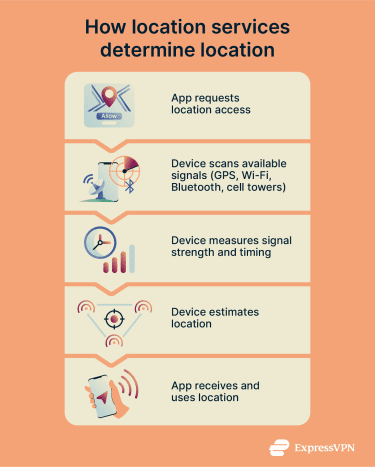
Global Positioning System (GPS)
GPS relies on signals from a constellation of satellites orbiting at an altitude of roughly 12,540 miles above the Earth. A receiver normally needs signals from at least four or more satellites to calculate a three-dimensional position and correct for timing errors in the device's clock. The position is estimated at the point where those distance measurements intersect.
Under open sky, consumer GPS is typically accurate to about 10–16 feet. Indoors, accuracy usually drops significantly because walls and ceilings block or weaken the satellite signals. In dense city areas, tall buildings can reflect signals off their surfaces before they reach the device (a phenomenon known as multipath interference), which can reduce accuracy and prevent a reliable fix.
Wi-Fi positioning
Wi-Fi positioning uses nearby wireless access points as reference points. A device detects these signals and, using known or estimated access-point locations, can calculate an approximate position.
This method works especially well in urban and indoor environments with many access points. Accuracy varies by environment and system design, but Wi-Fi can often improve location estimates where GPS performs poorly, such as inside large buildings.
Cell tower triangulation
Phones regularly communicate with nearby cell towers. Using signals from multiple towers, the network or device can estimate an approximate location. This is often casually called triangulation, though some methods are more accurately described as trilateration or other radio-based positioning techniques.
Cell tower-based location is much less precise than GPS or well-calibrated Wi-Fi positioning, and accuracy varies widely depending on tower density and the method used. It's often used as a fallback when GPS or Wi-Fi signals are limited.
Bluetooth and device sensors
Bluetooth positioning uses short-range signals from beacons or other nearby devices to estimate proximity. Because Bluetooth works over relatively short distances, it's best suited for indoor and small-scale environments.
Device sensors like accelerometers and gyroscopes supplement these methods by filling in gaps between signal updates, for example, tracking a user's movement between Bluetooth checkpoints.
Because Bluetooth and sensors usually indicate proximity rather than absolute coordinates, they're usually combined with Wi-Fi or GPS for more complete positioning. They're widely deployed in places like airports, shopping malls, and hospitals, where beacon-based systems can guide passengers to the right gate, direct shoppers to a store, or track equipment across a building.
Also read: Bluetooth security guide: How to stay safe from wireless attacks.
What are location services used for?
Location services are used in a wide range of everyday situations, including:
- Navigation: Maps apps use location services to determine your location and provide directions and routes. By combining multiple signals, they can also adjust suggestions based on real-time traffic, estimated travel time, and mode of transport.
- Weather and time: Devices use your current location to adjust time zones automatically and deliver localized weather forecasts.
- Local search: Search engines and apps use location data to surface nearby businesses and services, along with details such as operating hours, distance, and, in some cases, how busy a place is.
- Location sharing and tracking: Features like Apple's Find My use location services to help locate a lost device. If the device is online, it shows a live location. If it's offline, nearby Apple devices in the Find My network can help relay its approximate position using Bluetooth. You can also share your location with others through apps like WhatsApp or Messages, either as a live, updating feed or as a one-time pinned location.
- Personalized app features: Some apps and devices use location data to learn your habits over time. They can remember places you visit frequently and suggest routes or destinations accordingly. They can also tailor search results and recommendations or organize photos by place.
- Emergency response: During an emergency call or text, services like Android's ELS can automatically send location information to emergency responders, depending on the device, region, and mobile network. Location services can also support features like earthquake alerts in supported areas.
How to manage location services and app location access
You can manage how your device and apps access your location through system settings and app-level permissions. The steps vary slightly depending on your platform.
Android
To turn off location for the device:
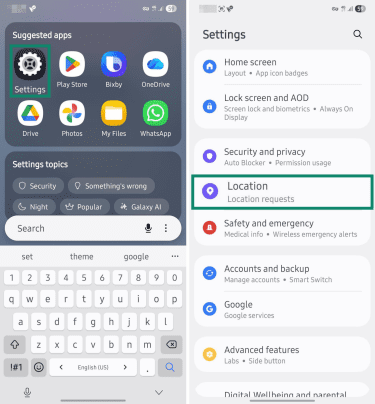
- Go to Settings > Location.
- Turn off the toggle at the top.
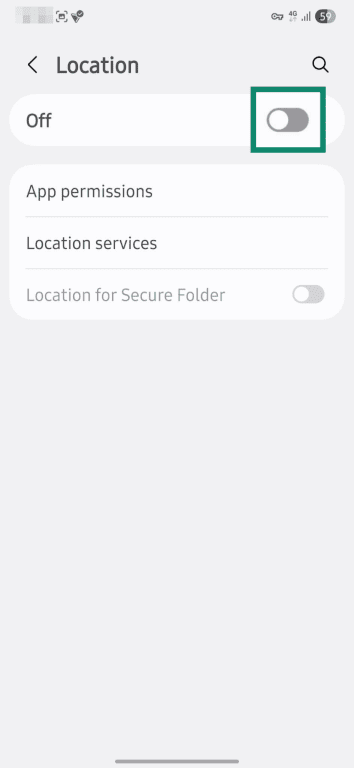
This prevents apps and many device features from using your location. If Location Accuracy is off, the service stops collecting wireless signal and sensor data to improve location accuracy. ELS may still use location information during an emergency call or text.
To keep the location on but limit access for specific apps:
- Go to Settings > Location, then open App permissions or App location permissions.
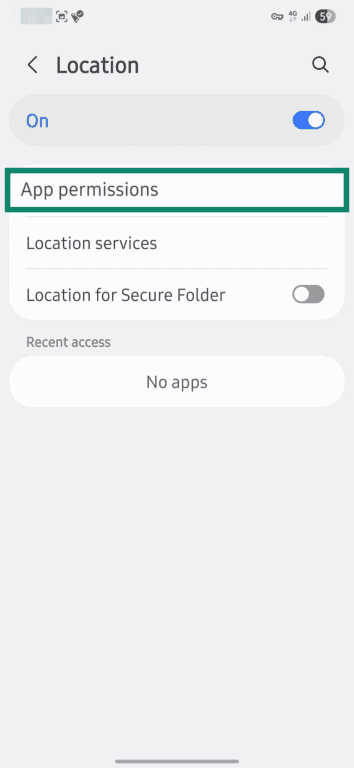
- Tap the app you want to adjust. Select the access level you prefer: Allow all the time, Allow only while using the app, Ask every time, or Don't allow or Not allowed.
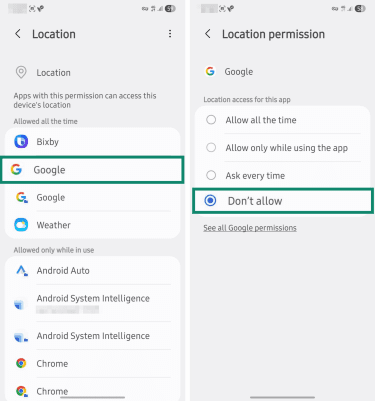
For example, location can stay enabled for apps that need it, like Maps or Weather, while other apps are set to "Ask every time" or "Not allowed".
Once you've adjusted access for individual apps, you can turn location back on if you turned it off earlier.
iPhone and iPad
To turn off location for all apps and services:
- Go to Settings > Privacy & Security.
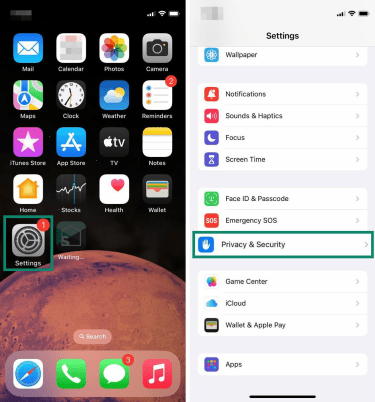
- Open Location Services, then choose Turn Off when you click the Location Services toggle at the top.
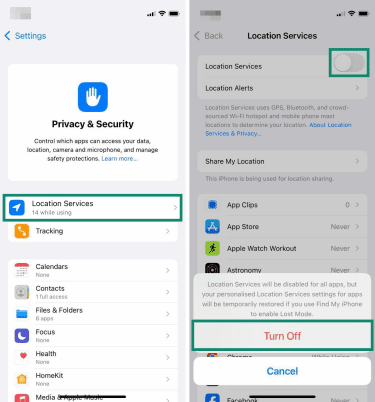
This stops apps from accessing your location, which affects features like Maps, Weather, and Find My. Some emergency features may still use location information during emergency calls.
To keep the location on but limit access for specific apps:
- Go to Settings > Privacy & Security > Location Services. Make sure the toggle is on.
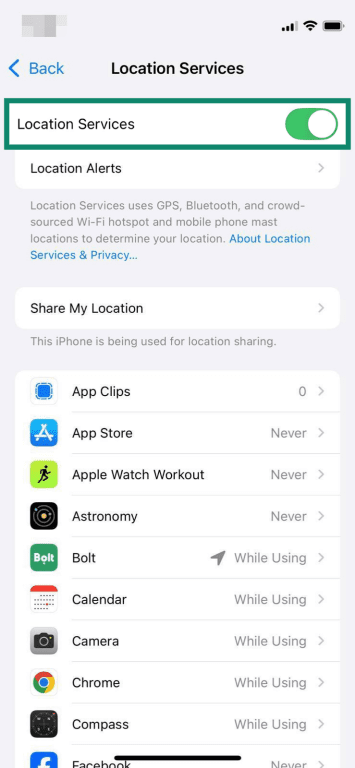
- Tap the app you want to adjust. Select the access level you prefer: Always, While Using the App, Ask Next Time Or When I Share, or Never.
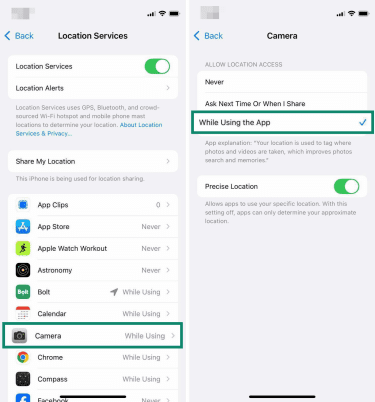
Some apps may not work properly without location access. For these, "Ask Next Time Or When I Share” is a good middle ground; it prompts you to allow access each time you open the app. “Always” lets the app access your location in the background. “While Using the App” limits access to when the app is open and may show a blue indicator in the status bar to let you know the app is actively using your location.
Mac
To turn off location for all apps and services:
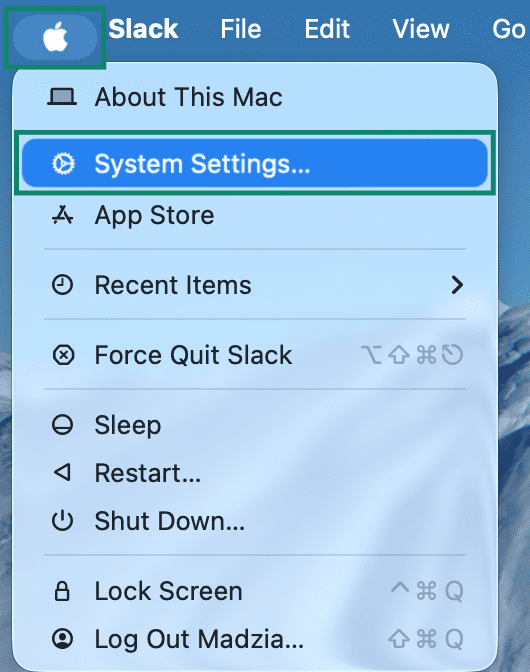
- Go to the Apple menu > System Settings (or System Preferences for macOS 12 or earlier).
- Go to Privacy & Security and open Location Services.
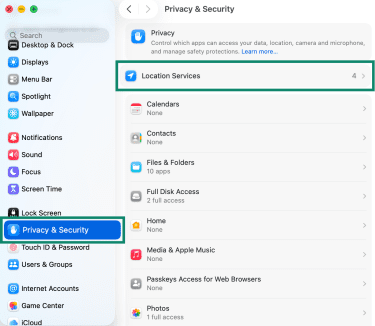
- Turn off Location Services and enter your password to confirm.
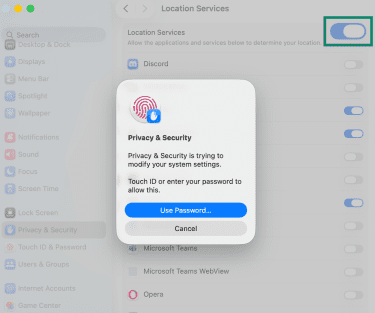
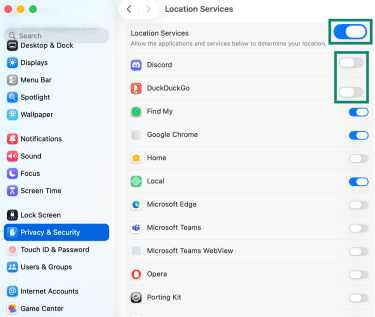
To keep the location on but limit access for specific apps:
- Keep Location Services on. Toggle off individual apps that shouldn't have access.
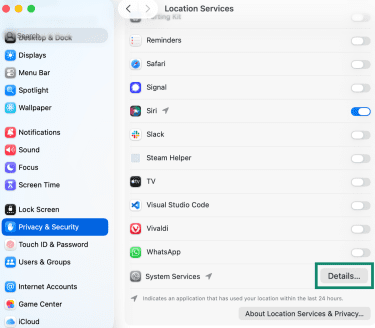
- You can also scroll down and click Details, next to System Services, to view and manage specific system-level features.
For example, you can keep Find My Mac enabled, but turn off Suggestions & Search if you don't want localized search results.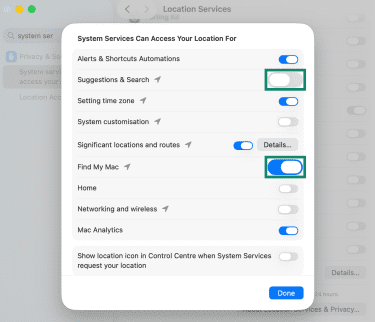
Windows
To turn off location for all apps and services:
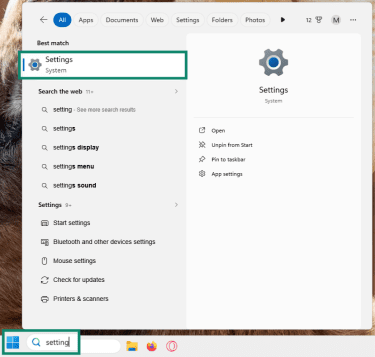
- Go to Start > Settings.
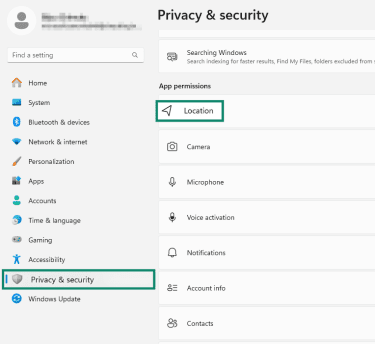
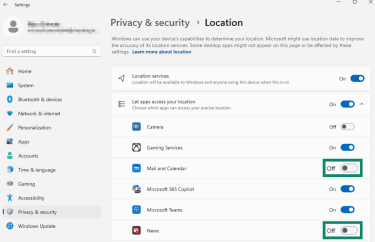
- Go to Privacy & security. Under App permissions, click on Location.
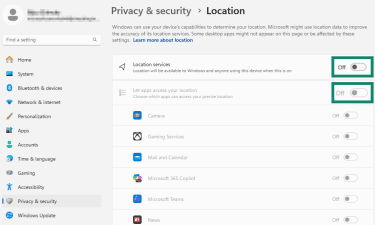
- Turn off Location services. This blocks location access for all apps and services, including Find My Device. Only an administrator account can change this setting. If you're on a standard (non-admin) account, turn off the toggle for Let apps access your location instead. This prevents Microsoft Store apps (such as Weather or News) from using your location.
To keep the location on but limit access for specific apps:
- Keep Location services and Let apps access your location turned on to see the full list of apps.
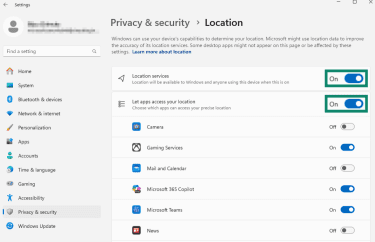
- Turn off only the apps you don’t want to share your location with.
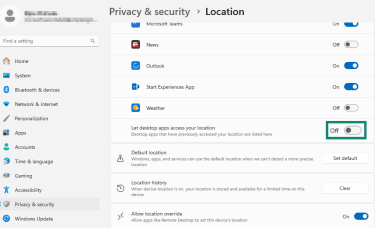
- To block desktop apps (like browsers and messaging apps) from using your location, turn off the Let desktop apps access your location toggle. Unlike Store apps, desktop apps can't be controlled individually; this toggle applies to all of them at once.
How to improve location accuracy
Location accuracy depends on signal strength, device settings, and app permissions. Improving it can help apps like maps, ride-sharing, and weather services work more reliably. Here are a few adjustments that can help.
1. Turn on precise location
Even with location enabled, some apps only receive approximate or limited access. To use features that rely on real-time positioning, enable precise location where available.
On Android
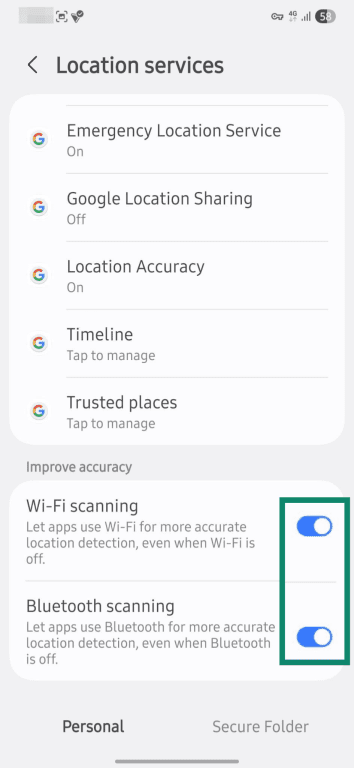
- Go to Settings > Location > Location services.
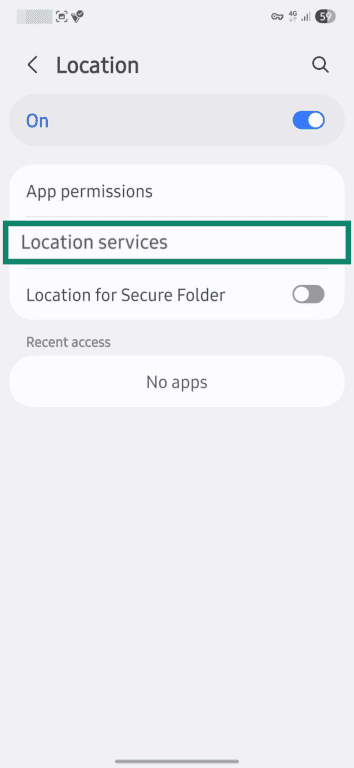
- Make sure Location Accuracy is on. If it isn't, tap it and enable Improve Location Accuracy.
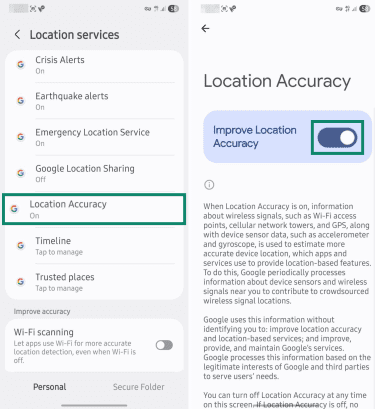
- Return to Location services, scroll down, and enable Wi-Fi scanning and Bluetooth scanning if available.
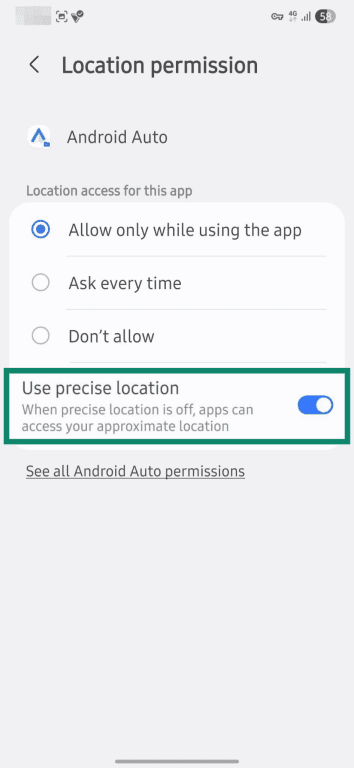
- Some apps also have individual precision settings. Go to Location > App location permissions, open a supported app (like Maps or Weather), and enable Use precise location if the option appears.
On iPhone and iPad
On iOS devices, you can enable precise location for services and individual apps.
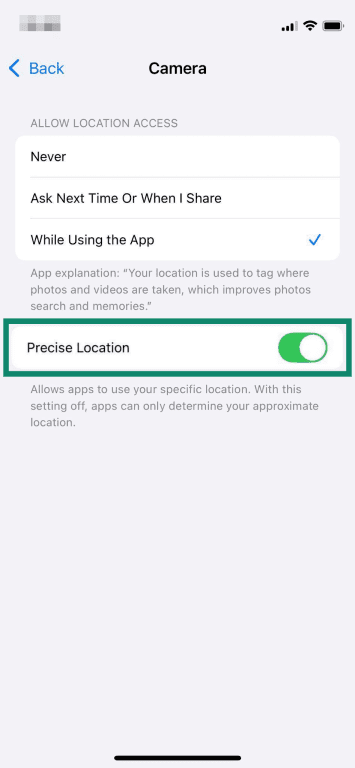
- Go to Settings > Privacy & Security > Location Services.
- Tap the app you want to adjust and make sure the Precise Location toggle is on.
- Return to Location Services, scroll to the bottom, and tap System Services.
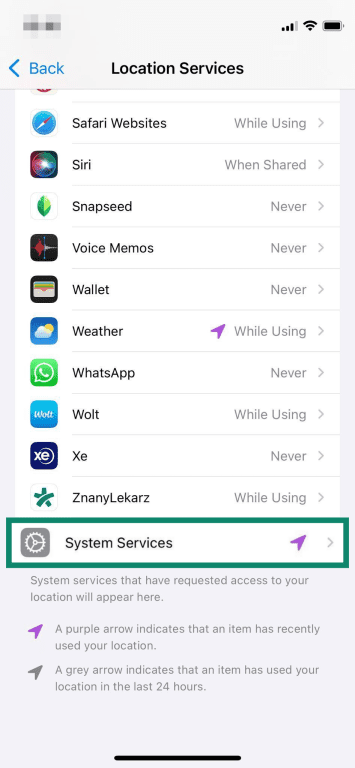
- Enable the following features to support location accuracy:
- Compass Calibration: Improves direction accuracy for navigation.
- Motion Calibration & Distance: Helps track movement between signal updates.
- Networking & Wireless: Allows your device to use nearby Wi-Fi networks and Bluetooth signals to refine its position.
You can also enable Significant Locations, which lets your device learn places you visit frequently to support location-based automation and personalized suggestions.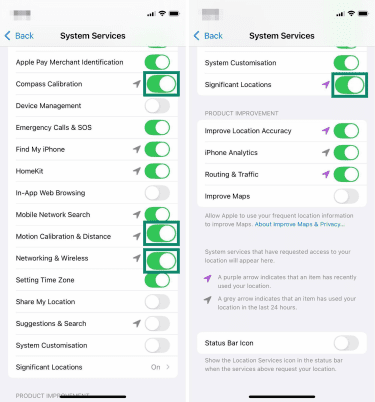
You may also see an option called Improve Location Accuracy. This sends anonymized Wi-Fi and cell tower data to Apple to help maintain its crowdsourced positioning database. Turning it off doesn't reduce your own location accuracy; it only opts you out of contributing data.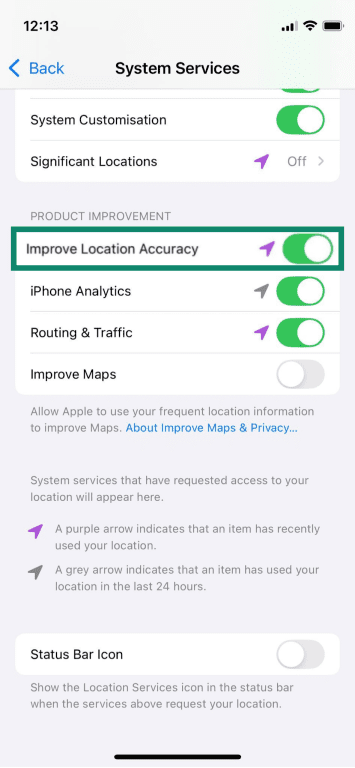
On Mac
Macs support per-app location controls, but don't offer the same per-app Precise Location toggle used on iPhone and iPad. To improve system-level accuracy:
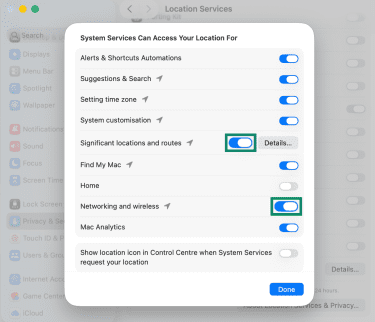
- Go to System Settings > Privacy & Security > Location Services. Scroll to the bottom and click Details.
- Make sure Significant locations and routes and Networking and wireless are enabled.
On Windows
Windows determines location using a combination of sources that can include GPS, nearby Wi-Fi access points and routers, cell towers, IP address, or a default location. On devices without GPS, this may provide only an approximate location.
One useful option is to set a default location under Settings > Privacy & security > Location. This won't make location detection more precise, but it gives Windows, apps, and services a fallback when a more exact location cannot be detected.
Because Microsoft has deprecated the Maps app, older instructions that rely on it may no longer work as intended on current systems.
2. Enable Wi-Fi and Bluetooth
If Wi-Fi scanning, Bluetooth scanning, or similar background features are enabled, your device can detect nearby signals even when Wi-Fi and Bluetooth are turned off. This can help improve location-based features and make location estimates more reliable, especially in areas where GPS is weaker.
Turning on Wi-Fi or Bluetooth can also help some devices and apps refine location more quickly, particularly indoors, while moving, or in dense city areas where satellite signals are less consistent.
You can toggle Wi-Fi and Bluetooth under your device's Network settings or Connection settings, depending on your operating system.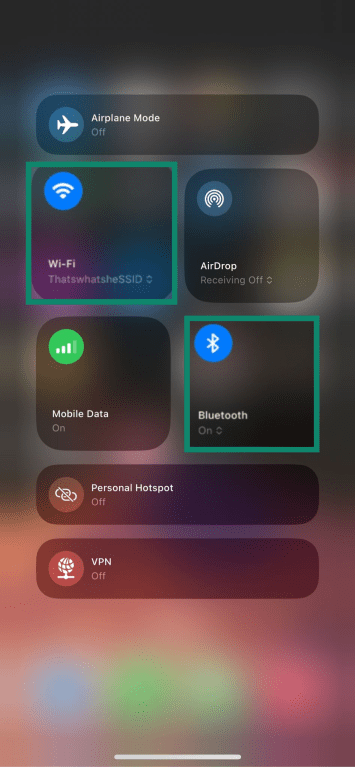
3. Check or update your device settings
Even with the right location services enabled, other factors can still affect accuracy. Two common culprits are power saving mode and outdated software.
Turn off power saving during navigation
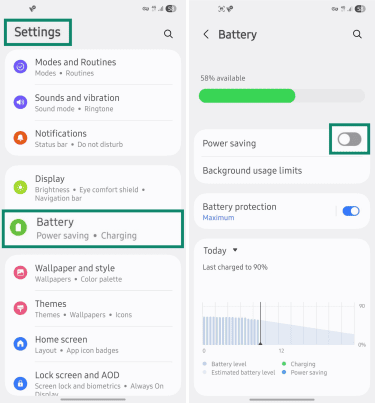
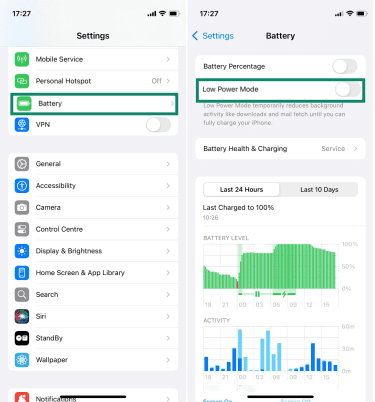
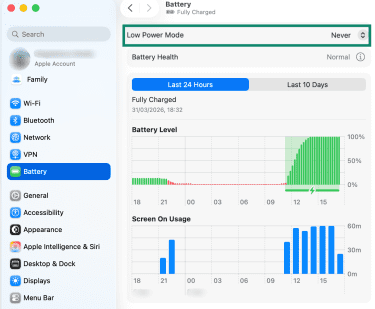
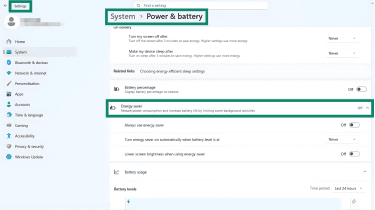
Power-saving mode reduces background activity to extend battery life. Depending on the device and platform, this can limit how often location updates occur or how actively apps use location in the background, making real-time tracking less responsive.
To disable it:
- Android: Go to Settings > Battery and turn off Battery Saver or Power saving if it’s on.
- iPhone and iPad: Open Settings > Battery and turn off Low Power Mode.
- Mac: Go to System Settings > Battery and set Low Power Mode to Never.
- On Windows: Go to Settings > System > Power & battery, then turn off Energy saver if it's enabled.
Keep your software up to date
Location services depend on a mix of device software, app permissions, satellite signals, and location reference systems such as Wi-Fi hotspots and cell-tower databases maintained by platform providers. Keeping your operating system and apps up to date can improve reliability, fix bugs, and patch security issues
Software updates do not usually replace the need for a strong signal, but they can improve how efficiently the device handles location data and related services. To stay current, check your device settings and confirm that automatic updates for system and apps are enabled.
Should location services be on or off?
Location services have both benefits and trade-offs, so there's no one-size-fits-all answer. Whether to keep them on or off depends on how you use your device and how comfortable you are with data sharing.
| Keep location services on if you: | Turn location services off if you: |
|
|
How location affects privacy
Location makes apps more useful, but also requires more data sharing. With permissions enabled, devices combine multiple signals to estimate location. Operating system providers like Apple and Microsoft say they may collect some location-related data, including nearby Wi-Fi hotspots or cell-tower information, to improve location services and related supporting systems.
They may also make this data available to third-party apps and services when you grant permission. Once shared, the data falls under the third party's privacy policies and controls. In practice, third parties may use location data for their own service, analytics, or advertising purposes, depending on their policies.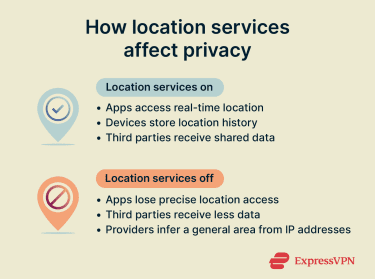
Providers apply safeguards to reduce direct identification. Apple, for example, associates location data with random identifiers that rotate regularly and aren’t tied to a user's account. Microsoft de-identifies some location information before it leaves the device, and Google uses encryption to protect data in transit and anonymizes some retained data.
These protections reduce direct identification, but don't eliminate all risks. Saved locations or repeated routes can still reveal patterns over time. Cloud storage and syncing across devices can also increase exposure if location-related data is shared across multiple apps or services.
Turning off location limits what apps can collect, but doesn't stop all forms of location inference. Operating systems can still use your IP address to estimate a general area for features like regional content or weather. Emergency location exceptions may also apply during emergency calls, depending on the platform.
Also read: What is geotargeting? How location tracking impacts privacy and security.
How location services impact battery use
Location services do not always have a major effect on battery life on their own. In practice, battery impact depends more on how apps use location, especially how often they request updates, how accurate those updates need to be, and whether they run in the background.
If location does seem to drain your battery faster than expected, the cause is often a specific app's behavior rather than the setting itself.
Battery use increases when apps request high accuracy, frequent updates, and low latency. Navigation and fitness tracking apps, for example, tend to use more battery because they rely on continuous GPS updates to calculate distance and adjust routes in real time.
Signal conditions can also matter. In areas where GPS, Wi-Fi, or mobile signals are weak or inconsistent, location updates may be less efficient or reliable, which can increase power consumption during active tracking.
How to protect your location privacy
Beyond what we already discussed, you have several other options:
Disabling ad tracking on iOS
Go to Settings > Privacy & Security > Tracking, and turn off Allow Apps to Request to Track.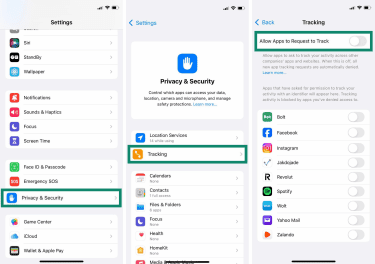
Resetting your advertising ID on Android
- Delete your advertising ID in your Settings, under Security and Privacy > More privacy settings > Ads.
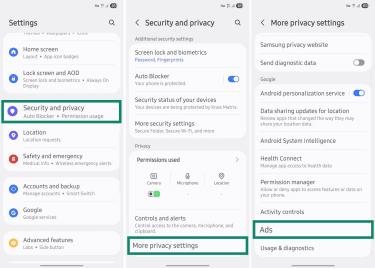
- Select Delete Advertising ID.
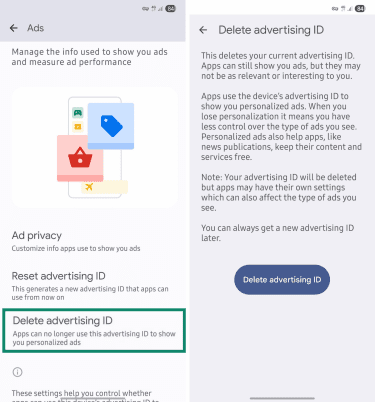
These steps can reduce how easily apps link activity across apps and websites for targeted advertising, though they don't block all forms of ad-related profiling.
Managing location history
Some services store your past location data to support personalized recommendations, even after you change your location settings. Turning off Google location history on Android or clearing iPhone location history can reduce the amount of retained location history, but what is stored and where it's stored depend on the platform and service.
Using Airplane Mode
Airplane Mode turns off wireless connections, such as cellular and, typically, Wi-Fi and Bluetooth, unless they're turned back on manually. This can reduce location sharing that depends on network connectivity, but it's not a complete replacement for reviewing Location Services and app permissions.
Installing a VPN
Apps, websites, and service providers can estimate your general location based on your IP address, even when location services are off. A virtual private network (VPN) can mask the public IP address seen by sites and services by routing traffic through a remote server. VPNs also encrypt internet traffic, which can add security, especially on public Wi-Fi. However, a VPN doesn't stop all other forms of location detection.
Read more: See the best Android privacy settings to boost mobile security.
FAQ: Common questions about location services
Can location services work without GPS?
Does turning off location services improve privacy?
Can apps track me after I disable location services?
Do location services need Wi-Fi to work?
Are location services safe to use?
Why are location services not working?