

VPN for school Wi-Fi: Stay connected and protected
Keep your activity private, stable, and secure, even on monitored Wi-Fi connections
- Protects your online browsing with strong encryption and IP masking
- Gives steady performance with 40Gbps servers and Lightway protocol
- Works on Windows/Mac, iOS, Android, Chromebook, and more
30-day money-back guarantee for first-time users

Why use a VPN at school?
Get less snooping and more breathing room on restricted school Wi-Fi
-
![Common restrictions on school Wi-Fi networks School Wi-Fi often blocks social apps, streaming, games, or even the tools you need for class. Encrypt...]()
Common restrictions on school Wi-Fi networks
School Wi-Fi often blocks social apps, streaming, games, or even the tools you need for class. Encrypting your traffic with a quality VPN can help with improving your privacy and reducing broad filters. Ultimately, strict firewalls and school rules will decide what goes through.
-
![Student privacy and security on shared networks If your network is tightly monitored, a VPN for school Wi-Fi can help you keep more of your browsin...]()
Student privacy and security on shared networks
If your network is tightly monitored, a VPN for school Wi-Fi can help you keep more of your browsing to yourself. Encryption keeps your traffic content private from the network. The school sees you’re using a VPN, but they won’t know which sites you visit.
-
![Device compatibility on school systems Many school computers and Chromebooks are locked down and block new apps, but your own laptop or phone doesn...]()
Device compatibility on school systems
Many school computers and Chromebooks are locked down and block new apps, but your own laptop or phone doesn’t have those restrictions. A VPN service that works across major platforms gives you much more control over your online privacy, even on school Wi‑Fi.


How to set up a VPN for school use in 3 steps
Download the best VPN for school Wi-Fi, get set up in minutes, and browse more freely
-
![Download Laptop 4]()
Step 1
Download the VPN app for your device
Download ExpressVPN for Windows, Mac, iOS, Linux, Android, or Chromebook.
-
![Sign In Xv Sky]()
Step 2
Follow the setup instructions
Sign in, follow the simple guided setup, and get started in minutes.
-
![Get A Private Ip Address@2x 13]()
Step 3
Connect to the VPN before using school Wi-Fi
Start ExpressVPN to protect your connection when you use school Wi-Fi.



Installing a VPN on a school computer
Getting a VPN on a school computer can be a challenge; here’s why
-
![Advanced Protection@2x 24]()
Admin restrictions and workarounds
Installing a VPN on a school computer can be against campus rules and restrictions. Admin controls, managed profiles, and filtered permissions may stop anything outside strictly-approved apps from running. Instead, you can install ExpressVPN on your own devices (like your Mac) where you can get protection without hitting those roadblocks.
-
![Usb Installer@2x]()
Using a USB installer or personal account
If they are allowed, you have a possible access path through USB installers (with, for example, the Android APK)—but that access may be turned off without notice. If you’ve got Linux on your own computer, you get far more flexibility. ExpressVPN supports that platform natively, giving you an easier option than fighting school hardware.

Installing a VPN on a school Chromebook
ExpressVPN gives you many setup options, even on managed Chromebooks
-
![Phone Laptop Vpn@2x]()
Using the Android app method
If the school lets you use the Play Store, you can get an easy-to-use VPN app for Chromebook protection at school. Installing the ExpressVPN Android app directly gives you encrypted traffic, a private DNS, and a secure tunnel for your online activity.
This method works on most newer Chromebooks (Android 5 and above), and you don’t need to tinker with advanced setup options.
-
![Protect Browser And Beyond@2x 7]()
Via browser extensions
Even if your Chromebook is completely locked down, you could still get full VPN protection if your device lets you install browser extensions.
ExpressVPN’s powerful extensions for Chrome, Firefox, and Edge work equally well to guard your browsing activity against privacy invasion. They also come with additional features like WebRTC blocking.

Connecting to VPN on school Wi-Fi networks
Stay protected and connected, even on filtered school networks
Dealing with firewalls and connection drops
Some school networks will block VPN traffic using filters, whitelisted domains, or DPIs. If the network allows VPNs, ExpressVPN supports multiple connection protocols like OpenVPN and Lightway (our fastest VPN protocol), along with obfuscated servers that make VPN traffic harder to identify.
On unstable Wi‑Fi, Internet Kill Switch keeps your data from leaving the encrypted tunnel if the connection cuts out mid-session, while Lightway helps you reconnect quickly.

Testing connection before classes start
Double-checking that the VPN is on before class begins is a good way to avoid dealing with stressful last-minute situations. Make sure the app shows “Connected,” confirm your IP has changed using our IP checker, and try opening a few sites to test for blocks.
Also, keep in mind that some school networks might allow the initial VPN connection but still restrict access after.
What to look for in a school VPN
The best VPN for school is fast, flexible, and honest about its capabilities
-
![Works on restricted networks Some school networks can detect and block VPNs outright. ExpressVPN’s widespread server network uses automatic obfus...]()
Works on restricted networks
Some school networks can detect and block VPNs outright. ExpressVPN’s widespread server network uses automatic obfuscation, which makes VPN traffic look like regular HTTPS traffic. This gives you broader access in a wider variety of network types.
-
![Easy setup across devices You only need to learn how to use ExpressVPN once, and you can use it across your devices thanks to its simple, consisten...]()
Easy setup across devices
You only need to learn how to use ExpressVPN once, and you can use it across your devices thanks to its simple, consistent interface. Just download the app on your smart TV, tablet, Mac/Windows computer, or Chromebook, and use it easily without learning extra steps.
-
![Reliable support and uptime You get a more stable VPN experience, even in imperfect conditions. We’ve built ExpressVPN’s network for consistent...]()
Reliable support and uptime
You get a more stable VPN experience, even in imperfect conditions. We’ve built ExpressVPN’s network for consistent service—with stable protocols and redundant infrastructure—to maintain reliable connections. If you ever have an issue, we offer human support 24/7.


How ExpressVPN helps students stay secure online
Protect your browsing on shared networks with vetted safety features
Encryption and secure tunneling
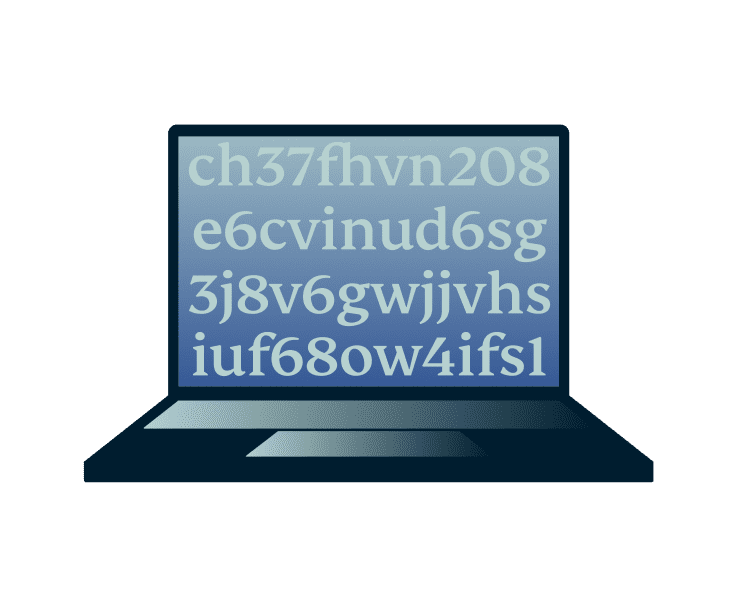
When you encrypt your traffic, school networks see that you’re connected, but not what websites you visit. ExpressVPN routes your connection through a secure tunnel with strong VPN encryption protecting your browsing activity from others on school Wi‑Fi.
Threat Manager works alongside encryption to block trackers and harmful sites before they reach your device.

Device flexibility (laptops, Chromebooks, phones)
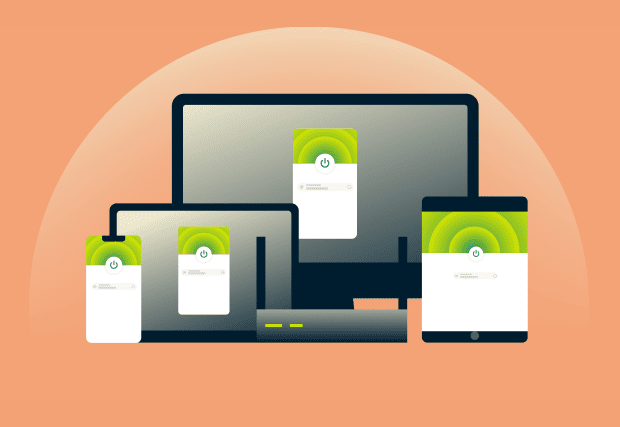
You’re not stuck choosing just one device. ExpressVPN works across smart TVs, tablets, phones, and Chromebooks. You can easily set up our VPN for Windows, Mac, or Linux on your laptop.
A single subscription covers from 10 to 14 devices, depending on your tier, so your whole collection of devices stay covered.
No-logs and TrustedServer technology
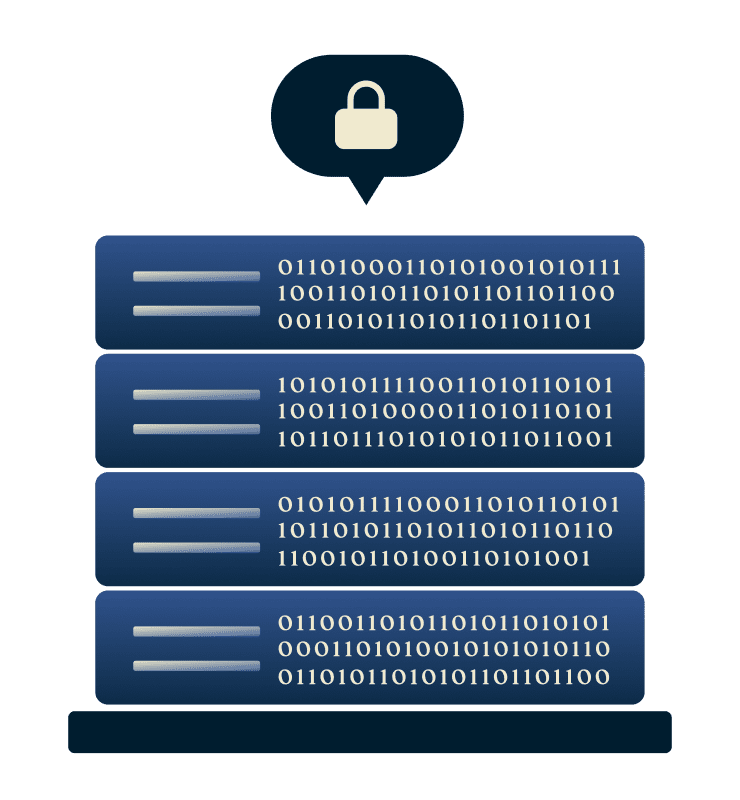
You don’t have to worry about ExpressVPN storing logs or keeping data between sessions.
Our TrustedServer technology runs on RAM-only servers, which means we wipe everything clean after each reboot and nothing persists on hard drives. ExpressVPN’s no-logs policy is confirmed by regular independent audits, which gives you extra peace of mind around school VPN use.

24/7 support for setup and help
You can get quick support from ExpressVPN if school devices or networks start to make things confusing.
Our expert support team is available 24/7 by live chat and email, in multiple languages. They can quickly guide students and parents through installing and troubleshooting the VPN on laptops, phones, Chromebooks, and more.
Is it legal and safe to use a VPN at school?
VPNs are legal in most places, but schools have the final say
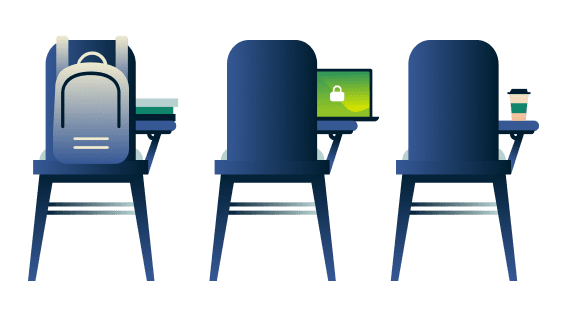
VPNs are legal in most countries, including the U.S., but schools can still choose to block them or ban their use entirely.
ExpressVPN helps protect your connection and privacy, but it doesn’t override school policies. If you use a VPN to get around blocks at school (like trying to access restricted content) or you try working around app install restrictions, you can still face disciplinary and legal consequences.
Always triple-check the acceptable use policy before using a VPN on school Wi‑Fi, and make sure you understand what’s allowed on your device and network before you install.
What people are saying about ExpressVPN
Thousands of students and users worldwide trust ExpressVPN. Here's what they're saying:
I have ExpressVPN on all my devices - phone, laptop, tablet, AppleTV, etc., and absolutely love it.


* A sample of reviews from our most satisfied customers
Got an account with @expressvpn yesterday. Great decision for traveling out of the country!
@D_Geiger

* A sample of reviews from our most satisfied customers
With its consistent performance and reliable security, ExpressVPN is the best VPN out there.

* We sometimes pay expert sites for customer referrals
Frequently asked questions
Get your questions about a school VPN answered here
What VPN is unblocked at school?
School networks can block any VPN at any time. ExpressVPN is built for stable connections, but even a VPN unblocked at school today might stop working if your school updates its firewall rules.
Will ExpressVPN work on my school Chromebook?
ExpressVPN works on many Chromebooks (Android 5 and over) through the Android app. But if your school blocks all apps and extensions, even the best VPN for a school Chromebook won’t work directly on the device.
Is it easy to install a VPN on school computers?
Installing ExpressVPN is quick on your own laptop. But most school computers block new apps and settings, so a VPN for a school computer will only work if the system allows it. If it does, you can get going in minutes.
Does using a VPN affect Wi-Fi speed at school?
VPNs add encryption overhead, which can slightly reduce speeds. ExpressVPN's 40Gbps servers and Lightway protocol minimize this impact, keeping your connection as fast as possible for browsing, streaming, and downloads.
Can you use a VPN at school?
VPNs like ExpressVPN are legal in most countries, but school Wi‑Fi is a private network. Whether you can use a VPN at school depends on your school’s rules and acceptable use policies.
Can schools see if you're using a VPN?
Yes, schools can typically detect VPN traffic on their network, though they can't see which websites you visit or read your encrypted data. ExpressVPN protects your browsing activity from the network, but doesn't make you invisible or exempt from school policies.
What happens if the VPN connection drops?
If your connection drops, ExpressVPN's Lightway protocol reconnects quickly. The Internet Kill Switch feature blocks all internet traffic until the encrypted tunnel is restored, preventing data leaks during disconnections.
Try ExpressVPN risk-free for school use
Risk-free privacy enhancement on school Wi-Fi with fast speeds and strong encryption
Protect your school browsing with ExpressVPN
- Get added privacy and stability on school Wi-Fi
- Secure access on up to 14 devices with one subscription
- Order risk-free with a 30-day money-back guarantee*