What is DNS spoofing? Learn how it affects your security



Websites are hosted on servers identified by IP addresses, but you access them by typing domain names. Domain Name System (DNS) translates names like example.com into the numeric addresses your device uses to connect.
The system was designed for efficiency and scalability. Your device sends a lookup request and may accept the first response without verification. DNS spoofing exploits this behavior to redirect users to the wrong destination.
This guide covers how DNS spoofing works, where these attacks happen most often, and how to detect and prevent them.
What is DNS spoofing?
DNS spoofing is an attack where an attacker sends a forged DNS response containing a false IP address for a legitimate domain. If the device accepts that response, the connection is routed to a system controlled by someone else rather than the intended destination.
The redirect may happen without visible signs of tampering. If the attacker also presents a valid certificate for the domain, the address bar may still show the correct domain name, and the page may also be made to closely resemble the real site.
From there, the attacker can capture credentials, deliver malware, or observe data entered into forms.
DNS spoofing vs. DNS cache poisoning
DNS spoofing is the act of sending a forged DNS response. DNS cache poisoning happens when that false information is stored and reused. Once a poisoned entry is in place, every request for the affected domain can be redirected to the wrong destination until the cache expires or is cleared.
The terms are often used interchangeably, but they describe different stages of the same attack.
How DNS spoofing works
DNS spoofing occurs while a device is waiting for a DNS response for a requested domain. If an incorrect response is accepted at that point, the device records the wrong IP address and uses it to make the connection.
Where that response is accepted determines the extent of the impact:
- If the response is accepted only by the user’s device, the redirection may affect a single request or session.
- If it’s accepted by a DNS server or router that caches DNS records, the wrong IP address can be reused for subsequent lookups. In that case, multiple devices on the same network can be affected until the cached entry expires or is cleared.
Common DNS spoofing techniques
Attackers use several methods to inject forged DNS responses, depending on their position relative to the target and the network's security.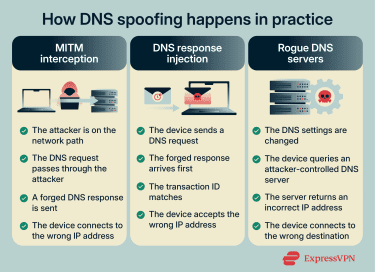
Man-in-the-middle (MITM) interception
In an MITM attack, the attacker positions themselves between the user's device and the DNS server it uses. DNS queries pass through that position, allowing false responses to be sent back to the device.
This is more likely on shared networks, such as public Wi-Fi. One common setup is an evil twin hotspot, where the attacker creates a Wi-Fi network with a name that closely resembles a legitimate one. Devices that connect to it send all traffic, including DNS requests, through the attacker’s equipment.
MITM interception can also happen on a legitimate network through Address Resolution Protocol (ARP) spoofing. ARP is the protocol used by devices to map IP addresses to physical hardware addresses on a local network.
In an ARP spoofing attack, a malicious device sends false ARP messages that associate the router’s IP address with the attacker’s hardware instead. As a result, network traffic is sent to the attacker first. This allows the attacker to observe DNS requests and potentially respond to them before the real router or DNS server does.
DNS response injection
DNS response injection relies on timing rather than interception. Instead of sitting between your device and the DNS server, a response reaches the device quickly enough to be treated as the answer to its request.
When your device sends a DNS query, it includes a transaction ID that links the response to that specific request. The device accepts the first response that arrives with a matching ID and moves on. Any later response to the same query is ignored.
This means the decision may be based on arrival order, not on the origin of the response. If the first response matches the expected parameters, the device has no built-in way to distinguish it from a legitimate reply.
Rogue DNS servers
Instead of interfering with individual queries in transit, some attacks change which DNS server a device uses for the device's DNS traffic.
This allows someone else to control how domain names are resolved on affected devices without having to inject or race individual DNS responses.
One way this occurs is through router compromise. If someone gains access to a router’s admin panel, they can change the DNS settings for every device on that network. This can happen when routers use weak credentials or outdated firmware. In many cases, users don’t notice anything has changed.
Malware can do the same on individual devices by modifying network settings in the background.
Another method is Dynamic Host Configuration Protocol (DHCP) spoofing. DHCP assigns network settings, including DNS servers, when a device connects. If an attacker impersonates the DHCP server, it can supply its own DNS settings to newly connected devices.
Once a device uses a rogue resolver, specific domain names can be redirected while the rest of the internet continues to work normally. This selective behavior can make the manipulation harder to notice.
Real-world outcomes of DNS spoofing
DNS spoofing is typically used to redirect traffic, but what happens after that redirection depends on the attacker’s goal.
- Credential theft: Users may be sent to convincing copies of login pages for banks, email providers, or social platforms. Credentials entered on the page can be captured, and the user may then be redirected to the real site.
- Malware delivery: Download pages or update prompts are redirected to serve malicious files. The software appears legitimate, but it installs malware that can provide ongoing access to the device.
- Traffic hijacking and ad injection: In some cases, attackers redirect users to ad-heavy pages or competing services. These pages often include multiple third-party redirects, aggressive tracking scripts, or unvetted advertising code. This can expose users to additional phishing attempts, malicious advertising, and unwanted data collection.
Related: Domain hijacking vs DNS cache poisoning
Signs you might be dealing with DNS spoofing
DNS spoofing can occur without obvious signs, but certain anomalies can indicate something is wrong.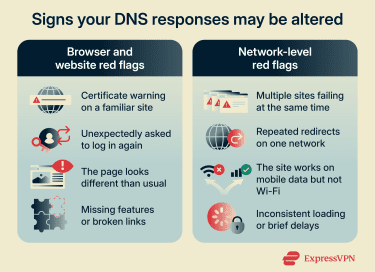
Browser and website red flags
Certificate warnings
Your browser checks that a site's Secure Sockets Layer (SSL) / Transport Layer Security (TLS) certificate matches the domain in the address bar.
With DNS spoofing, the address bar still shows the domain you typed, but your traffic is routed to the attacker's server. In most cases, an attacker cannot obtain a valid certificate for a domain they do not control, so the browser will display a warning.
Unexpected login prompts
If you're asked to log in to a service you're already authenticated with, or a site requests credentials in an unusual context, treat it with suspicion. Spoofed sites may display login pages immediately to capture credentials before the user notices signs of tampering.
Visual inconsistencies
If a user is redirected to a website controlled by someone else, the page they land on may not perfectly replicate the real site. Logos may appear slightly off, fonts may differ, links may be broken, or features may be missing. A well-crafted fake can be hard to spot, but if a familiar site suddenly looks or behaves differently, it's worth pausing before entering any information.
Network-level red flags
Multiple sites failing or redirecting
A single site experiencing problems is usually a server issue, but if several websites fail to load, redirect incorrectly, or display certificate errors simultaneously, this could indicate a DNS issue.
Different behavior on different networks
If a site works normally on mobile data but fails or redirects on Wi-Fi, the issue may be tied to the network you’re using. This kind of inconsistency is a red flag that something on the network path isn’t behaving as expected.
Sluggish or inconsistent connections
DNS manipulation can sometimes result in inconsistent behavior, such as intermittent load failures or brief delays. On its own, this isn’t meaningful. But when it appears alongside certificate warnings or network-specific issues, it can support the case that something is interfering with DNS resolution.
How to detect DNS spoofing
The warning signs covered earlier can suggest something is wrong, but they don't confirm DNS spoofing on their own. These checks help verify whether DNS responses are actually being manipulated.
Compare DNS results using a second resolver
Your device typically uses the DNS server assigned by your network. You can bypass that by querying a trusted public DNS server directly and comparing the results.
On Windows, open Command Prompt and run nslookup example.com. This shows the IP address your current DNS server returns for that domain. Then run nslookup example.com 1.1.1.1.
The second command sends the same query to Cloudflare’s DNS instead of your default resolver. Compare the IP addresses in both outputs.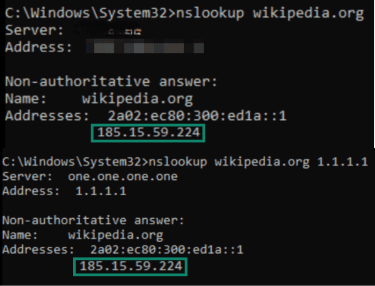
On macOS or Linux, open Terminal and run dig example.com.
Then run dig @1.1.1.1 example.com.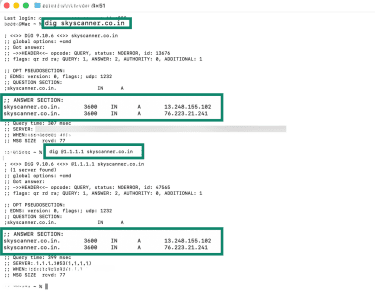
If both return the same IP address, it suggests your configured DNS server hasn’t been altered. If they differ, something may be changing responses along the network path.
Keep in mind that large websites often use content delivery networks (CDNs), which route users to different servers based on location or traffic conditions. Because of that, different IP results aren't automatically suspicious.
This method is most effective for detecting poisoned caches or rogue DNS settings. It won't catch an MITM attacker who intercepts and forges responses to both resolvers.
Check which DNS servers your device is using
DNS spoofing can also involve changing which servers the device queries in the first place. Malware or a compromised network can alter these settings without the user's knowledge.
- On Windows, open Command Prompt and run ipconfig /all.
- Scroll to your active network connection and look for the line labeled DNS Servers.
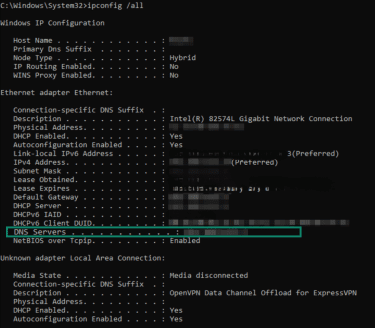
- Scroll to your active network connection and look for the line labeled DNS Servers.
- On Linux, open Terminal and run resolvectl status.
- Look for the lines labeled Current DNS Servers or DNS Servers.
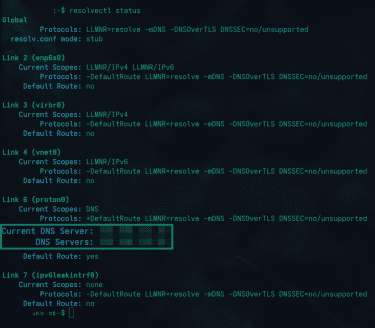
- Look for the lines labeled Current DNS Servers or DNS Servers.
- On macOS, open System Settings > Network, select your active connection, click Details, and check the DNS tab.
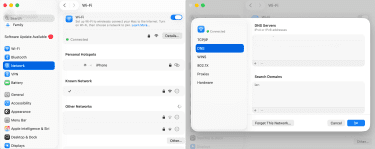
The DNS servers listed should be either your router's IP address (commonly 192.168.0.1, 192.168.31.1, or 192.168.1.1), your internet service provider's (ISP's) DNS addresses, or a public resolver you intentionally configured, such as 1.1.1.1 or 8.8.8.8.
If you see unfamiliar addresses, your DNS settings may have been changed.
Related: How to find your DNS server on different devices
Test the same domain on a different network
This step helps isolate whether the issue is local to a specific network or to the device’s own DNS configuration.
Load the same website using a completely different connection, such as mobile data instead of Wi-Fi. If the site resolves normally on one network but fails, redirects, or produces certificate warnings on another, that suggests the problem lies in the DNS path used by the affected network.
This doesn’t tell you how DNS is being manipulated, but it confirms where the problem is happening. If switching networks immediately resolves the issue, DNS spoofing at the network layer becomes a possibility rather than a suspicion.
Verify DNS settings on your router
If multiple devices on the same network are affected, check the router itself.
Log in to your router's admin panel, usually by entering its IP address in a browser (often 192.168.0.1, 192.168.31.1, or 192.168.1.1). Look for DNS settings, typically under WAN, Internet, or Network settings.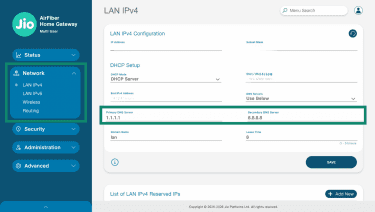
Compare the DNS servers listed against your ISP's documented addresses or any servers you intentionally configured.
If the router points to unfamiliar addresses, every device on that network inherits those settings. This is one way DNS spoofing scales beyond a single device.
What to do if you suspect DNS spoofing
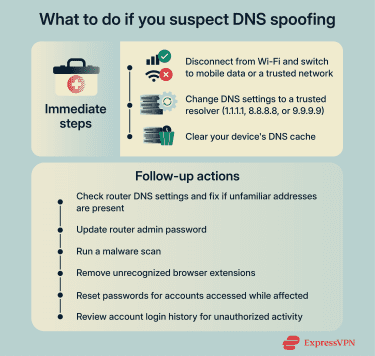
Immediate steps to stop the threat
- Disconnect from the current network: If you're on public Wi-Fi or a network you don't control, switch to mobile data or a different trusted connection. This removes you from that network and prevents further DNS responses from it.
- Change your DNS settings to a trusted resolver: If you haven't already done so during detection, configure your device to use a known public DNS provider like Cloudflare (1.1.1.1), Google (8.8.8.8), or Quad9 (9.9.9.9).
- Clear your DNS cache: Your device stores recent DNS lookups locally, so poisoned entries can persist even after you change networks or DNS settings.
-
- Windows: Open Command Prompt and run ipconfig /flushdns.
- macOS: Open Terminal and run sudo dscacheutil -flushcache; sudo killall -HUP mDNSResponder.
- Linux: Run sudo systemd-resolve --flush-caches or restart the network service.
Related: How to clear DNS cache: Step-by-step guide
Follow-up security actions
- Fix compromised router settings: If you found unfamiliar DNS addresses on your router during detection, change them to your ISP's default settings or to a trusted public resolver. Update your router's admin password as well.
- Scan for malware: Some malware modifies DNS settings or installs local proxies to redirect traffic. Run a scan with reputable security software. Also, check your browser for extensions you don't recognize and remove any that look suspicious.
- Reset passwords for accounts you accessed while affected: If you entered credentials on a spoofed site, those credentials may be compromised. Prioritize email, banking, and any accounts that share the same password.
- Check for unauthorized account activity: Review recent login history for services you accessed during the suspected spoofing. Look for logins from unfamiliar locations, password reset requests you didn't initiate, or changes to account settings.
How to prevent DNS spoofing
The techniques covered earlier exploit weaknesses in how DNS queries are sent and received. These measures address those weaknesses at different points.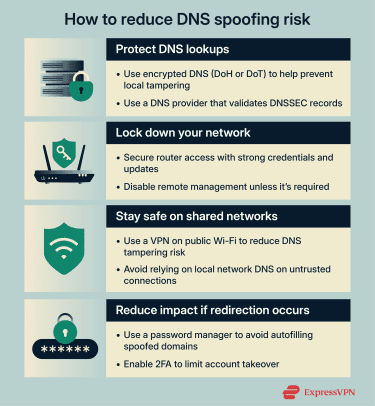
Use encrypted DNS
Traditional DNS queries are sent in plain text, which can make them observable on the same network and more vulnerable to interception under certain conditions. Encrypted DNS protocols address this by protecting queries in transit.
DNS over HTTPS (DoH) sends DNS queries through the same encrypted channel used for secure web traffic. DNS over TLS (DoT) uses a dedicated encrypted connection for DNS. Both make it more difficult for anyone on your local network to see or tamper with your queries.
Some browsers enable encrypted DNS by default, but only if your existing DNS provider supports it. Others don't enable it at all.
If you've configured a trusted DNS resolver, check whether your browser or operating system is set to use encrypted DNS with that provider. The setting is typically found under privacy or security options, labeled Secure DNS, DNS over HTTPS, or Private DNS.
Encrypted DNS protects the path between your device and the resolver. It doesn't protect against a compromised resolver itself, so using a reputable provider is important.
Choose a resolver that validates DNSSEC
DNS Security Extensions (DNSSEC) adds cryptographic signatures to DNS records. When a domain is signed, and a resolver validates those signatures, it can detect if a response has been tampered with.
If an attacker tries to inject a forged response for a domain that uses DNSSEC, a resolver that checks these signatures will detect the mismatch and reject it.
DNSSEC doesn't encrypt your queries, so it won't hide what sites you're visiting. It only verifies that responses are authentic.
For this protection to work, two conditions must be met:
- The domain must have DNSSEC enabled.
- The DNS resolver must validate signatures.
Users can’t enable DNSSEC for a domain themselves, but they can choose a resolver that performs validation. Public resolvers such as Cloudflare and Google validate DNSSEC by default.
Secure your router
Routers manage DNS settings for all devices on the network. If an attacker compromises it, they can redirect DNS queries for all connected devices at once.
- Change default admin credentials: Many routers ship with factory usernames and passwords that are easy to find online. Attackers can use these to access the router's settings. Choose a strong, unique password for the admin panel.
- Keep firmware up to date: Router manufacturers release updates that patch security vulnerabilities. Check your admin panel for update options, or enable automatic updates if available. Outdated firmware can contain flaws that allow unauthorized access.
- Disable remote management: Some routers allow access to the admin panel from outside your home network. Unless you specifically need this, turn it off. It reduces the ways an attacker can reach your router.
Related: How to tell if someone hacked your router
Use a VPN on untrusted networks
A virtual private network (VPN) encrypts internet traffic between your device and the VPN server, including DNS queries if the VPN handles DNS resolution. This helps prevent attackers on the same network from observing or forging your DNS lookups.
On public Wi-Fi, where attackers may have more opportunity to intercept traffic, a properly configured VPN can route DNS queries through its encrypted tunnel rather than relying on the local resolver. This reduces the ability of others on that network to observe or tamper with DNS lookups.
That said, if your device is configured to use a rogue DNS server outside the VPN tunnel, or if the VPN provider's infrastructure were compromised, the protection doesn't apply. But for common threats on shared networks, a VPN can reduce exposure.
Limit damage if redirection happens
No protection is absolute. Measures that reduce the impact of a successful attack provide an additional layer of security.
- Use a password manager: It autofills credentials based on the actual domain, not the page's appearance. If you're redirected to a spoofed site, your password manager won't recognize the domain and won't offer to fill your credentials, which is a red flag.
- Enable two-factor authentication (2FA): If an attacker captures your password through a spoofed login page, they can't access your account without the second factor. App-based authenticators or hardware security keys provide stronger protection than SMS codes.
FAQ: Common questions about DNS spoofing
What is meant by DNS spoofing?
Is DNS spoofing the same as DNS cache poisoning?
What’s a simple real-world example of DNS spoofing?
How do I detect DNS spoofing on home Wi-Fi?
What tools can help confirm DNS spoofing?
You can also test the same domain on a different network or review the DNS servers assigned to your device or router to determine whether the issue is tied to a specific network or configuration.
Can DNSSEC prevent DNS spoofing?
Take the first step to protect yourself online. Try ExpressVPN risk-free.
Get ExpressVPN