Malicious Chrome extensions: How to identify and remove them


Chrome extensions can add useful features, but the same access that makes them powerful can also make them risky when abused.
This guide explains how malicious or compromised extensions misuse permissions, common warning signs, and widely recommended steps to remove suspicious add-ons and reduce future risk.
What are malicious Chrome extensions?
Malicious Chrome extensions are browser add-ons that contain harmful code or functionality. They may steal sensitive data (e.g., credentials or session cookies) or change browser behavior in ways users don't expect.
Some look legitimate and may advertise common benefits such as ad blocking, productivity features, or stronger security. Others start out legitimate, but become harmful later, often after a developer account is compromised and a malicious update is pushed.
An advisory from Carnegie Mellon University’s Information Security Office describes one such incident. In late December 2024, researchers identified more than 30 Chrome Web Store extensions deemed suspicious. 20 were modified to steal credentials and session cookies after attackers phished the developers’ Chrome Web Store credentials and published malicious updates through Google’s infrastructure.
The remaining extensions enabled web tracking via a legitimate third-party monetization library, described as dubious but compliant with Google’s policies. The credential-stealing extensions were later updated to known-good code or removed.
A separate 2025 investigation published by Koi Security reports a coordinated campaign (RedDirection) involving 18 malicious extensions across both Chrome and Microsoft Edge marketplaces, affecting 2.3 million users. It describes extensions that provided real functionality while also monitoring browsing activity and enabling browser hijacking behaviors, with malicious functionality introduced via later version updates.
After the report, the identified extensions were removed from the Chrome Web Store, and reporting indicates they were also taken down from the Edge add-ons marketplace, though users who had already installed them still needed to remove them locally.
Learn more: Check out the best Chrome extensions for secure and productive browsing.
How do malicious Chrome extensions work?
Browser extensions use a permissions model to access resources such as tabs, cookies, network requests, and webpage content. Malicious extensions exploit this model by requesting broad capabilities (sometimes across multiple sites) that can be used to monitor activity, modify content, or redirect traffic in certain ways.
Marketplace reviews and automated scanning reduce risk but are not foolproof. Some malicious extensions use techniques such as obfuscation or delayed behavior, and others change behavior after publication through updates or remotely fetched configuration or data.
Once installed, malicious extensions can operate in the background with few obvious signs and may communicate with external infrastructure to retrieve additional resources or coordinate unwanted activity.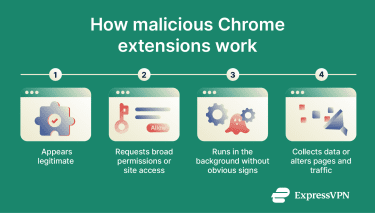
Permission abuse and data collection
Malicious extensions often request broader permissions or wider site access than their stated functionality requires.
With sufficient privileges, an extension can collect browsing signals (such as visited pages and search terms) and insert tracking mechanisms (including hidden or very small images used as tracking pixels). In more targeted scenarios, an extension can also alter page elements to capture credentials or transaction-related inputs by replacing or modifying form fields and on-page instructions
Browser hijacking and redirects
Extensions with access to request-control and page modification features can influence how pages load and how traffic is redirected. When misused, these capabilities can allow an extension to:
- Load or manipulate tabs and page navigation events.
- Redirect or modify network requests (including search-related traffic), typically via rules-based request controls.
- Modify page content in the browser (for example, injecting additional scripts or advertisements).
- Disable or uninstall other extensions if granted high-risk management capabilities and user-approved prompts allow it.
- Weaken page-level protections by altering security-related page behaviors.
These behaviors can blend into normal browsing flow while changing what is displayed or where traffic is sent, creating ongoing integrity and security risks, including deceptive on-page changes similar to man-in-the-browser (MITB) attacks.
Common types of malicious Chrome extensions
Malicious browser extensions can be grouped by their main tactic and goal:
- Fake or impersonating extensions: Extensions designed to look like legitimate tools (for example, productivity add-ons, security tools, or brand look-alikes) while performing hidden, malicious actions.
- Compromised extensions: Extensions that were originally benign but later distribute malicious behavior after being sold or otherwise handed over to malicious actors or after a developer account is compromised, then updated. This can be difficult to spot because the extension may have already built user trust and passed earlier reviews.
- Data-stealing extensions: Extensions that collect sensitive browsing-context information, such as page content and session-related data (which can include cookies or session tokens), and may capture credentials entered into pages.
- Adware and tracking extensions: Extensions that monetize by injecting or replacing ads, redirecting traffic, or modifying page content. These may also track browsing activity (for example, visited sites or searches) to support advertising or affiliate revenue.
Signs of a malicious Chrome extension
These signs can help identify potentially compromised Chrome extensions:
Unexpected ads and redirects
Extensions may inject ads, pop-ups, or banners into pages that didn’t previously display them. Clicking links or search results might also trigger redirects, opening websites other than those expected. A sudden increase in such redirects, pop-ups, and ads (particularly low-quality ones) might indicate a compromised browser.
When an extension is responsible, the behavior often repeats across multiple unrelated sites. Comparing the same pages in another browser profile or device session with extensions disabled can help confirm whether the issue persists only when extensions are active.
Browser performance issues
Performance issues alone don’t confirm malicious behavior; however, slower-loading pages or unresponsive tabs can coincide with extensions that inject additional page content or generate extra web requests. Frequent outbound requests, especially to unfamiliar domains, can be a warning sign.
Unusual permission requests
Sudden requests for additional permissions, especially after updates or when a feature is first used, could be a sign of a malicious or compromised extension. These requests might include access to cookies, browsing history, tabs, and other browser resources that were not initially required for the extension’s functionality.
Note that some fraudulent extensions request extensive permissions from the start, so the risk can appear either at installation or after later updates.
What to do if you suspect a malicious extension
Addressing suspected browser compromise typically involves removing the extension and reducing ongoing risk.
How to safely remove malicious Chrome extensions
Removal usually has two parts:
- Local removal: Uninstalling the extension from the current browser on the current device.
- Synced data removal (if needed): Clearing Chrome Sync data so the extension (or its settings) doesn’t reappear on other devices signed into the same account.
Local removal
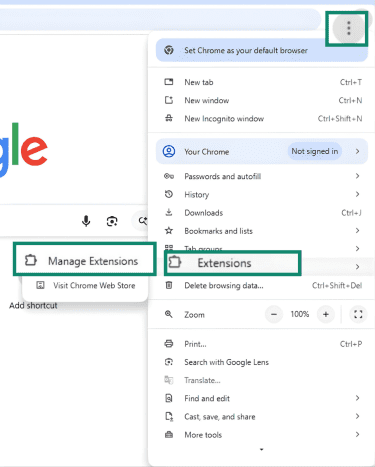
- Open Chrome. Click the three-dot menu (top-right) and select Extensions > Manage Extensions.
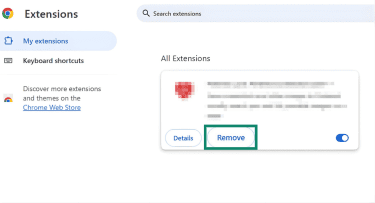
- Find the suspected extension, click Remove, and confirm.
Synced data removal
This step applies if Chrome Sync is enabled (multiple devices share the same Chrome data).
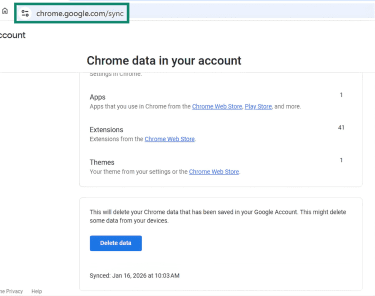
- In Chrome, open chrome.google.com/sync.
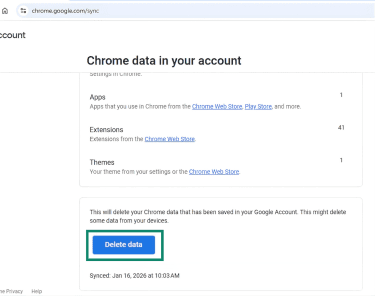
- Click the Delete data button and confirm.
- Re-open Chrome on other devices signed into the same account and verify the extension is not present.
Read more: Why removing your data from Google is only half the battle.
Steps to secure your browser after removal
Reviewing the browser setup and controls helps address lingering settings changes and reduces the impact of any prior data access.
Safety Check
- Open Chrome, select the three-dot menu, and go to Settings > Privacy and security.
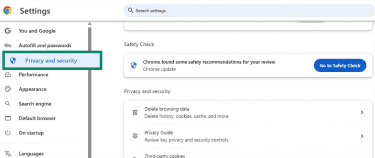
- Under Safety Check, click Go to Safety Check. Review any alerts and follow Chrome’s prompts.
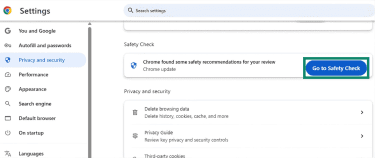
This step is useful for quickly catching obvious problems, but it should not be treated as proof that the browser is fully clean.
Restoring default settings
- Open Settings > Reset Settings.
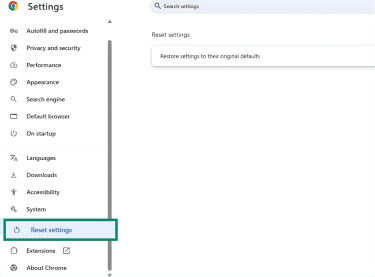
- Click Reset settings (or Restore settings to their original defaults) and confirm.
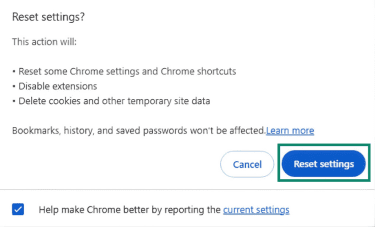
In general, a reset is meant to undo configuration-level changes (for example, startup behavior and search settings). It typically doesn’t remove browsing data such as history, cookies, or cached files.
Checking remaining extensions
Even if one extension was removed, other installed extensions can still have broad site access or unnecessary privileges. A quick review reduces risk.
- Open Extensions > Manage Extensions.
- For each remaining extension, open Details.
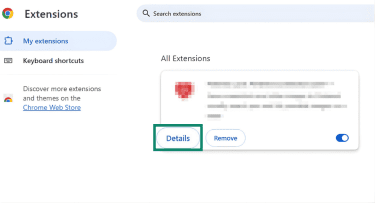
- Check Permissions and Site access (especially On all sites), remove extensions that are unused, unfamiliar, or requesting access that doesn’t match stated functionality, and limit site access to On specific sites (when possible) instead of broad access.
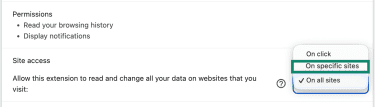
Enhancing default security controls
- Go to Settings > Privacy and security > Security.
First, scroll down to find the Security menu in this tab.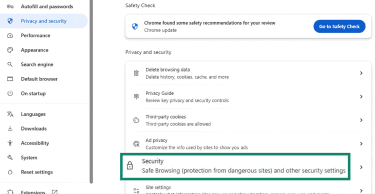
- Enable Always use secure connections.
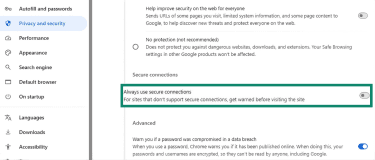
- Under the Privacy and security menu, click Site settings.
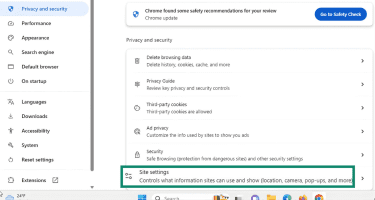
- Click Pop-ups and redirects.
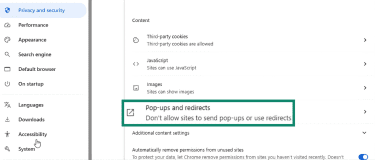
- Set to Don’t allow sites to send pop-ups or use redirects.
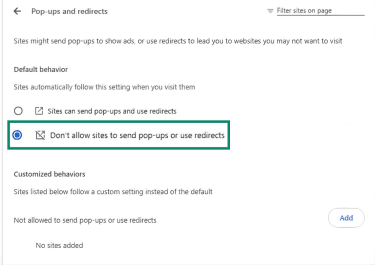
These controls don’t remove malware, but they can reduce the impact of unwanted behavior and make suspicious changes easier to notice.
Reviewing accounts security
This step is primarily a precaution in case credentials or sessions were exposed before the extension was removed.
- Review sign-in history for important accounts (email, banking, work tools).
- Change passwords for accounts most likely exposed.
- Enable multi-factor authentication (MFA) where available.
- Review saved passwords/autofill entries for anything unexpected.
How Google Chrome and the Web Store handle extension security
Google Chrome and the Chrome Web Store use a multi-layered approach that includes a review process and enforcement actions to reduce the prevalence of abusive extensions. Extensions published on the Chrome Web Store go through this review process, and items can be rejected or taken down if they violate policies.
According to Chrome Web Store Program Policies, extensions must:
- Request the narrowest permissions needed for implemented features.
- Provide a privacy policy and required disclosures, and obtain affirmative consent when required, particularly when collecting/using personal or sensitive data beyond what is closely related to stated functionality.
- Use and share data only as disclosed and handle user data securely (including transmitting it via modern cryptography when personal or sensitive data is involved).
- Avoid misleading listings or behavior; functionality must be accurately described and not include non-obvious, unrelated capabilities.
- Make any device-setting changes only with user knowledge/consent and ensure they are easily reversible.
Additionally, Chrome’s extension architecture relies on sandboxing and API/permission constraints to limit direct access beyond the browser environment; access to system-level resources typically requires explicit mechanisms (for example, native messaging).
How Google reviews Chrome extensions
Chrome Web Store items go through a review process that combines automated systems and, in some cases, additional manual review to assess compliance with developer program policies and help reduce risk.
Automated systems scan extensions’ code, examining declared permissions and scripts for security policy violations and known malicious patterns. An extension gets flagged for additional manual review when it requests extensive or sensitive privileges (for example, excessive data scraping, modifying web requests, reading the browser history, or accessing cookies across websites).
During a manual checkup, reviewers check whether an extension’s behavior and requested permissions align with the app’s declared functionality and policy requirements.
To address behavior changes or compromised extensions over time, Google also periodically reviews published items and takes enforcement actions when violations are found.
Why malicious extensions still get through
There are several ways malicious extensions evade detection or appear benign at review time. Some are built to look like legitimate utilities while hiding harmful logic. Others delay execution or rely on remotely fetched configuration or data that may change after evaluation, which can create a gap between what is seen during review and what runs later.
Another path is the compromise of a previously legitimate extension (for example, through account takeover or ownership transfer followed by a malicious update), which can turn a trusted listing into a threat.
Common misconceptions about Chrome Web Store safety
A common misconception is that a listing in the Chrome Web Store guarantees long-term safety. At most, passing review indicates that the extension didn’t trigger policy or safety findings at the time of submission and evaluation, but behavior can change later through updates or remotely loaded data/configuration.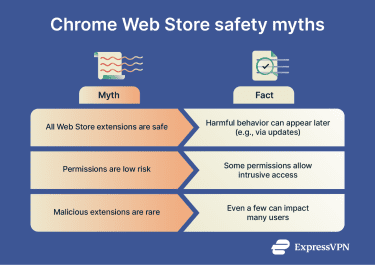
A second misconception is that broad permissions are benign defaults. Google’s study, Trends and Lessons from Three Years Fighting Malicious Extensions, highlights that many sensitive capabilities are mediated by coarse permissions, and that broad scopes (such as access across many sites) can materially increase risk if abused.
Finally, low escape rates can still have a significant impact. Researchers identified 9,523 malicious extensions, which were about 9–10% of submissions during the study period. Despite the system’s strong detection performance, fewer than 100 extensions evaded immediate detection and still reached 50+ million Chrome users before removal, with the highest-impact set distributed via binary payloads.
The installs were also highly skewed: 64 extensions (about 1% of the malware) accounted for roughly 73% of all installations, showing that a small number of high-reach extensions can drive most of the harm.
How to protect yourself from malicious Chrome extensions
Chrome extension risk is reduced by keeping your installed extensions small, monitoring permission changes over time, and treating updates as opportunities for behavior to change.
Limit installed extensions
A larger extension set increases exposure by expanding what can run in the browser and making problems harder to spot. Reducing unused or redundant extensions lowers risk and simplifies review.
When choosing extensions, prefer those with a clear purpose and a track record of maintenance, since extensions can change hands or change behavior over time.
Keep Chrome and extensions updated
Updates can reduce risk by patching weaknesses, but they also represent a common point where extension behavior changes. A practical approach is:
- Keep the browser current to benefit from platform security improvements.
- Allow updates for extensions, but re-check permissions and behavior after major updates or when new access is requested, especially for extensions that rely on remotely fetched configuration/data or show signs of shifting functionality.
Read more: Learn how to use Chrome extensions securely.
FAQ: Common questions about malicious Chrome extensions
Can Chrome extensions be malicious?
Yes, some Chrome extensions can be malicious, whether by design or following an attacker's compromise. The Chrome Web Store's review and enforcement processes are intended to identify and remove extensions that violate policies or pose risks, but some malicious extensions can still temporarily bypass detection or change behavior after publication.
How can I tell if a Chrome extension is safe?
Factors such as permission requests, developer information, user reviews, and the extension’s update history can help in gauging an extension’s safety before installation. After installation, Chrome’s built-in Safety Check feature may identify risky permissions or policy violations, flagging compromised extensions for removal.
How often should I review installed extensions?
While there’s no single universally recommended review frequency, regular audits can help protect against malicious Chrome extensions. Reviewing an extension upon installation or immediately when prompted to accept new permissions can highlight access to sensitive information and resources, as well as changes in an extension’s behavior following recent updates.
What should I do if I think an extension is malicious?
If an extension seems malicious, remove it immediately and then confirm it’s removed on other devices signed into the same account (and reset Chrome Sync data if the extension or its settings keep returning). After removal, run Chrome’s Safety Check and reset Chrome settings to undo potential changes to your search engine, homepage, and startup behavior (and review site permissions separately if anything looks off).
Take the first step to protect yourself online. Try ExpressVPN risk-free.
Get ExpressVPN