iPhone location history: How to view and clear it



Your iPhone keeps location data as you use it. That can include places you’ve searched for, routes you’ve taken, and locations attached to photos or device tracking. What isn’t always obvious is where that data is stored or how to find it.
This guide shows you where to check, how to delete stored location data, and how to adjust the settings that control future tracking.
Where iPhone location history comes from
Location data is stored across separate system features and apps, each recording different types of information.
The main sources include:
- Significant Locations & Routes: A system feature that records places you visit frequently and the routes you take to support personalized services like predictive route suggestions and better Memories in Photos. In older iOS versions, this feature is called Significant Locations.
- Apple Maps Recents: A list of places you've searched for or navigated to in the Maps app. It doesn’t track background location activity.
- Visited Places: An opt-in Apple Maps feature that logs places you've recently visited. It’s only available in select locations (including the US, UK, Canada, Australia, Malaysia, and Switzerland) on devices running iOS 26+.
- Google Maps Timeline (location history must be enabled): A Google account feature that records routes and visited places when Location History is enabled.
- Find My: Displays a device's current or last-known location. If the device is offline or powered off, Find My shows the last location sent by the device or its last known location on the Find My network. This remains visible for up to seven days.
- Photo metadata: When the Camera app has location access, each photo and video is tagged with GPS coordinates in its file metadata.
Is iPhone location history stored in iCloud?
Most location data stays on your device. Significant Locations & Routes and Visited Places are end-to-end encrypted and sync only across devices signed in to the same Apple Account. Apple states this data isn’t accessible to them because the encryption keys are tied to your device passcode.
There are limited exceptions. Find My Network can send a device's last known location to iCloud even when the device is offline. iCloud Photos syncs your photo library, which may include metadata such as location information.
Significant Locations vs. Google Timeline
Significant Locations records limited visit data and show only a small portion of it.
Google Maps Timeline presents more of that data in a visible, date-based format. Timeline data is saved on each signed-in device, with optional encrypted backups. Desktop access through google.com/maps/timeline has been removed, so the data is now only viewable through the Google Maps app.
Does the iPhone keep a location timeline?
Not by default. Significant Locations records patterns based on places you visit frequently, rather than keeping a continuous GPS log. Visited Places in Apple Maps is more detailed, logging recent visits, but it’s only available on iOS 26+ and isn't available in all regions. Google Maps Timeline provides a calendar-style history if Location History is turned on.
How to check your iPhone location history
You can check your iPhone location history and related data in a few key apps and settings.
View Significant Locations in Settings
To view your Significant Locations & Routes data:
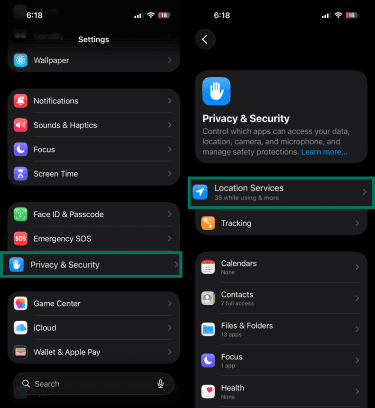
- Open Settings.
- Tap Privacy & Security then Location Services.
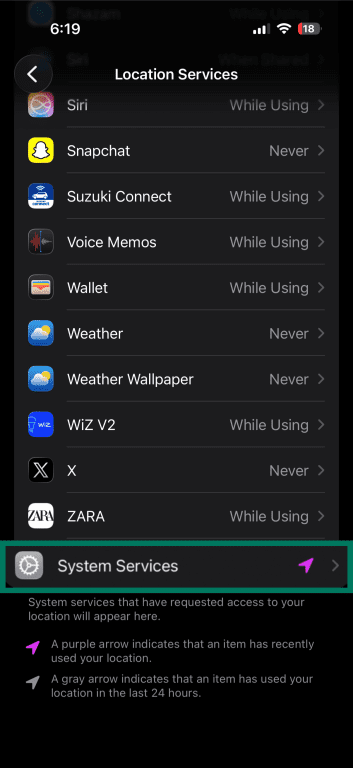
- Scroll down and tap System Services.
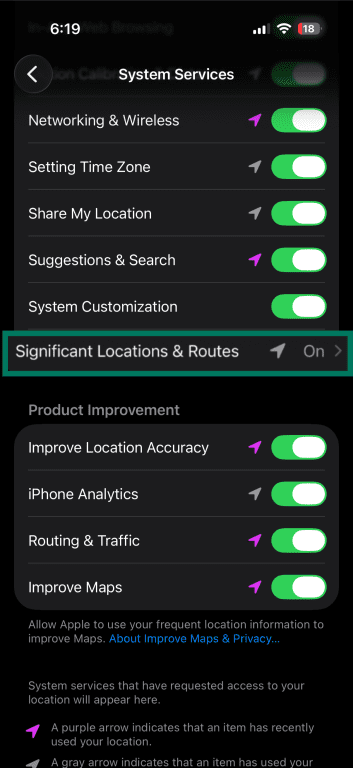
- Tap Significant Locations & Routes.
- Authenticate with Face ID, Touch ID, or your passcode.
- You’ll see a summary with the total number of recorded locations and a short list of recent visits.
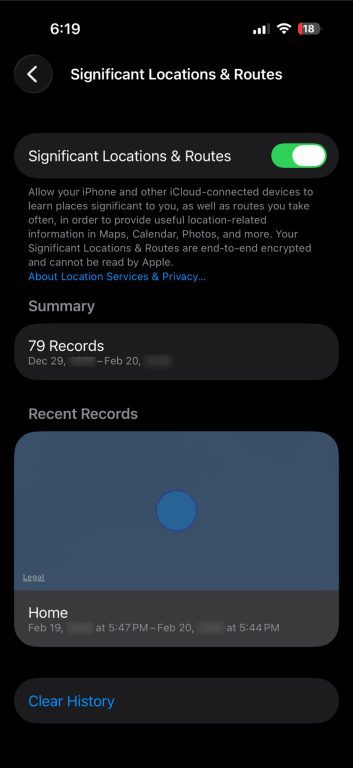
Each entry shows a place name and date range. Tap an entry to open it on the map. On newer iOS versions, only a few recent entries are visible even if the total number is much higher.
Check Apple Maps recent places
To view recent searches and directions in Apple Maps:
- Open Apple Maps and swipe up on the card at the bottom of the screen.
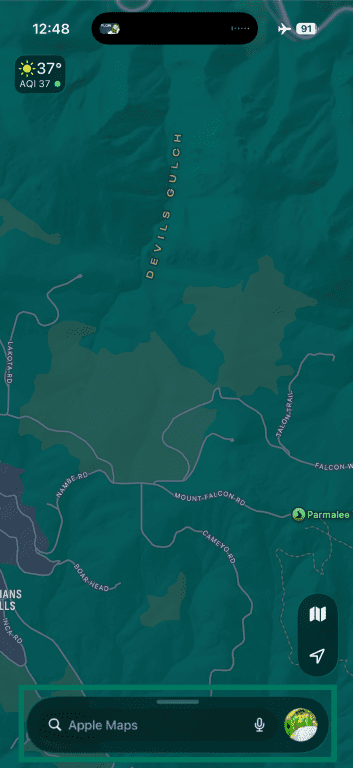
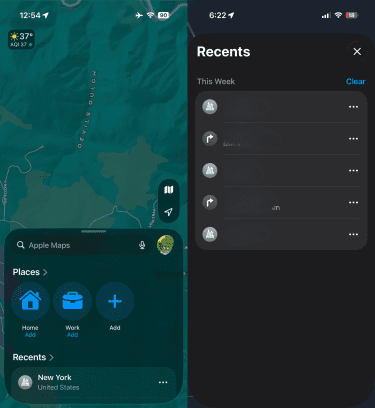
- Under Recents, tap the Recents header or the chevron (>) to expand the full list. Tapping on any result opens it on the map.
Check Google Maps Timeline on iPhone
- Open the Google Maps app and tap your profile icon in the top-right corner.
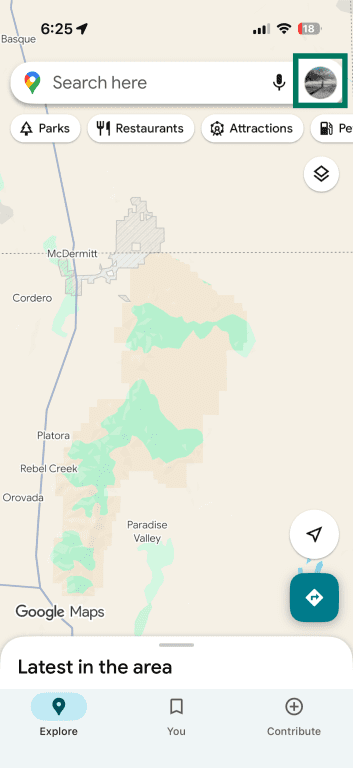
- Tap Your Timeline.
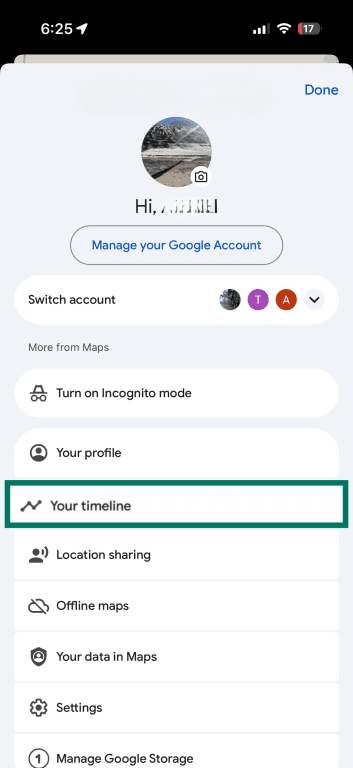
Each day shows visited places, routes between them, and timestamps for each stop. You can select any date to review that day's activity.
Check photo location (geotags)
To check where a specific photo was taken, open the Photos app, select an image, and swipe up or tap the info icon. If location data is present, you'll see a map and address below the image details.
To browse all geotagged photos on a map, go to the Photos app, tap Collections, and open the Map collection under Pinned.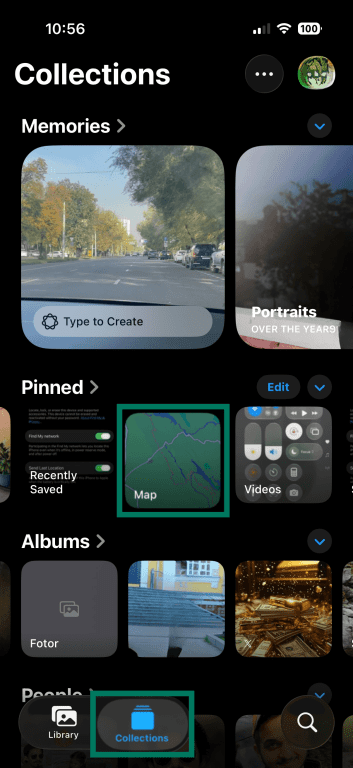
When sharing photos through the iOS share sheet, location data is included by default if present. You can disable it before sharing.
Find My iPhone: Last known location
Find My doesn't store a location history. It shows one position: where the device is now or where it was last detected. You can check it by opening the Find My app.
If you have Send Last Location enabled (in Settings, under your name, Find My, and then Find My iPhone), your iPhone automatically sends its location to Apple when the battery reaches a critically low level. This can help locate a device that has powered off.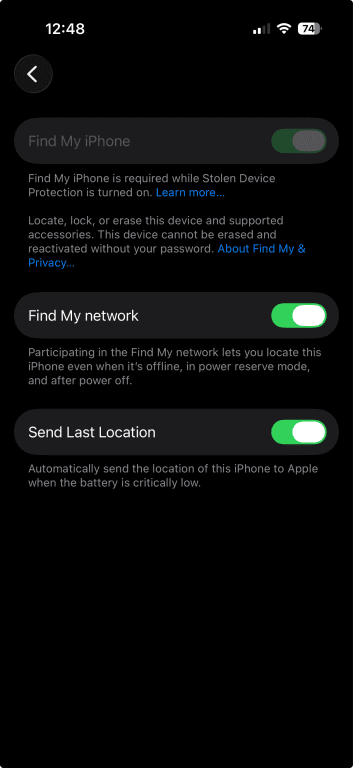
Related: How to turn off Find My iPhone
How to delete iPhone location history
Deleting location data is permanent for data stored on your device. Once cleared, it can’t be recovered.
Clear Significant Locations
- Open the Significant Locations & Routes screen.
- Authenticate with Face ID, Touch ID, or your passcode.
- Tap Clear History at the bottom of the screen.
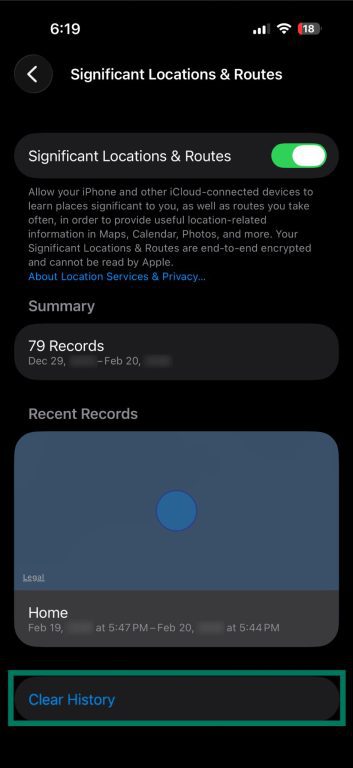
This removes all stored Significant Locations data across devices signed in to the same Apple Account that have syncing enabled.
Delete Apple Maps search and recents
- Open Apple Maps and swipe up on the search panel.
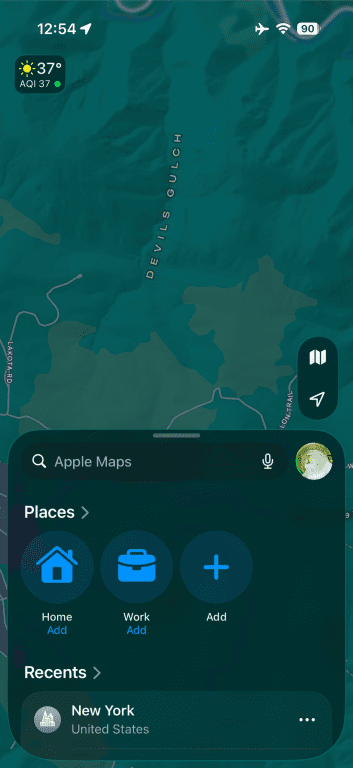
- Tap Recents to expand the full list, and swipe left on an item to delete it.

Clear Apple Maps Visited Places (iOS 26+)
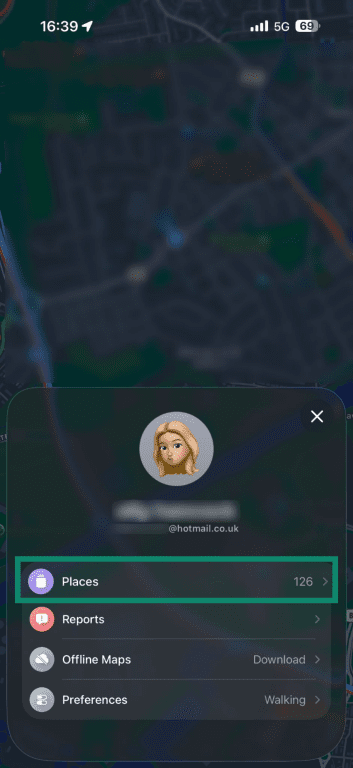
- In Apple Maps, tap your profile picture and go to Places.
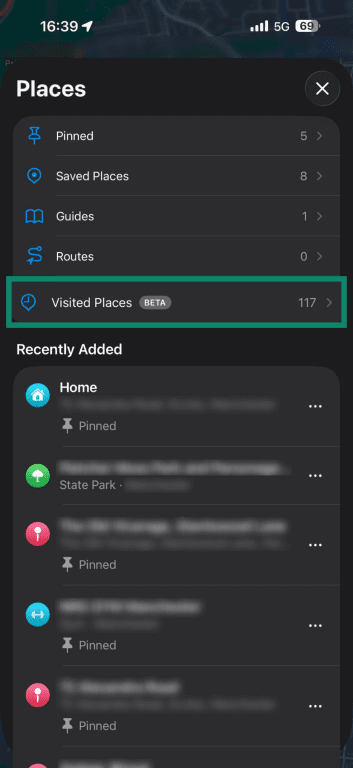
- Select Visited Places.
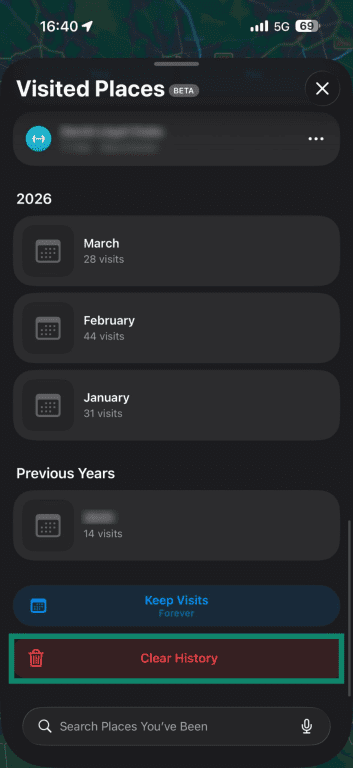
- Scroll down and tap Clear History.
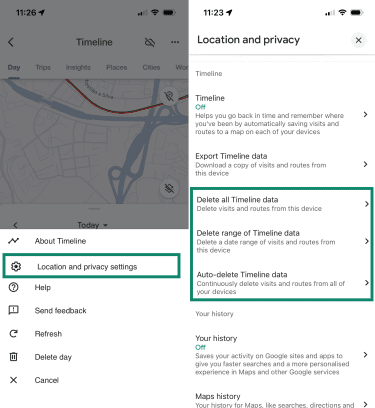
Delete Google Maps Timeline history
- Open Your Timeline in the Google Maps app.
- Tap the three-dot menu, then Location & privacy settings. From there, you can delete all Timeline data, remove specific days, or adjust auto-delete settings.
Remove location data from photos
You can remove GPS coordinates from individual photos without deleting the images themselves.
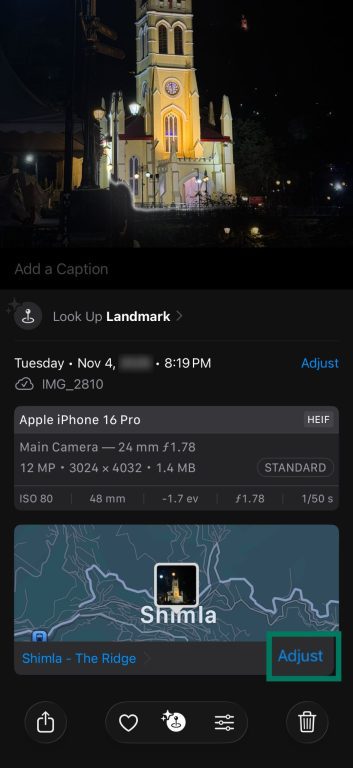
- Open the Photos app and select the photo.
- Swipe up or tap the info button (i) to view details.
- Tap Adjust next to the map.
- Tap No Location to remove the geotag.
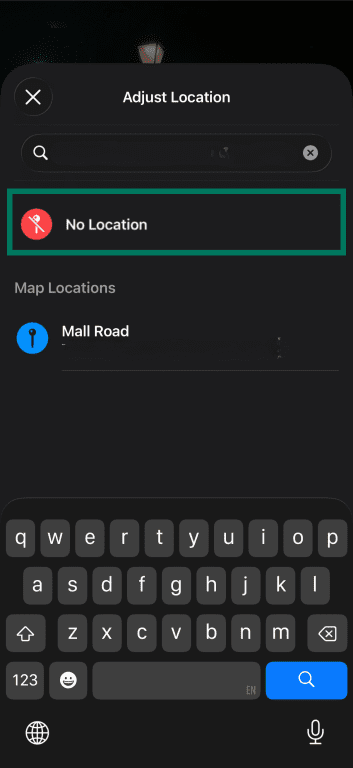
This removes the location from the photo as it appears in the Photos app and when shared.
How to stop location tracking on iPhone
You can limit or stop location tracking at three levels: system-wide, per app, or within specific services such as Significant Locations and Google Maps.
Turn off Location Services (system-wide)
- Open Settings.
- Tap Privacy & Security then Location Services.
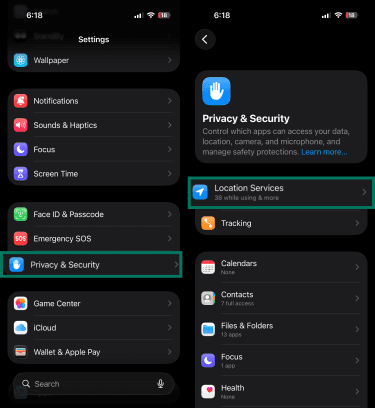
- Toggle off Location Services.
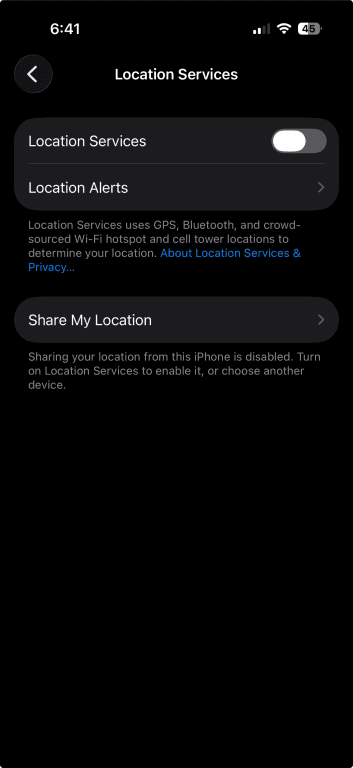
This blocks all apps and system features from accessing your location. Navigation, weather updates, Find My, and emergency location services will stop working, but emergency calls may still transmit your location depending on region and carrier support.
Change location access per app
Instead of disabling everything, you can adjust access for individual apps.
- In Settings, go to Location Services.
- Select an app from the list.
- Choose one of the available options:
- Never: The app can’t access your location.
- Ask Next Time or When I Share: The app prompts each time.
- While Using the App: Location is available only when the app is open.
- Always: The app can access location in the background.

For example, if you don’t want future photos to include location data, select Camera in Location Services and set its access to Never.
You can also turn off Precise Location to provide only an approximate area rather than exact coordinates.
Related: How to make your photos more private on social media
Stop Significant Locations from updating
If you want to prevent future recording of Significant Locations, turn off Significant Locations & Routes. This stops new entries from being created. Existing data remains unless you manually clear it.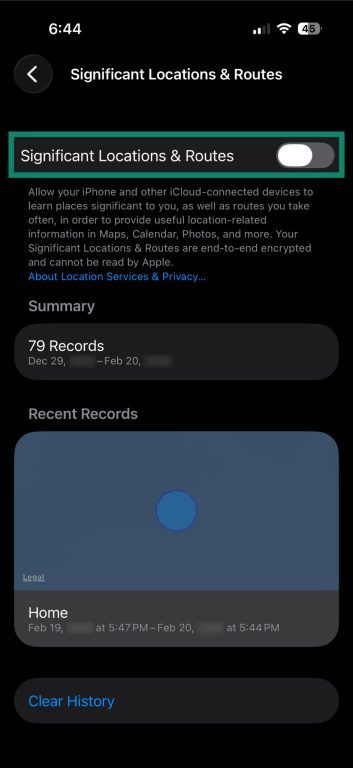
Disable Apple Maps Visited Places (iOS 26+)
- Open Settings and choose Apps.
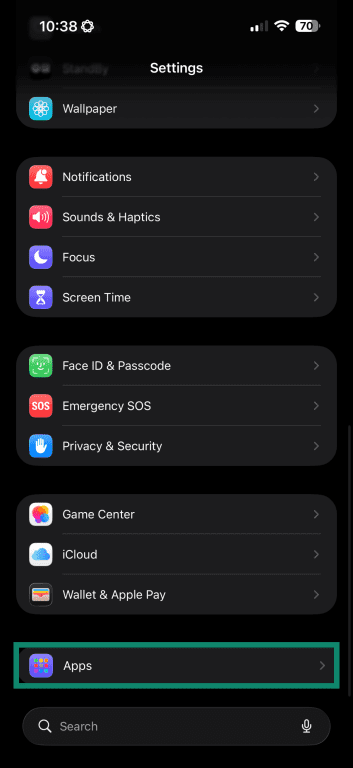
- Scroll down and tap Maps.
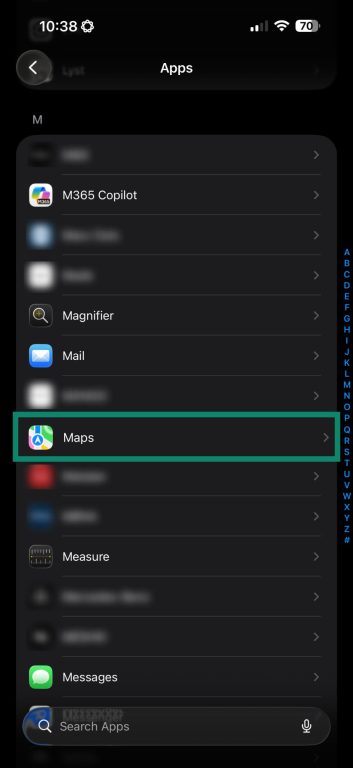
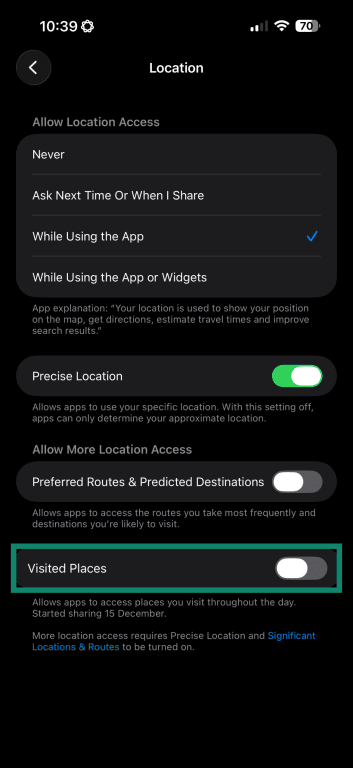
- Select Location.
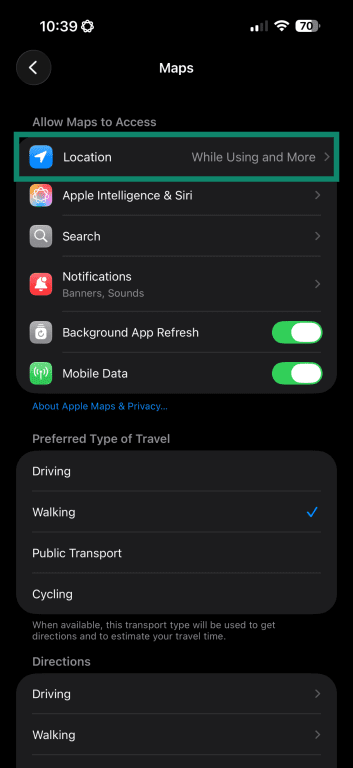
- Turn the toggle off for Visited Places.
Stop Google Maps from saving location history
Turning off Location Services for Google Maps prevents it from accessing your device location. To stop Timeline from recording new data:
- Open Your Timeline in Google Maps.
- Tap the three-dot menu.

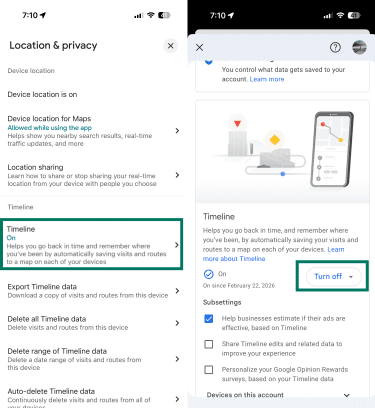
- Open Location & privacy settings.
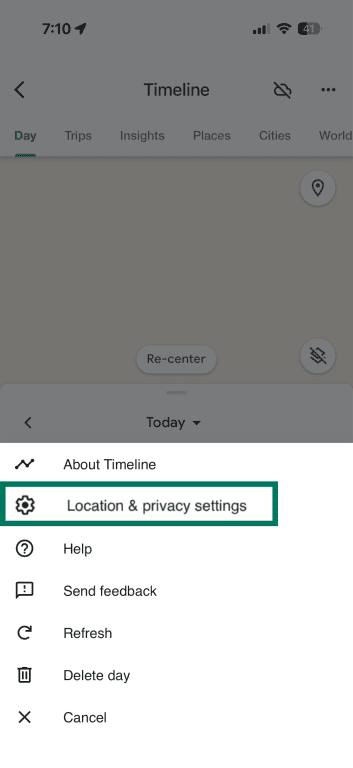
- Select Timeline and turn it off.
If you’re signed into a Google account, location data or location signals tied to searches and app usage may also be stored under Web & App Activity. You can review or disable this in your Google Account under Activity controls.
Managing location privacy and sharing
Privacy risks of location sharing
Apps with location access can collect data about where you go, how often, and for how long. If shared with third parties, location data may be used for advertising, analytics, or profiling.
Location data can also be misused in cases involving stalking or domestic abuse. Stalkerware is a type of spyware designed to monitor someone’s device without their knowledge, typically requiring access to the device to install. It can track location in real time and often runs without any visible indication.
If you suspect unwanted tracking, search for Safety Check in Settings (available on iOS 16 or later). It lets you audit and reset sharing permissions across apps and contacts in one place.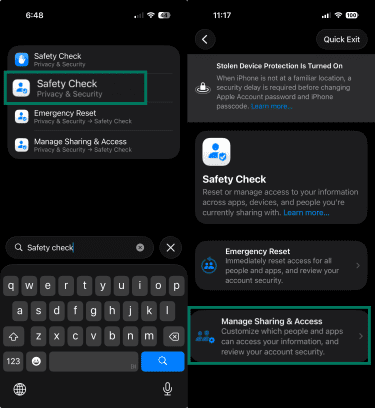
Is my location data shared with third parties?
Significant Locations & Routes and Visited Places remain on your device and aren’t accessible to Apple.
Apps you grant location access to can collect and send that data to their own servers, subject to their privacy policies. Apple’s App Tracking Transparency requires apps to request permission before tracking you across other companies’ apps and websites, but it doesn’t prevent an app from using location data within its own service. App Tracking Transparency specifically governs cross-app tracking for advertising, not general location collection within an app.
Location accuracy and what affects it
Your iPhone uses GPS, nearby Wi-Fi networks, Bluetooth signals, and cellular towers to estimate location. GPS is typically the most precise, but it works best outdoors with a clear view of the sky. Indoors or in dense urban areas, the device relies more heavily on Wi-Fi and Bluetooth to estimate your position. Accuracy may drop in those environments.
Make sure Wi-Fi is turned on, even if you're not connected to a network. The device uses nearby Wi-Fi access points as reference signals to refine its location estimate, so disabling Wi-Fi removes one of those inputs.
A virtual private network (VPN) doesn’t affect GPS or on-device positioning. It only changes your public IP address, which websites use for rough location estimates. As a result, websites that rely on IP-based geolocation may display the VPN server's location instead of your physical location.
Related: What is GPS spoofing?
Troubleshooting location history issues
If location history appears incomplete, a setting may be turned off, or data may not have transferred correctly.
Significant Locations not showing or greyed out
If the screen shows no data or the toggle is greyed out, check the following:
- Location Services must be turned on.
- System Services must be accessible within Location Services.
- Significant Locations & Routes must be toggled on.
- The device must be unlocked with Face ID, Touch ID, or a passcode to access the screen.
Google Timeline missing or empty
In 2024, Google began migrating Timeline data from its servers to on-device storage. Users who didn't back up their data before the migration may have lost older entries.
If your Timeline appears empty, confirm that Location History is turned on in the Google Maps app. Also, check that auto-delete isn't removing data faster than you expect. If you set up a new phone, your Timeline won't transfer automatically unless you enabled encrypted cloud backup beforehand. You can check for a backup by tapping the cloud icon at the top of the Timeline screen.
Why your iPhone location looks inaccurate
If your iPhone's location appears off, there are a few things to try. Move to an open outdoor area where the GPS has a clear view of the sky. Make sure Wi-Fi is turned on, even if you're not connected to a network. Your iPhone can use nearby Wi-Fi access points as reference signals to refine its location estimate. Restarting the device can also help if the location hasn't updated recently.
If a specific app is showing an approximate location instead of a precise one, check whether Precise Location is enabled for that app.
Related: How to change your location on iPhone
Quick location settings review for better privacy
- Significant Locations & Routes: Turn off under System Services.
- App location access: Default most apps to While Using the App.
- Precise Location: Disable for apps that don’t need exact coordinates.
- Google Maps Timeline: Turn off in Location & privacy settings.
- Photo geotags: Set Camera location access to Never, or strip location from photos before sharing.
FAQ: Common questions about iPhone location history
Does iPhone Maps have a timeline or location history?
Can I see all my location history on my phone?
Does Find My iPhone keep a history of locations?
How can I delete my location history on my iPhone?
Is my location data shared with third parties?
How accurate is the location history on my iPhone?
Take the first step to protect yourself online. Try ExpressVPN risk-free.
Get ExpressVPN