How to password-protect a ZIP file and keep it secure


Password-protecting a ZIP file is a common way to add basic security to compressed files. It can help protect sensitive content during storage or sharing, but the level of protection depends on the encryption method used, the password strength, and how the file and password are shared.
This guide explains how to password-protect a ZIP file on Windows, Mac, and Linux, along with practical ways to improve security and resolve common issues.
What are ZIP files, and are they secure?
A ZIP file is an archive format that stores one or more files or folders in a single file with a .zip extension. It often uses compression to reduce total file size, which can save storage space and make files easier to share.
How much space a ZIP file saves depends on the files being archived. Text, database, and script files usually compress well. Already compressed file types, such as audio, images, many Office documents, and PDFs, often shrink less.
Beyond saving space, ZIP files can help organize rarely used documents, combine multiple items into one attachment, and package files for cloud or backup storage.
Most OSs let users create ZIP archives without extra software, but built-in support for password protection and encryption varies. Third-party tools are often needed if a password-protected ZIP file is required on Windows, for example.
Why password-protect ZIP files?
Without password protection, anyone with access to a ZIP file can usually open its contents. Adding a password can help protect the archive by encrypting the files and restricting access to them.
Many modern tools that support encrypted ZIP files use the Advanced Encryption Standard (AES), including 256-bit AES. This is generally much stronger than the older Zip 2.0 or “traditional” ZIP encryption, which is widely considered weak. However, ZIP encryption is not identical across all tools, and some implementations may still expose filenames or other metadata.
This added protection can help reduce unauthorized access when sharing sensitive documents or storing them in the cloud or on shared devices. Still, it should not be treated as a complete security solution on its own, especially if the file and password are shared through the same channel.
Read more: What is data encryption?
How to password-protect a ZIP file on Windows
To password-protect a ZIP file on Windows, first install either 7-Zip or WinRAR, making sure to choose the correct version for the system.
Both are widely used tools for creating, encrypting, and password-protecting archives. 7-Zip is a good option for a lightweight app and can create encrypted ZIP archives as well as highly compressed .7z files. WinRAR also supports encrypted ZIP archives and includes additional archive-management and recovery features.
Also read: Is WinRAR safe? Everything you need to know.
After installing the preferred tool, create a new ZIP archive and set a password in the archive’s encryption or password options.
Option 1: Password-protect a ZIP with 7-Zip
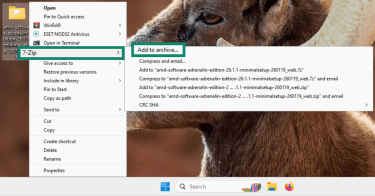
- Select the folder or files to compress, then right-click and go to 7-Zip > Add to archive…
- In the Archive format, select ZIP and choose the compression level.
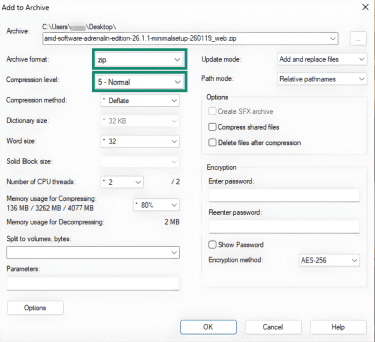
- On the right side, enter and confirm your password. For the Encryption method, select AES-256, then click OK and wait for 7-Zip to create the archive.
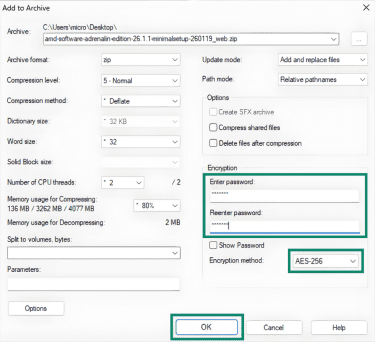
The new ZIP archive will be encrypted and password-protected.
Option 2: Password-protect a ZIP with WinRAR
- Select the folder or files to compress, then right-click and go to WinRAR > Add to archive…
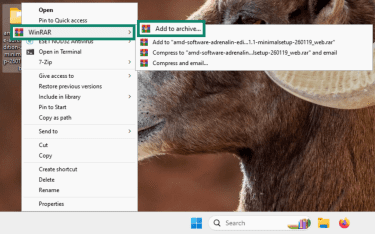
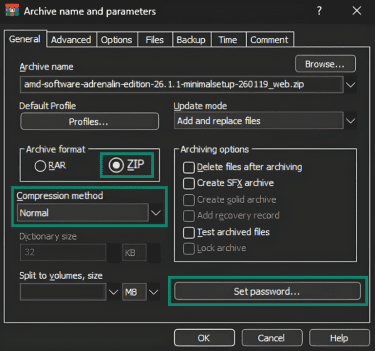
- Under Archive format, select ZIP, and choose a compression method. Click Set password…
- Enter and confirm the password, then click OK.
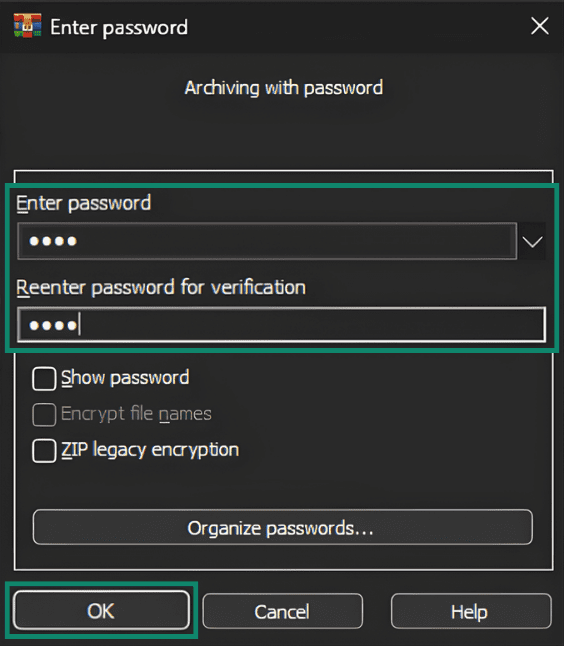
- Click OK again in the main WinRAR window.
Note: In WinRAR, ZIP archives can be password-protected. For RAR archives, the Encrypt file names option encrypts filenames and other metadata.
How to password-protect a ZIP file on Mac
The main built-in way to create and password-protect a ZIP file on macOS is through Terminal:
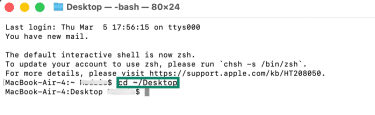
- Open Terminal and go to the location of the file or folder you want to archive. For example, type cd ~/Desktop and press Return.
- Type zip -er archive_name.zip folder_name. Replace “archive_name” with the name you want for your archive. Similarly, “folder_name” should be the exact name of the folder you’re archiving. Then press Return.
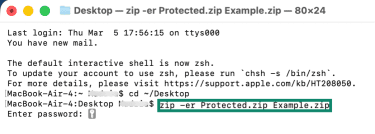
- Enter a password when prompted, then enter it again to confirm. The password-protected ZIP file should appear in the same location as the original files.
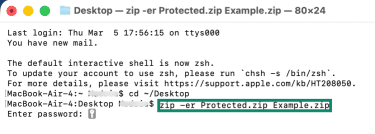
Note: This method adds password protection to the ZIP file, but file names may still remain visible. To better hide the contents, an encrypted disk image (DMG) created with Disk Utility is a better built-in option on a Mac.
Create a password-protected DMG file with Disk Utility on Mac
Disk Utility doesn’t create password-protected ZIP files. Instead, it creates encrypted disk images, such as DMG files. A disk image is a single file that can store and protect files for transfer, backup, or archiving. DMG files can be encrypted and, in some cases, compressed, depending on the format selected.
- Open Disk Utility.
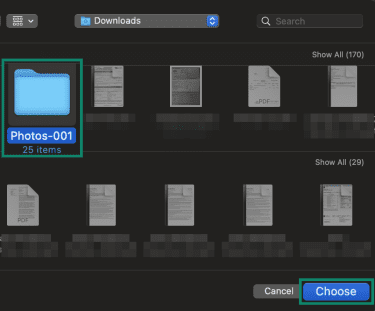
- Go to File > New Image > Image from Folder…
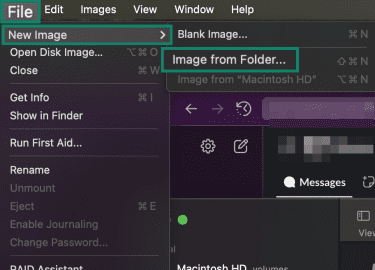
- Select the folder you’d like to lock and click Choose.
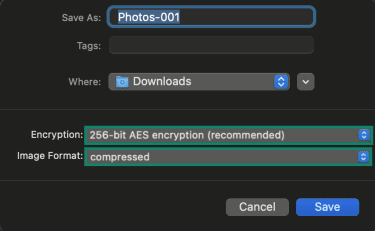
- Under Encryption, choose an option such as 256-bit AES, and select the desired Image Format, for example, compressed.
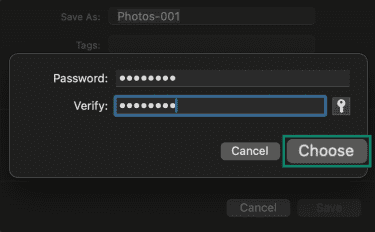
- Enter and confirm the password when prompted, then click Choose.
- Click Save and wait for Disk Utility to create the disk image.
How to password-protect a ZIP file on Linux
To create and password-protect a ZIP file on Linux, make sure the ZIP utility is installed. Many distributions include it by default, but you can add it manually if needed.
For Debian-based distributions, run sudo apt install zip unzip. For Fedora, run sudo dnf install zip unzip. Once ZIP is installed, a password-protected ZIP can be created from the command line or with a graphical archive tool, if one is available.
Method 1. Password-protect a ZIP file in Terminal
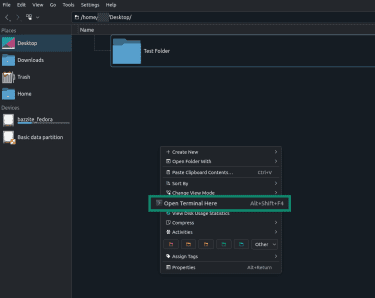
- Right-click inside the directory that contains the folder you want to archive. Select Open Terminal Here.
- Run zip -re archive_name.zip folder_name. Replace “archive_name” with the name to use for the ZIP file, and replace "folder_name" or “item_name” with the exact name of the file or folder to protect.

- Enter the password when prompted, then enter it again to confirm. The password won’t appear on the screen while it’s being typed. After that, Linux creates the password-protected ZIP file in the same directory.
Note: The standard zip utility used in the example above typically uses older ZIP encryption, which is widely considered weak by current standards. It may be acceptable for basic compatibility, but it is not ideal for highly sensitive files.
Method 2. Password-protect a ZIP file with a graphical archive tool
- Open Archive Manager, File Roller, or another archive app available on the system. We use Archive Manager for this guide.
- Click the hamburger menu icon and select New Archive…
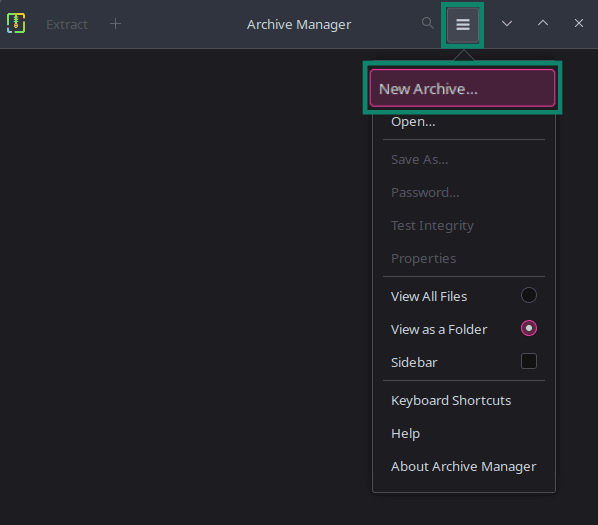
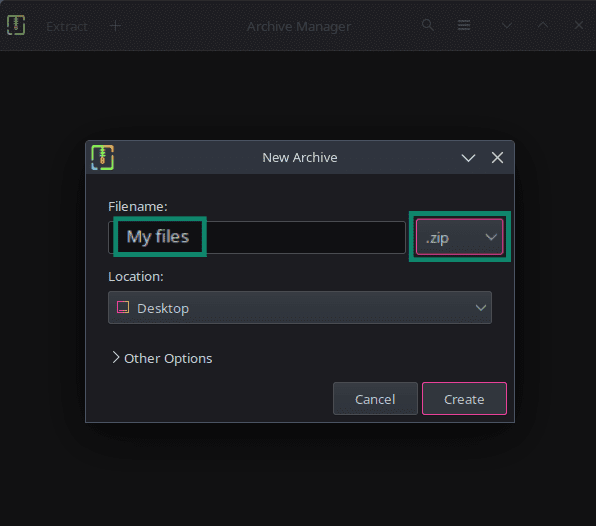
- Create a new archive and enter a name for it. Make sure you have the .zip file format selected.
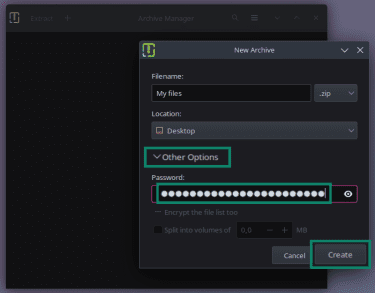
- If the app provides an encryption or password option, enter a password, then click Create.
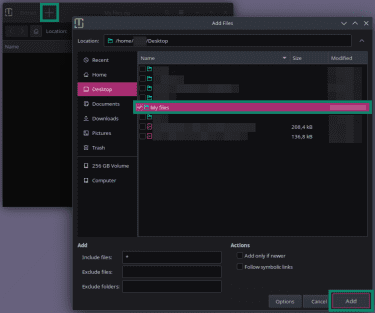
- Click the + button in the top-left corner. Find and select the folder you want to archive and click Add.
Note: The graphical user interface (GUI) labels and encryption options can differ by distribution, desktop environment, and archive app.
How to encrypt files without zipping
Files don’t always need to be compressed to be protected. In some cases, they can be encrypted without being placed in an archive. Compared with a password-protected archive, this approach has both advantages and drawbacks.
| Pros | Cons |
|
|
How to encrypt files on Windows
Windows includes the Encrypting File System (EFS), which can encrypt files and folders so they can only be opened by the authorized account. EFS isn’t available on every Windows edition. To use it:
- Right-click the folder you want to encrypt and select Properties.
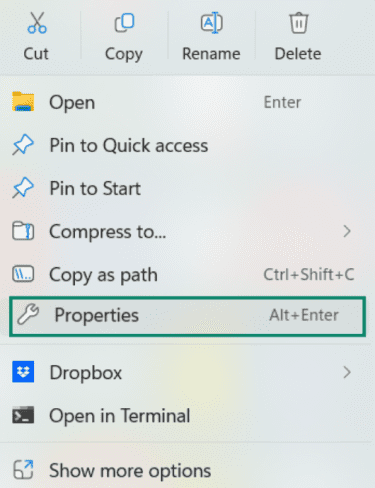
- Click Advanced.
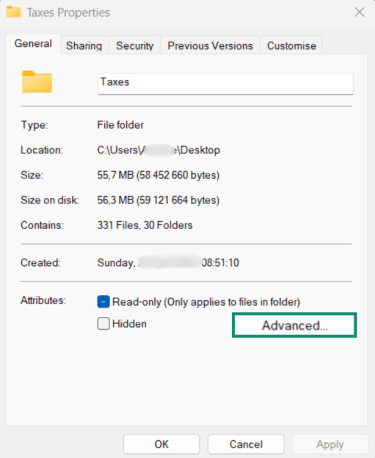
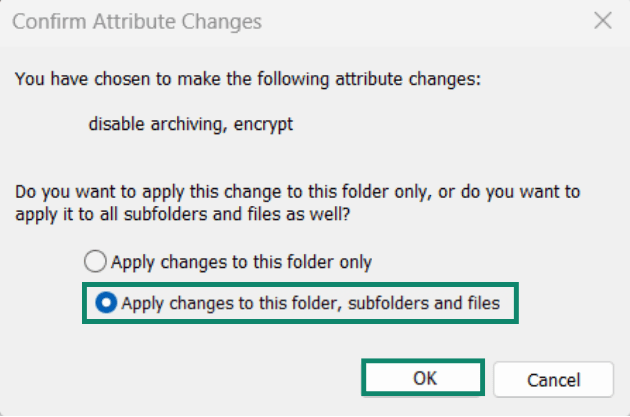
- In the new window, select Encrypt contents to secure data and click OK.
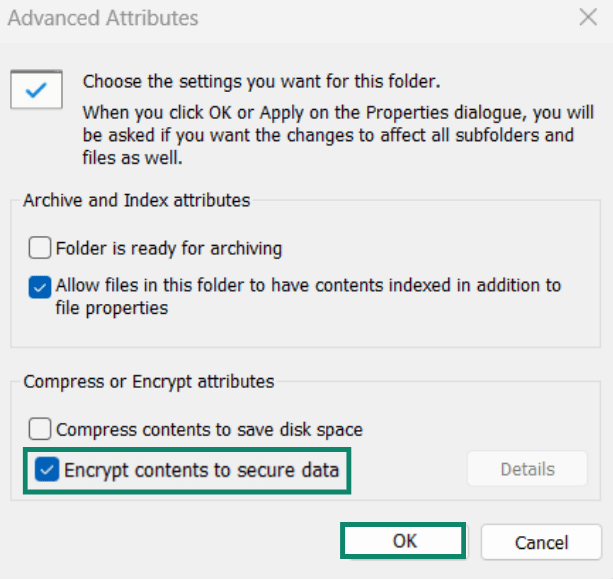
- Click OK in the main window.
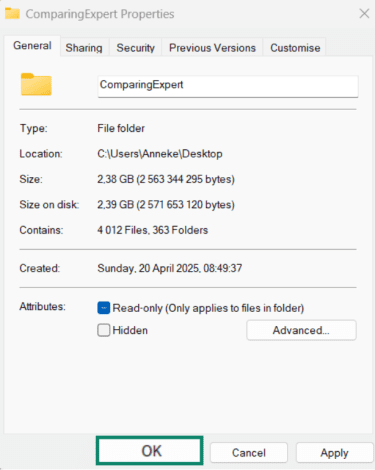
- Select Apply changes to this folder, subfolders, and files, then click OK.
Note: ZIP passwords protect individual archives, but they don’t secure the entire device. For broader protection, full-disk encryption tools such as BitLocker (Windows), FileVault (macOS), or LUKS (Linux) may be a better fit.
How to encrypt files on Mac
If a file or folder needs to stay accessible for reading and writing, Disk Utility can create an encrypted disk image file instead of a ZIP archive.
- Open Disk Utility and go to File > New Image > Image from Folder. Select the folder to encrypt, then click Choose.
- Choose an Encryption option. 256-bit AES is more secure, but it may be slower than 128-bit AES.
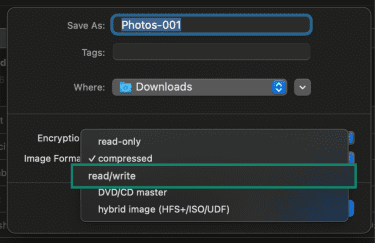
- Under Image Format, select read/write.
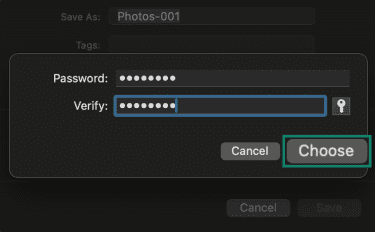
- Enter and verify a password, then click Choose. Click Save to create the encrypted disk image file.
- When finished accessing or editing the files, eject the disk image to close it and lock the contents again.
Read more: How to encrypt a flash drive on Windows and Mac.
How to encrypt files on Linux
Most Linux distributions include GNU Privacy Guard (GPG), which can encrypt individual files from the command line. This method is mainly for individual files. To encrypt a directory, it usually needs to be archived first, such as with gpgtar or another archive tool. For folders or groups of files, a password-protected ZIP archive is usually more practical.
Note: This guide uses GPG because it is widely available on Linux and works well for basic file encryption.
To encrypt a file with GPG:
- Right-click inside the directory containing the file and open Terminal.
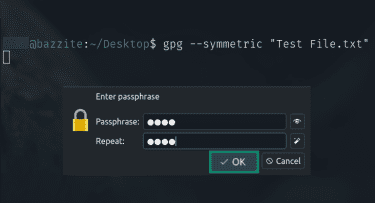
- Run gpg --symmetric "file_name". Replace “file_name” with the file you want to encrypt, including its extension.

- Enter and confirm the password when prompted, then click OK.
Note: To decrypt the file later, run gpg --decrypt "file_name.gpg."
How to open a password-protected ZIP file
Unzipping a password-protected file works similarly across platforms, although the exact steps can vary depending on the built-in tools or apps installed.
On Windows
Right-click the ZIP file and select Extract All… Follow the prompts and enter the password when asked.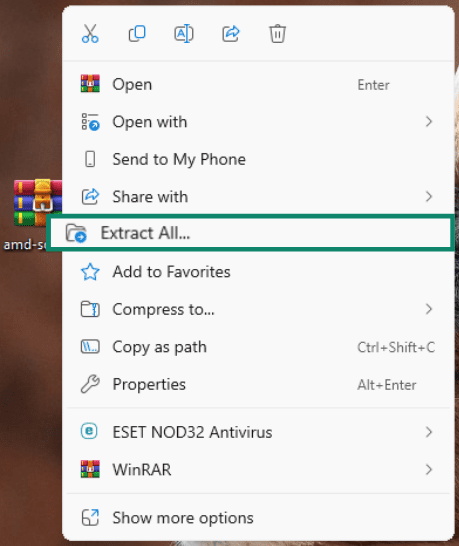
Some systems may also show “Open with” and let the ZIP file open in an app such as WinRAR. If that happens, choose where to save the extracted files, click Extract, and enter the password if needed.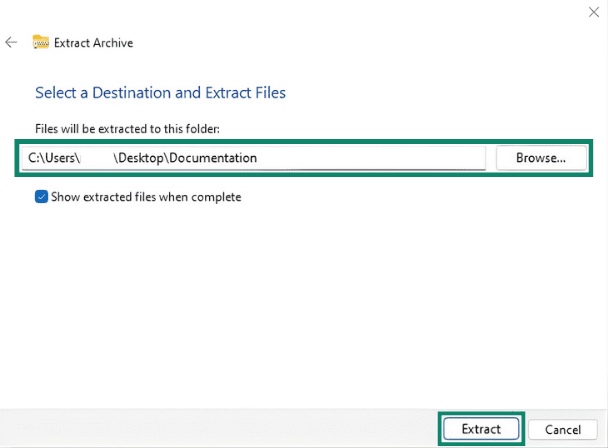
On Mac
Double-click the .zip file to open it. If the archive is password-protected, macOS may prompt for the password before extracting the files. Enter the password and click OK to extract the files.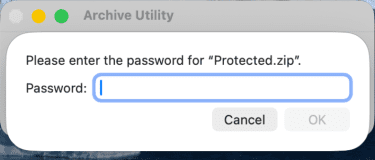
The extracted item normally appears in the same folder as the ZIP file.
On Linux
If you use a standard GUI, simply double-click the archive or open it in the archive app. Click the Extract button. Choose a location for your files. Click Extract again and enter the password to confirm.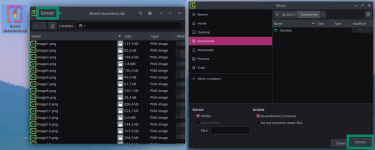
A command-line alternative is to run 7z x archive_name.zip in the directory containing the ZIP file. Enter the archive password if prompted to confirm. This method requires 7-Zip or a compatible 7z package to be installed.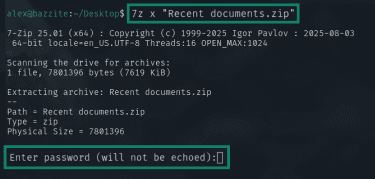
Troubleshooting common ZIP password issues
If a password-protected ZIP file will not open or shows extraction errors, the problem is usually the password, the archive itself, or the tool used to open it. Here are some common issues and ways to fix them:
- Corrupted archive: ZIP files can become corrupted during download or transfer, especially if the process was interrupted. If the file appears invalid or can’t be opened, download or copy it again.
- Wrong password: ZIP passwords are case-sensitive, so even a small difference in capitalization or special characters can cause an error. Check that the password was entered exactly as intended.
- Tool compatibility issues: Some built-in archive tools don’t support encrypted ZIP files, especially those using newer AES methods. If the archive won’t open even with the correct password, try another archive tool such as 7-Zip or WinRAR. Microsoft doesn’t support operations on encrypted archive files, while 7-Zip and WinRAR both support AES-encrypted ZIP files.
Tips for creating strong passwords
Password-protecting a ZIP file adds an important layer of security, but it isn’t foolproof. Weak passwords can still be guessed or cracked, so good password practices still matter.
Password length and complexity
Longer passwords are generally stronger than shorter ones. Current National Institute of Standards and Technology (NIST) guidance emphasizes password length and doesn’t recommend requiring specific composition rules, such as a mix of uppercase letters, numbers, and symbols.
A long passphrase made up of several unrelated words can be easier to remember while still providing strong protection. Passwords should also be unique, so one exposed password doesn’t put other files or accounts at risk. Cybersecurity and Infrastructure Security Agency (CISA) recommends using at least 16 characters when possible.
Avoiding common password mistakes
Passwords often fail due to common but avoidable habits, including:
- Predictable patterns or words: Personal information and common patterns, such as names, birthdays, common words, or “password1234,” are easier to guess and can also be tested quickly in dictionary-based or brute-force attacks, so they should be avoided.
- Basic substitutions: Simply replacing letters with similar-looking numbers or symbols (like p@ssw0rd) doesn’t significantly improve security. These substitutions are widely known and often included in password-cracking attempts.
- Insecure storage: Passwords must be stored safely. Saving them in screenshots or plain text files, especially in easy-to-access locations, can expose them to anyone who gains access to the device.
Using a password manager
Creating, storing, and managing unique passwords for many files and accounts can be difficult to handle manually. A password manager like ExpressKeys can make this easier by generating strong passwords, storing them in an encrypted vault, and making them easier to retrieve when needed.
How to share a password-protected ZIP safely
A password-protected ZIP file can be safer to share when it uses strong encryption and a unique password. However, the level of protection still depends on the tool used and how the archive is created.
The ZIP password should be shared separately from the archive. Sending the file in one place and the password in another reduces the risk of exposing both at once.
If more control over access is needed, a temporary download link may help. Google Drive supports access expiration for some eligible work or school sharing setups, and Dropbox supports expiration dates for shared links on certain paid plans.
Also read: Is WeTransfer safe for file sharing?
Some password managers can also be used to share passwords more safely with approved users, rather than sending them in the same message as the archive.
Read more: Anonymous file sharing: Stay private while sending files online.
FAQ: Common questions about protecting ZIP files
What is the best method for password-protecting a ZIP file?
Are there risks associated with ZIP file password protection?
How can I recover a lost ZIP file password?
What are some free tools for encrypting ZIP files?
Can I remove password protection from a ZIP file later?
Take the first step to protect yourself online. Try ExpressVPN risk-free.
Get ExpressVPN