How to clear cache on an iPad for optimal performance


Clearing your iPad's cache can help in specific situations, such as when a browser or app is slow, outdated content is displayed, or storage space is low. The key is knowing what type of cache to clear. It won’t solve every performance issue, but it’s worth trying if your browser or app starts acting up.
This guide covers how to clear cache in Safari, Chrome, and Firefox on iPad, as well as how to manage app storage.
What cache means on iPad
Cache is temporary data, such as images, scripts, and website files, that your browser and apps save locally to help content load faster on repeat visits. Sometimes the cache becomes outdated or corrupted, which can lead to display issues, the wrong version of a site loading, or app glitches. In those cases, clearing the cache can help by forcing a fresh reload.
Clearing cache can also free up some space, but it won’t reliably fix broader performance problems if the cause is something else (for example, severely low storage, an iPadOS issue, or an app that needs an update).
Browser cache vs. app data on iPad
Browsers and apps store data differently on iPad, so the steps to clear it vary. Browser cache is tied to website data, while app data is stored per app and can include downloads and locally saved files.
In iPad storage settings, app storage can be managed per app: offloading removes the app but keeps its documents and data, while deleting removes both. Many apps also include an option to clear downloads or cached content within the app, which can be a simpler first step than removing the app.
Note: In storage settings, categories like System Data (sometimes shows as Other) can include temporary files, such as cached media. iPadOS manages these automatically and may remove cached files when space is needed, especially during installs and updates.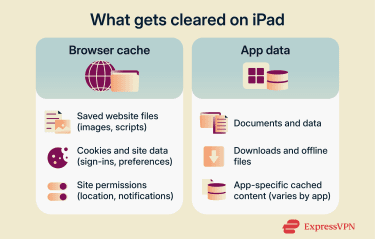
When clearing cache won’t help
Cache clearing won’t fix every slowdown. If your iPad still feels laggy, the issue is likely something else, like a weak or unstable internet connection, Low Power Mode, or the device overheating.
Try to keep at least 1GB of free storage available. When space runs low, iPadOS continuously shuffles storage during installs and updates, and low available space can contribute to slowdowns.
What you might lose when clearing cache
Clearing the cache can remove small “convenience” details that make browsing feel smooth. After clearing, some websites may sign out, ask to accept cookies again, or forget preferences like language or display settings. Some sites may also ask again for things previously allowed, such as location access or notifications.
How to clear Safari cache on iPad
Clearing Safari data removes your browsing history, recent searches, cookies, and certain site permissions such as location access or notifications.
This won’t change your AutoFill information. However, removing website data can affect sign-ins, as it removes data that websites use to recognize returning users and speed up login.
Since Safari is the default browser on iPad, clearing its cache is one of the easiest ways to resolve some loading issues and free up some storage.
Clear all browsing data
Use this option if you want a full Safari reset and don't mind losing your history, cookies, and website data.
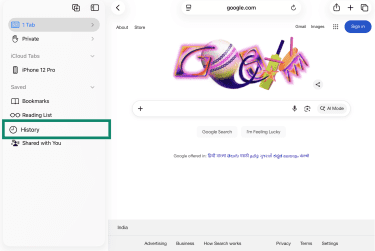
- Open Safari, tap Show Sidebar, then tap History.
- Tap the More button (three dots), then select Clear.
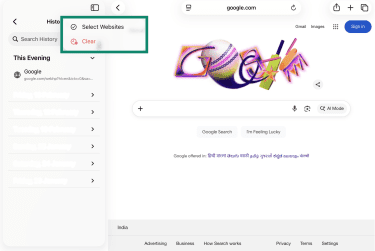
- Choose a timeframe under Clear Timeframe, then tap Clear History.
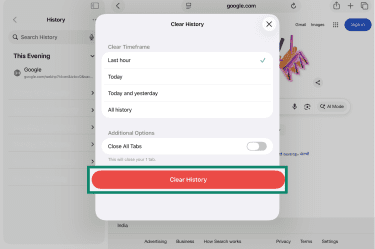
Note: If the button is greyed out, there's either no data to clear or Screen Time restrictions are enabled.
Clear cache for a single website
If the issue is with a specific website and you don't want to wipe everything, you can remove its saved data individually.
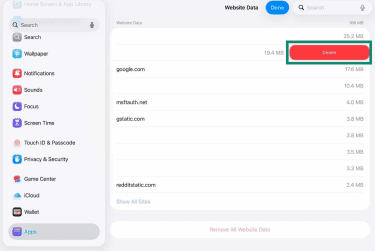
- Go to Settings, tap Apps, then Safari.
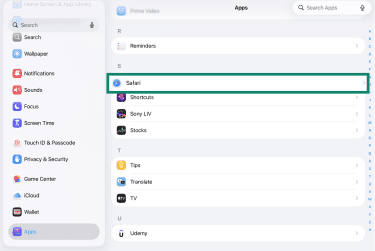
- Scroll down and tap Advanced.
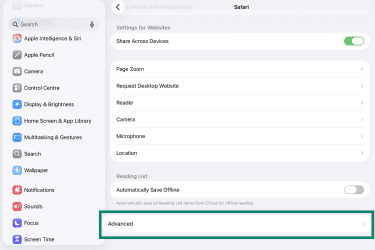
- Select Website Data.
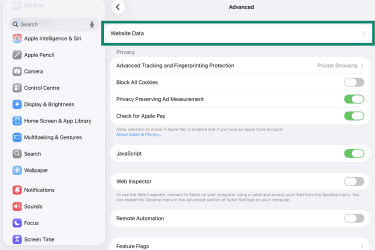
- Find the website in the list, then swipe left and tap Delete (or tap Edit first, depending on your iPadOS).
How to clear Chrome cache on iPad
If Chrome feels slow, pages aren’t loading correctly, or storage is tight, clearing cached files (and, if needed, cookies/site data) can help.
Clear all browsing data
Unlike the desktop version, Chrome on iPad doesn’t offer a straightforward way to clear cached files for a single website. You can, however, clear only cached files rather than all browsing data at once.
- Open Chrome, tap More (three dots), then tap Delete browsing data.
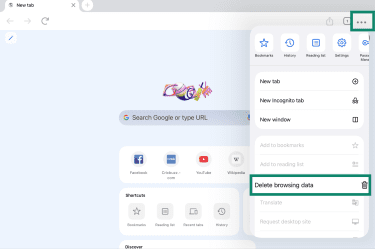
- To clear everything, tap Delete data. To only clear the cache, tap Browsing data instead.
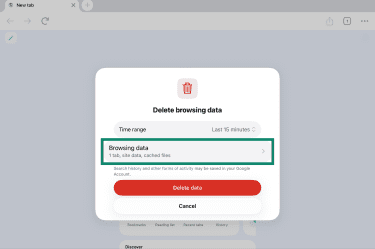
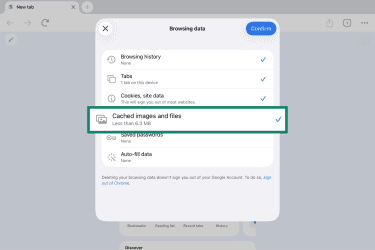
- Select Cached images and files (and select other items only if you want them removed too), tap Delete Data, then Confirm.
Read more: Find out how to delete your Google search history.
How to clear Firefox cache on iPad
Firefox lets you clear cached files and other browsing data in two ways. You can clear all selected browsing data at once, or remove website data for a specific site without a full reset.
Clear all browsing data
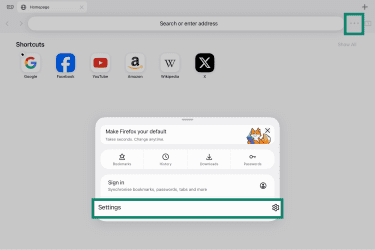
- Open Firefox, tap More (three dots) at the top right, then tap Settings.
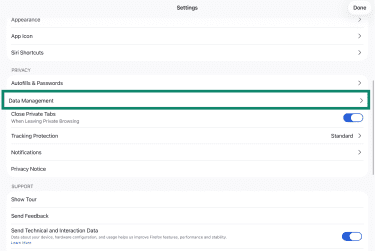
- Scroll down to Privacy, then tap Data Management.
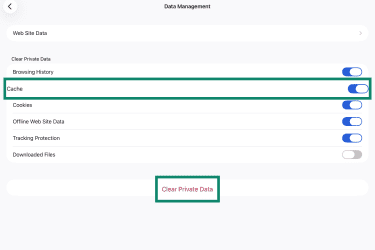
- Make sure the Cache toggle is on, then tap Clear Private Data.
Clear cache for a single website
- Open Firefox, tap the three dots in the top-right corner, then tap Settings.
- Scroll to Privacy, tap Data Management, then tap Web Site Data.
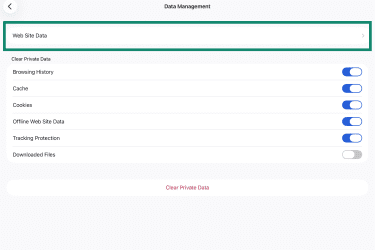
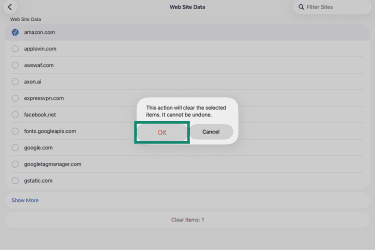
- Find and tap the site you want to clear. If it's not listed, tap Show More.
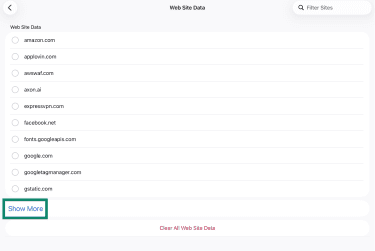
- Tap Clear Items, then tap OK to confirm (if prompted).
How to clear app cache on iPad
iPadOS doesn’t provide a single universal cache-clearing button for all apps. To reduce an app’s storage use, start by clearing downloads or cached content inside the app (if that option exists).
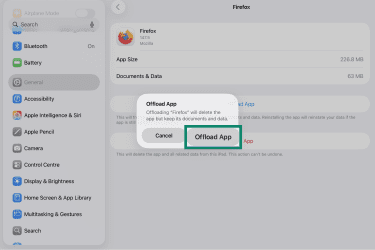
If the app doesn’t offer a built-in option, you can manage it in iPad storage settings. Offloading uninstalls the app but keeps its documents and data, while deleting removes both the app and its related data. Deleting and reinstalling can remove locally stored files for that app, but anything tied to an account may return after signing in again.
- Go to Settings, tap General, then tap iPad Storage.
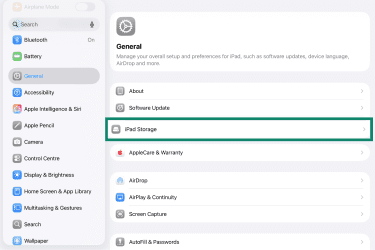
- Choose the app you want to clean up.
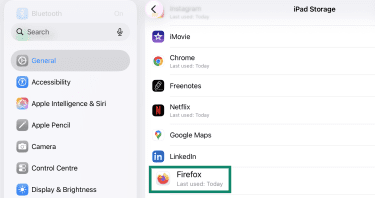
- Tap Offload App or Delete App, then confirm.
Note: Some apps, particularly social media platforms, have a built-in option to clear cache within their own settings. If available, this is usually the quickest way to reduce app storage without removing the app.
FAQ: Common questions about how to clear cache in iPad
What happens when I clear the cache on my iPad?
Is it a good idea to clear cache on iPad?
How often should I clear the iPad cache?
Will I lose my passwords when I clear Safari cache?
Can I clear the cache without deleting apps?
Can clearing cache improve battery life?
Why is my iPad still slow after clearing cache?
Take the first step to protect yourself online. Try ExpressVPN risk-free.
Get ExpressVPN