
What is WPA3? A simple guide to stronger Wi-Fi security



Wi-Fi Protected Access 3 (WPA3) is the latest generation of the WPA security standard used to protect Wi-Fi networks. It secures wireless connections by encrypting data between your devices and router and by preventing unauthorized access.
Introduced in 2018 as a successor to WPA2, WPA3 improves how devices authenticate and exchange data, helping reduce the risk of common attacks on wireless networks.
This guide explains what WPA3 is, how it’s different from WPA2, its configuration modes, how to check if your device supports it, and what potential drawbacks to consider.
WPA3 overview
WPA3 is the third version of the WPA security certification program developed by the Wi-Fi Alliance, a global non-profit organization that owns the Wi-Fi trademark, promotes Wi-Fi technology, and awards the Wi-Fi CERTIFIED seal to devices that meet interoperability and security standards.
As of July 2020, the Wi-Fi Alliance requires all new devices to support WPA3 to receive Wi-Fi CERTIFIED status. However, despite the advantages of WPA3, adoption is still relatively low. This is partly because many organizations and consumers still rely on legacy systems and older devices that don’t support WPA3.
WPA3-Personal vs. WPA3-Enterprise
WPA3-Personal and WPA3-Enterprise are two configuration modes used to secure a WPA3 network. As their names suggest, WPA3-Personal suits individual users, home networks, and small teams. WPA3-Enterprise targets organizations that need stronger security, such as large corporations, financial institutions, and government agencies.
WPA3-Personal uses 128-bit data encryption and a single pre-shared password for all connected devices, which keeps setup simple. WPA3-Enterprise also uses 128-bit encryption by default but offers a 192-bit high-security mode for environments that handle highly sensitive data. It supports per-user and per-device authentication with unique credentials, though it requires a Remote Authentication Dial-In User Service (RADIUS) server to manage access.
WPA2 vs. WPA3: What’s the difference?
WPA3 introduces major upgrades that address key weaknesses in WPA2, including offline password-guessing attacks and vulnerabilities exposed by the Key Reinstallation Attack (KRACK). It also improves how devices authenticate and connect to networks, with some functionality being made backwards compatible with WPA2. The sections below explore these enhancements in more detail.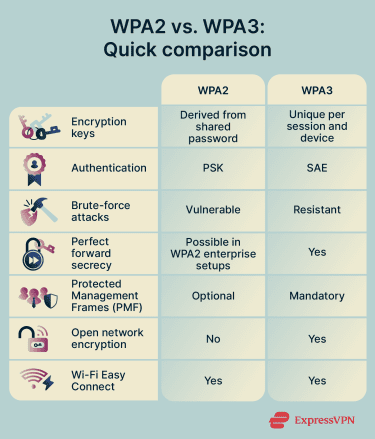
Encryption and authentication
Both WPA2 and WPA3 are secure, but WPA3 provides stronger protection through individualized data encryption. This means each device connected to a WPA3 network uses a unique encryption key. With WPA2, all devices typically share the same key, so if it’s compromised, the entire network is at risk.
WPA3 also uses the Simultaneous Authentication of Equals (SAE) protocol, which directly addresses one of WPA2's key weaknesses: vulnerability to offline password-guessing attacks. With WPA2's Pre-Shared Key (PSK) method, attackers can capture network handshake data and repeatedly guess passwords offline without any interaction with the network. SAE prevents this by requiring an active exchange for each authentication attempt, making brute-force attacks significantly harder.
Perfect forward secrecy
WPA3 supports perfect forward secrecy (PFS), a feature that ensures each session uses a unique encryption key. This means each connection’s traffic is encrypted independently. If a malicious actor compromises one session key, they can’t use it to decrypt past or future sessions.
In contrast, WPA2-Personal doesn’t provide PFS, and WPA2-Enterprise can support it when configured with authentication methods that generate fresh session keys. Without PFS, captured traffic becomes more vulnerable if the shared password is later exposed.
Public Wi-Fi security
WPA2 open networks don’t encrypt user traffic, which can allow attackers to eavesdrop on data sent over the network. WPA3 improves this with Wi-Fi Enhanced Open, a feature based on Opportunistic Wireless Encryption (OWE) that encrypts connections even when no password is required.
Users can still join a public Wi-Fi network without entering a password, but an OWE-capable device automatically establishes an encrypted session, helping protect data in transit. OWE typically works without requiring additional setup, making it easy for organizations to deploy secure open networks.
Protected Management Frames
Both WPA2 and WPA3 support Protected Management Frames (PMF), but only WPA3 makes them mandatory. PMF improves Wi-Fi security by protecting management frames exchanged between devices and access points, such as deauthentication and disassociation messages.
This distinction matters because without PMF, attackers can send spoofed deauthentication frames to force a device to disconnect and reconnect, triggering a new handshake that can then be exploited or captured. WPA3's mandatory PMF makes this significantly harder by preventing attackers from forging those frames.
By authenticating and encrypting these frames, PMF also makes it much harder for attackers to force devices off a network, launch denial-of-service (DoS) attacks, or spoof management frames through malicious activity.
Device provisioning
In addition to manually entering passwords, WPA2 supports provisioning via Wi-Fi Protected Setup (WPS). This feature allows devices to connect using PIN codes or push-button methods.
However, the PIN method has at least two significant design flaws. The first is that the router confirms whether the first four digits of the eight-digit PIN are correct before validating the rest. Since the final digit is a checksum that doesn't need to be brute-forced, attackers can crack each half separately, reducing the number of guesses needed from 100 million to around 11,000.
The second, known as the Pixie Dust attack, exploits weak random number generation in the WPS key exchange process, allowing attackers to recover the PIN offline almost instantly on vulnerable devices.
WPA3 doesn't support WPS. Instead, the Wi-Fi Alliance introduced Wi-Fi Easy Connect, also known as Device Provisioning Protocol (DPP). Rather than relying on a PIN, it authenticates devices using public key cryptography via QR codes or Near Field Communication (NFC), eliminating the attack surface that makes WPS vulnerable. Wi-Fi Easy Connect is also backward compatible with WPA2, allowing secure onboarding on both WPA2 and WPA3 networks.
Are all devices compatible with WPA3?
Not all devices support WPA3, though compatibility has improved significantly since certification became mandatory for Wi-Fi-certified devices in July 2020. As a general rule, devices released after 2020 should support WPA3, while devices released before 2018 (which is when WPA3 was introduced) are unlikely to support it unless the manufacturer has issued a firmware update to add support.
In terms of operating system support, Windows 10 version 1903 or later supports WPA3, though driver support varies by device. On Apple devices, WPA3 is supported on iPhone 7 or later, iPad 5th generation or later, and Mac computers from late 2013 or later with 802.11ac or later. Android support begins with version 10, though actual support may vary by device.
Internet of Things (IoT) and smart home devices are a common compatibility challenge. These devices, such as security cameras, smart speakers, and connected appliances, have limited network stack capabilities and may not support WPA3. Older wireless printers are another common problem area, as they often lack support for PMF, which WPA3 requires.
Note: WPA3 can operate alongside WPA2 in transition mode, allowing WPA2-only devices to connect to the same network, but without the enhanced security benefits of WPA3.
How to check if your device supports WPA3
Although you might come across recommendations to check the device’s packaging or back for stickers with the Wi-Fi CERTIFIED logo, this alone doesn’t guarantee WPA3 support. That’s because the Wi-Fi CERTIFIED logo covers multiple certification programs, including older ones.
To confirm WPA3 compatibility, do one of the following:
Check your device’s network settings
The quickest way to check is directly on your device. The steps vary by operating system:
- Windows 11: Click the Wi-Fi icon in the taskbar. Select Properties under your current network, scroll down, and look for Security type. It will show WPA2 or WPA3.
- macOS: Hold down the Option key and click the Wi-Fi icon in the menu bar. Look for the Security field in the dropdown.
- Android: Go to Settings > Connections > Wi-Fi. Tap the gear or (i) icon next to your connected network and look for Security type. Steps may vary slightly depending on your device manufacturer.
- iPhone: iOS doesn't display the security protocol directly in Wi-Fi settings. The clearest indicator is a "Weak Security" warning shown beneath the network name in Settings > Wi-Fi. If you don't see this warning, your network is probably using WPA2 or WPA3. To confirm specifically, check via your router's dashboard or another device.
Check via your router's dashboard
If you have access to your router's admin panel, this is the most reliable way to confirm what security protocol your network is running.
To access the router’s admin panel, open a browser and enter your router's IP address in the address bar. It’s usually 192.168.1.1 or 192.168.0.1, but you can check the label on your router or in your network settings if you’re unsure.
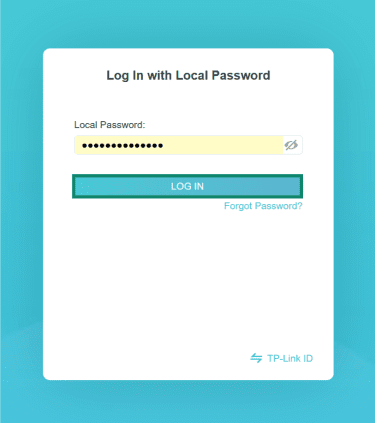
- Log in using your admin credentials. You can typically find the default sign-in credentials for the router on the label if you haven't changed them.
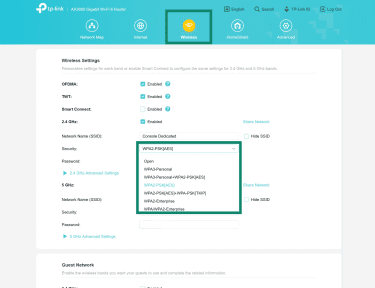
- Navigate to the Wireless or Wi-Fi section and look for a Security or Security Mode option. If WPA3 appears as an option, your router supports it.
Check the device manual or the manufacturer's website
For devices without a screen or settings menu, such as smart home devices, printers, and IoT gadgets, checking the manufacturer's documentation is the most practical option for confirming if they support WPA3. Look up your model name and check whether WPA3 is listed under its wireless specifications.
Check the Wi-Fi Alliance Product Finder
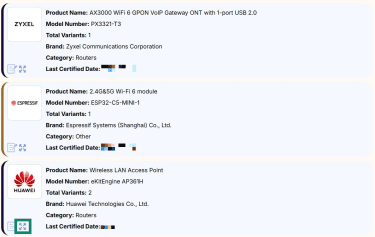
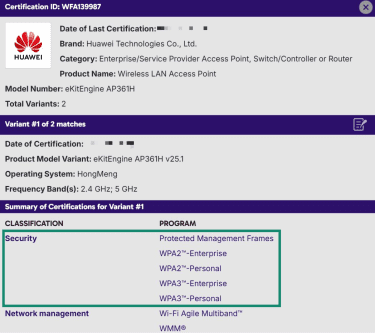
The Wi-Fi Alliance maintains a searchable database of certified devices. Look up your device on the Wi-Fi Alliance’s Product Finder page to quickly see which security certifications it holds, including whether it is WPA3 certified. Once you find it, here’s how to check if it supports WPA3:
- Click the fullscreen icon to view the device details.
- Check the Security tab and look for mentions of WPA3-Personal or WPA3-Enterprise.
Common compatibility issues and fixes
Connectivity and performance issues can arise when using WPA2-only devices on WPA3 networks or when setting up WPA3 environments. Common examples include devices being unable to find or connect to the network, errors during connection attempts, app freezes or crashes when configuring IoT devices, and performance issues such as slow speeds or dropped connections.
If you’re experiencing such problems, try one of the following solutions:
- If your router supports WPA3 but you can’t find the setting in the dashboard, update its firmware.
- Make sure the device you want to connect is up to date, as recent updates may add WPA3 support.
- Use WPA3 transition mode to allow compatibility between older devices and newer networks.
- If older smart devices don’t work well with transition modes, set up a separate or guest Wi-Fi network that uses WPA2.
- Make sure smart devices are within range of a strong Wi-Fi signal when connecting.
- If available, use Wi-Fi Easy Connect to onboard IoT devices without screens or input methods.
- If needed, disable Wi-Fi 6 features on your router, as some older devices may not work well with them.
Troubleshooting tips for organizations
Organizations that experience WPA2 and WPA3 compatibility issues can address them using one or more of the following approaches:
- Security segmentation: Legacy devices that don’t work well with WPA3 networks or transition modes should be placed on dedicated legacy-compatible networks. For security, these networks should be isolated using subnetting or restricted access controls.
- Legacy protocols: Configure access points to support older Wi-Fi standards, such as Wi-Fi 4 or Wi-Fi 5, for devices that require them.
- Education and policies: Train employees to recognize that some older personal devices may not connect to company networks. Document incompatible devices and define clear steps to follow, such as contacting IT support or using a designated legacy network.
- Consistent monitoring: Use network monitoring tools or Wi-Fi controller dashboards to track signal strength and connection quality for older IoT devices. If issues arise, consider relocating an access point closer to the device or connecting it to the 2.4GHz band for better stability.
- Transition strategies: Maintain WPA2 networks for older devices, but also check for vendor firmware updates that may add WPA3 support. If updates aren’t available, plan to phase out or replace those devices to maintain a secure and stable environment.
How to enable WPA3 on your router
Before making any changes, check that your router's firmware is up-to-date, as some routers gained WPA3 support through firmware updates rather than a hardware change. You can usually check for updates within the router's dashboard under a section labeled Firmware, Software Update, or Advanced Settings.
The exact steps to enable WPA3 vary by router brand and model, but the general process is the same across most routers.
- Open a browser and enter your router's IP address in the address bar. This is usually printed on the label on the back or bottom of your router. Common addresses are 192.168.1.1 or 192.168.0.1.
- Log in with your admin username and password. If you haven't changed these, they are typically printed on the router label or in its manual.
- Navigate to the Wireless or Wi-Fi section.
- Look for a Security Mode or Security Type setting and select WPA3-Personal.
- If some of your devices don't support WPA3, select WPA2/WPA3 Transitional (sometimes called Mixed Mode) instead. This allows WPA3-capable devices to use the stronger protocol while older devices fall back to WPA2.
- Save your settings. Your router may restart and temporarily drop the connection. Reconnect your devices using your Wi-Fi password.
If you’re having trouble finding the right section for your router, check your manufacturer’s website or your router’s manual for more detailed instructions.
Does WPA3 affect Wi-Fi speed or performance?
WPA3 uses strong encryption and authentication methods, which can have a slight impact on performance. For example, in high-traffic areas, authentication using the SAE protocol may take slightly longer than WPA2’s four-way handshake. However, this difference is typically negligible on modern devices and shouldn’t affect everyday internet use.
Performance impacts are more likely to appear on older or low-power routers and IoT devices. In such cases, users may need to update device firmware to add WPA3 support, upgrade to newer hardware, or enable WPA2/WPA3 transition mode for better performance.
Should you enable WPA3?
If your device supports WPA3, enabling it is generally the better option because of its improved security and convenience.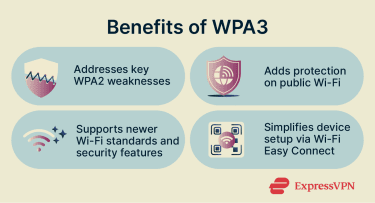
WPA3 generally offers the following benefits:
- Improved security: WPA3’s encryption and authentication features address key WPA2 weaknesses, such as weak password protection and vulnerabilities exposed by KRACK attacks. This helps better secure home and enterprise networks.
- Enhanced privacy: Public Wi-Fi networks that use WPA3 can encrypt device connections even when no password is required. This helps reduce the risk of eavesdropping on user activity.
- Future-proofing: WPA3 incorporates modern security technologies that help ensure compatibility with evolving wireless standards and security requirements.
- Simplified connectivity: Wi-Fi Easy Connect simplifies adding IoT devices without a display to a secure network, helping reduce configuration complexity and potential attack surface.
That said, WPA3 adoption has been slower than expected and compatibility issues remain. If you rely on older devices that don’t support it, using WPA2/WPA3 transition mode can help maintain compatibility, though those devices will continue to use WPA2. Over time, as you replace older hardware, you can move to WPA3-only for more consistent protection across your network.
FAQ: Common questions about WPA3
Do I need a new router to use WPA3?
Is WPA3 more secure for smart home devices?
Can WPA3 protect public Wi-Fi connections?
Why do some devices fail to connect to WPA3 networks?
Is Wi-Fi Protected Access 3 (WPA3) required for Wi-Fi 6?
How can I tell if my router is using Wi-Fi Protected Access 3 (WPA3)?
Does WPA3 help protect weak passwords?
Explore the web with greater privacy
Get ExpressVPNSign up today for a chance to win FIFA World Cup 2026™ tickets.