What is Google DNS, and how does it work?


Google Public DNS is a recursive resolver that translates domain names, such as expressvpn.com, into IP addresses. This guide covers how it works, its features, how this recursive resolution service compares to alternatives like Cloudflare, and setup steps.
What is Google Public DNS?
Google Public DNS is a free public DNS service launched by Google that resolves domain names for users instead of their default internet service provider (ISP). It directs requests to a nearby data center through its global anycast network, which can reduce lookup times and may improve reliability compared with some ISP DNS resolvers.
For security, Google Public DNS performs Domain Name System Security Extensions (DNSSEC) validation by default. DNSSEC uses cryptographic signatures to verify that DNS responses haven’t been altered, helping protect against attacks such as DNS spoofing or cache poisoning.
The service also supports encrypted DNS protocols that encrypt DNS requests between a device and the resolver, though they must be enabled in the device, browser, or network settings.
Learn more: DNS server not responding? How to fix it
How does Google DNS work?
When you enter a domain in your browser, your device queries a DNS resolver to get the IP address for that domain. Google Public DNS acts as your recursive resolver.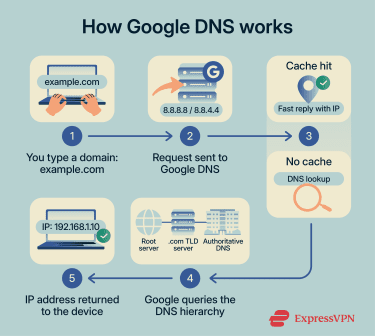
The resolver:
- Checks its cache first (if cached, it responds with the IP address).
- Queries the DNS hierarchy if an IP address hasn’t been cached: root nameservers > Top-Level Domain (TLD) nameservers (e.g., .com) > authoritative nameservers for the domain.
- Returns the IP and caches it for future use.
Anycast routes queries to the nearest available server, distributing requests across multiple locations instead of relying on a single endpoint.
Google Public DNS vs. Google Cloud DNS
Google Public DNS and Cloud DNS serve different functions:
- Google Public DNS: A recursive resolver that helps you look up addresses.
- Google Cloud DNS: A DNS hosting service for website owners and developers. It hosts the DNS records for their domains, so the world can find their websites.
Google DNS IP Addresses (8.8.8.8 and 8.8.4.4)
Google DNS uses two standard IPv4 addresses:
- 8.8.8.8
- 8.8.4.4
These are popular, partly because they're easy to remember, and they're published as Google's standard public DNS endpoints. That said, the service also supports IPv6 with the following addresses:
- 2001:4860:4860::8888
- 2001:4860:4860::8844
Some home users still rely on IPv4, but whichever you choose, both IP addresses point to the same DNS service and provide identical functionality.
Some users choose to configure both IPv4 and IPv6 DNS servers in their network settings so that devices can use either protocol.
Learn more: IPv4 vs IPv6
Key features of Google DNS
Google Public DNS offers several core resolver and security features:
- Recursive DNS resolution: Receives DNS queries and returns cached results or retrieves them from the DNS hierarchy when needed.
- Global anycast infrastructure: Routes queries through a global anycast network, so requests reach a nearby Google server.
- DNSSEC validation: Validates DNSSEC responses to help confirm that DNS records haven’t been altered in transit.
- Encrypted DNS support: Supports DNS over HTTPS (DoH) and DNS over TLS (DoT) for clients that enable encrypted DNS.
- Large-scale resolver infrastructure: Uses global infrastructure, load balancing, and shared caching to handle high query volumes.
- Public endpoints: Provides standard IPv4 and IPv6 addresses for device and router configuration.
- Logging transparency: Publishes a Public DNS privacy page explaining what data it logs, how long it retains it, and how it is used. Google states that Public DNS logs include temporary records with IP addresses that are retained for a short period, as well as longer-term anonymized data used for analysis, and that this data is not used to target ads.
Google DNS vs. other DNS resolvers
Public DNS resolvers differ in their approach to performance, privacy practices, and security features. Some prioritize fast global resolution, while others focus on threat filtering or stricter data-retention policies.
The table below compares Google Public DNS with several widely used public DNS resolvers and typical ISP-provided DNS services. Actual performance and logging practices can vary depending on network conditions and provider policies.
| Supported DNS encryption protocols | Privacy | Security features | Content filtering | |
| Google DNS | DoH, DoT | Temporary full-IP logs (24–48h); permanent anonymized data. | DNSSEC validation; anti-cache poisoning & amplification protection. | None. |
| Cloudflare (1.1.1.1) | DoH, DoT, DoQ | Minimal; IP truncated & logs deleted in 25h | DNSSEC; optional malware/adult blocking (1.1.1.2/1.1.1.3). | Optional variants. |
| OpenDNS | DoH (Limited support) | Varies; logs for security/policy | Blocks malware, phishing, and botnets. | Customizable parental controls (free account). |
| Quad9 | DoH, DoT, DoQ | Minimal; does not retain IP addresses in logs; Swiss-based. | Blocks malicious domains | Security threats only (no adult content) |
Note: Support for encrypted DNS protocols depends on configuration and isn’t always enabled by default.
Learn more: DNS vs. VPN vs. smart DNS
How to change your DNS settings
Switching your DNS involves replacing the automatic addresses provided by your ISP with specific numerical addresses from Google. Below, we show you how to apply these manual configurations across Windows, macOS, and mobile operating systems.
Configure Google DNS on Windows
Windows isolates these connection details within Settings or the Control Panel, depending on the version. You’ll need to access the properties of your active network adapter to input the new addresses:
- Open the Control Panel from the Start menu.
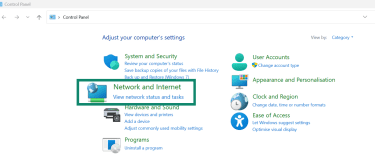
- Select Network and Internet and then Network and Sharing Center.
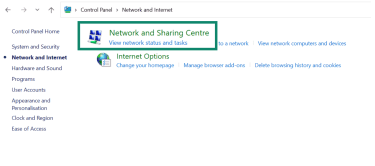
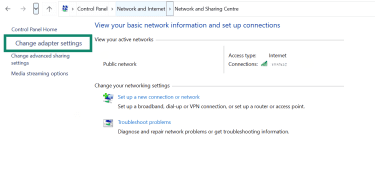
- Click Change adapter settings on the left side.
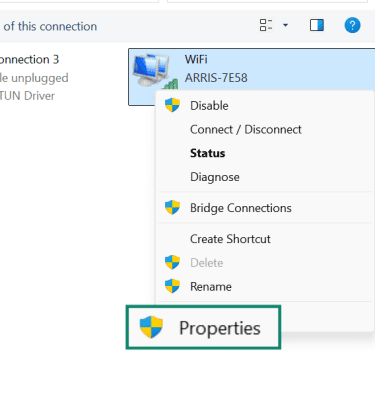
- Right-click your active connection and select Properties.
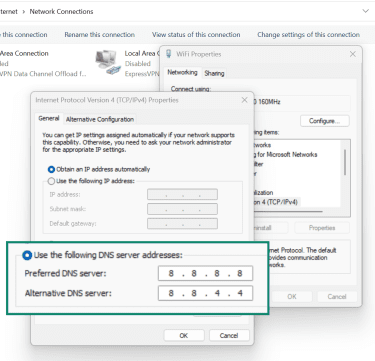
- Highlight Internet Protocol Version 4 (TCP/IPv4) and click the Properties button.
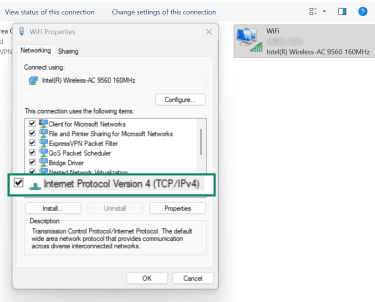
- Select Use the following DNS server addresses, and input 8.8.8.8 in the Preferred DNS server field and 8.8.4.4 in the Alternate DNS server field.
- Click OK to apply the changes.
Update macOS DNS preferences
Apple organizes these configurations inside System Settings. You can assign specific DNS servers to your Wi-Fi or Ethernet connection in the advanced network settings.
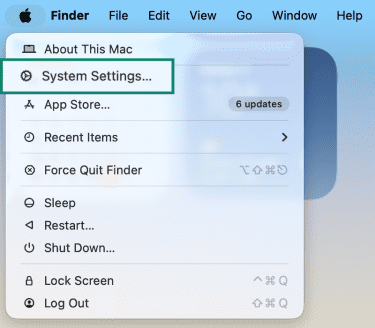
- Open System Settings from the Apple menu.
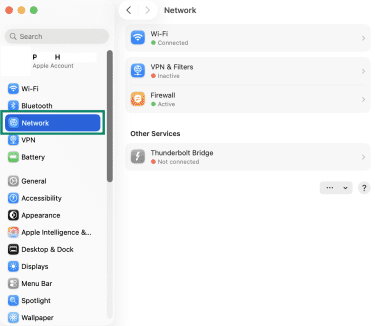
- Click Network in the sidebar. Click on your active network service on the right.
- Click the Details button.
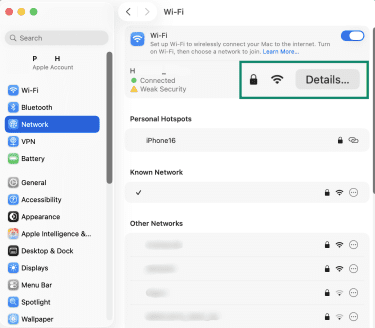
- Then select DNS from the menu.
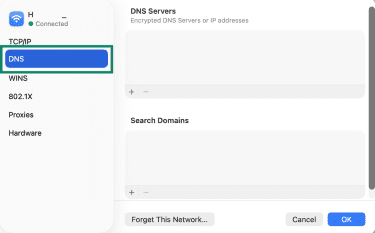
- Click the + button at the bottom of the Servers list.
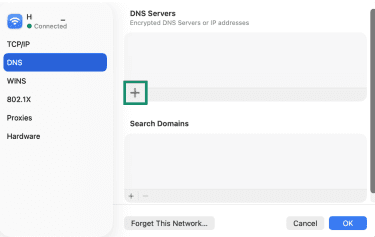
- Type 8.8.8.8 and press OK. Repeat the process to add 8.8.4.4.
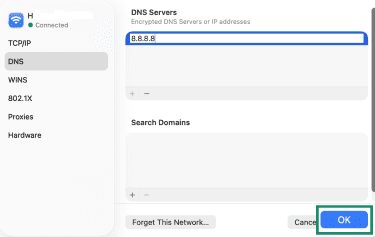
Switch to Google DNS on mobile devices
Smartphones let you manually configure DNS for specific Wi-Fi networks. This helps prevent the phone from defaulting to the router’s automatic settings.
For iOS (iPhone/iPad):
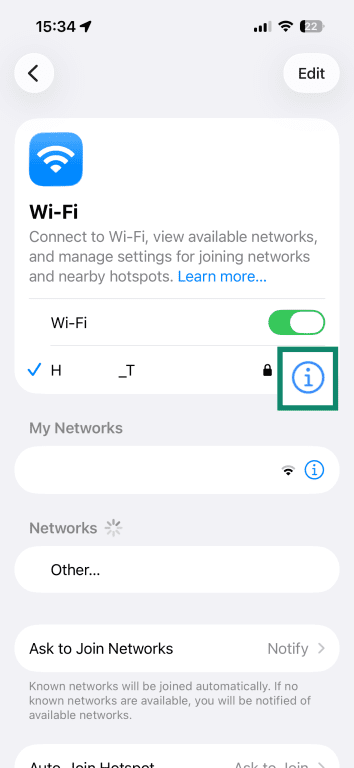
- Open Settings and tap Wi-Fi.
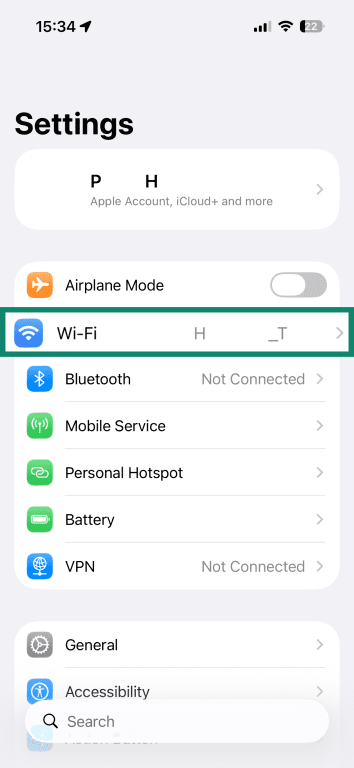
- Tap the blue "i" icon next to your connected network.
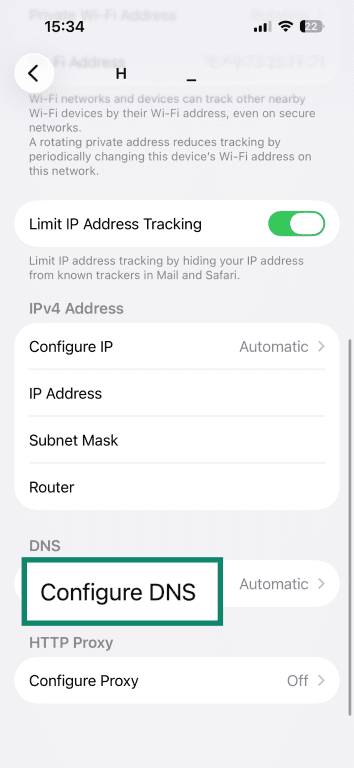
- Scroll down and tap Configure DNS.
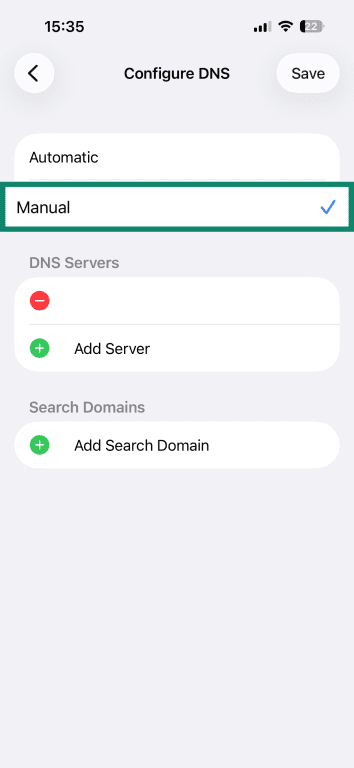
- Change the setting from Automatic to Manual.
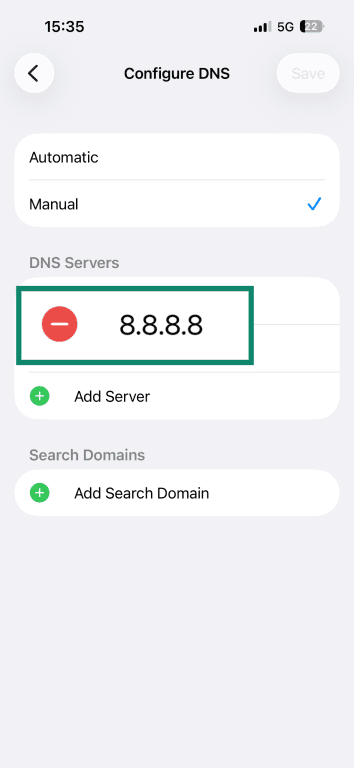
- Tap Add Server and type 8.8.8.8. and repeat for 8.8.4.4.
For Android:
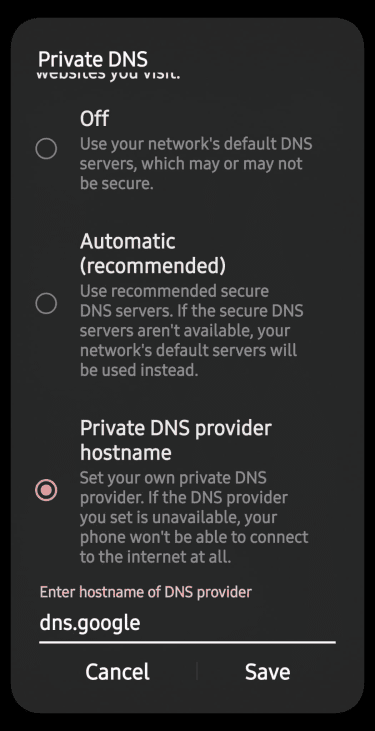
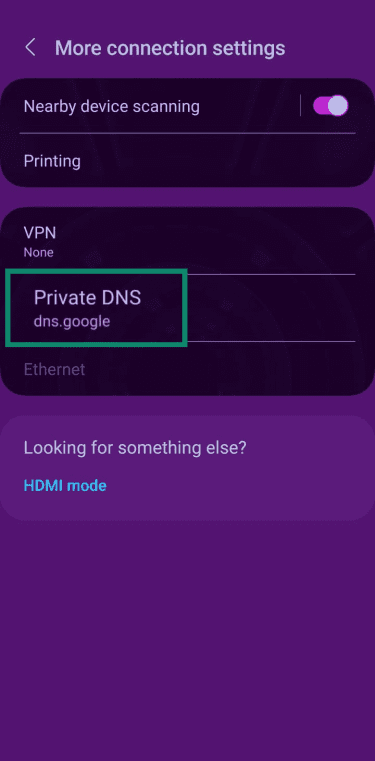
On Android, DNS settings are typically configured using Private DNS, which uses DNS over TLS (DoT) and requires a provider hostname instead of IP addresses.
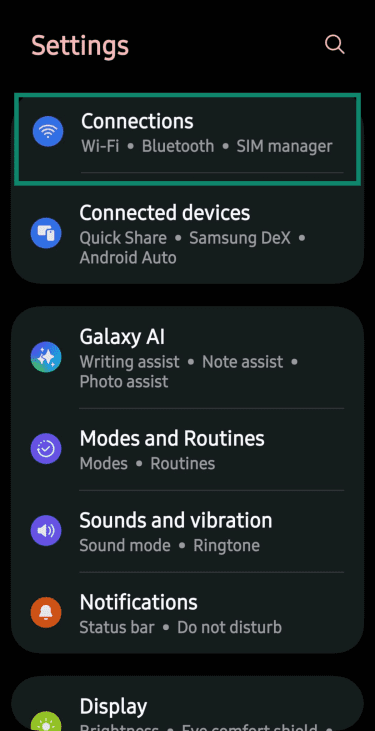
- Open Settings and select Connections.
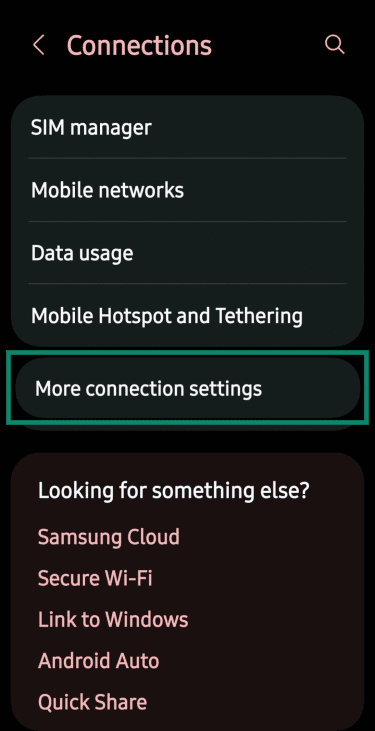
- Tap More Connection Settings.
- Tap Private DNS and set it to Private DNS provider hostname, and enter dns.google for Google Public DNS over TLS.
For routers
Configuring your router is often the most efficient approach. This automatically applies the new DNS settings to all devices connected to your Wi-Fi, including smart TVs and game consoles that may lack a DNS menu.
If you prefer to keep your router on the default ISP settings, you can manually configure specific devices instead. This approach is useful if you want the speed of Google DNS on your computer but need a different setup for other hardware.
Every router interface differs, but the general process follows these steps:
- Enter your router’s IP address into a web browser (common defaults include 192.168.1.1 and 192.168.0.1) and log in with your admin credentials.
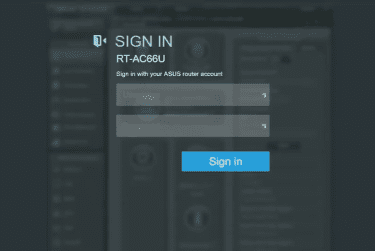
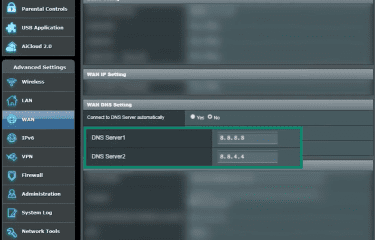
- Locate the DNS settings (often found under Advanced Settings > WAN). Select WAN DNS Settings. Input 8.8.8.8 as your primary DNS and 8.8.4.4 as your secondary.
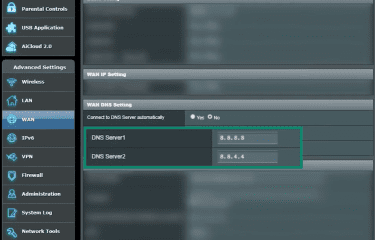
- Click Save and restart your router to ensure all connected devices receive the update.
How to check if your DNS change worked
DNS settings can take a minute to apply, and some devices keep short-lived cached answers. A quick check confirms your lookups are going to the resolver you picked, not your ISP’s default.
- Use nslookup (Windows and macOS): Open Command Prompt (Windows) or Terminal (macOS), then run nslookup cloudns.net.
- Look for the Server line in the results. It typically shows the DNS server you set, such as 8.8.8.8 or 8.8.4.4. If it shows something else, your device may still be using a different resolver.
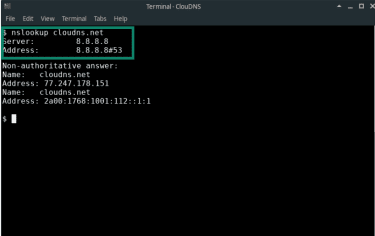
- Look for the Server line in the results. It typically shows the DNS server you set, such as 8.8.8.8 or 8.8.4.4. If it shows something else, your device may still be using a different resolver.
- Double-check the active network settings: Reopen the DNS settings for the network you changed and confirm the addresses are still saved.
- If you updated DNS on your router, reconnect your device to Wi-Fi or restart it to apply the new DNS settings.
- On Android, confirm that Private DNS is set to your chosen provider’s hostname (for Google, dns.google).
- If you updated DNS on your router, reconnect your device to Wi-Fi or restart it to apply the new DNS settings.
Is Google DNS good for gaming and streaming?
Google DNS might improve your initial connection times when launching games, but it won't reduce your in-game ping or boost your download speeds once you're connected.
In the initial connection phase, a faster DNS could mean:
- Quicker server discovery and matchmaking.
- Faster login to game platforms and launchers.
- Reduced delays when joining multiplayer lobbies.
- Smoother transitions between different game servers.
For streaming services, DNS mainly affects the initial connection. When you start playback, DNS helps determine which content delivery network (CDN) server your device connects to, which can influence how quickly the stream starts.
In some cases, public DNS resolvers like Google Public DNS may provide consistent resolution across regions. However, some ISPs operate local CDN caches for platforms like Netflix, which can result in faster or more efficient delivery when using the ISP’s default DNS. As a result, performance can vary depending on your network and location.
Learn more: Best DNS servers for gaming
FAQ: Common questions about Google DNS
What does using 8.8.8.8 for DNS do?
Who owns the 8.8.4.4 DNS server?
Is Google DNS safe to use?
Does Google DNS log your data?
Does Google DNS block malware or ads?
Take the first step to protect yourself online. Try ExpressVPN risk-free.
Get ExpressVPN