How to stop my search engine from switching to Bing



If your search engine keeps switching to Bing, you can easily reset it to your preferred search engine. But to make the change permanent, you’ll need to identify and address the source of the redirect.
In this guide, we’ll show you how to identify what’s causing the change, lock your preferred search engine in place, and decide when it’s worth doing a deeper cleanup to protect your privacy. We’ll also explain how to reduce the risk of this happening again, especially when you’re browsing on networks you don’t fully control.
Why does my search engine keep switching to Bing?
If your search engine keeps switching to Bing without your permission, it means something is changing your browser settings behind the scenes. This can happen for a few reasons, from bundled software and browser extensions to network-level policies.
Harmless reasons your browser switches to Bing
Some Bing redirects are the result of normal browser or system behavior. Common causes include:
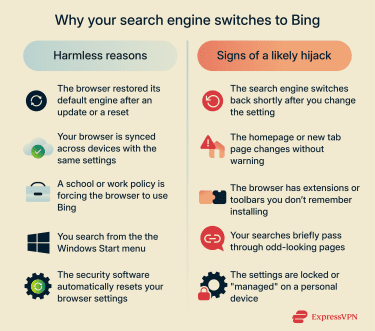
- Browser reset or update: Some browsers, like Microsoft Edge, default to Bing. When your browser repairs itself or updates, it can restore the default search engine, even if you changed it before.
- Sync restoring older settings: If your browser syncs across devices, a reset or change on one device can overwrite your preferences on others, which makes the switch feel random.
- Work or school account policies: On managed devices or accounts, administrators can lock the default search engine. These policies override manual changes and may apply even on personal devices signed into a managed account.
- Windows search instead of browser search: Searches from the Windows Start menu or taskbar use Bing by design, which can look like your browser switched search engines when it didn’t.
- Security or antivirus tools: Some security software automatically resets browser settings if it thinks they’ve been modified, including your default search engine.
When Bing redirects could be a sign of malware
Bing redirects could be a concern if they keep happening after you’ve changed your settings or when they’re paired with other unusual browser behavior. In more serious cases, repeated Bing redirects can indicate the presence of redirect malware, also known as a browser hijacker, on your browser or device. It’s likely malware if:
- Your search engine switches back shortly after you change the default setting.
- Your homepage or new tab page changes without warning.
- You have extensions or toolbars you don’t remember installing.
- Searches briefly pass through odd-looking pages before landing on Bing.
- Browser settings seem locked or difficult to change on a personal device.
When several of these happen together, it may suggest redirect malware rather than a harmless reset.
How redirect malware hijacks browsers
Redirect malware overrides a browser’s search settings and forces searches through a service it controls. A common source is a malicious browser extension. These extensions request broad permissions and then use that access to change search, homepage, or startup settings. Each time the browser opens, the extension puts the redirect back, even after resetting preferences.
In some cases, the redirect is caused by software installed on your device, typically a browser hijacker. These programs often come bundled with free downloads or in the form of misleading pop-ups and fake “update your browser” messages. Once active, the hijacker alters your browser settings so searches or new tabs are sent to Bing, or to another site that forwards traffic there.
Security risks of Bing redirect hijacking
Although modern browsers are generally safe, a browser hijack creates security risks because it gives third-party software ongoing control over how a browser behaves.
How redirect malware tracks activity
Browser hijackers are designed to control search behavior and redirect traffic. They may monitor browsing activity, such as search queries and visited websites, and could use it to build profiles or target ads.
Exposure to malicious ads and follow-on malware
Redirect hijackers commonly generate revenue through low-quality advertising networks. As a result, users are more likely to encounter deceptive ads, fake software updates, or misleading download prompts. Even if the redirect itself appears minor, this exposure increases the risk of installing additional unwanted software or triggering more serious infections.
Data exposure on compromised browsers
Beyond tracking, redirect malware increases the risk of data misuse or loss. Hijackers often modify browser configurations or install unwanted components that can access cookies, session data, or stored site permissions. That access could create opportunities for sensitive information to be collected, mishandled, or leveraged in follow-up attacks.
How to stop your search engine from switching to Bing
To stop unwanted Bing redirects, you’ll need to go through browser settings, extensions, and software that may be enforcing the change.
Reset your browser search settings
The first step to making sure you’re using the search engine you prefer is checking your browser search engine settings and resetting them if needed. The steps show how you can change your default search engine in several browsers, and they’re the same regardless of the device you use, including on mobile.
Reset Chrome
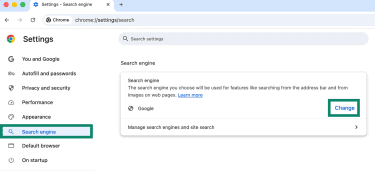
- Open the browser, click the three dots in the top-right corner, and select Settings.
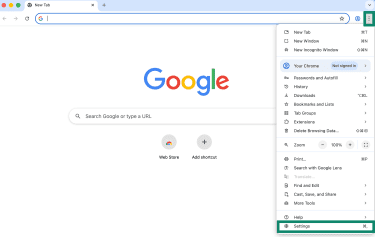
- Navigate to the left-hand menu, select Search engine, and click Change.
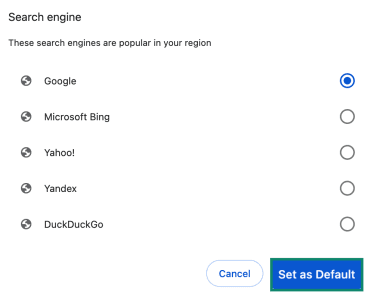
- On the next page, pick your preferred search engine and click Set as Default.
Reset Firefox
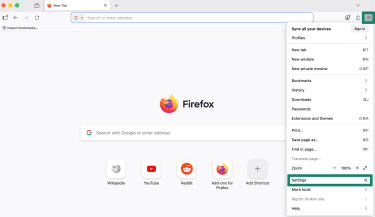
- Open Firefox. Click the menu button (three horizontal lines) in the top-right corner and select Settings.
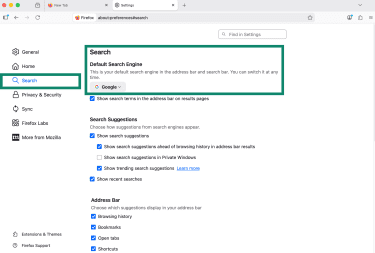
- Click Search in the left-hand menu and choose your preferred search engine under Default Search Engine.
Reset Microsoft Edge
- Open Microsoft Edge. Click the three dots in the top-right corner and select Settings.
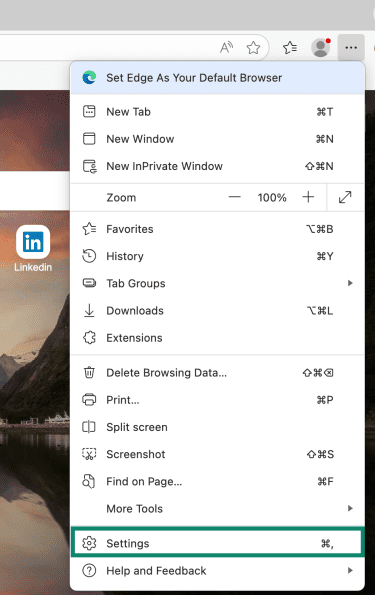
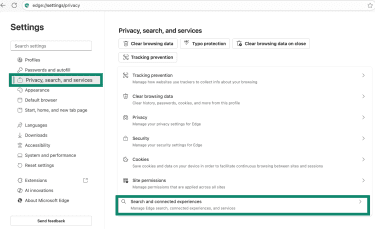
- Click Privacy, search, and services in the left-hand menu. Then select Search and connected experiences.
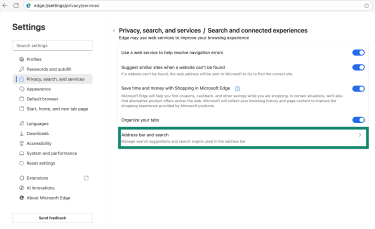
- On the next window, click Address bar and search.
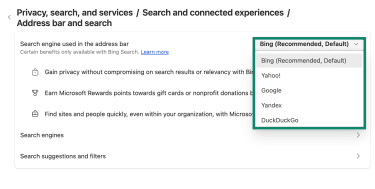
- Finally, pick your preferred search engine next to the Search engine used in the address bar option.
Reset Safari (Mac)
- Open Safari. Click Safari in the menu bar, then select Settings (or Preferences in older versions).
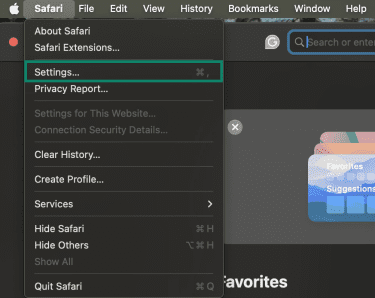
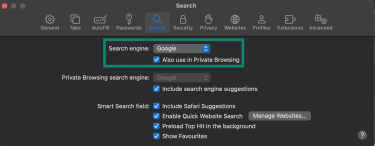
- Open the Search tab and set the search engine back to your preferred option.
Reset Safari (iPhone and iPad)
The steps for changing your default search engine on Safari are different on iPhones and iPads.
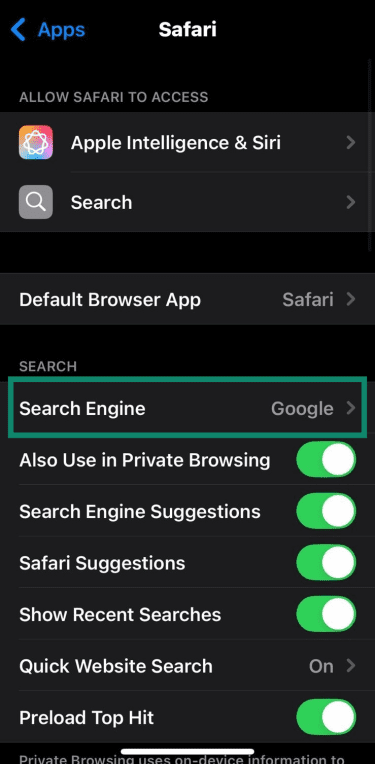
- Open Settings, navigate to Apps, and then tap on it. From the list, tap on Safari.

- Then tap Search Engine and update it to the search engine you want to use as the default.
Remove suspicious extensions and add-ons
If an extension is causing the redirect, you’ll need to check the extensions in your browser manually. When reviewing your extension list, check for anything you didn’t install intentionally, no longer use, or that has permission to control search behavior, toolbars, coupons, or quick results.
Chrome (desktop)
- Right-click on the extension icon in the toolbar or click on the Extensions icon and click the three vertical dots next to the extension. Select Remove from Chrome from the options.
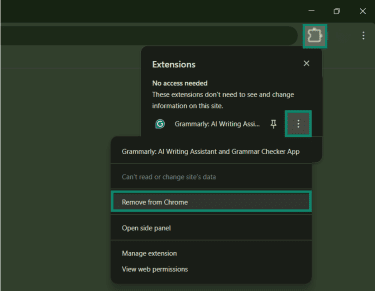
- In the pop-up, click Remove again to confirm.

Microsoft Edge (desktop)
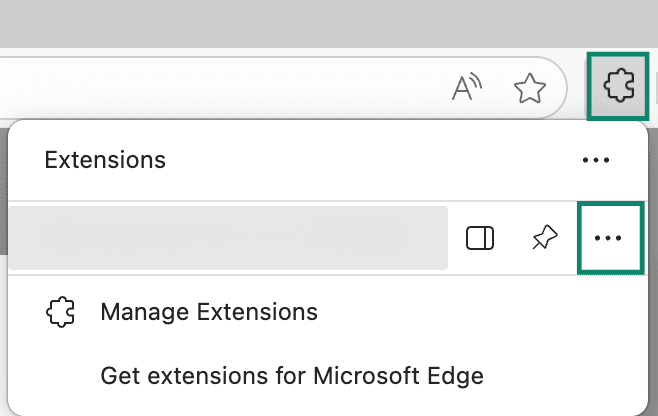
- Select Extensions next to the address bar and click on More actions (three horizontal dots) next to the extension.
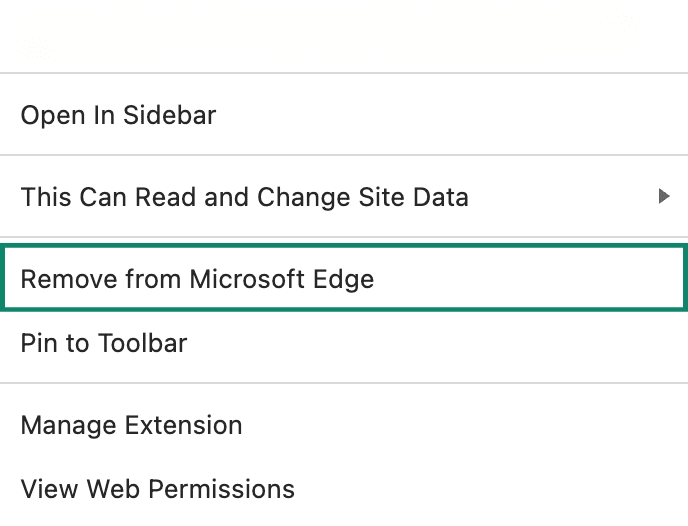
- Next, select Remove from Microsoft Edge.
Firefox (desktop)
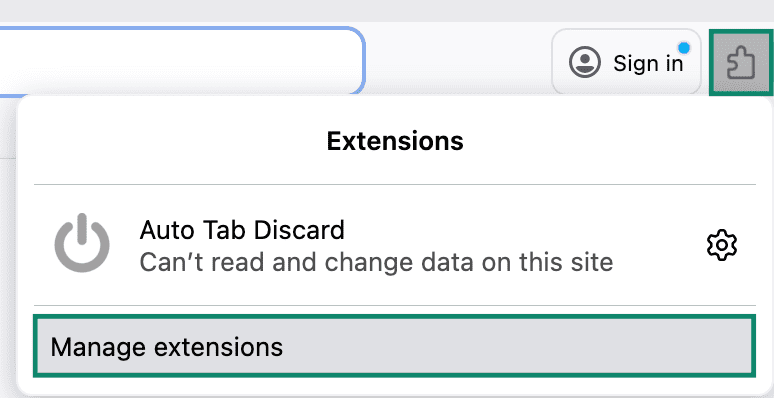
- Select the Extension icon, then Manage extensions.
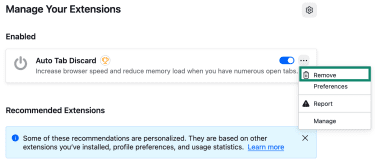
- Next to the extension you want to remove, click the three dots and then Remove.
Safari (Mac)
- From the Safari menu, choose Settings and click Extensions.
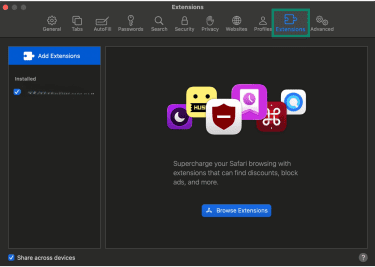
- Select the extension and click Uninstall to remove it.

How to remove a browser hijacker causing Bing redirects
If the Bing redirect keeps returning even after you reset your browser and remove extensions, the cause may be software installed on your device, like browser hijackers that run in the background and repeatedly change your search engine.
Run an antivirus and anti-malware scan
The next step is to scan your device for potentially unwanted software. You can use your operating system’s built-in security tools or a reputable third-party antivirus program. Start with a quick scan. If the redirect continues, follow up with a full system scan: deeper scans are more likely to detect persistent software that browser resets don’t remove. On Windows, you can use Windows Security:
- Open Windows Security, select Virus & threat protection, then select Quick scan.

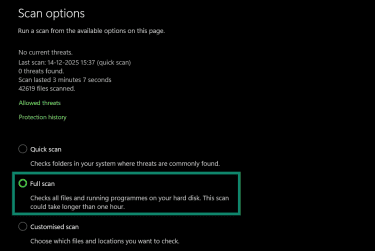
- If the problem comes back, select Scan options, choose Full scan, then select Scan now.
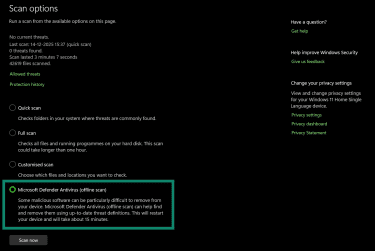
- If you still can’t get rid of Bing redirect behavior, run an offline scan from Scan options. This scan restarts your device and runs without loading Windows, which makes it harder for persistent malware to hide. Save your work first.
Advanced cleanup: Safe Mode and manual removal steps
If the Bing redirect continues even after scans and basic cleanup, the next step is to remove whatever is enforcing the redirect while your device is running in a limited “safe” state. Safe Mode only loads essential software, which makes unwanted programs easier to find and remove.
Windows
- In Settings, go to Recovery under System. Then select Restart now next to Advanced startup.
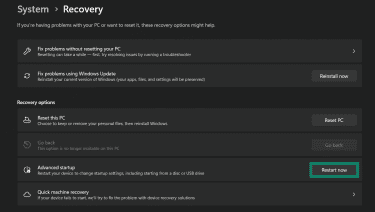
- In the recovery menu, select Troubleshoot, then Advanced options, Startup Settings, and finally Restart.
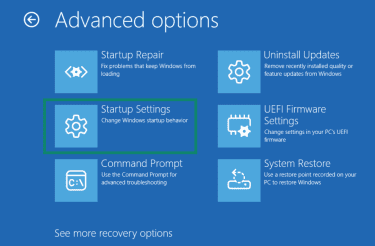
- When the numbered list appears, press 4 for Safe Mode, or 5 for Safe Mode with Networking. Once in safe mode, go to your Installed apps. Select More next to the app you want to remove and click Uninstall.

- Restart Windows and run a full antivirus scan again.
Optional step: If the redirects stop in Safe Mode but return in normal mode, do a clean boot to narrow down which startup app or service is reapplying the changes, then remove it.
macOS
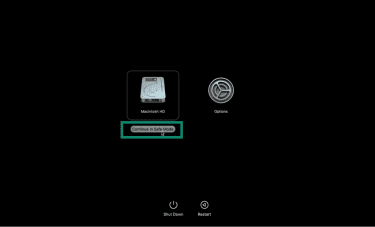
- On Apple silicon, press and hold the power button until startup options appear. Select your startup disk, hold Shift, then click Continue in Safe Mode. On Intel Macs, restart and immediately hold Shift until the login window appears.
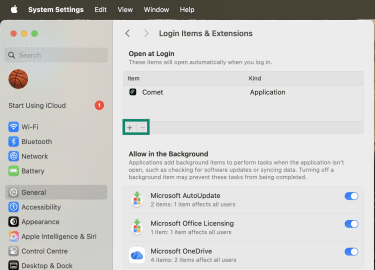
- Open System Settings, select General, then select Login Items & Extensions. Remove anything you do not recognize under “Open at Login.”
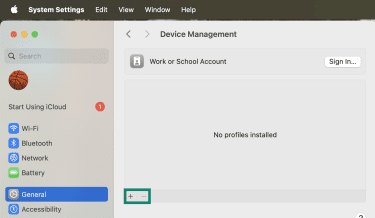
- Go back to System Settings, select General, and click Device Management. Remove any configuration profiles you did not install.
- Restart normally and test a search from the browser address bar. If Bing still takes over, return to the browser steps and recheck extensions.
Reset your browser
Once you’ve gone through all the steps and scenarios, you should reset your browser to its default settings to clear the changes the browser hijacker made to your search engine settings. Note that a reset can remove all custom settings, so it’s best to back them up before moving forward.
Reset Chrome
- In Google Chrome’s Settings, click Reset settings.
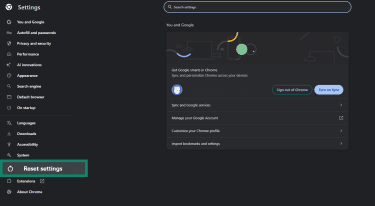
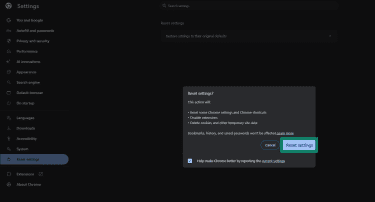
- Click Restore settings to their original defaults. Read the confirmation message and click Reset settings to confirm.
Reset Firefox
Firefox has a built-in Refresh feature that resets many settings while keeping your essential data. Here are the steps.
- Open Firefox. Click the menu button (three horizontal lines) in the top-right corner and select Help.

- Click More troubleshooting information.

- Click Refresh Firefox…

Reset Microsoft Edge
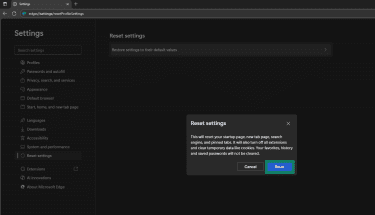
- In Microsoft Edge’s Settings, click Reset settings in the left-hand menu, then click Restore settings to their default values.

- Read the confirmation message and click Reset to confirm.
How to prevent future search engine hijacking
Once you’ve fixed the issue, the goal is to keep your browser settings stable going forward.
Keep your browser and OS updated
Different types of browsers and operating systems receive security updates that fix vulnerabilities commonly used by adware infections and malicious browser add-ons. Staying reasonably up-to-date reduces exposure to known exploits and improves built-in protections against abusive extensions and deceptive downloads.
Avoid suspicious downloads and extensions
Many Bing redirect issues begin with bundled software or extensions that users install without realizing the impact. Treat anything that interacts with your browser as a high-trust install. Stick to official sources when possible, read installation screens carefully, and avoid tools that want broad access to your browsing activity or search settings. Keeping your extensions list short also lowers risk.
Use security-focused browser tools
Modern browsers include built-in protections that warn about deceptive websites, dangerous downloads, and known abusive extensions. Keeping these protections enabled helps block common entry points for hijackers before they reach your browser.
Reputable content blockers can further reduce exposure to malicious ads and misleading download prompts. Focus on tools with clear purposes and transparent permissions, rather than stacking multiple extensions that overlap in function.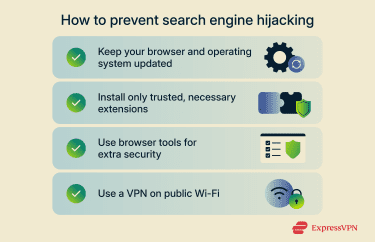
Use a VPN on public Wi-Fi
Unsecured public Wi-Fi does not directly cause browser hijacking, but it can increase exposure to deceptive pages that encourage users to install unwanted extensions or software, and those installs can later change your browser settings. If you often browse on shared or unsecured networks, adding some protection can help reduce that risk.
A virtual private network (VPN) encrypts your internet traffic so it’s harder for bad actors to see or interfere with your browsing. That means it’s less likely that you’re steered toward deceptive pages in the first place.
FAQ: Common questions about Bing redirects
Why does Bing keep opening instead of Google?
This usually happens because something changed your default search engine without you noticing, or because a browser extension, app, or setting is overriding the change.
Is the Bing redirect virus dangerous?
Bing redirects could be the result of browser hijacker malware or an unwanted extension takeover. These could track your activity, inject ads, or expose you to further malware through deceptive pages and downloads.
How do I scan my browser for hijackers?
You can run an antivirus or anti-malware scan and look for suspicious apps or system-level changes enforcing the redirect.
What browser settings should I check and reset to stop my search engine from switching to Bing?
Focus on three areas: your default search engine, your homepage and startup pages, and your extensions. If any of these keep reverting after you change them, it is a sign that something else is controlling your browser settings in the background.
How do I know if an extension is malicious?
If an extension requests a lot of permissions it doesn’t need or if you don’t remember installing it, it may be malicious. If you have an extension you suspect in your browser, you should remove it to see if it’s causing the Bing redirects.
What’s the difference between malware and redirect hijackers?
Redirect hijackers are a type of unwanted software that specifically targets changes to browser behavior, such as search engines and homepages, often for ad revenue or tracking. Malware is a broader category that includes more serious threats, such as spyware, ransomware, and trojans.
Take the first step to protect yourself online. Try ExpressVPN risk-free.
Get ExpressVPN