How to reset NVRAM (PRAM) and SMC on your Mac easily



Some Mac issues don't respond to the usual fixes. Restarting doesn't help, and updates don't change anything. You might see settings reset on their own, a flashing question mark folder at startup, fans running constantly, problems with sound or display, or a battery that won’t charge for no clear reason.
These kinds of problems can sometimes trace back to low-level settings your Mac stores outside of macOS. Two components manage them: non-volatile random-access memory (NVRAM) and the System Management Controller (SMC).
Because these settings are used during startup, standard troubleshooting methods often can’t reach them. Resetting NVRAM or the SMC can clear the stored settings and restore normal behavior. It’s quick and doesn’t affect your personal files or apps, though some system settings may reset.
How to reset NVRAM (PRAM) on different Macs
The reset process depends on whether your Mac uses Apple Silicon or an Intel processor. Apple Silicon Macs handle it automatically, while Intel-based Macs require a keyboard shortcut during startup.
Not sure which Mac you have? Click the Apple menu and choose “About This Mac.” If you see “Chip” followed by an M-series name, it’s Apple silicon. If you see “Processor” with Intel listed, it’s an Intel-based Mac.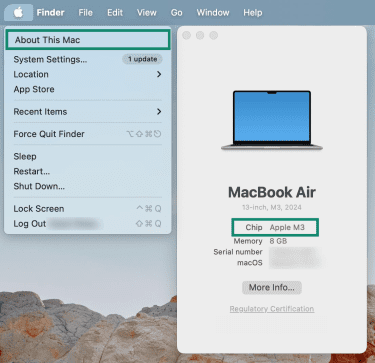
Macs with Apple silicon
On Macs with Apple silicon, there's no shortcut to manually reset NVRAM. The system rebuilds NVRAM automatically during startup if corruption is detected, so there’s no separate reset process for users.
If you’re troubleshooting an issue that might be related to startup or system settings:
- Shut down your Mac.
- Wait a few seconds.
- Turn it back on.
Note that if you were planning to use the keyboard shortcut from an older Mac, it has no effect on Apple silicon models.
Intel-based Macs
Intel-based Macs support a manual NVRAM reset using a keyboard shortcut during startup.
- Shut down your Mac.
- Turn it on, then immediately press and hold Option, Command, P, and R.
- Keep holding the keys for about 20 seconds.
- On Macs older than 2016, you may hear the startup sound multiple times. Apple disabled this by default beginning with the 2016 MacBook Pro refresh.
- On newer Macs, the Apple logo may appear and disappear.
- Release the keys and let your Mac start normally.
Troubleshooting tip
If your Mac has a firmware password enabled, this shortcut won’t work until the password is turned off. Firmware passwords prevent changes during startup.
To disable it, restart your Mac into Recovery Mode:
- Apple Silicon Mac: Shut down your Mac, then press and hold the power button until “Loading startup options” appears. Choose Options, then Continue, then Utilities.
- On Intel Mac: Turn on or restart your Mac, then immediately press and hold Command + R until the Apple logo or a spinning globe appears.
From Recovery Mode, open Startup Security Utility (or Firmware Password Utility on older macOS versions), and turn off the firmware password before attempting to reset NVRAM.
How to reset the SMC on your Mac
The steps for resetting the SMC depend on whether your Mac uses Apple silicon or an Intel processor. Intel-based Macs also differ based on whether they include the Apple T2 Security Chip.
Apple silicon Macs
Apple silicon Macs don’t use a separate SMC chip. Instead, SMC functions are built into the M-series chip, so there’s no manual SMC reset.
If you’re troubleshooting power, charging, or hardware-related behavior:
- Shut down your Mac.
- Disconnect the charging cable if it’s plugged in.
- Wait at least 30 seconds.
- Reconnect the charging cable and turn the Mac back on.
If the issue persists, the cause is likely elsewhere in macOS or the hardware rather than a controller-state issue.
Intel-based Macs
On Intel-based Macs, SMC reset steps vary by device type and whether the Mac includes the Apple T2 Security Chip.
How to check if your Mac has the T2 chip
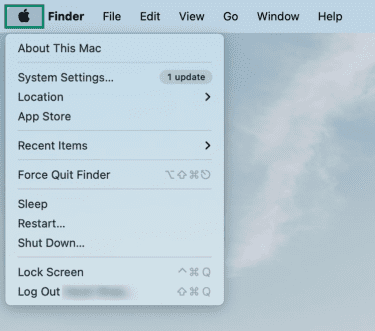
- Click the Apple menu.
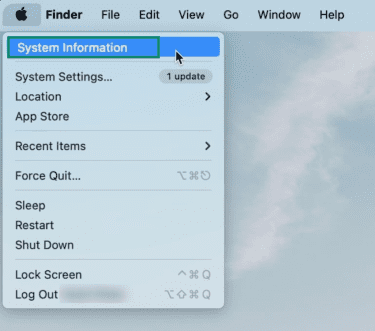
- Hold the Option key and select System Information.
- In the sidebar, select Controller or iBridge.
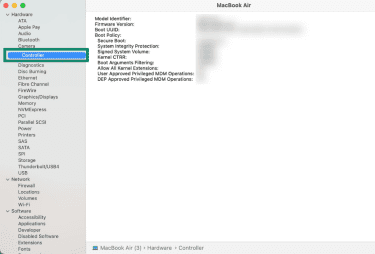
- If you see Apple T2 Security Chip, your Mac has the T2 chip.
Intel-based MacBooks with the T2 chip (2018 and later)
- Shut down your Mac.
- Press and hold the power button for 10 seconds, then release it.
- Wait a few seconds and turn the Mac back on.
If the issue persists:
- Shut down the Mac again.
- Press and hold Control (left), Option (left), and Shift (right) for 7 seconds.
- While holding those keys, also press and hold the power button.
- Keep holding all four keys for another 7 seconds, then release them.
- Wait a few seconds, then press the power button to turn on your Mac.
Intel-based desktop Macs with the T2 chip
- Shut down your Mac.
- Press and hold the power button for 10 seconds, then release it.
- Wait a few seconds and turn the Mac back on.
If the issue persists:
- Shut down the Mac again.
- Unplug the power cord.
- Wait 15 seconds.
- Plug the power cord back in.
- Wait 5 seconds, then press the power button to turn on your Mac.
Intel-based MacBooks without the T2 chip
Applies to most MacBook Pro models from mid-2009 through 2017 and MacBook Air models from 2017 or earlier.
- Shut down your Mac.
- Press and hold Shift, Control, and Option on the left side of the built-in keyboard.
- While holding those keys, press the power button.
- Hold all four keys for 10 seconds, then release them.
- Press the power button to turn on your Mac.
Intel-based desktop Macs without the T2 chip
- Shut down your Mac.
- Unplug the power cord.
- Wait 15 seconds.
- Plug the power cord back in.
- Wait 5 seconds, then press the power button to turn on your Mac.
Related: How to protect your data and privacy on a Mac
What to check after a reset
Resetting NVRAM or the SMC doesn’t remove your files or apps, but it can reset some system settings. Check the items below to make sure everything looks right. Menu names in macOS can vary by version, so some labels may look different on your Mac.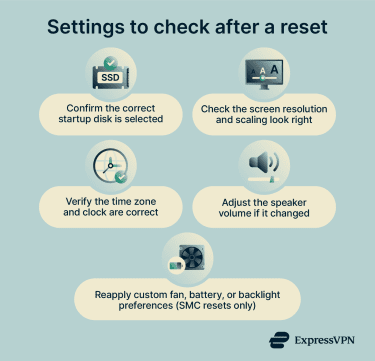
- Startup disk: Resetting NVRAM can clear the setting that tells your Mac which disk to boot macOS from. Open System Settings, search for Startup Disk, and confirm the correct disk is selected.
- Display settings: Screen resolution or scaling may change after a reset. If text or icons look unusually large or small, adjust the display settings until they look right again.
- Date and time: The clock or time zone may be incorrect after a reset. Open System Settings, search for Date & Time, and confirm the settings look correct.
- Sound volume: Speaker volume can reset to a lower or higher level than expected. Adjust it from the menu bar or Sound settings.
- Network settings: Wi-Fi networks or related preferences may reset after an NVRAM clear. If you notice connection issues, reconnect to your network and review any custom firewall or VPN settings.
- Power and hardware behavior (SMC resets): Battery charging, keyboard backlighting, fan behavior, or trackpad settings may return to their defaults. If you use third-party tools for fan control or power management, you may need to reapply those settings.
If the original issue persists after checking these items, the cause is likely macOS-related or a hardware issue rather than stored system settings.
Related: Signs your MacBook is hacked
What are NVRAM and SMC?
What is NVRAM (PRAM)?
Non-volatile random-access memory (NVRAM) is a small amount of memory built into your Mac that stores system settings the computer needs before macOS loads. Unlike regular RAM, which clears when you shut down, NVRAM retains its contents even without power.
These settings include things like which disk macOS should boot from, display resolution, speaker volume, and time zone. If the values stored in NVRAM are incorrect, your Mac may start up unpredictably or behave differently after each restart.
On older Macs, this memory was called parameter random-access memory (PRAM), but it serves the same purpose.
What is the SMC?
The System Management Controller (SMC) is a separate chip found on Intel-based Macs. It controls hardware-related behavior that works independently of macOS.
This includes power delivery, battery charging, fan behavior, keyboard backlighting, and how the Mac responds when you press the power button. When the SMC isn’t functioning correctly, the Mac can exhibit symptoms that appear like hardware problems, even though the hardware itself is fine.
On Apple silicon Macs, the M-series chip handles these responsibilities directly, which is why troubleshooting steps differ between the two architectures.
Related: How to find your macOS version
When to reset NVRAM and SMC
Resetting NVRAM or the SMC is a troubleshooting step, not routine maintenance. Most Macs never need either reset, and doing them repeatedly won't improve performance.
These steps are useful when a specific problem doesn't respond to normal fixes like restarting macOS or adjusting settings. You can also try starting your Mac in Safe Mode to check whether the issue is caused by software before attempting low-level resets.
Common signs you may need a reset
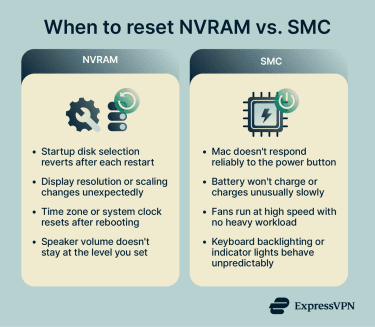 You may want to reset NVRAM if you notice issues such as:
- Your Mac starts up inconsistently, pauses before loading macOS, or briefly shows a flashing question mark.
- Display resolution, speaker volume, or startup disk selection reverts to the wrong value after each restart, even after correcting it.
- The time zone or system clock resets after every reboot, even though it’s configured correctly.
- Startup-related issues persist even though macOS is fully up to date.
On Intel-based Macs, an SMC reset may help if you notice:
- The Mac doesn’t respond reliably when you press the power button.
- The battery won’t charge or charges unusually slowly.
- Fans run at high speed even when the Mac isn’t under heavy load.
- Keyboard backlighting or indicator lights behave unpredictably.
- The Mac shuts down, sleeps, or wakes unexpectedly.
Related: How to factory reset your Mac
FAQ: Common questions about resetting NVRAM and SMC on Mac
Is clearing NVRAM safe?
What is an SMC reset on a Mac?
What does resetting NVRAM do on a Mac?
How do you run an SMC and NVRAM reset?
What should you do after resetting NVRAM or SMC?
Can resetting NVRAM or SMC improve Mac performance?
Will I lose my files if I reset NVRAM?
How often should you reset NVRAM or SMC on a Mac?
Take the first step to protect yourself online. Try ExpressVPN risk-free.
Get ExpressVPN















 Support Center
  FAQ
FAQ  VPN Setup Tutorials


