How to turn off Gemini: A quick guide


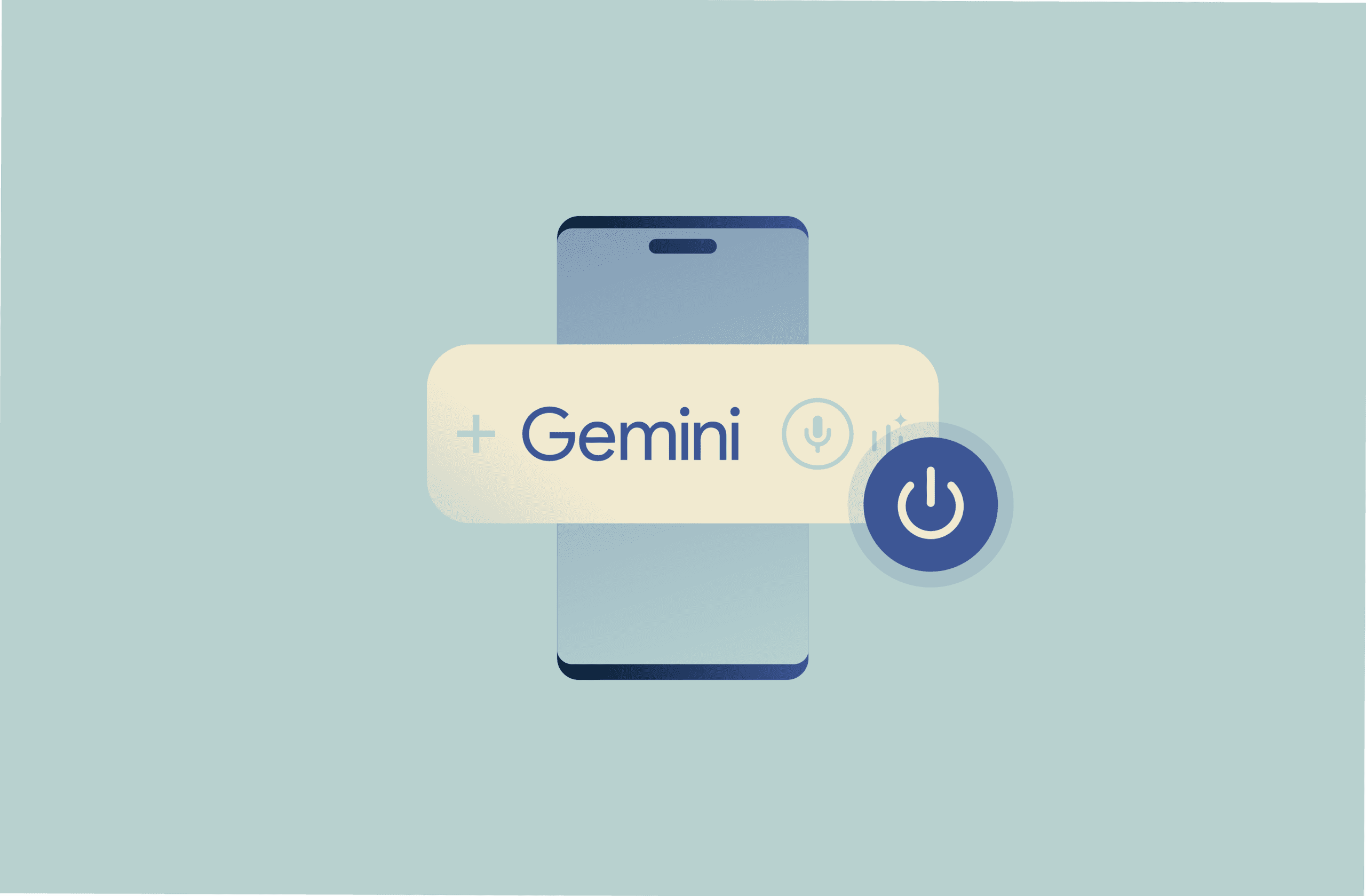
Gemini can appear across multiple Google products, and the controls to disable or limit it aren't always in a single, obvious place.
This guide explains where to look and how to turn off (or reduce) Gemini across Android devices (including Samsung phones), Gmail, Google Search, Google Workspace, and how to switch back to Google Assistant on Android.
Understanding Gemini AI
Gemini is Google’s generative AI assistant. It’s available through the Gemini app, and it can also appear as a Gemini feature inside other Google products.
Gemini accepts prompts via text or voice and may process content shared in a chat (e.g., uploaded images or other inputs).
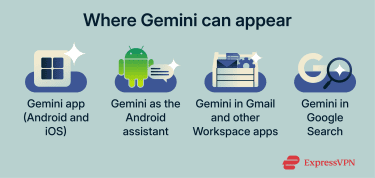
Where Gemini appears and what it can do depends on the product, account type, region, and (for Workspace) organization setting:
- Android: Gemini can act as the phone's digital assistant on supported devices, if selected under Digital assistants from Google.
- iOS: Gemini is available in the Gemini app, but it doesn’t become the system assistant like it can on Android.
- Gmail and other Workspace apps: In eligible accounts, Gemini can appear as an in-app feature (often via a side panel) to summarize and generate content.
- Google Search: Generative AI features include AI Overviews and, in some cases, AI Mode, which uses Gemini models.
Key features that may be available
Availability and default behavior vary by feature and product, and some Gemini capabilities only appear after Gemini is enabled for the account, device, or organization.
- Gemini writing and drafting in Gmail: Gemini can help draft messages (e.g., “Help me write”) and summarize and suggest responses, depending on the account type and plan.
- Gemini assistance in Workspace apps: In eligible Workspace accounts, Gemini can help summarize and draft content inside apps such as Gmail and, where available, Google Chat, without leaving the app.
- Search summaries and AI answers: In Google Search, AI Overviews can provide AI-generated summaries with links. AI Mode can be opt-in via Search Labs, where available.
- Mobile assistant actions on Android: When used as the phone's digital assistant, Gemini can support device actions such as calling or messaging through connected apps, subject to settings and eligibility.
Common risks and limitations
Google notes that generative AI features in Search (including AI Overviews) are experimental and can make mistakes.
Google also states in its Gemini Apps Privacy Hub that some data (including reviewed feedback and associated conversations) may be reviewed by human reviewers and retained for up to 3 years. It also says some Gemini Apps usage data is kept until you delete your Google Account (for example, information about how often you use Gemini Apps). Additionally, when Gemini Apps Activity (conversation history) is off, new chats can be saved for up to 72 hours to provide the service and process feedback.
What to know before disabling Gemini
While you can disable Gemini, there are important limitations you need to be aware of.
Why turning off Gemini isn't one global switch
Gemini appears in different places, and each product has its own controls. Turning it off in one place may not affect it elsewhere.
On Android phones, Gemini may be triggered by shortcuts (e.g., a side button or a long-press gesture). Reassigning or disabling those shortcuts helps prevent accidental launches, but it doesn’t change Gemini settings in other Google products that may still offer Gemini features.
What features may stop working after you turn it off
Some Gemini capabilities depend on connected apps (integrations that let Gemini take actions or use data from other apps). When Gemini is disabled or limited, those integrations may be unavailable or reduced, depending on the device and settings. In practice, this is most noticeable in two areas:
- Assistant-style actions on Android: Tasks that rely on connected apps (for example, messaging or calling through supported services) may be reduced or unavailable when Gemini isn’t the active assistant or when connections are turned off.
- Gemini inside Google apps (Workspace/Search): Features such as drafting, summarizing, or “Ask Gemini” panels may disappear if Workspace Gemini isn’t enabled for the account or organization, or if the feature is not available for that account type/region.
What settings still remain active
Disconnecting an app from Gemini does not automatically remove the Android permissions that were granted to the Google app. For example, even if WhatsApp (or Messages) is disconnected in Gemini, Gemini can still access the phone’s contacts if the Google app still has Contacts permission. Gemini can also still access notifications if the Utilities connection (the Gemini connection that allows device-level actions and notification access on Android) is enabled.
How to turn off Gemini on Android
How to change your digital assistant on Android
You can change your digital assistant through your Android’s settings menu by following these steps:
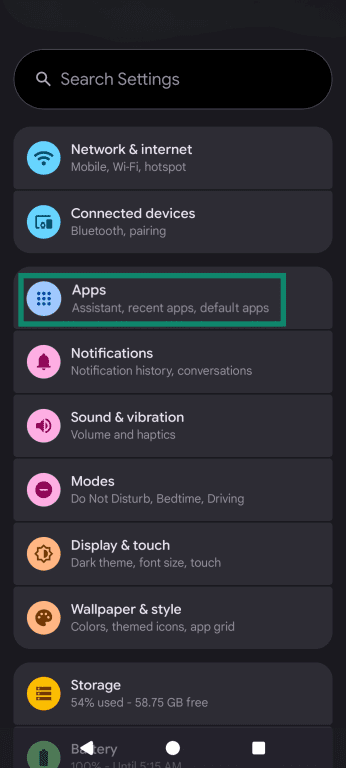
- Open Settings and tap Apps.
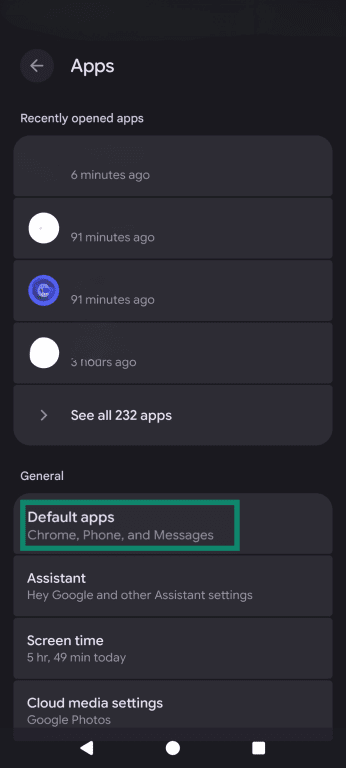
- Tap Default apps (or Choose default apps, depending on the device).
- Tap Digital assistant app.
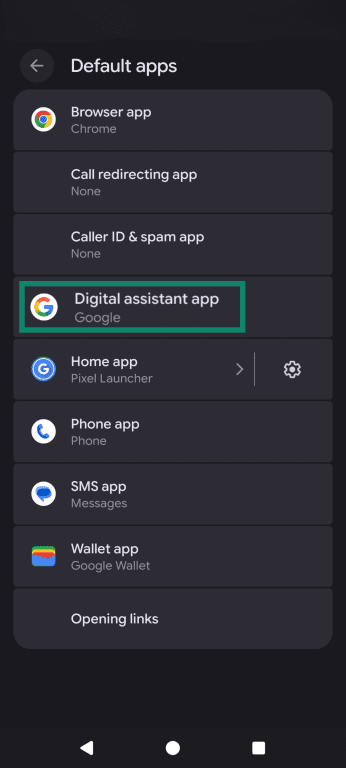
- Tap Default digital assistant app (or tap Digital assistant app again).
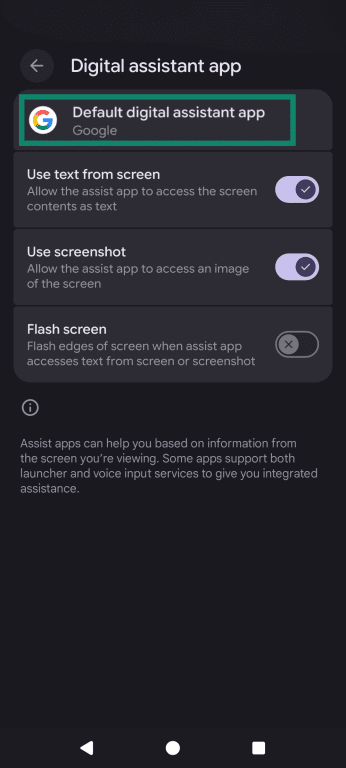
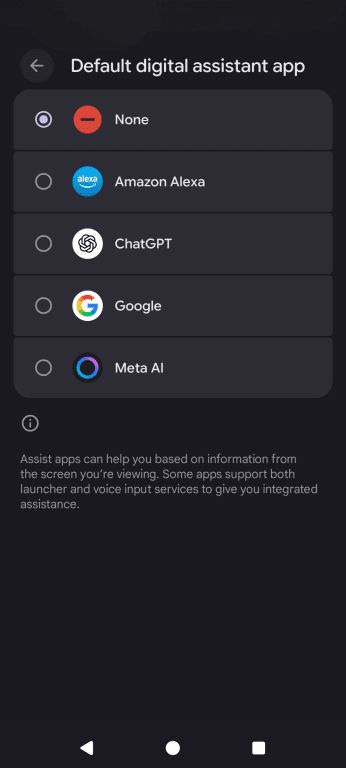
- Select the digital assistant you want (options vary by device and what’s installed), or choose None/Off if available.
How to disable Gemini on Samsung devices
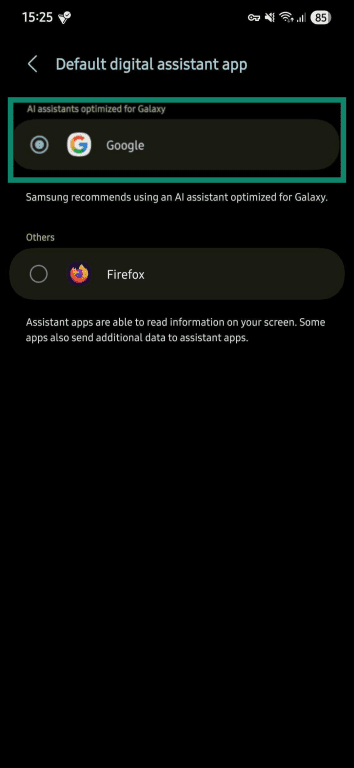
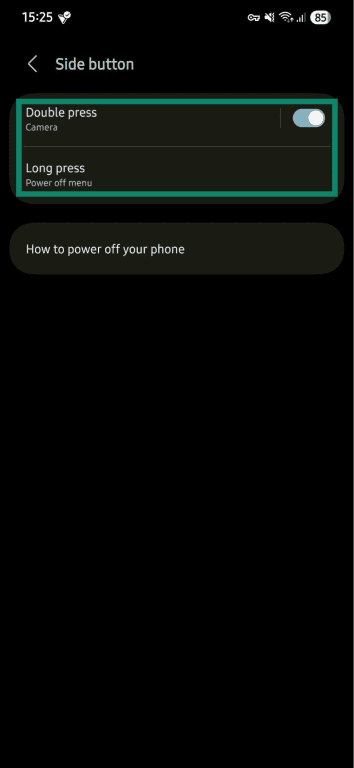
On many Galaxy devices, the Side button can launch a digital assistant. If long-press is set to Gemini, disabling Gemini launches typically involves setting a different default assistant and changing the Side button long-press action.
Change the default digital assistant
- Open Settings > Apps > Choose default apps.
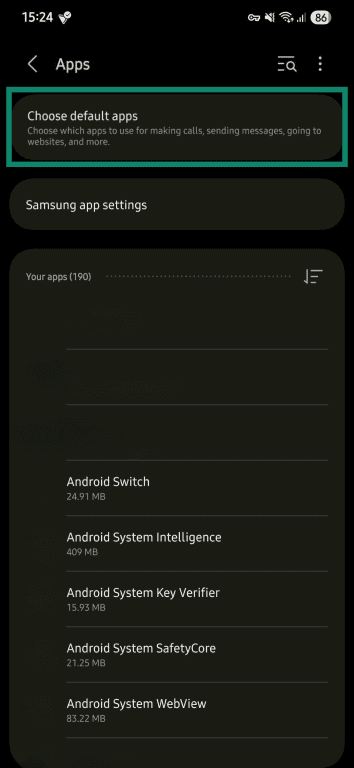
- Tap Digital assistant app. You might need to tap the Digital assistant app again.
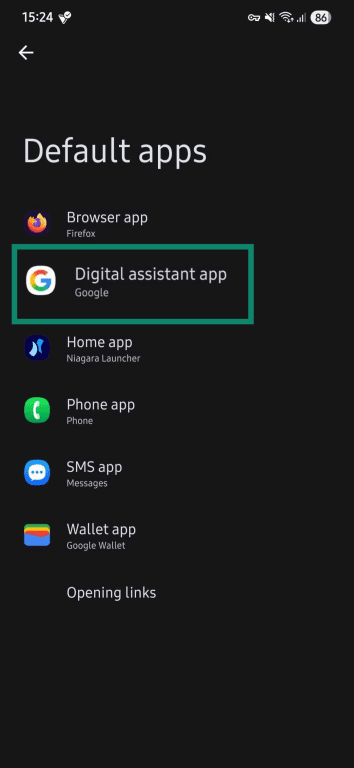
- Select your preferred option. Available options vary by what’s installed.
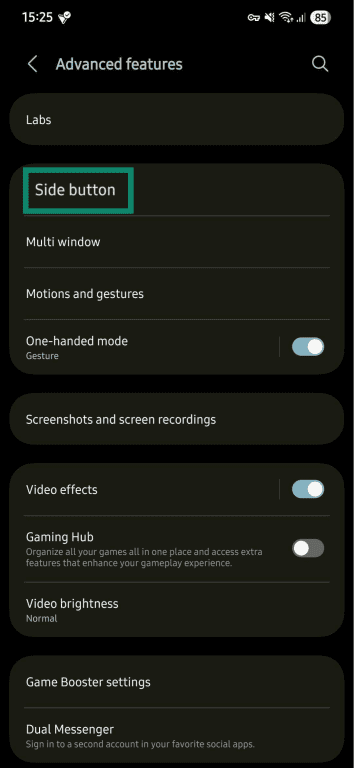
Stop the Side button from launching an assistant
- In Settings, tap Advanced features > Side button.
- Set Long press to Power off menu (or another non-assistant option).
How to switch back to Google Assistant
- Open Google and tap your profile icon. Choose Settings.
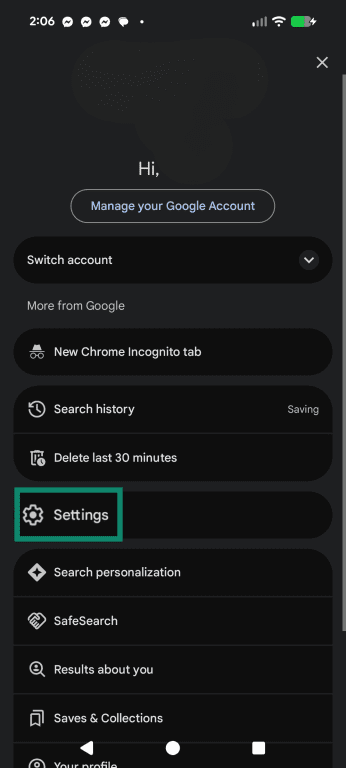
- Scroll down to Gemini.
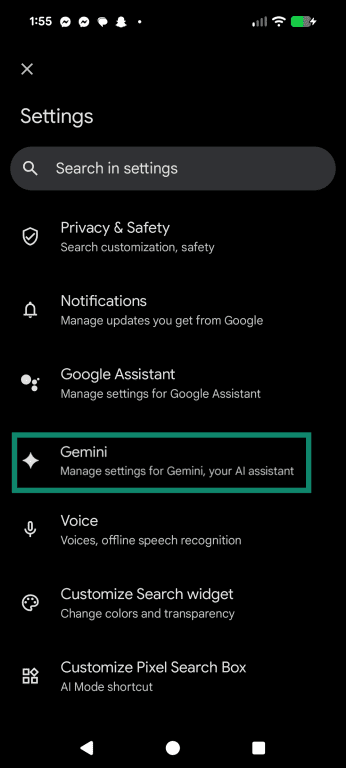
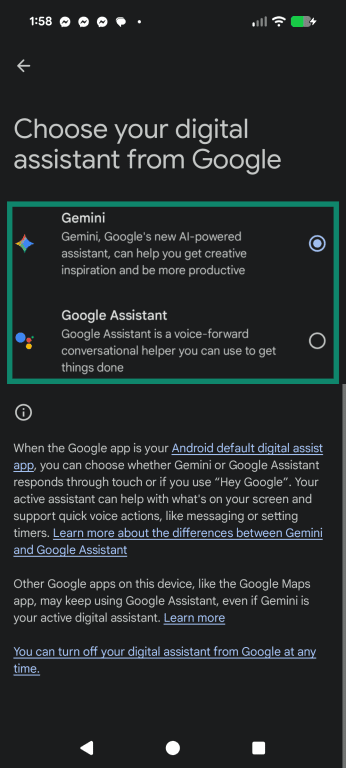
- Under Choose your digital assistant from Google, select Google Assistant.
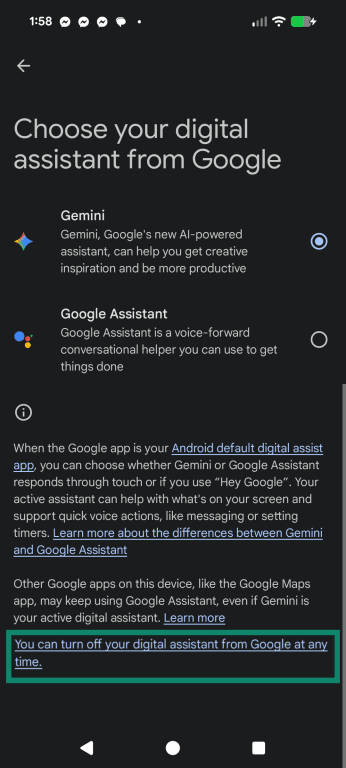
- To disable them, choose You can turn off your digital assistant from Google at any time. Then follow the on-screen prompt.
After switching, Google Assistant handles assistant triggers (for example, “Hey Google”) instead of Gemini, but the exact triggers depend on your device settings. Google Assistant still supports common tasks such as weather, timers, and navigation. Some Assistant capabilities depend on separate permissions and settings (for example, call log permissions and “Use screen context”), and the exact menu names and paths can vary by Android version and device.
Assistant interactions can still be saved under Web & App Activity (if enabled), and other Google settings (such as Location History) are controlled separately from Gemini settings.
Switching assistants doesn’t delete existing Gemini Apps Activity; delete it separately if needed.
Read more: Alexa vs. Google Assistant vs. Siri: A comparison.
How to delete the Gemini app on Android
If Gemini was installed like a regular app, it can be removed from the Google Play Store.
- Open the Play Store.
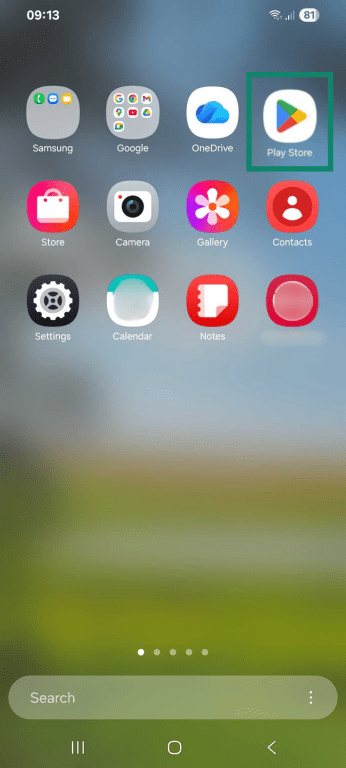
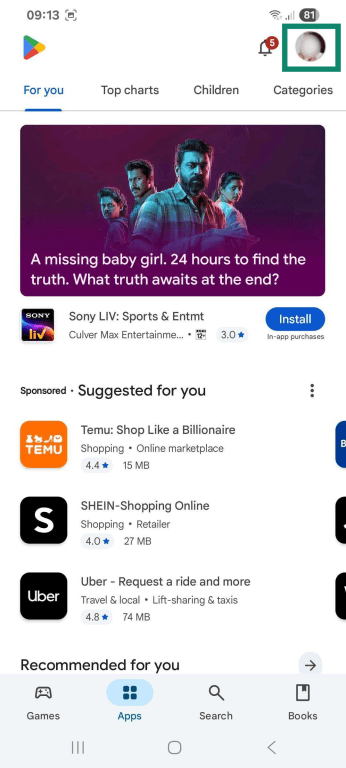
- Tap your profile icon.
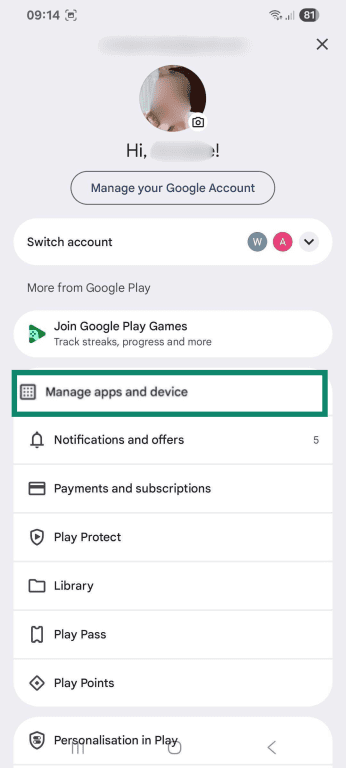
- Tap Manage apps and device.
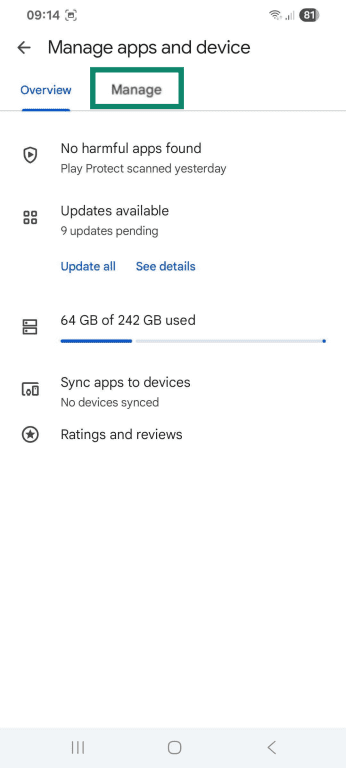
- Select Manage.
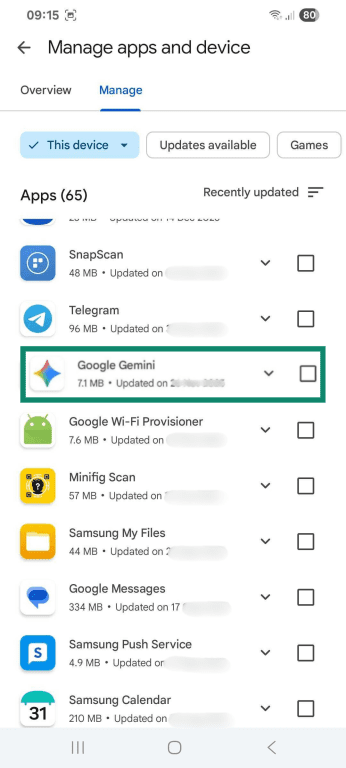
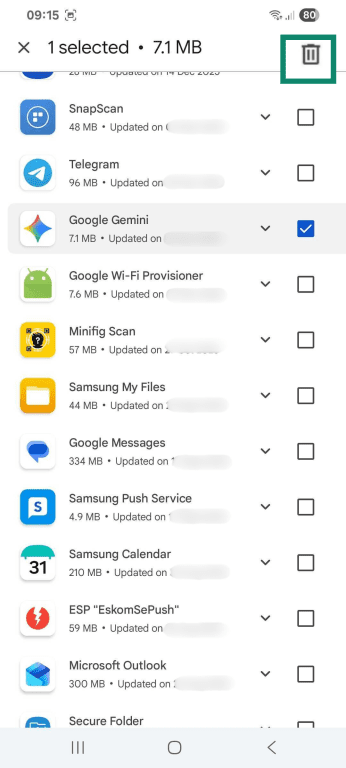
- Scroll down to the Google Gemini app and select it.
- Tap the trash can icon in the upper-right corner.
- Confirm Uninstall.
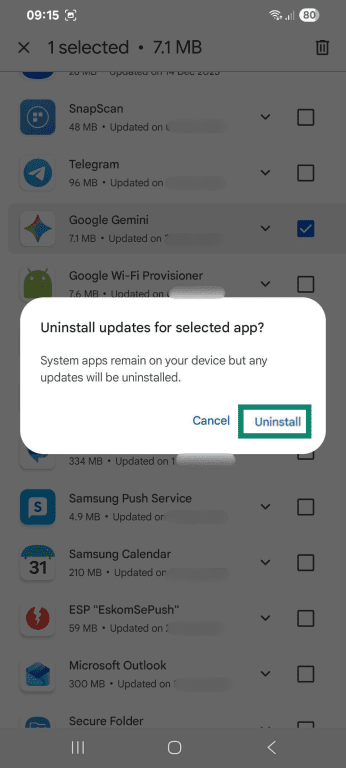
Uninstalling doesn’t have to be done from the Play Store; on many devices, you can uninstall from Settings > Apps.
If the uninstall option is missing (common with some preinstalled/system apps), Android may only allow you to disable the app or uninstall updates instead of deleting it.
How to turn off Gemini in Gmail
Gmail includes smart features (like Smart Reply and Smart Compose) and, in some accounts, Gemini features in Google Workspace. These are controlled by separate settings in Gmail.
Disable Gemini in Gmail on mobile (Android and iOS)
These steps turn off Workspace-level smart features (including some Gemini-in-Workspace experiences) in the Gmail app:
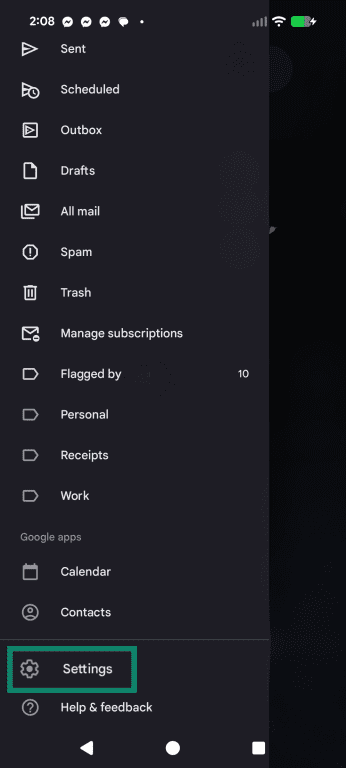
- Open the Gmail app. Tap the menu icon and choose Settings.
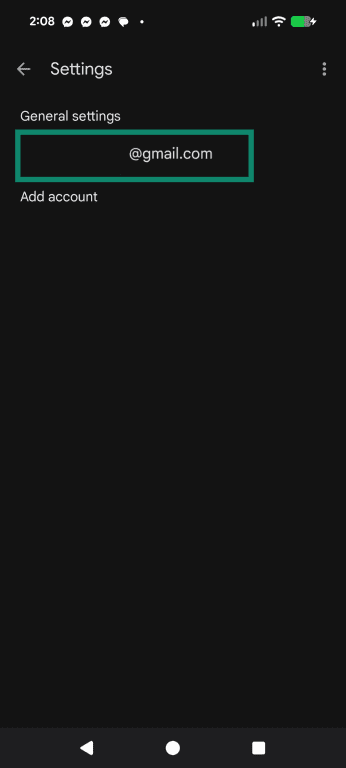
- Select your email account.
- Tap Google Workspace smart features.
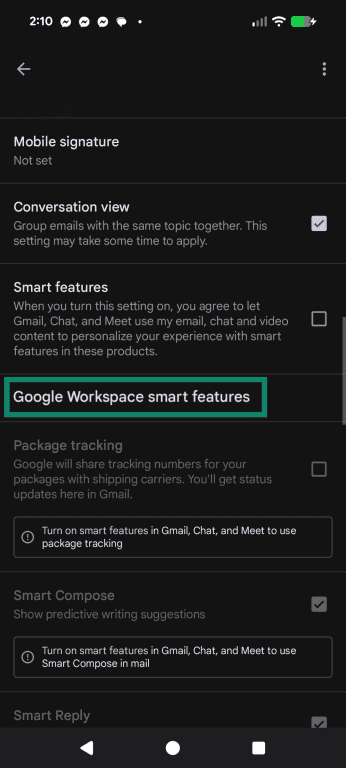
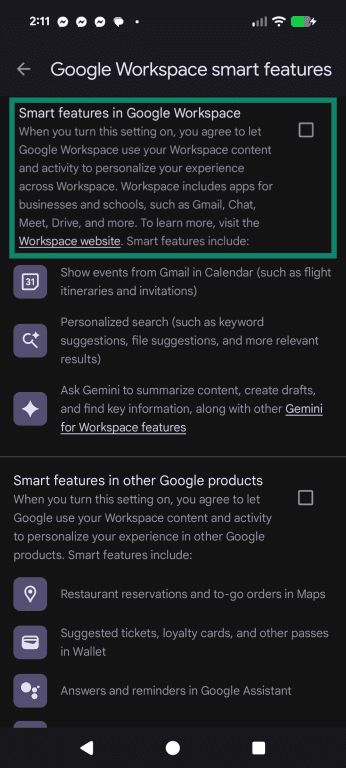
- Turn off Smart features in Google Workspace and confirm when prompted.
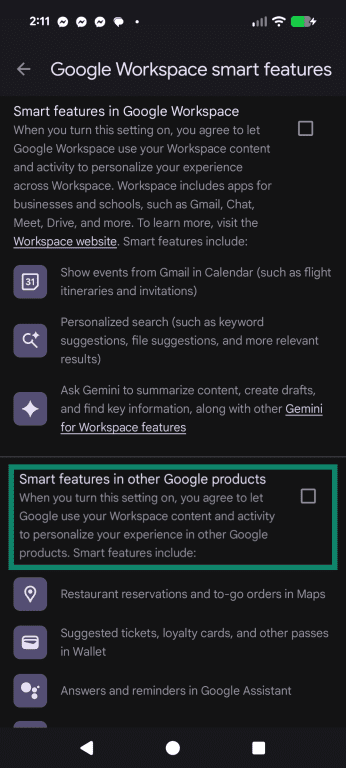
- (Optional) Turn off Smart features in other Google products to limit cross-product personalization using Workspace data.
Disable Gemini in Gmail on desktop
The web interface lets you turn off smart features and cross‑product personalization from your Gmail settings. These are generally account-level settings that apply across devices where you’re signed in, though the exact menus may look different on mobile.
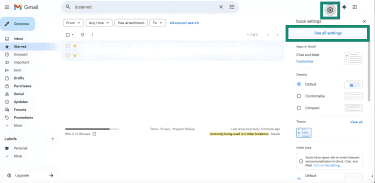
- Open Gmail in a browser, click the gear icon, then click See all settings.
- In the General tab, scroll to Google Workspace smart feature and click Manage Workspace smart feature settings.
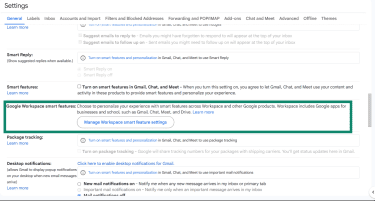
- Uncheck Smart features in Google Workspace and, optionally, Smart features in other Google products. Save your options.
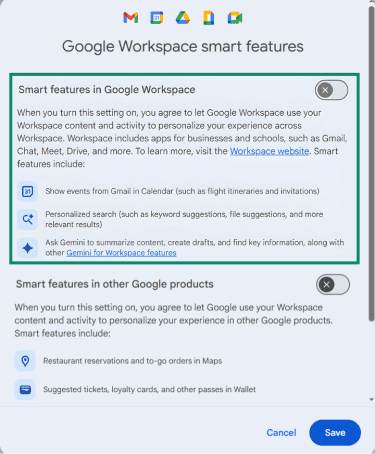
Optional: If the goal is to reduce Gmail/Chat/Meet smart features like Smart Reply/Smart Compose, in the same General tab, also turn off Smart features in Gmail, Chat, and Meet, then save changes.
How to turn off Gemini in Google Search
Disable Gemini Search features on mobile and desktop
AI Overviews can appear in Search results, but there’s no permanent opt-out. However, the following options may help reduce them. Google may change these over time.
Option 1. Perform a search, then tap Web under the search bar (if Web isn’t visible, tap More and select Web). This will display only text-based links in your search, filtering out generative AI results.
Option 2. Add a space and “‑ai” to the end of your query to filter generative results. This method is not guaranteed to work and is inherently less reliable than others.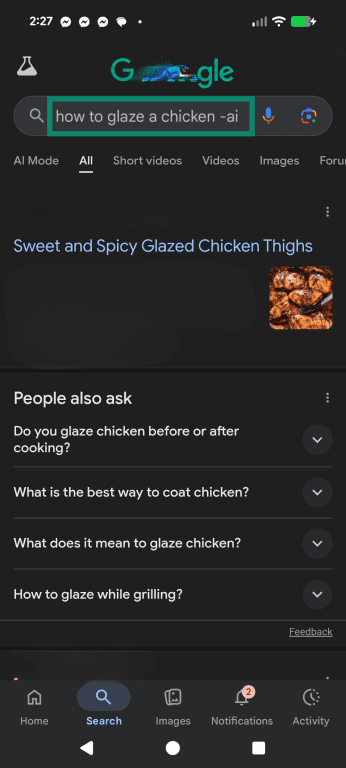
Option 3. Use a different search engine to avoid Google Search AI features entirely.
Note: If AI Mode is enabled via Search Labs (where available), it can be turned off in Search Labs.
How to turn off Gemini in Google Workspace
In eligible Workspace editions, apps like Docs, Sheets, and Slides can include Gemini features (such as the side panel). Administrators can enable or disable Gemini features per Workspace service in the Admin console.
Turn off Gemini in Google Docs, Sheets, or Slides
If the account is part of a company or school Workspace domain, organization administrators can disable Gemini integration per service.
To disable Gemini as an administrator:
- Sign into the Google Admin console and click Generative AI.
- Open Gemini for Workspace, then open the Features access panel.
- Find the program you want to disable Gemini on (Sheets, Docs, etc.) and click Edit.
- Toggle Gemini On or Off, then Save.
Learn more: Check out how to turn off Meta AI.
Privacy and data concerns with Gemini AI
Understanding how Gemini uses data helps inform decisions about whether to disable it.
What data Gemini can access
Gemini Apps collect and process several categories of information. The Gemini Apps Privacy Hub lists user prompts and content shared with Gemini (including files, photos, videos, and page content), as well as audio, recordings, and transcripts for Gemini Live, where used. It also covers Gemini-generated content (such as text, code, audio, images, and video).
Gemini may also use information from connected apps and other Google services used with Gemini (including Search or YouTube history, and page context/URL from Chrome), plus location info (such as general location and IP address). On Android, Gemini’s capabilities can also depend on device permissions (for example, contacts and notification access)
How Google uses Gemini-related data
Google’s Privacy Policy describes how it uses information to provide services, maintain and improve them, develop new services, provide personalized experiences (depending on settings), measure performance, communicate with users, and protect Google, users, and the public. The “protect” purpose includes detecting, preventing, and responding to fraud, abuse, security risks, and technical issues.
How to limit data collection further
Several settings can reduce how much Gemini stores or can access, without requiring a full disablement.
- Manage Gemini Apps Activity and personalization: “Keep Activity” controls whether Gemini saves new conversations to Gemini Apps Activity (chat history) for the account. Turning it off stops new chats from being added to that history (though some Gemini features and app connections may be limited). Use the Gemini Apps Activity page to delete past chats and adjust related controls, such as auto-delete, if available for the account.
- Limit connected apps and device access: Gemini’s capabilities can depend on connected apps and Android permissions. Reducing connections and permissions limits what Gemini can do on the device (for example, calling/messaging features and notification access).
- Review other Google account history settings separately: Changing Gemini settings does not automatically change other Google Account history settings, such as Web & App Activity, which can continue saving activity unless changes seperately.
- Send feedback: Google collects user feedback, and submitting feedback through official Google channels can help report issues or request product changes.
Read more: Why removing your data from Google is only half the battle. If the Gemini app was installed as a regular app from Google Play, it can typically be uninstalled normally; if an uninstall option is missing, that’s often a sign it’s being handled as a system app on that device.
FAQ: Frequently asked questions about turning off Gemini
Can I go back to Google Assistant after turning it off?
Why can’t I uninstall or delete Gemini?
How do I disable Gemini on a Samsung phone?
Will turning off Gemini affect other Google apps?
Take the first step to protect yourself online. Try ExpressVPN risk-free.
Get ExpressVPN