How to fix packet loss for a stable connection



Packet loss can ruin online activities like gaming, video calls, or any situation where you need a steady, stable flow of data. Fortunately, there are several solutions to this problem.
This guide looks at why packet loss happens and how to fix it. We offer detailed steps on how to troubleshoot network, software, and hardware issues.
What is packet loss and why does it happen
Large amounts of data travel from device to device and network to network in the form of data packets. Due to issues like network congestion or faulty hardware, some packets don’t make it to their destination. The technical term for this is packet loss. These losses often cause performance issues because missing data is resent or ignored, leading to lag or glitches.
Main causes of packet loss
These are the three core causes of packet loss:
- Network issues: Too many active devices or too much traffic on a network can increase the risk of packet loss. It's also more likely to occur on wireless networks rather than wired ones because overlapping channels and congestion can lead to interference and retransmissions.
- Software issues: Random software bugs or outdated firmware may also lead to packet loss, along with software threats like cyberattacks and faulty application configurations.
- Hardware issues: Old, outdated, overloaded, or even damaged pieces of physical hardware, including devices and cables, can also contribute to packet loss.
Common symptoms of packet loss
Users can often spot packet loss due to performance issues or problems with certain data-heavy online activities. Examples include:
- Choppy audio, pixelated images, and delays in voice and video calls.
- Slower than average download and upload speeds.
- Webpages loading slowly or only partially loading.
- Lag, higher or unstable ping, and delays when playing online games.
- Sudden, unexpected disconnects and error messages.
How to detect packet loss on your network
Here are a few tools you can use to detect packet loss on your network:
- Web tools: You can use a free online packet loss checker. This is arguably the quickest way to check for packet loss, though the results may not always be 100% reliable.
- Ping test: On macOS, open the Terminal and enter the command ping 8.8.8.8 -c 20. On Windows, open the Command Prompt and enter ping 8.8.8.8 -n 20. If you see any “request timed out” messages in the results, that can indicate packet loss. This is one of the most accurate ways to assess your network performance in real time.
- Traceroute: This process is also carried out via the Command Prompt or Terminal. On a Windows device, use this command: tracert google.com. Use traceroute google.com if you’re on a Mac. Then, review the results and look for any error messages to identify packet loss. This method provides more detail than a ping test.
- Pathping: On Windows, you can open the Command Prompt and run the command pathping example.com, using any URL. If you get a score of 0/100 in the results, that means there’s no packet loss. Higher scores indicate the loss of some packets. It takes time, but the results from this test are very accurate.
- In-game overlays: Some games and applications offer the ability to activate an in-game overlay or access a network performance menu. If this option is available in your game, you can spot packet loss as it occurs while you play.
Quick fixes to resolve packet loss
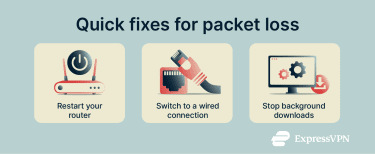 There are several simple troubleshooting steps you can take to potentially resolve these issues:
- Restart: Restart your router, modem, and any devices that are experiencing issues with packet loss. Turn them off and unplug them, where possible, then wait for 30 seconds before powering back on.
- Switch to a wired connection: On Wi-Fi, there’s always the risk of nearby devices or obstacles disrupting your signal, which can cause data packets to get lost in the air. Switching to a wired connection, with the aid of Ethernet cables, provides a more direct path to hopefully minimize packet loss.
- Close or pause background downloads and apps: Packet loss is more common when there’s a lot of traffic flowing through the network, which may be caused by updates, downloads, or background apps. To stabilize your connection, check for any ongoing downloads and pause or reschedule them.
Advanced solutions to fix persistent packet loss
If the simple fixes listed above haven’t worked, here are some more involved methods to resolve packet loss.
Optimize router and network settings
- Update firmware: Updating your router to the latest firmware may help resolve any bugs or issues that could contribute to packet loss. Many routers update automatically, but you might need to log into your router’s admin page and do it manually.
- Enable Quality of Service (QoS): QoS lets you control how your internet bandwidth is shared between different devices, allowing you to prioritize data-intensive activities like gaming or streaming. You can usually find and activate it via your router’s admin panel.
- Adjust Maximum Transmission Unit (MTU): MTU router settings dictate the maximum size of individual data packets that pass across a network link. Lowering your router’s MTU may resolve certain instances of packet loss.
- Optimize Wi-Fi settings: Adjusting Wi-Fi channel selection, band usage (2.4 GHz vs. 5 GHz), or channel width may help reduce interference and improve connection stability. These settings are typically changed in your router’s admin panel.
Identify and replace faulty network equipment
- Test cables and ports: Damaged, bent, or frayed cables and loose ports are often to blame for packet loss. Inspect your connections closely to look for any visible signs of damage, and try swapping out different cables or switching ports.
- Use a managed switch: Managed switches offer more features and greater levels of control compared to standard “plug and play” switches and routers. They may help you resolve packet loss problems caused by network congestion or misconfiguration by helping you control the flow of traffic or segment your network.
- Reset network adapter: There may also be some sort of bug or error with your device’s network adapter that could be disrupting the flow of data across the network. On certain devices, you can manually reset your network adapter to potentially fix any temporary issues.
Can a VPN help fix packet loss?
A virtual private network (VPN) can sometimes reduce packet loss by routing traffic around congested or poorly managed network paths, but it doesn’t fix packet loss caused by local hardware, wireless interference, or physical network issues.
How to prevent packet loss in the future
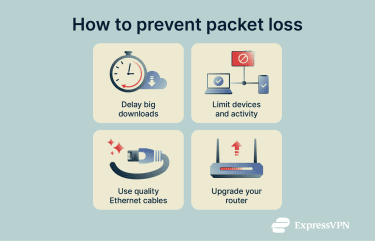
Manage network usage
Having too many devices connected to a network or doing too many data-intensive activities will raise the risk of packet loss. If you need to download large files, like big system updates, try to avoid doing so when you know your network will be using lots of bandwidth.
Upgrade equipment
You can also swap out some of your older hardware for newer, more reliable alternatives.
Shielded Ethernet cables help reduce the risk of noise or crosstalk that can lead to errors and packet loss. Shielded Category 6 (CAT 6) or CAT 7 cables can minimize packet loss, especially during data-heavy activities like online gaming. CAT 7 supports higher frequencies and stronger shielding, while CAT 6 is typically sufficient for most households and more affordable.
In addition, newer routers with superior components are usually less likely to suffer the faults or errors that might lead to packet loss.
How to fix packet loss on gaming consoles and PCs
Along with the many methods listed above, there are several additional tips and tricks you can try on specific devices, like gaming consoles.
Packet loss fixes for Xbox
- Check the Xbox status page to look for any issues with Xbox services.
- Reboot or reset your console if you’re having recurring packet loss problems.
- Position your Xbox as close to the router as possible if using a wireless connection.
- Install all game and system updates when they are available.
- Choose game servers located in your region, or as close as possible.
Optimizing network settings on PlayStation and PC
For PlayStation:
- Reboot or reset your console.
- Switch to a higher Wi-Fi band (5GHz or 6GHz, if available) via the console settings.
- Adjust your console’s MTU settings.
- Select game servers that are as close to you as possible.
For PC:
- Check background processes and end any unnecessary downloads or applications.
- Reset your network settings.
- Ensure your system and network drivers are up to date.
- Add exceptions for games in your firewall or antivirus software.
FAQ: Common questions about packet loss
What causes packet loss?
Packet loss can have numerous root causes, including network congestion, misconfiguration of network settings, faulty hardware, or random software bugs and errors.
Is 1% packet loss bad for gaming?
1% is generally considered the absolute limit in terms of acceptable levels of packet loss for online gaming. Anything higher than this will likely result in significant latency, delayed inputs, and other issues, harming the player’s enjoyment and experiences.
Can VPNs reduce packet loss?
A VPN may provide a more direct and less congested route for data and can also help prevent internet service provider (ISP) content-based throttling. However, it won’t fix packet loss caused by faulty hardware, software problems, or other common issues.
How to test for packet loss on Xbox or PC?
On Xbox, you can go to the network settings page of the settings menu. Next, conduct a network speed and statistics test to determine the extent of any packet loss you may be experiencing. On a Windows PC, you can use the Command Prompt or packet loss checkers to see how much packet loss you have, if any.
Is Ethernet better than Wi-Fi for packet loss?
Yes, Ethernet is better than Wi-Fi for minimizing packet loss. This is because a wired Ethernet connection doesn’t have to deal with any risk of interference from other devices in the local environment, and the data travels in a direct, predictable path via the cable.
Which router features help reduce packet loss?
Useful router features for reducing packet loss include Quality of Service (QoS), dual or tri-band support, smart queue management, and special gaming modes or device priority settings.
Are there tools to monitor packet loss continuously?
There are various tools you can use to keep track of packet loss on different devices, but they generally only check for packet loss when prompted, rather than doing so continuously. In addition to downloadable tools, you can also use built-in utilities and commands on platforms like Windows and macOS to check for packet loss.
Take the first step to protect yourself online. Try ExpressVPN risk-free.
Get ExpressVPN