How to disable Google Password Manager: A simple guide for every device


Google Password Manager is built into Chrome and Android, which can make it easy to overlook. When you sign into Chrome, it can offer to save your passwords and passkeys and make them available across devices. For some users, that convenience is helpful, but for others it raises questions about privacy, security, and control.
Whether you're switching to a dedicated password manager, concerned about how your credentials are stored, or simply tired of the “save” prompts, this guide walks you through exactly how to disable Google Password Manager features across major platforms.
How to disable Google Password Manager
The steps below explain how you can disable Google Password Manager across Chrome, Android, and iOS.
Keep in mind that turning these settings off stops Chrome from offering to save new passwords and passkeys and prevents automatic sign-in, but it doesn’t delete passwords or passkeys already saved in Google Password Manager. To remove existing saved items, you’ll need to delete them separately.
Disable Google Password Manager in Chrome
The following steps cover how to turn off Google Password Manager in Chrome, but you can also adjust various other autofill settings in the browser, as highlighted in our guide covering Chrome’s autofill settings.
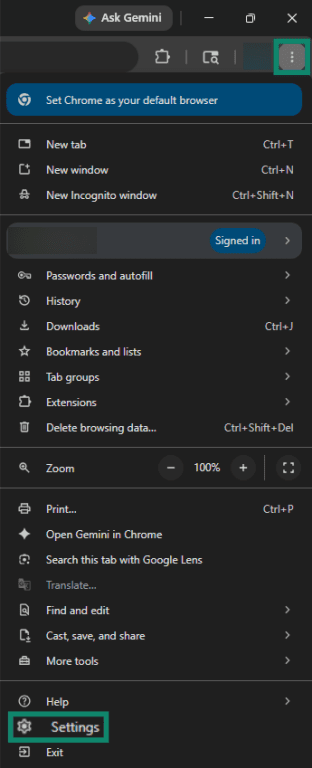
- Click the three dots at the top-right of Chrome and choose Settings.
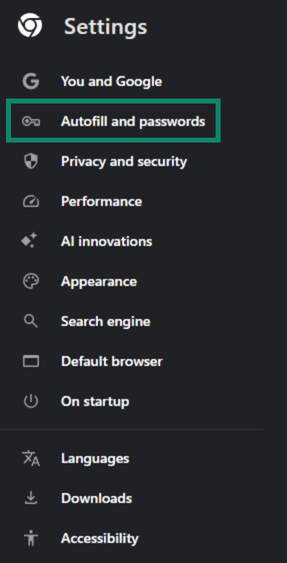
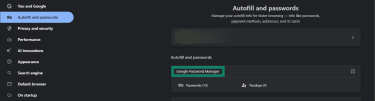
- Click Autofill and passwords in the Settings menu.
- Click Google Password Manager.
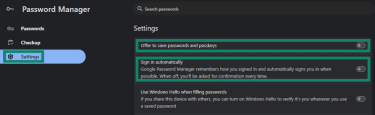
- Click the Settings menu in Google Password Manager and toggle off Offer to save passwords and passkeys and Sign in automatically.
Disable Google Password Manager on Android
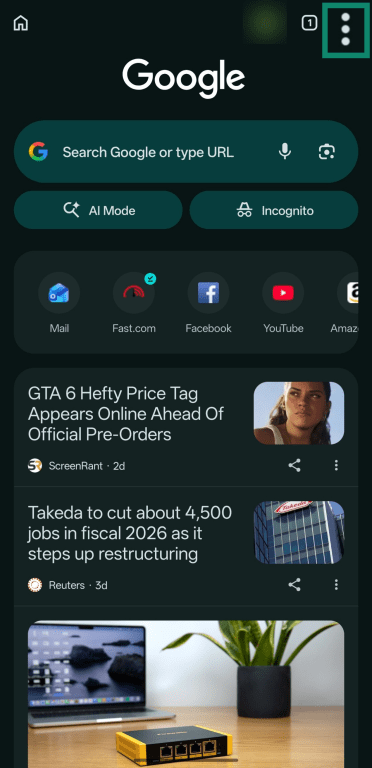
- Open Google Chrome on Android and tap the three-dot button at the top-right.
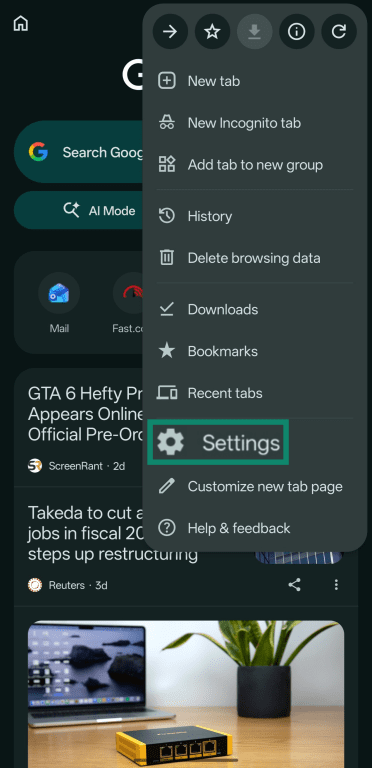
- Tap Settings.
- Tap Google Password Manager.
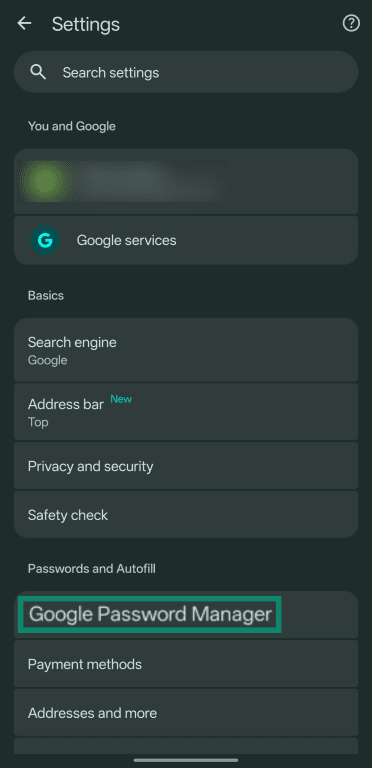
- Tap Settings.
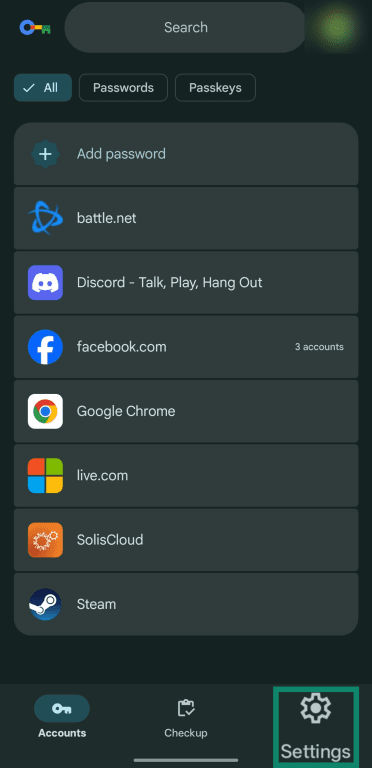
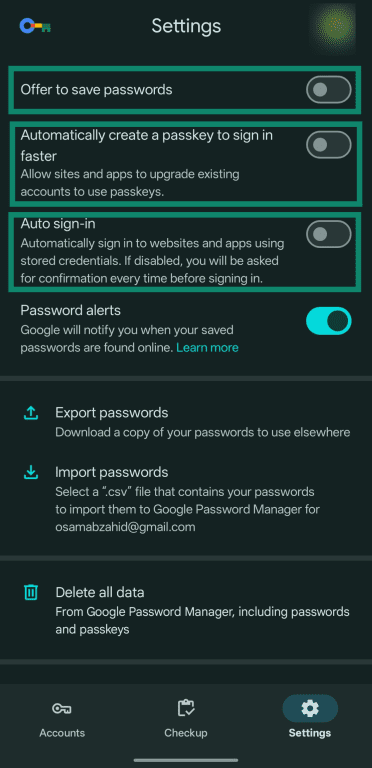
- Turn off Offer to save passwords, Automatically create a passkey to sign-in faster, and Auto sign-in. This will disable “save” prompts and automatic sign-in.
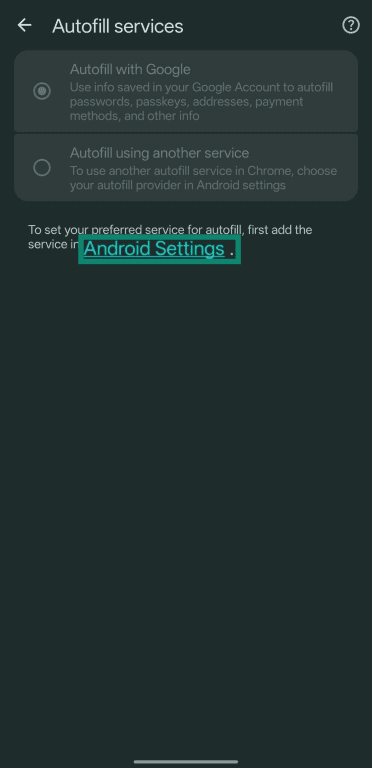
- Next, to change which autofill provider Chrome uses, return to Chrome’s Settings menu and tap Autofill services.
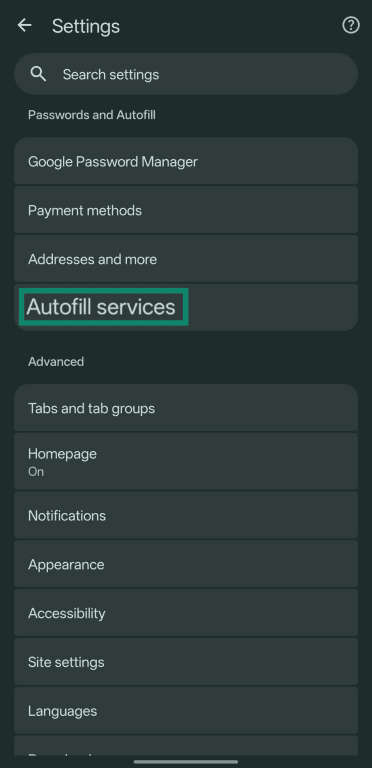
- Tap Android Settings.
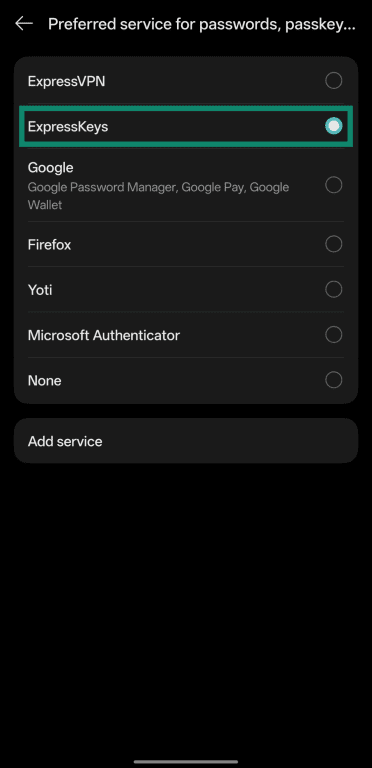
- Tap your preferred autofill service.
- Tap Change or OK on the confirmation dialog.
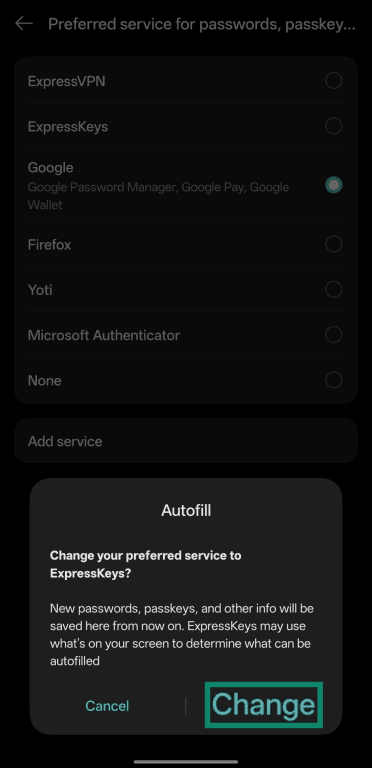
Note: Menu names may vary slightly depending on your Android version and phone manufacturer.
Disable Google Password Manager on iPhone and iPad
- Open Google Chrome on your iPhone or iPad and tap the More (three-dot) button.
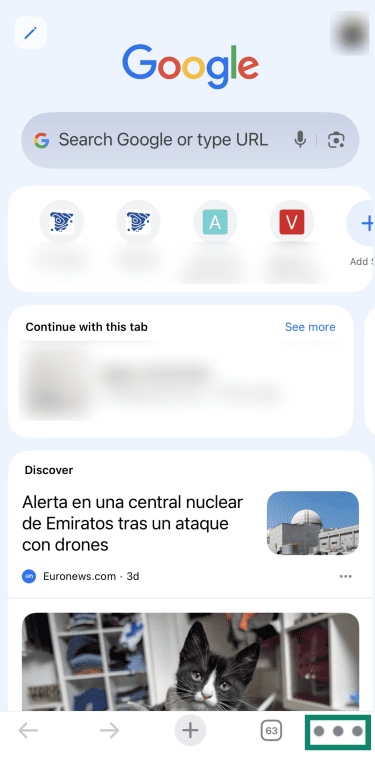
- Tap Settings.
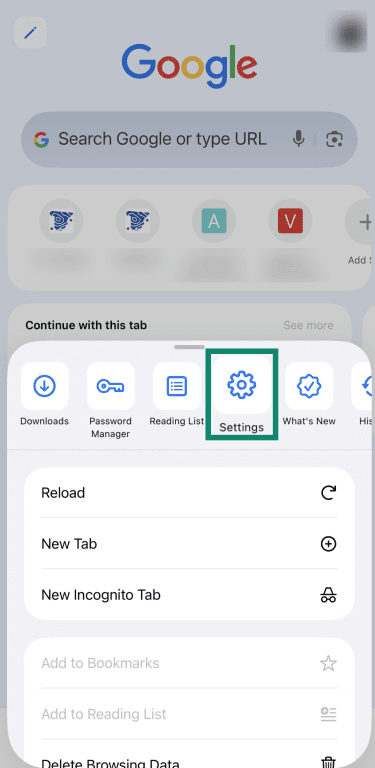
- Tap Password Manager.
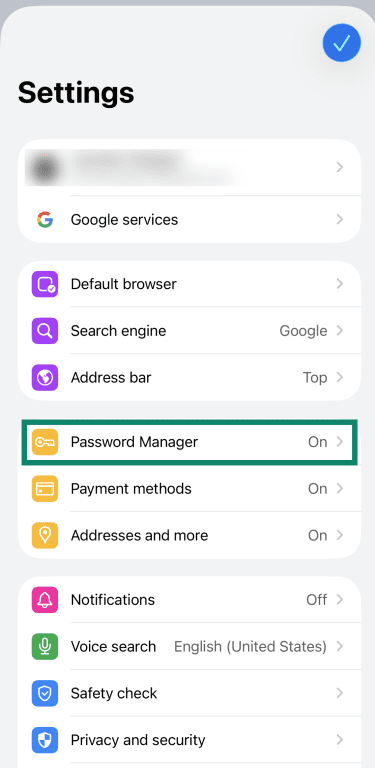
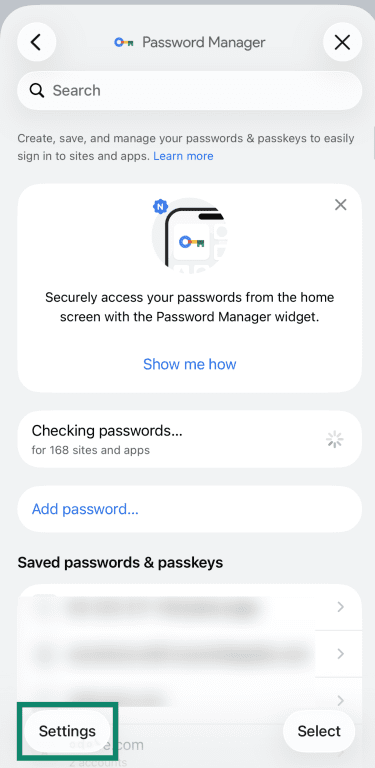
- Tap Settings.
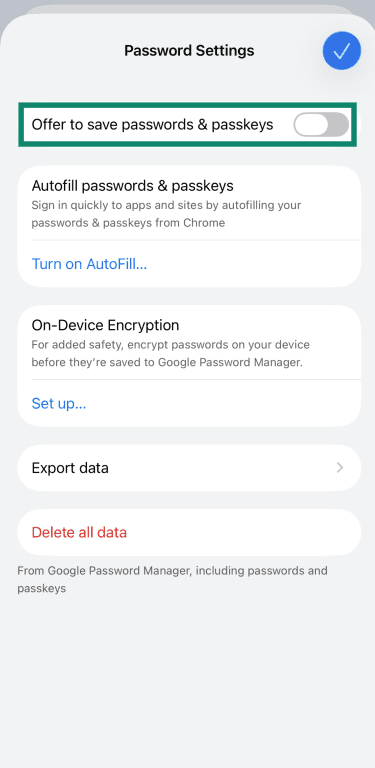
- Turn off Offer to save passwords & passkeys or Offer to Save Passwords, depending on what appears.
Manage password sync across devices
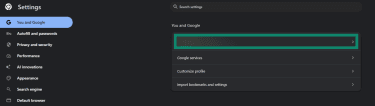
- Access Google Chrome’s Settings menu and click your account name and email address under You and Google.
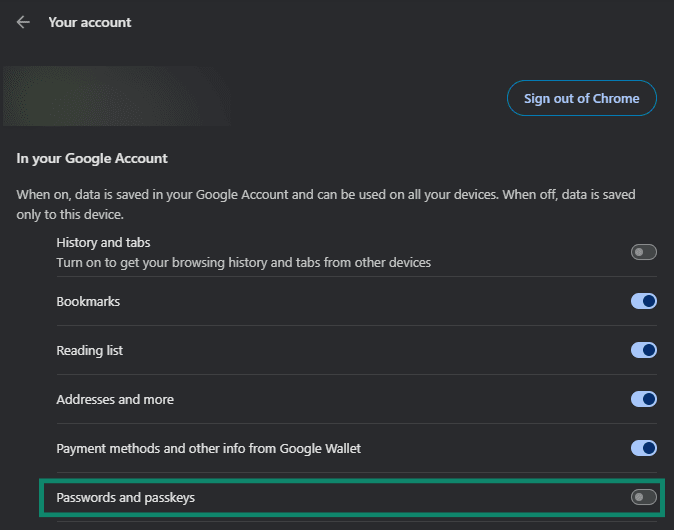
- Toggle off the Passwords or Passwords and passkeys option under In your Google Account. This stops Chrome from syncing saved passwords and passkeys across devices through your Google Account.
How to manage saved Google passwords
Even if you've disabled Google Password Manager, you may still want to review the credentials already stored in your account. The options below explain how to view, delete, and export your saved passwords.
View your saved passwords
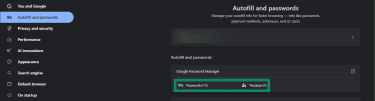
- Open Chrome's Autofill and passwords menu using the steps above, then select Google Password Manager. Select Passwords or Passkeys to view your saved passwords. You may need to authenticate before viewing a password.
Delete saved passwords from Google Password Manager
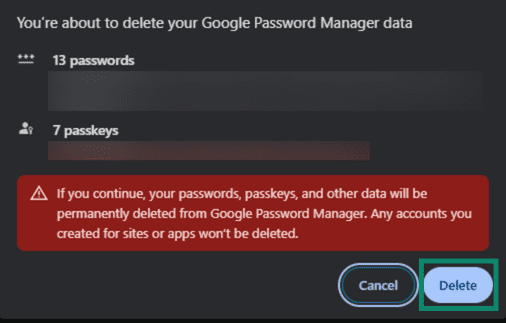
- To delete an individual saved password, open Google Password Manager, select the password you want to remove, and choose Delete. To delete all Google Password Manager data, open the Settings menu in Google Password Manager and select Delete all data.
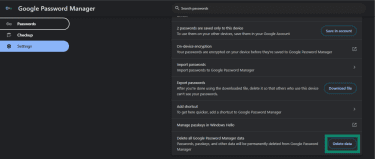
- Click Delete to confirm.
Export passwords before switching tools
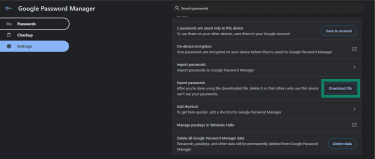
- Open the Settings menu in Google Password Manager and click Download file next to Export passwords.
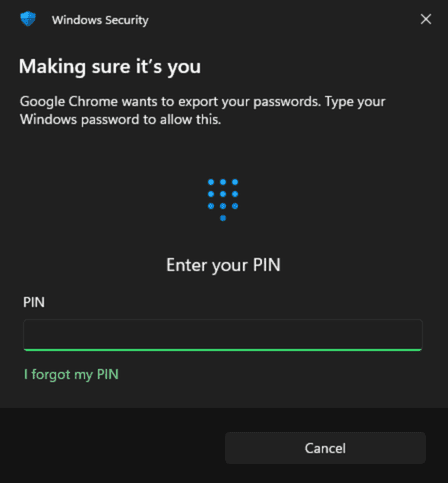
- Verify your identity using your PIN or any other security mechanism you’ve set up on your device.
- Choose a location to save your exported data and click Save.
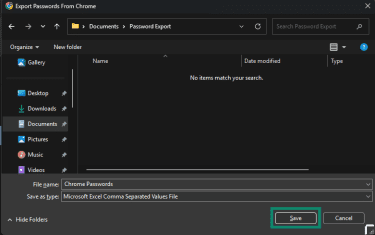
Exported passwords are saved as a CSV file, so store the file securely and delete it after importing it into your new password manager.
Understanding Google Password Manager
Before deciding whether to disable it, it helps to know exactly what Google Password Manager is, what it does, and how it operates across your devices.
What is Google Password Manager?
Google Password Manager is a free tool built into Chrome and Android that helps you manage your digital credentials. In its Google Password Manager documentation, Google states that saved passwords are securely stored in your Google Account and protected by encryption. It can make your saved passwords and passkeys available across devices where you’re signed in with the same Google Account.
On Android, Google Password Manager can also work through Android’s autofill settings, so you may need to change the autofill provider separately if you don’t want Google filling passwords in apps or Chrome.
Key features of Google Password Manager
Google Password Manager offers several features to assist with digital credential management, like the following:
- Password storage: Encrypts and saves credentials and links them to your Google Account.
- Autofill: Fills saved usernames and passwords on supported websites and apps.
- Password checkup: Checks for saved passwords that are weak, reused, or found in known data breaches.
- Passkey support: Creates and stores passkeys for websites and apps that support them.
- Cross-device access: Lets you access your passwords and passkeys on devices signed into your Google Account.
- Password suggestions: Generate strong passwords when creating a new account.
How Google saves and autofills passwords
Whenever you sign up for a new account, Google Password Manager may suggest a strong password or ask whether you want to save a password you create yourself. When you sign into an existing account, Google Password Manager may also ask whether you want to save the credentials for future use, unless this feature is disabled.
From that point, whenever you attempt to sign into a website or app you have saved credentials for, Google Password Manager can offer to fill in your saved username and password. Where supported, it can also sign you in automatically if the Auto sign-in option is enabled.
Is Google Password Manager safe to use?
Google Password Manager is convenient and free, but it has real limitations worth understanding before deciding whether to keep using it or to switch password managers.
Common security and privacy concerns
As mentioned, Google states that passwords and passkeys in Google Password Manager are encrypted. However, its default account-based model is not usually described in the same way as dedicated password managers that advertise zero-knowledge architecture. For users who prefer a password manager that claims it cannot access vault contents, this may be an important privacy consideration.
According to Google's official "Get started with Google Password Manager" documentation, it also offers on-device encryption as an optional setting. This changes how saved passwords are unlocked and can make recovery more dependent on your device and recovery methods, so Google recommends keeping recovery information up to date.
Another concern is that Google Password Manager is closely tied to your Google Account. If your Google Account is compromised, your saved passwords may be at risk. That makes account protection especially important.
Also read: How to recover a hacked Google account.
How two-factor authentication improves account security
Since Google Password Manager is closely tied to your Google Account, protecting that account is critical. According to Google, two-factor authentication (2FA) adds an extra layer of security if your password is stolen. Authenticator apps are generally safer than SMS codes, while passkeys and hardware security keys can offer stronger protection against phishing.
The steps below explain how to turn on Google's 2-Step Verification:
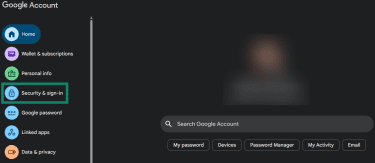
- Go to myaccount.google.com and click Security & sign-in.
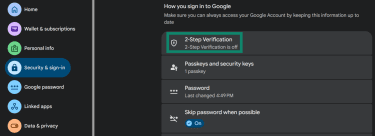
- Under How you sign in to Google, click or tap 2-Step Verification.
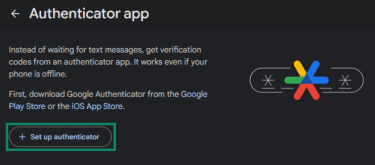
- Follow Google’s on-screen steps to choose a second-step method. In this guide, we’ve selected to set up an authenticator app. Choose Authenticator, then select Set up authenticator.
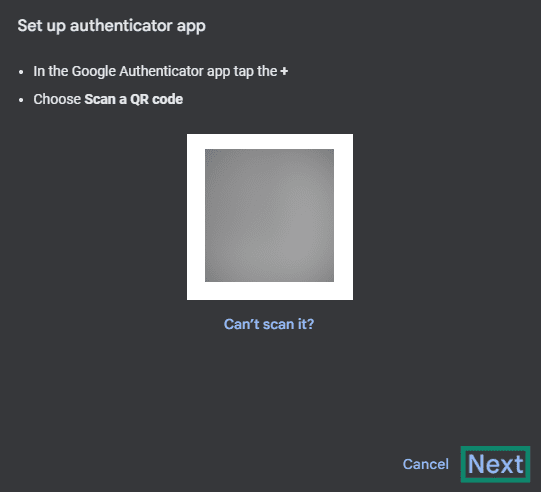
- Scan the QR code on the screen using your preferred authenticator app. Although Google may recommend Google Authenticator, you can also use another compatible authenticator app. Click Next once you’ve scanned the QR code to see a 6-digit code on your authenticator app.
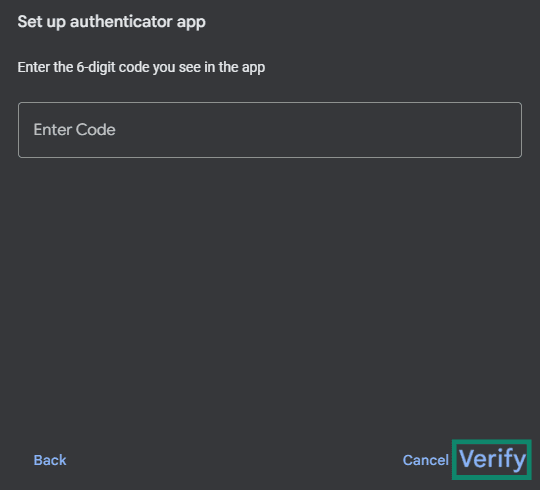
- Enter the 6-digit code from your authenticator app and click Verify.
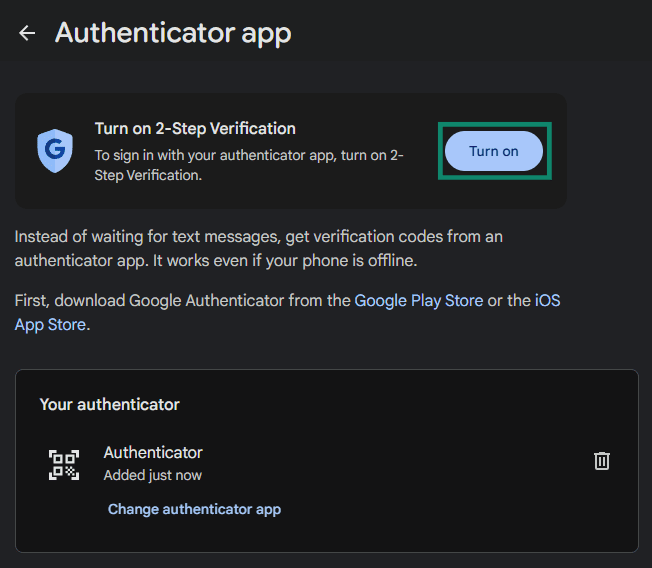
- Click Turn on to return to the previous menu after you’ve added an authenticator app.
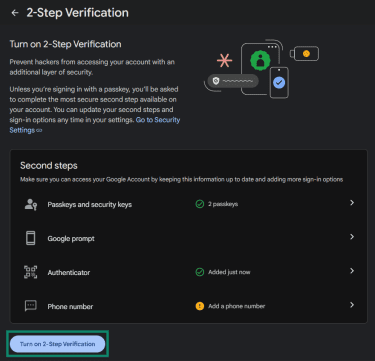
- Click Turn on 2-Step Verification.
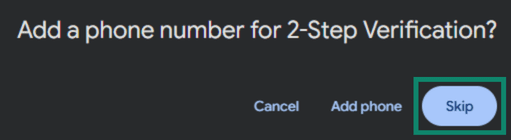
- Google may ask you to add a phone number as a backup method, depending on your account. If the option appears, you can choose whether to add one or click Skip.
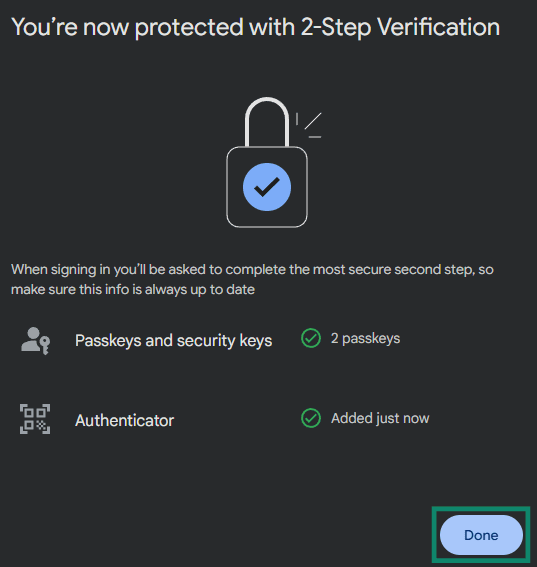
- 2FA will now be enabled on your account. Click Done to finish the setup process.
In addition to having 2FA, it’s also worth knowing how to change your Google password if you ever need to update it.
When moving away from Google Password Manager makes sense
There are situations where disabling Google Password Manager or looking for alternatives may make sense, such as the following:
- You want zero-knowledge encryption: Secure dedicated password managers like ExpressKeys state that they use a zero-knowledge model where the provider doesn’t have the means to decrypt your vault.
- You use multiple browsers: Google Password Manager works best in Chrome and Android. It can also support app sign-ins on Android and iOS, but it isn’t designed as a full cross-browser password manager for Firefox, Safari, and other browsers.
- You want to reduce reliance on Google: If you're limiting how much of your data Google holds or want to move away from the ecosystem, removing your passwords is a logical step.
- You manage sensitive or business credentials: Consumer Google Password Manager may not provide the same dedicated business features some password managers offer, such as vault-level admin controls, detailed sharing policies, audit logs, and team-based credential management.
- You're concerned about browser-based risks: Malicious or compromised browser extensions can expose sensitive data, so users with higher-risk accounts may prefer a password manager with strong app-based controls and minimal reliance on browser extensions.
Alternatives to Google Password Manager
Once you've disabled Google Password Manager, you’ll need another safe way to store and manage your credentials. Here’s some guidance on choosing the right password manager.
Key features to look for in a password manager
Not all password managers are equal, so it’s important to look for the following features in alternatives:
- Zero-knowledge encryption: Look for providers that state their systems are designed so only you can decrypt your vault and access sensitive data.
- Cross-browser and cross-platform support: Look for an alternative available across the platforms and browsers you use most.
- Dedicated authentication: A reliable password manager should have its own vault-unlock method, such as a master password, biometrics, a passkey, or another strong authentication method.
- Customizable password generation: Good password management solutions let you fine-tune the length of generated passwords and choose which characters they include, helping you to create unique, high-entropy passwords for your accounts.
- Ease of use: A password manager should make it simple to save, organize, generate, and autofill credentials across your devices.
Also read: The best way to store your passwords securely.
Why ExpressKeys is a secure password manager option
ExpressKeys is ExpressVPN's dedicated password manager, positioned as a standalone alternative for storing and managing passwords, passkeys, notes, and card details. It stores unlimited passwords, secure notes, and credit/debit card details in a zero-knowledge encrypted vault, with autofill and biometric unlock for faster sign-ins.
This password manager includes password health tools that can help identify weak, reused, or compromised passwords. It can also act as an authenticator by generating one-time passwords (OTPs) for compatible 2FA accounts, allowing you to manage passwords and authentication codes in the same app.
What’s more, ExpressKeys supports passkeys, letting you store and manage passkeys for supported passwordless sign-ins. Passkeys use cryptographic key pairs for sign-ins and are designed to be unique to each app or website. They're resistant to phishing and help reduce risks such as credential stuffing because there are no reusable passwords to steal.
FAQ: Common questions about disabling Google Password Manager
Will disabling Google Password Manager delete saved passwords?
Can Google Password Manager still autofill after I turn it off?
How do I turn Google Password Manager back on?
Should I export my passwords before deleting them?
Does disabling password sync affect other devices?
Why does Chrome still ask to save passwords?
Explore the web with greater privacy
Get ExpressVPNSign up today for a chance to win FIFA World Cup 2026™ tickets.