How to clear cache on iPhone and speed things up



Clearing the cache on your iPhone can improve loading speed in certain situations, free up storage, and resolve website or app glitches. It isn’t a guaranteed solution and won't fix every slowdown. But when browsing or app data interferes with normal behavior, clearing the cache is a practical first step.
This guide explains how to clear browser and app cache on iPhone, what gets deleted when you do, and when clearing cache is actually useful.
What is cache on an iPhone?
Cache is temporary data your iPhone stores locally to avoid re-downloading the same content repeatedly. Safari saves images, scripts, and layout files from web pages so they load faster on return visits. Apps do the same with video thumbnails, album artwork, and media previews.
Over time, this data can occupy a noticeable amount of storage, especially in media-heavy apps. iOS generally counts cached files as part of an app’s total storage usage, rather than listing them separately.
Managing browser cache and app cache
There isn’t a single setting that clears all browser and app data at once. Each browser and app manages its own stored data.
Safari is the only browser with cache controls directly in iOS settings. Chrome, Firefox, and other browsers each handle cache through their own in-app menus, with no iOS-level option.
A few apps include a cache-clearing option in their settings. However, most don't, and for those apps, the only way to remove cached data is to delete and reinstall them.
Is cache the same as cookies?
Cache and cookies are both stored by your browser, but they serve different purposes. A cache stores static files, such as images and fonts, to speed up page loads. Cookies hold small pieces of data that websites use to remember you. This includes login sessions, language preferences, and shopping cart contents. Some cookies also track browsing activity across multiple sites for advertising.
Clearing the cache forces your browser to re-download page elements, which can temporarily slow down browsing. Clearing cookies logs you out of websites and resets site-specific preferences. Most browsers let you choose which type of data to clear, so you don't have to remove both at once.
Why clearing cache helps
The most common reason to clear the cache is to free storage space. Social media, streaming, and messaging apps accumulate large amounts of cached data over time. On a device that's running low on storage, clearing this data can reclaim a noticeable amount of space.
Cache clearing may also fix display issues in the browser. If a website has updated its design but your browser still loads an older cached version, you might see broken formatting or outdated content. Clearing the cache forces the browser to pull a fresh copy of the page.
There's also a privacy benefit. Browser cache and cookies contain records of sites you've visited, and cookies can store cross-site tracking data. Clearing this data periodically reduces the amount stored locally on your device.
Before you clear cache
Clearing cache can sign you out of websites, reset preferences, or remove locally stored app data, so it’s important to understand the impact before you proceed.
What clearing cache removes
What gets deleted depends on how you clear it:
- Safari: If you choose “Clear History and Website Data” in Safari’s settings, it removes your browsing history, cookies, and stored website data. It resets site-specific settings such as notification permissions, but it doesn’t remove saved passwords or credit card details stored in AutoFill. If you select “Website Data” instead, Safari removes cookies and other stored site data without removing your browsing history entries. In both cases, removing cookies may sign you out of websites.
- Other browsers: Browsers like Chrome and Firefox let you choose which types of data to remove, including cache, cookies, and browsing history.
- Deleting and reinstalling an app: Removing an app from your iPhone deletes all data stored locally by that app, including cached files, documents, settings, and login information.
Related: How to delete all your Google search history
When you should clear cache
Clearing cache isn’t routine maintenance. It’s useful when there’s a clear issue to address. That might include limited available storage, a site loading incorrectly, or an app behaving inconsistently.
If your iPhone is running normally and has plenty of free storage, preemptively clearing the cache isn't necessary. Doing it too often can slow down browsing, since your browser has to re-download content it would normally pull from the cache.
How to clear browser cache on iPhone
Each browser handles cache clearing slightly differently. Follow the steps below for your browser.
How to clear Safari cache
There are two ways to clear Safari data, depending on whether you want to keep your browsing history.
To clear history, cookies, and cache together:
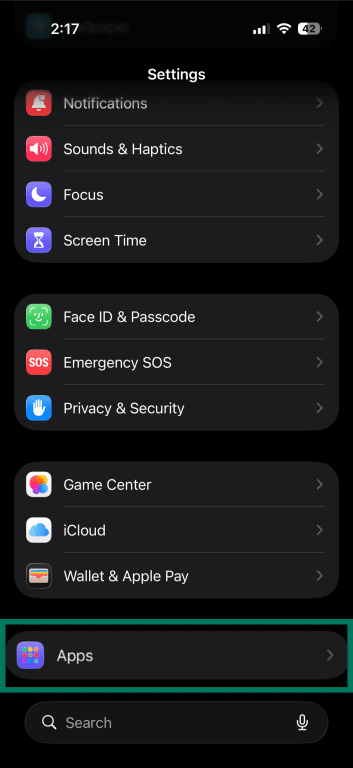
- Open Settings and tap Apps.
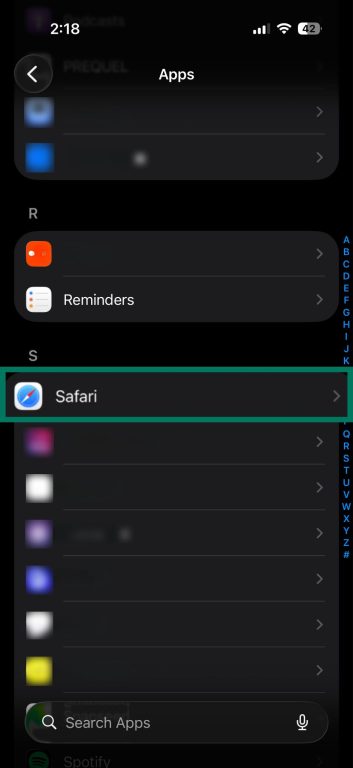
- Tap Safari.
- Tap Clear History and Website Data.
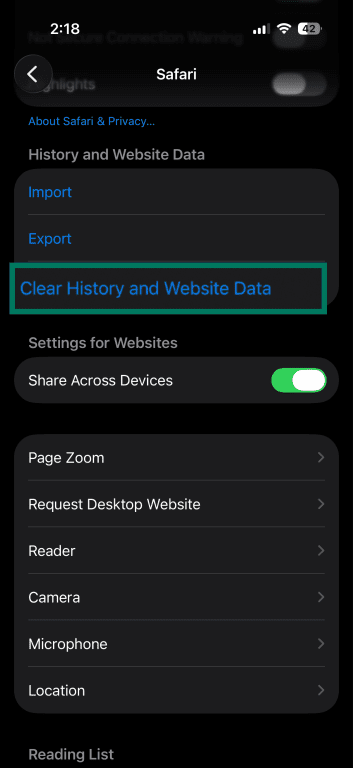
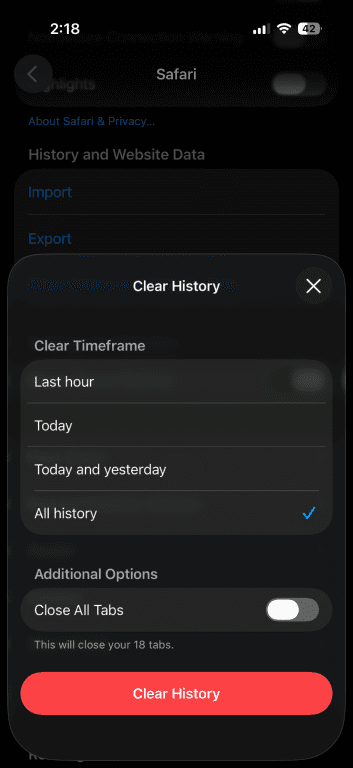
- Select a timeframe. Choose All history to remove everything and tap Clear History.
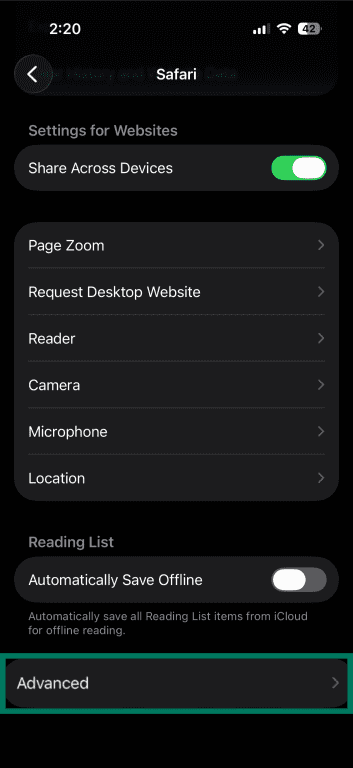
To clear cache and cookies without removing history:
- In the same Safari settings screen, scroll down and tap Advanced.
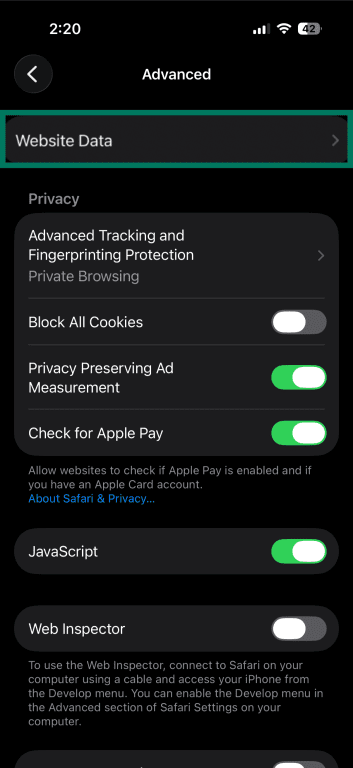
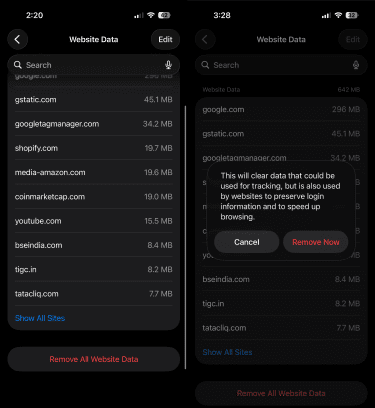
- Tap Website Data.
- Tap Remove All Website Data, then tap Remove Now to confirm.
Related: Is Safari safe?
How to clear Chrome cache
Chrome on iPhone handles cache clearing through the app.
- Open the Chrome app, and tap the three-dot menu icon.
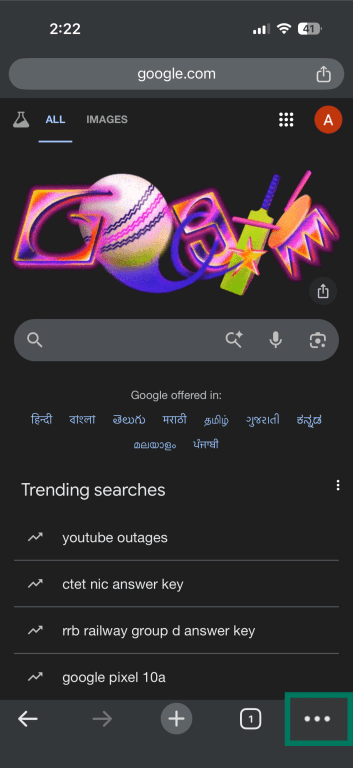
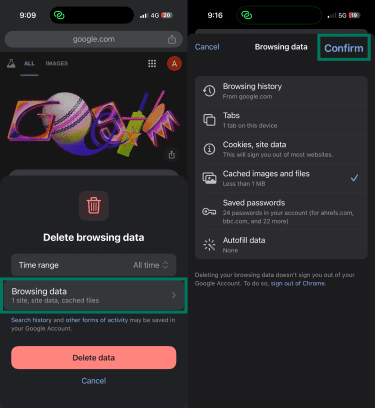
- Tap Delete Browsing Data.
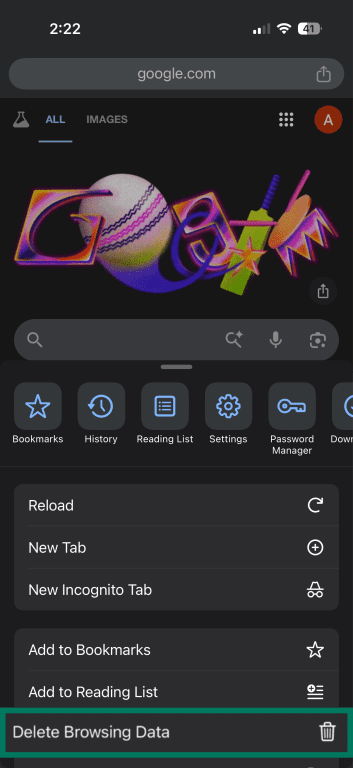
- Set a time range. Select All time to clear everything.
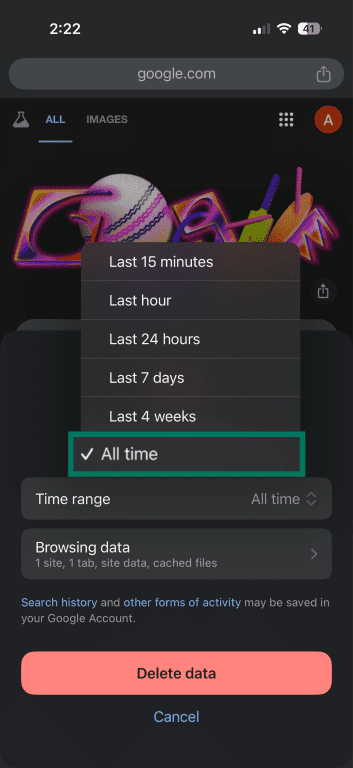
- Tap Browsing data and select the types of data you want to remove. To clear only cache, select Cached images and files and deselect the others. Then tap Confirm.
- Tap Delete data.
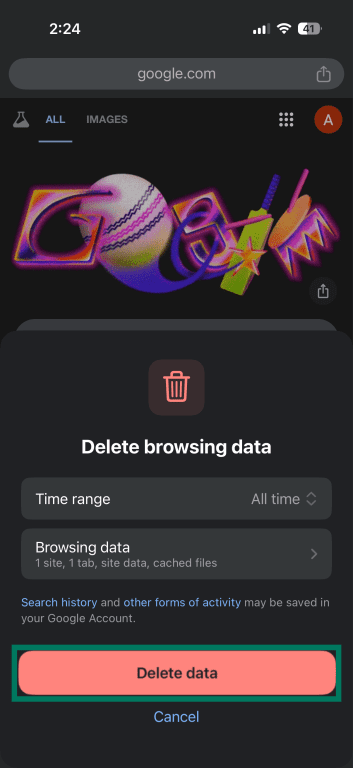
Note: If you choose to clear cookies and site data, Chrome signs you out of your Google account and any websites where you were logged in.
How to clear cache in other browsers
Most third-party browsers on iPhone include cache controls in their settings.
- Firefox: Open the app, tap the menu icon, go to Settings > Data Management, toggle on Cache, and tap Clear Private Data.
- Microsoft Edge: Open the app, tap the three-dot menu, go to Settings > Privacy and Security > Clear Browsing Data, select Cached Images and Files, and tap Clear Now.
- DuckDuckGo Browser: Tap the fire icon to clear all tabs and data, or go to Settings > Privacy > Fire Button to configure which data is cleared.
For other browsers, look for options like “privacy,” “data management,” or “clear browsing data” in the app's settings.
How to clear app cache on iPhone
Clearing app cache works differently from clearing browser data. Some apps let you remove temporary files inside their settings, while others require deleting and reinstalling the app.
How to clear cache inside an app
Many apps include a built-in cache option. Check the app’s settings for sections such as Storage, Data, or Account. If available, this option removes temporary files without deleting your account or saved preferences. Popular apps that offer this include Snapchat, X (formerly Twitter), and TikTok.
How to delete and reinstall an app
For apps without built-in cache controls, deleting and reinstalling is usually the only way to clear their cached data on iOS. You'll need to sign in again and reconfigure any settings after reinstalling.
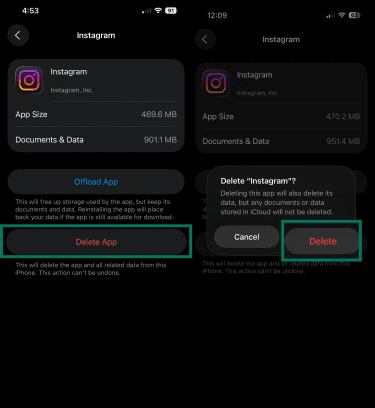
- Open Settings, go to General, then iPhone Storage.
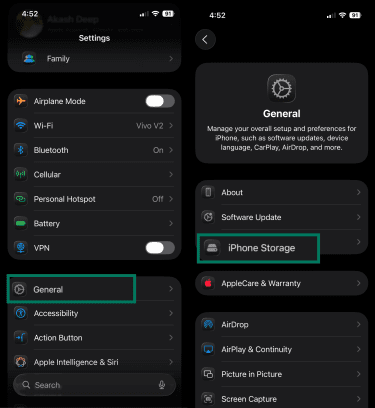
- Select the app you want to remove.
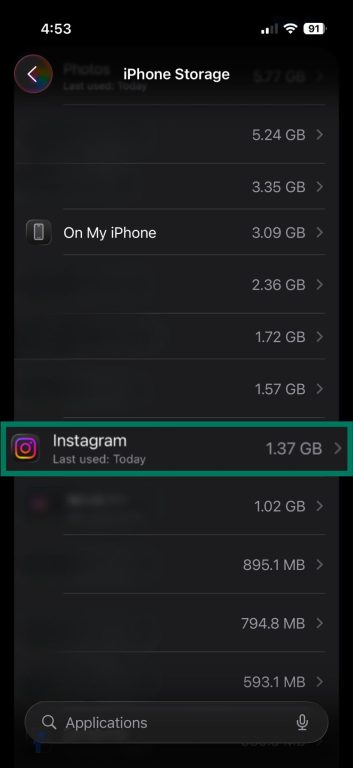
- Tap Delete App, then tap Delete again to confirm.
- Reinstall it from the App Store.

Note: When deleting the app, you'll also see an Offload App option on the same screen. Offloading removes the app's installation files but keeps its documents and data, including cached files.
How to clear temporary system files
Restarting your iPhone clears temporary system memory used by apps and background processes. It doesn’t remove browser cache or app data stored on your device. However, it can resolve minor glitches and refresh system processes.
How to restart your iPhone
iPhone with Face ID (iPhone X and later):
- Press and hold the side button and either volume button until the power-off slider appears.
- Drag the slider to turn off your iPhone.
- Wait about 30 seconds.
- Press and hold the side button until the Apple logo appears.
iPhone with a Home button:
- Press and hold the side (or top) button until the power-off slider appears.
- Drag the slider to turn off your iPhone.
- Wait about 30 seconds.
- Press and hold the side (or top) button until the Apple logo appears.
Troubleshooting
If your iPhone still feels slow after clearing cache, the issue may lie elsewhere.
Why your iPhone is still slow
If clearing cache didn't help, the slowdown probably isn't related to cached data. Other common causes:
- Low storage: When free available storage drops very low (often under a few GB), iOS may struggle to manage temporary files. This can affect performance.
- System activity: Ongoing downloads, updates, or resource-heavy apps can temporarily reduce responsiveness.
- Outdated software: Older iOS versions can introduce performance issues that Apple fixes in later updates. Make sure your iOS version is up to date.
- Hardware limitations: Older iPhones have less RAM and slower processors. Cache clearing can't compensate for hardware that struggles to run newer apps.
What to do if storage is still full
Open iPhone Storage and look at the apps listed at the top. If you see apps you no longer use, delete them. If you want to keep their data but remove the app itself, choose Offload App instead.
Photos and videos often use the most space. In Settings, search for Photos, then enable Optimize iPhone Storage to reduce the space your photo library uses on your iPhone.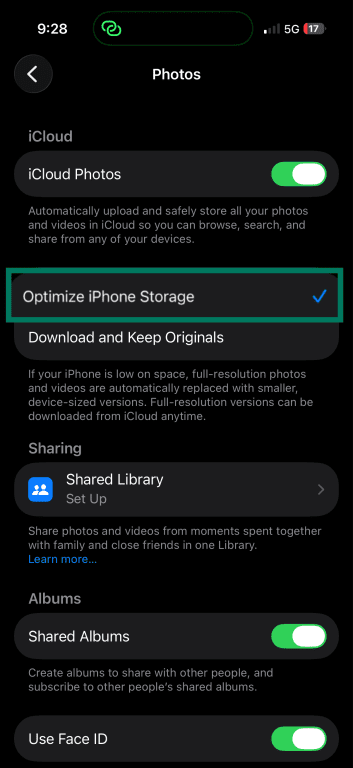
Large message attachments can also accumulate. From iPhone Storage, tap Messages and delete photos, videos, and other large attachments you no longer need.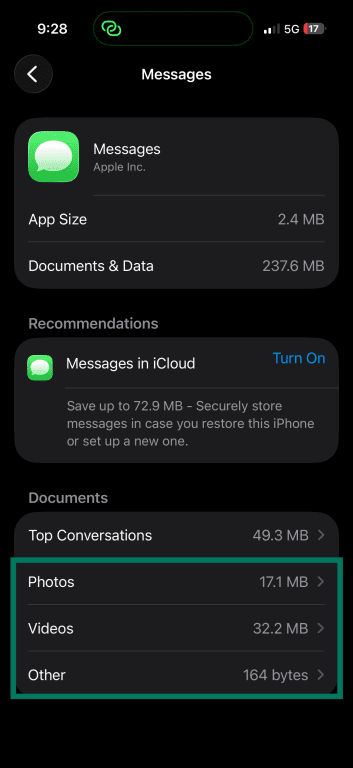
Related: How to clear system data on iPhone
What to do if an app keeps growing
Social media apps like Instagram, TikTok, and Facebook rebuild cache quickly after reinstalling. As you browse new content, they download thumbnails and previews again, so their storage size increases with normal use. Deleting and reinstalling the app clears that stored data, but it will accumulate again over time.
If an app’s storage usage seems unusually large, check whether it has downloaded offline content. For example, streaming apps such as Spotify and Netflix store saved media separately from cache. If you want to remove those downloads, you’ll need to do so from within the app’s settings.
FAQ: Common questions about clearing cache on iPhone
How often should I clear the cache on my iPhone?
Will clearing cache delete passwords?
Will clearing cache delete photos or messages?
Can I clear the cache for all apps at once?
Can I clear cache in other browsers or apps?
How do I block cookies on iPhone?
Take the first step to protect yourself online. Try ExpressVPN risk-free.
Get ExpressVPN