The new Meta rule explained: Can Meta use your photos without permission?



Meta doesn’t automatically get access to every photo on your phone. Photo access usually depends on what you upload, the permissions you grant, or whether you turn on a feature that uses your camera roll.
In this post, we explain what Facebook’s camera roll suggestions feature does, how Meta says it uses related data, how to check your privacy settings, and how to reduce your digital footprint on Meta apps like Facebook and Instagram.
Note: This article is for general informational purposes only. Meta’s features, settings, and policies may change and can vary by region, device, app version, and account.
The short answer on Meta photo access
A viral claim has suggested that Facebook or Meta has a new rule allowing it to access or use your photos unless you post a public notice denying permission. This claim has been debunked. Posting a public notice on Facebook can’t override Meta’s terms or create new legal obligations for the company.
The confusion comes from Facebook’s camera roll suggestions feature, which can suggest photos, videos, edits, or collages from your device. Meta says this feature is opt-in, private to you, and can be turned off. Availability may vary by account, device, and region.
Facebook may access camera roll photos in specific situations, such as when you upload them, grant photo-library access, turn on camera roll suggestions, or share photos in posts, Stories, messages, or Meta AI chats.
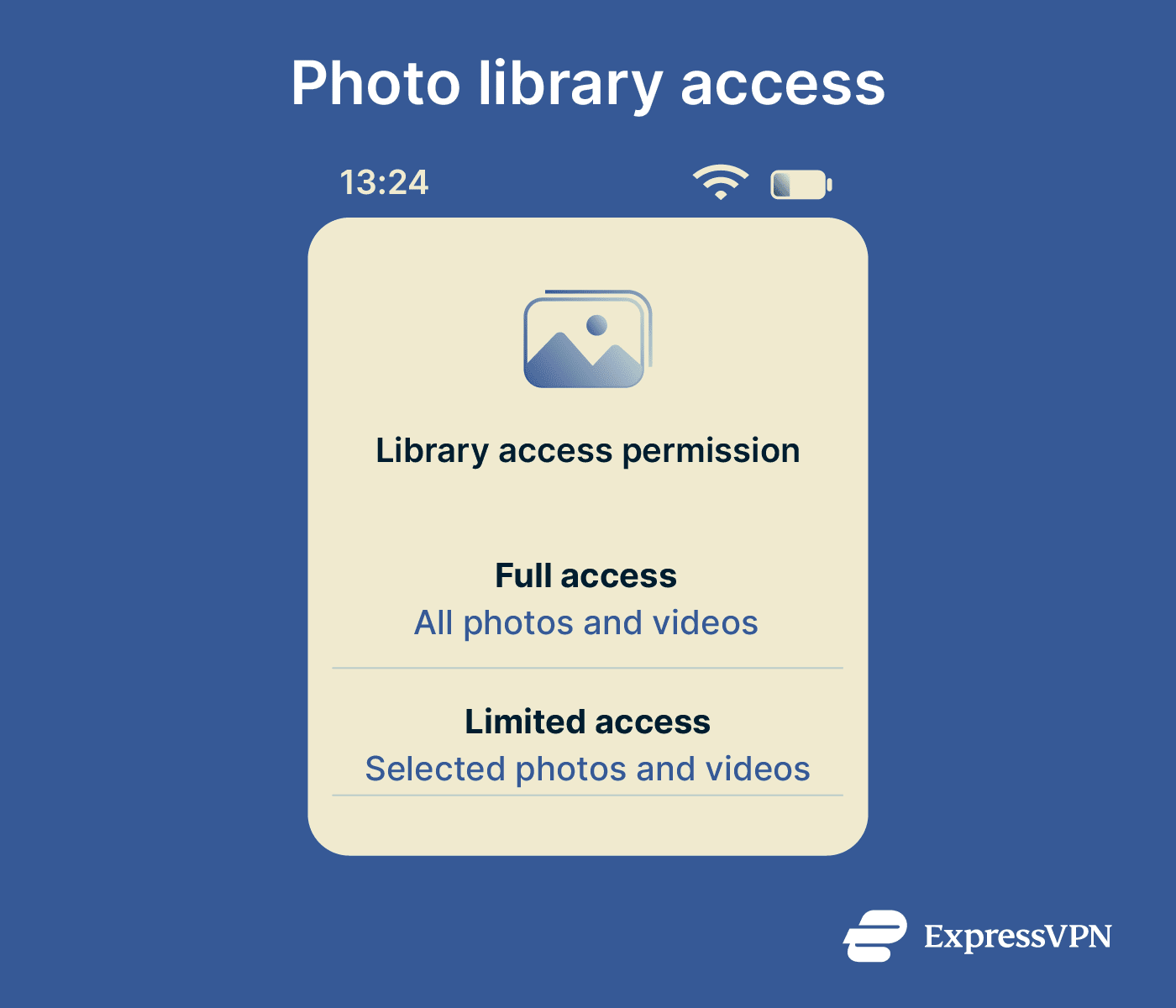
When uploading photos, your phone may ask whether you want to give Facebook limited or full access to your camera roll:
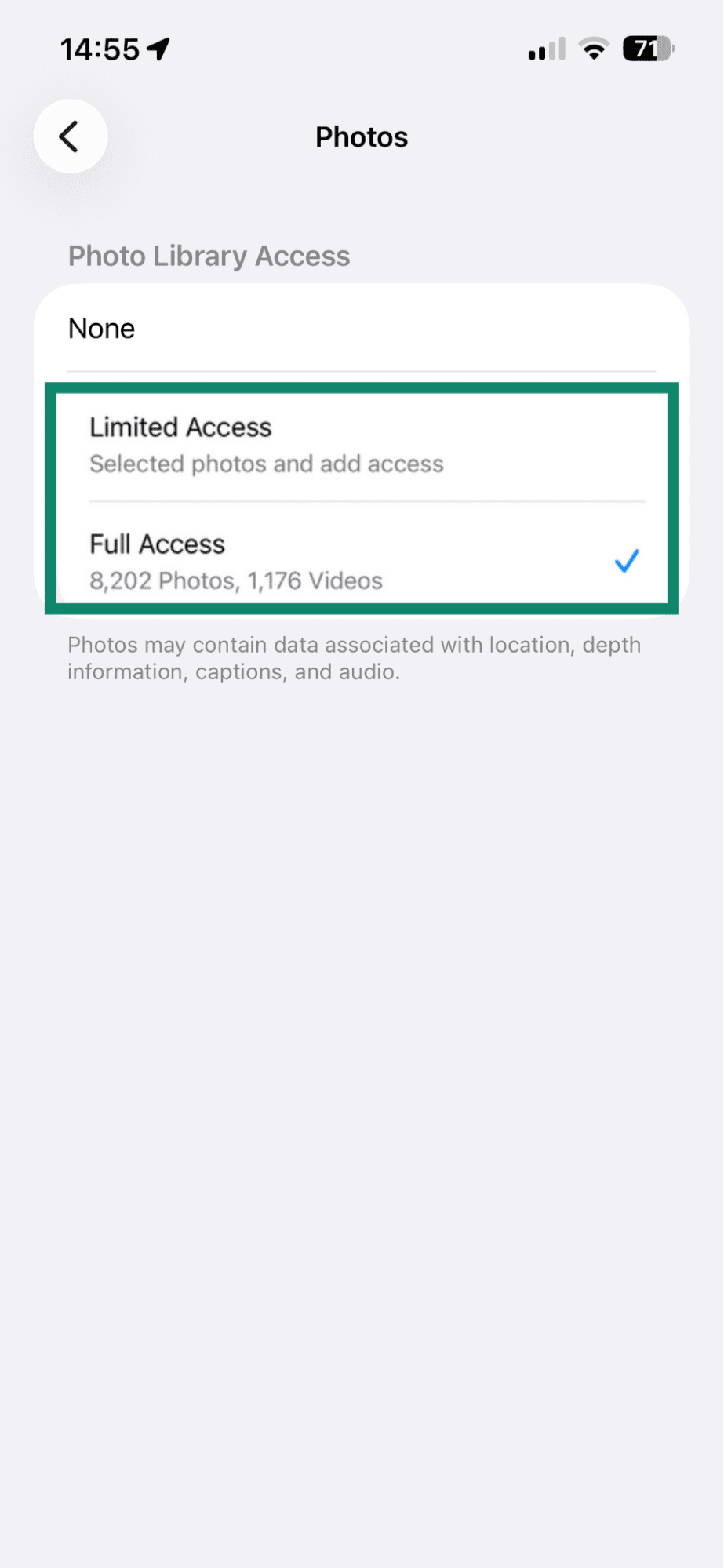
- Full access: Let Facebook access all photos and videos available in your camera roll. The app permission stays in place until you change it in your phone settings.
- Limited access: Let Facebook access only the photos and videos you specifically select and approve. This can reduce how much of your camera roll the app can see.
Why people are worried about Meta AI
The main reasons people may worry about Meta AI are data collection and processing. Meta’s privacy and AI help pages state that interactions with AI features may be processed and used to improve Meta's AI. This can include:
- Public information: Photos, comments, and other content you post publicly on Meta products.
- Interactions with AI features: Messages sent to AI chats, images or prompts you share with AI tools, questions you ask, and details Meta AI remembers when you choose to share them, such as preferences.
- Other types of information: Publicly available information online, licensed information, and information from Meta products that may be used to develop, improve, or personalize AI features.
Meta may also work with selected partners when its AI features need help answering a query. In some cases, Meta says it may share messages sent to AI, along with contextual information such as region or interests, with selected partners to help provide better results. Meta AI may also use profile information, interests, and activity across Meta products to personalize interactions, depending on the app, account, region, and settings.
Another reason for concern is that Meta AI is increasingly integrated across Meta products, including Facebook, Instagram, WhatsApp, and Messenger. Regular private chats are not the same as chats in which Meta AI is used or mentioned directly, and AI-related features and privacy controls can vary by app, account, region, and setting. Users may need to review AI-related privacy options in multiple places.
Also read: How to turn off Meta AI on Facebook and take control of your privacy.
What Meta can access on your phone
Meta apps may access or process photos in a few main ways
- Photos uploaded to Meta apps: This includes photos added to Facebook, Instagram, or Threads through posts, Stories, profile pictures, albums, comments, messages, or AI features that require an image upload.
- Camera roll suggestions on Facebook: If enabled and the necessary photo permissions are granted, this feature can use media from the camera roll to suggest content. Some AI or custom suggestion flows may also use cloud processing to generate edits, collages, recaps, or other sharing ideas.
- Photos shared in Messenger: End-to-end encrypted (E2EE) chats limit access to the people in the chat. However, Meta may receive message content if someone reports a conversation, uses certain optional features, or shares messages or media with Meta AI. For reports, Meta says it may review up to 30 of the most recent messages in the reported conversation.
Also read: How to delete or deactivate Messenger.
How Meta AI may use your photos
Meta AI features can process photos and related information when you upload an image, ask Meta AI about a photo, use AI editing tools, or enable AI-powered camera roll suggestions.
Photo analysis and content suggestions
One way Meta AI uses your photos is to answer your questions about the content of pictures (like asking what type of flower is in a photo you uploaded) or to help edit images. For example, you can ask Meta AI to add, remove, or change something in a photo, or generate a background before resharing an image to Instagram Stories. For more background on how these tools work, read our guide to generative AI.
Facebook's camera roll suggestions feature can also recommend photos and videos from your phone, suggest edits or collages, and surface content you may want to share.
Personalized features and recommendations
Meta AI features may use account and activity signals to personalize responses, captions, creative tools, and recommendations. This can include profile details, interests, location signals, and activity across Meta products, depending on the app, region, and settings.
For instance, the AI may suggest captions for Facebook and Instagram stories. Meta has also tested AI-generated feed content for Facebook and Instagram, tailored to users’ interests or current trends.
AI training and privacy concerns
The main privacy concern is what happens after a photo leaves the camera roll. According to Meta's privacy documentation about AI, photos or prompts uploaded, published, or shared with Meta AI may be processed as part of Meta’s broader generative AI practices.
Camera roll suggestions have a narrower caveat. Meta says photos and videos from the camera roll aren’t used for ad targeting or to improve AI at Meta unless someone publishes or shares them in interactions with a Meta AI feature.
Because settings and availability can vary, it’s worth checking both your Facebook settings and your phone’s photo permissions.
If you’re concerned about social media privacy, avoid uploading sensitive images or videos you wouldn’t want processed by Meta, shared with recipients, or used by AI features. Use more private sharing methods where appropriate.
Also read: How to stop AI from stealing your art.
How to check Facebook camera roll settings
You can turn off camera roll access features in Facebook’s settings. The exact menu may vary by app version, device, account, and region, but the steps usually look like this:
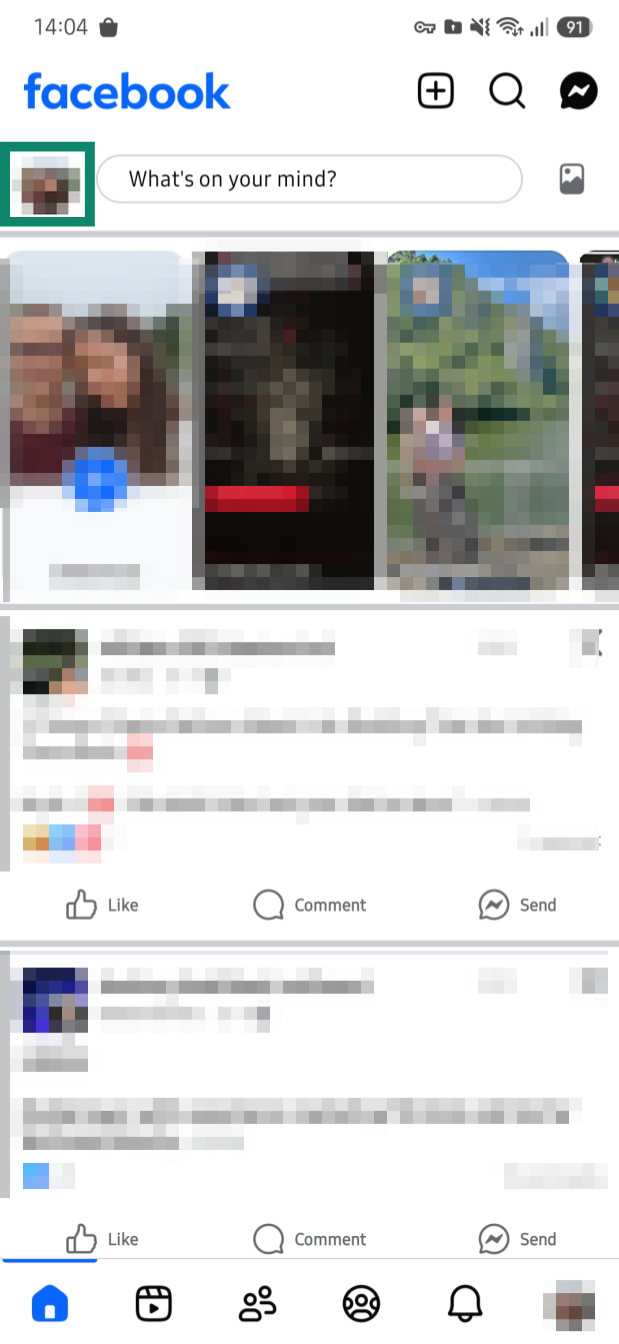
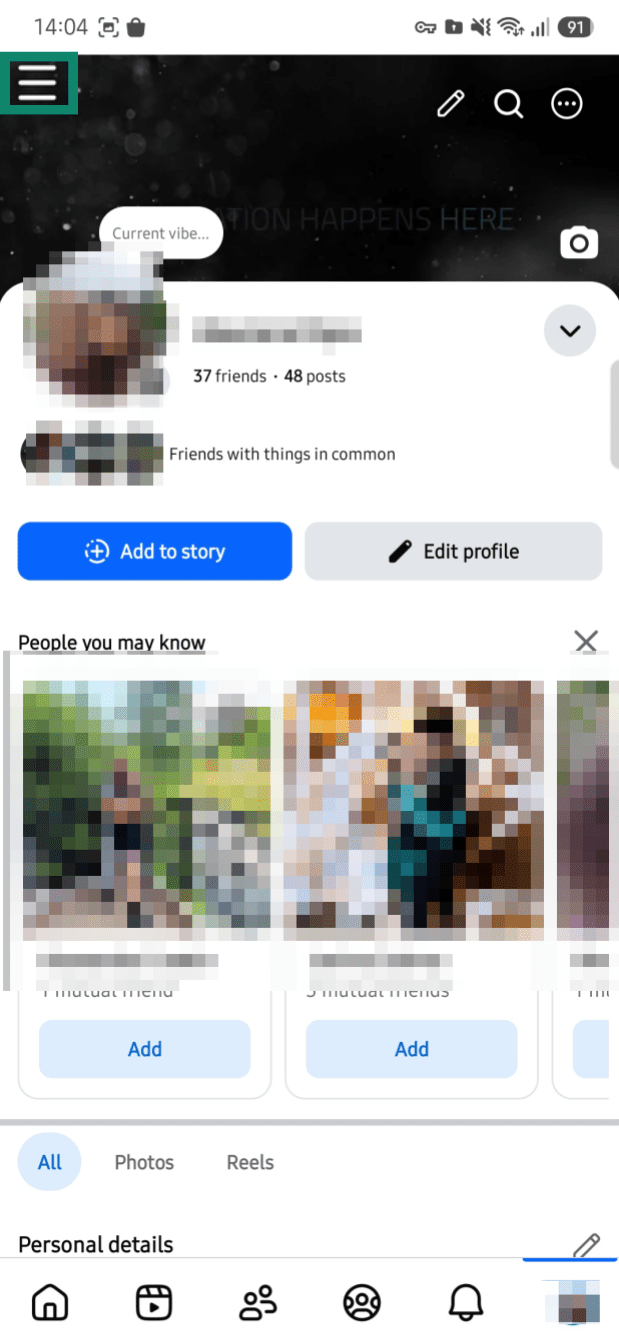
- Open the Facebook app and tap your profile picture.
- Tap the Menu (three-line icon).
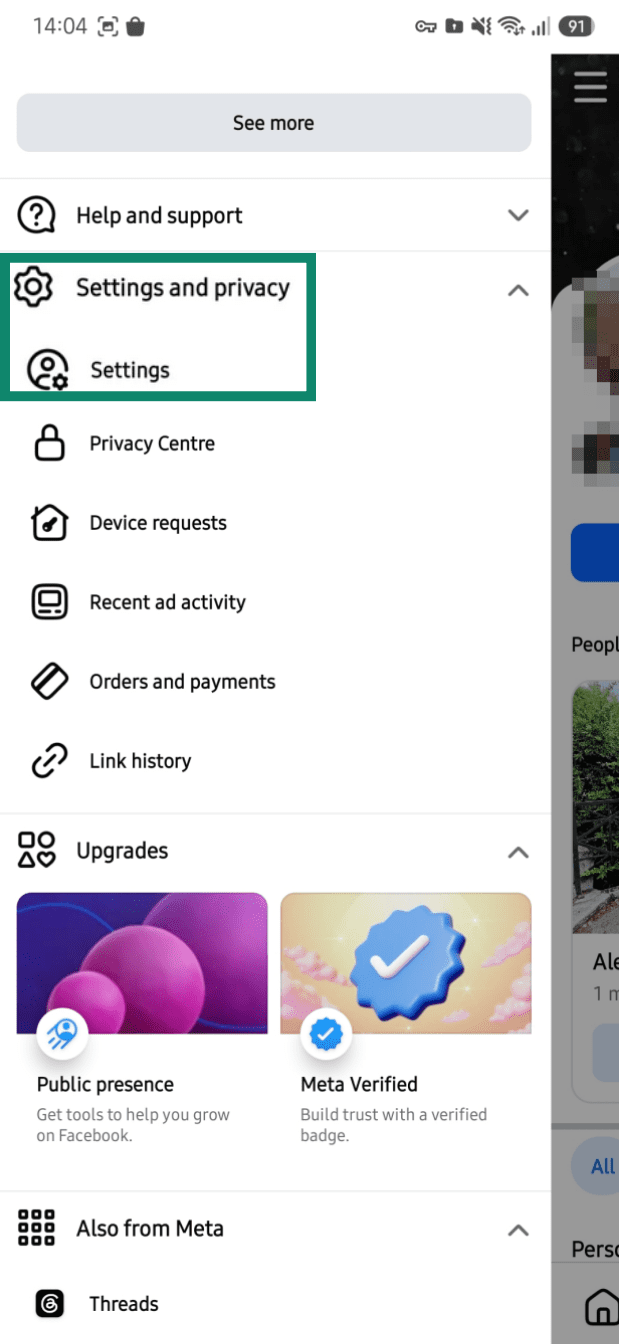
- Select Settings and privacy > Settings.
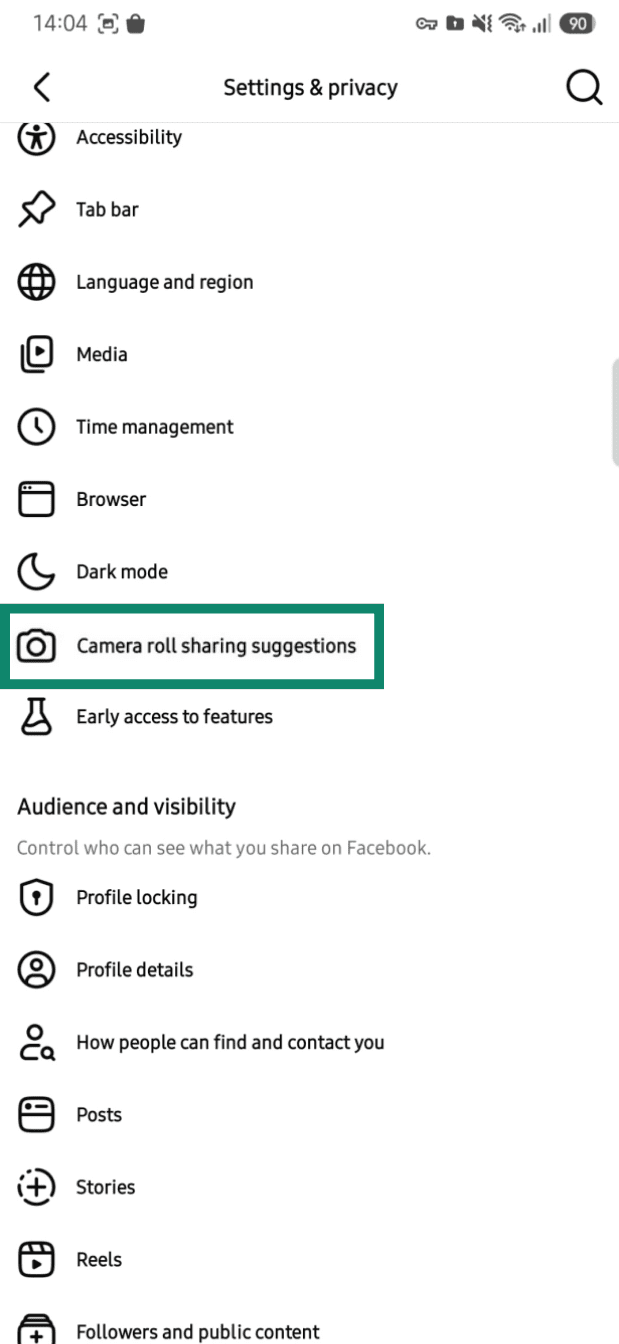
- Select Camera roll sharing suggestions.
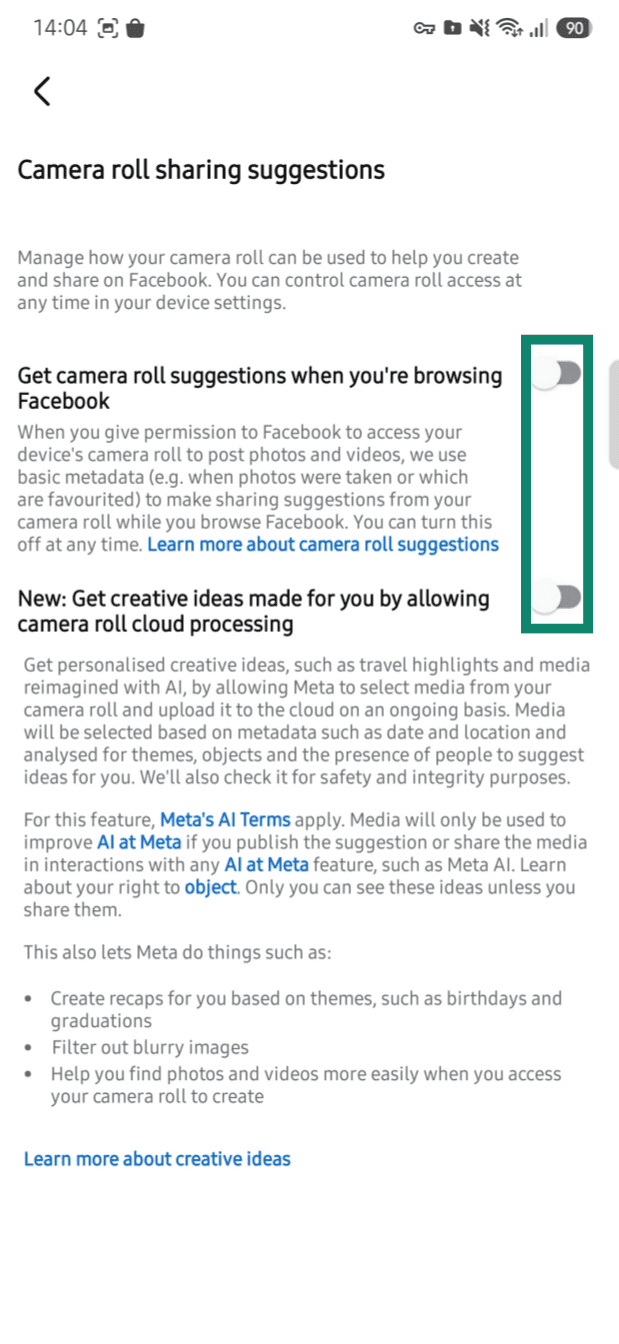
- Turn off the available camera roll suggestion options, such as:
-
- Get camera roll suggestions when you’re browsing Facebook: Let Facebook suggest photos or videos from your camera roll while you use the app. These suggestions may rely on photo or video metadata, such as when the media was taken.
- Get creative ideas made for you by allowing camera roll cloud processing: Let Facebook use cloud processing to create more personalized online photo-sharing ideas from your camera roll, such as edits, collages, or videos.
How to limit Meta photo permissions
You can limit Meta’s photo permissions from full access to limited access, or even remove access entirely, from your phone settings.
Change Facebook and Instagram photo access on iPhone
These steps are for recent iOS versions and may slightly differ for older versions.
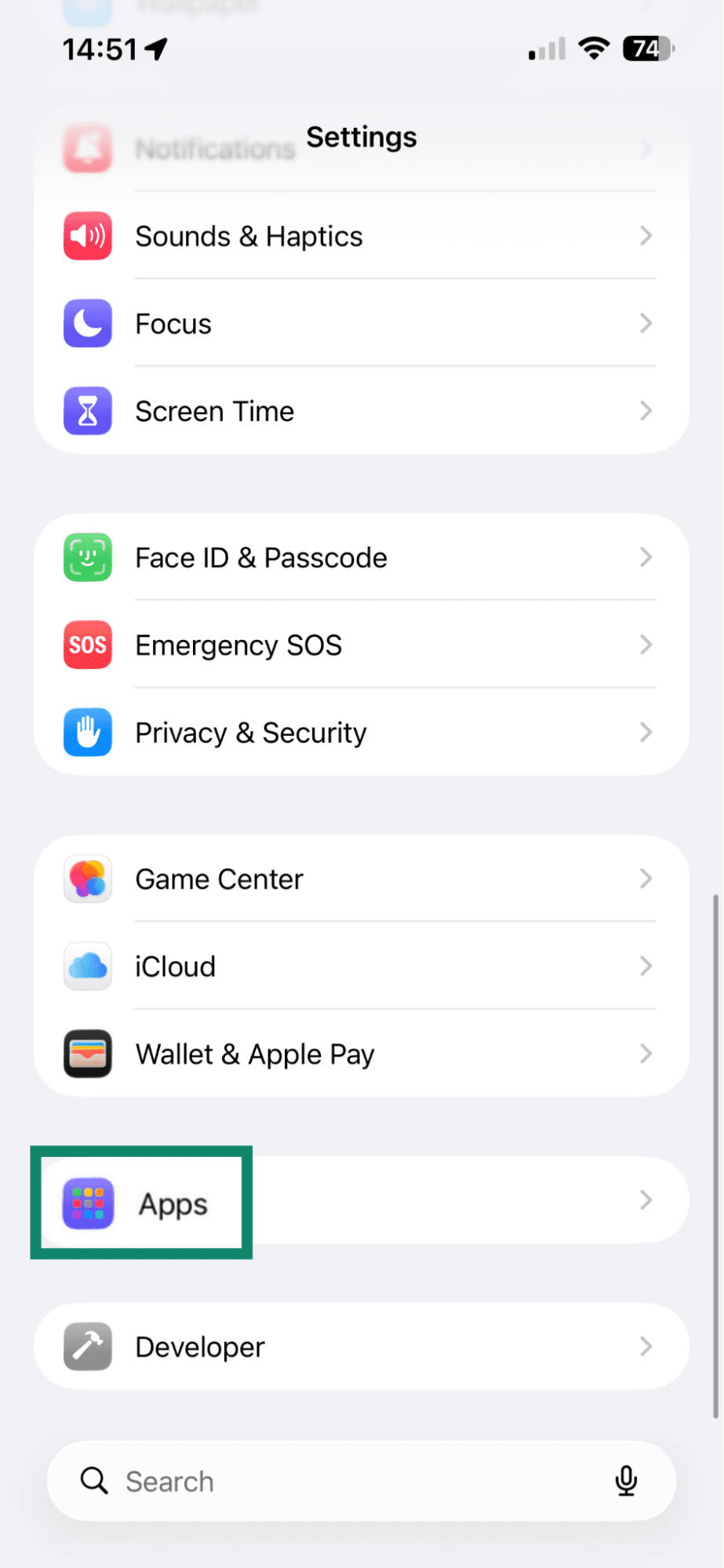
- Open Settings and select Apps. If you don't see Apps, go to Privacy & Security > Photos.
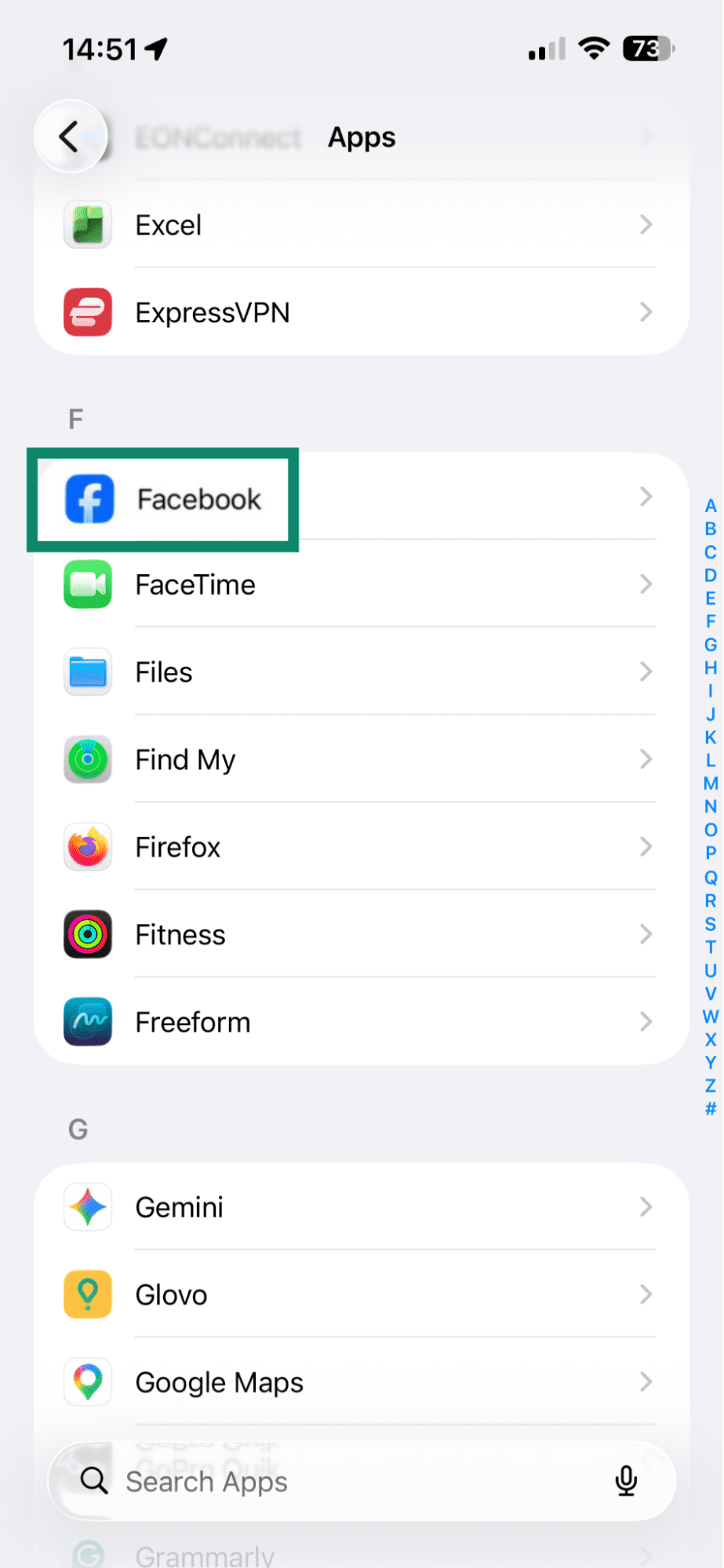
- Tap Facebook or Instagram.
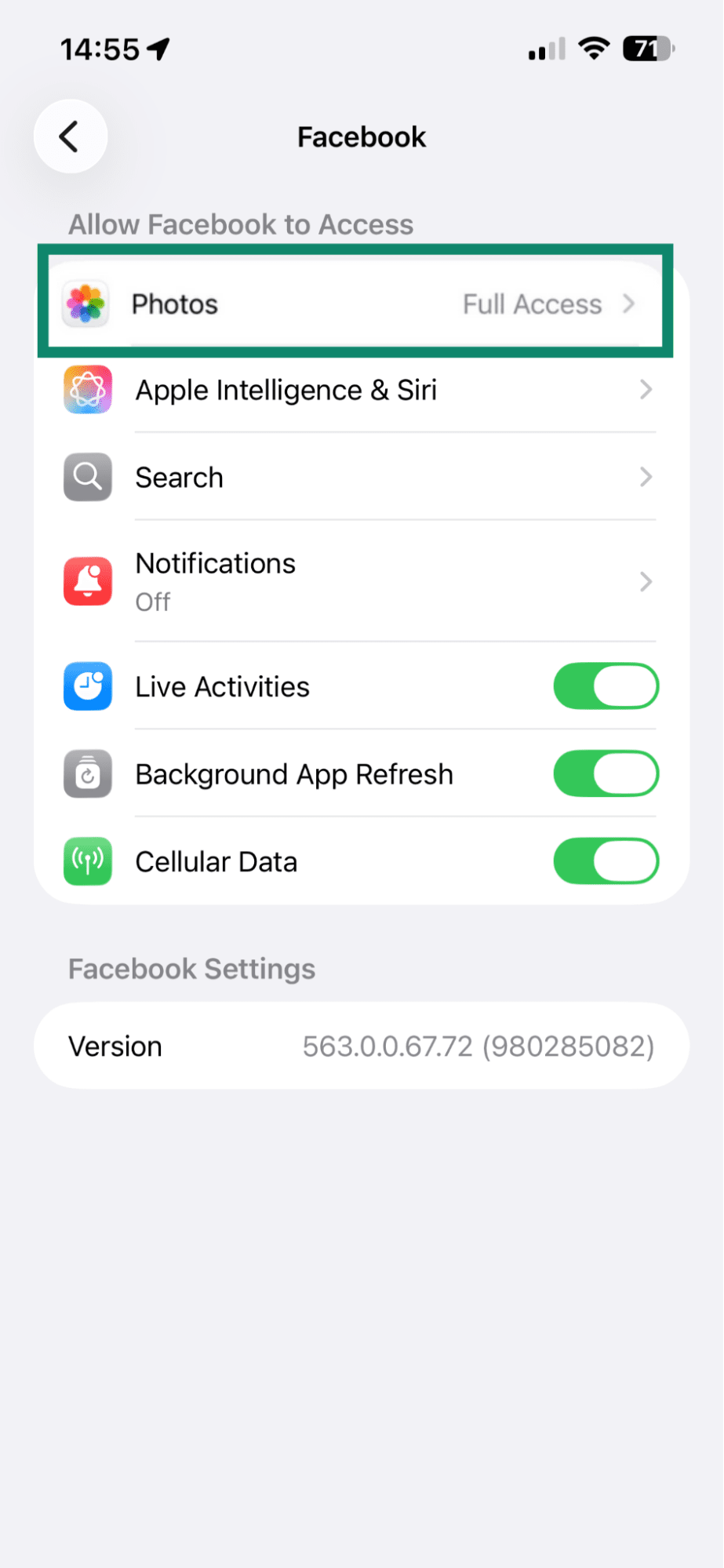
- Select Photos.
- Choose Limited Access, Full Access, or None/No Access.
Change Facebook and Instagram photo access on Android
- In your Android Settings, select Apps.
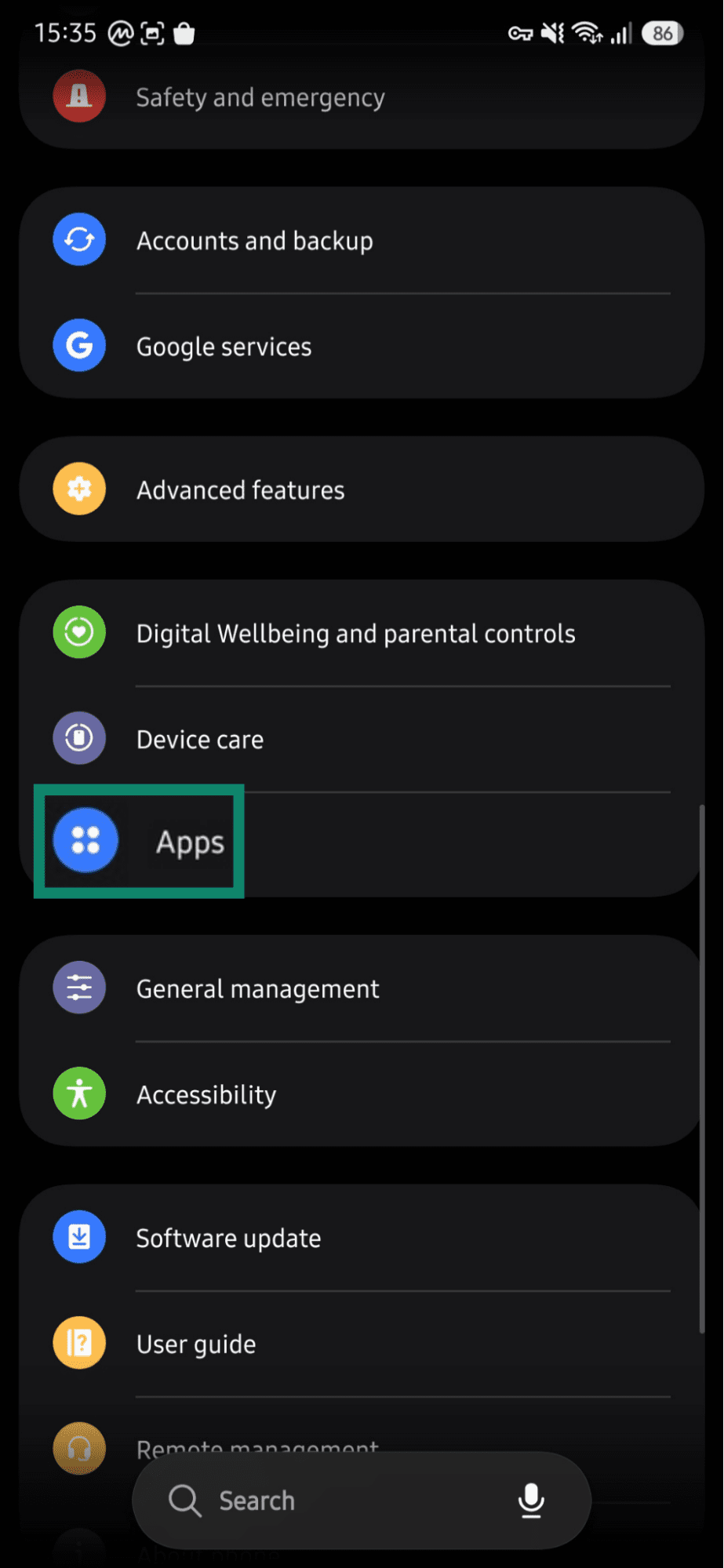
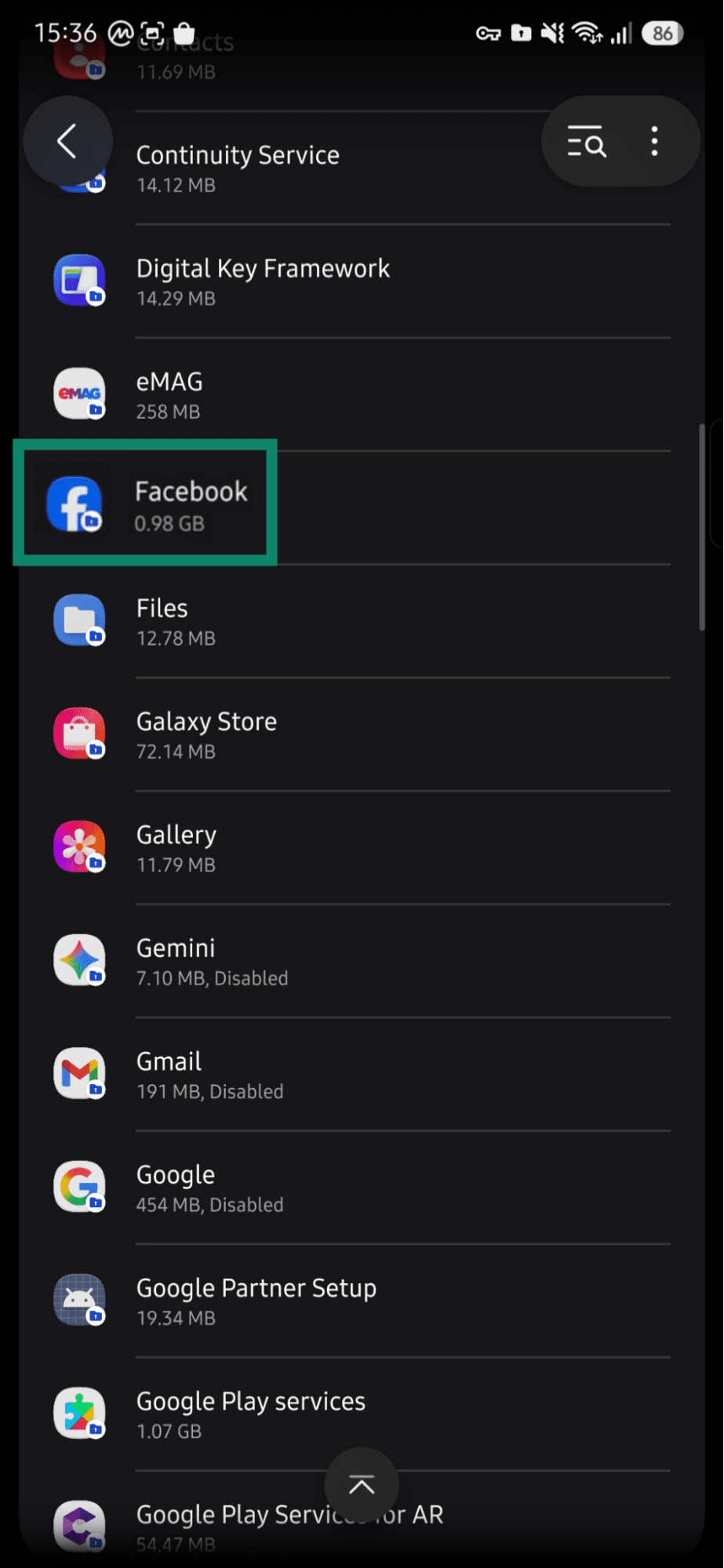
- Find Facebook or Instagram and select it.
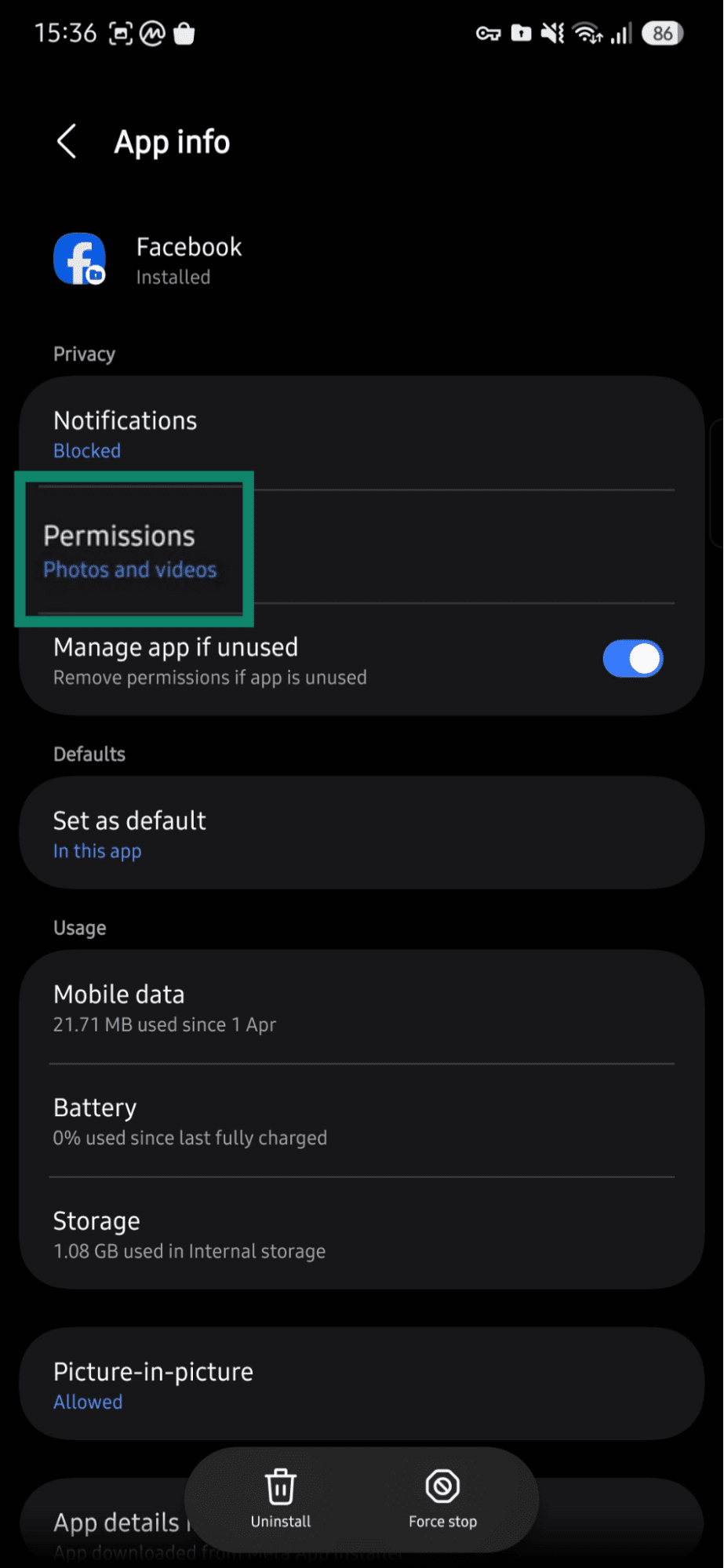
- Select Permissions.
- Tap Photos and videos.
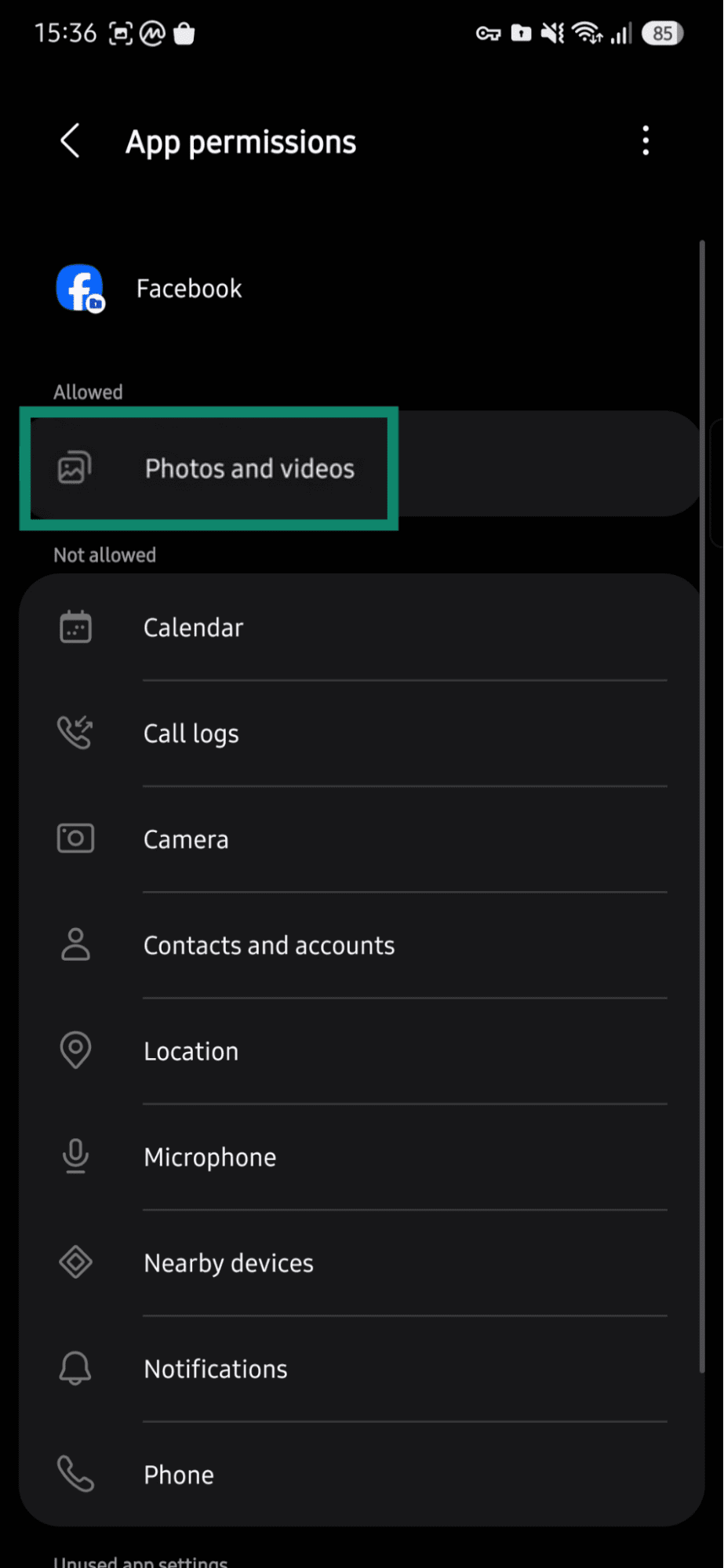
- Choose Always allow all, Allow limited access (might be called Select photos and videos), or Don’t allow. Depending on your Android device and operating system, these options may use different names.
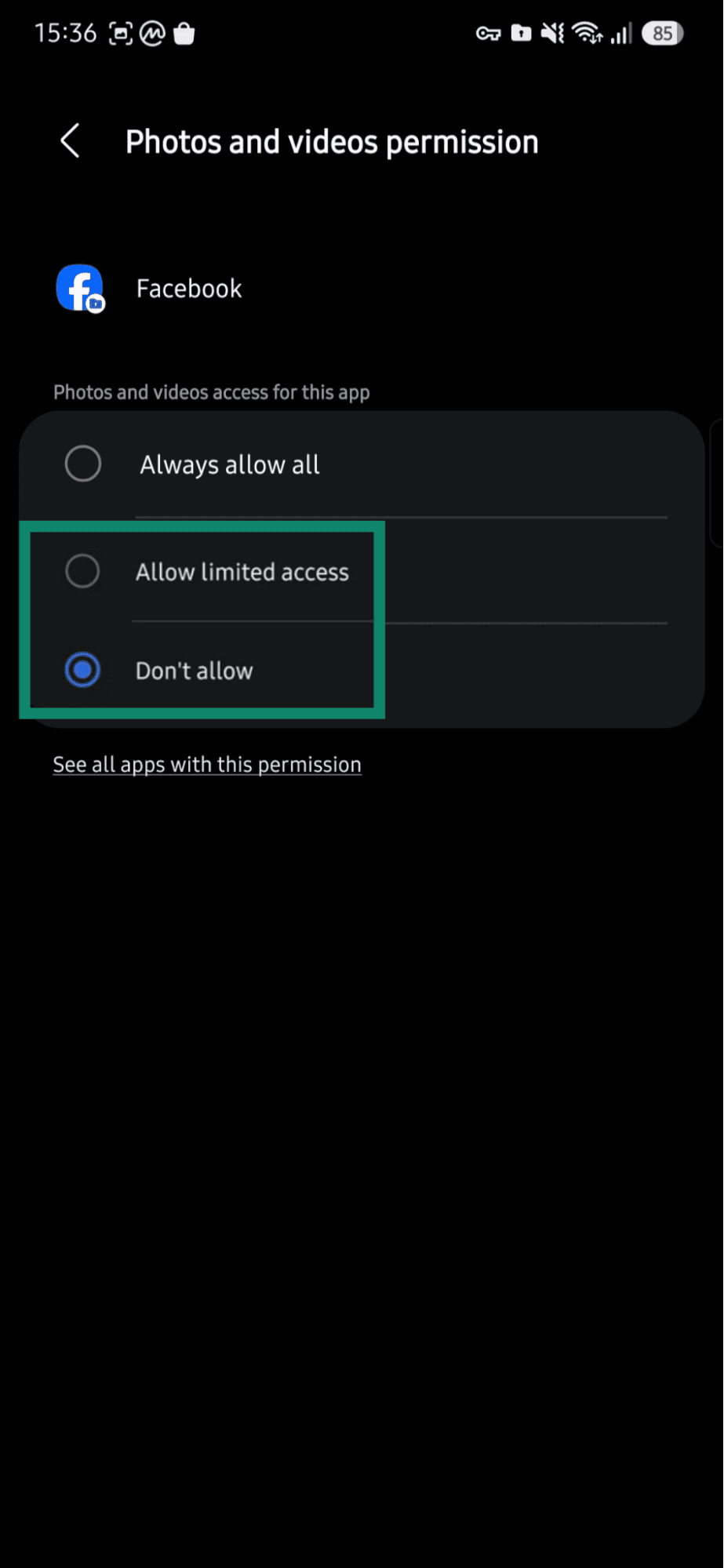
Note: The steps may differ depending on the Android device you’re using and its operating system. We tested these steps on a Samsung S23 running One UI.
How to protect private photos and videos
There are ways to limit how Meta and other third-party apps can access or process your photos and videos. These steps can help reduce exposure and improve privacy.
Store sensitive photos outside Meta and other social media apps
Keep sensitive photos and videos out of Meta apps and other social media platforms whenever possible. Photos uploaded to Facebook, Instagram, Threads, Messenger, or Stories, or used with AI features, become content shared with those services, even if the post or message has limited visibility.
A social media app with full photo library access may also be able to access more of the camera roll than is needed for a single upload. For photos that need to stay private, use a dedicated storage option instead of a social app. Limited photo-library permissions can also reduce exposure when an app only needs selected images.
Use encrypted cloud storage for private photos
Encrypted cloud storage can protect private photos without putting them inside a social media app. For stronger privacy, look for storage that uses E2EE. This is designed so the provider can’t view the files in normal use.
Standard cloud encryption still helps protect files in transit and on servers, but the provider may still hold the keys. E2EE storage can offer more protection for sensitive photos, especially when combined with a strong password and multi-factor authentication (MFA).
One option is Ente Photos, an open-source, cross-platform photo manager with E2EE. Ente says it uses on-device machine learning (ML) for features such as natural-language photo search and face recognition.
Limit which apps can access your photo library
Restricting photo library access reduces the chances that an app can process or share photos beyond those you choose. Often, the simplest solution has the greatest impact.
Limited access works especially well for social media apps because it lets the app use chosen photos without opening the full camera roll. If an app only needs one image for a post, profile picture, or message, full access usually isn’t necessary.
And if you don’t care about additional features like camera roll suggestions or AI-driven ideas, Meta’s apps usually don’t need full access to your phone gallery.
Share private photos through more secure methods
If you want to share sensitive photos with someone else while maintaining your privacy, social media platforms may not always be the best option. Instead, consider sharing methods with E2EE and stricter access controls. Encrypted file-sharing services may offer password-protected links, access revocation, or expiration dates.
Signal is one option for private messaging. Signal states that it uses E2EE powered by the open-source Signal Protocol and that it can’t read messages or listen to calls.
WhatsApp may also be suitable for sharing private photos in personal chats. WhatsApp states that personal messages are protected with E2EE, meaning no one outside the chat, not even WhatsApp or Meta, can read or listen to them.
However, even with encrypted sharing, privacy still depends on the recipient. Anyone who can access the photo can save it to their device, take a screenshot, or forward it to someone else.
Also read: Which app offers better privacy, Signal or WhatsApp?
FAQ: Common questions about camera roll access for Meta
Does Meta own the photos I upload?
Can Meta use photos from private messages?
Does turning off camera roll access delete uploaded photos?
Can Meta see photos I never upload?
Should I remove Facebook photo permissions?
Explore the web with greater privacy
Get ExpressVPNSign up today for a chance to win FIFA World Cup 2026™ tickets.