Signs that your phone screen is hacked, and how to fix it


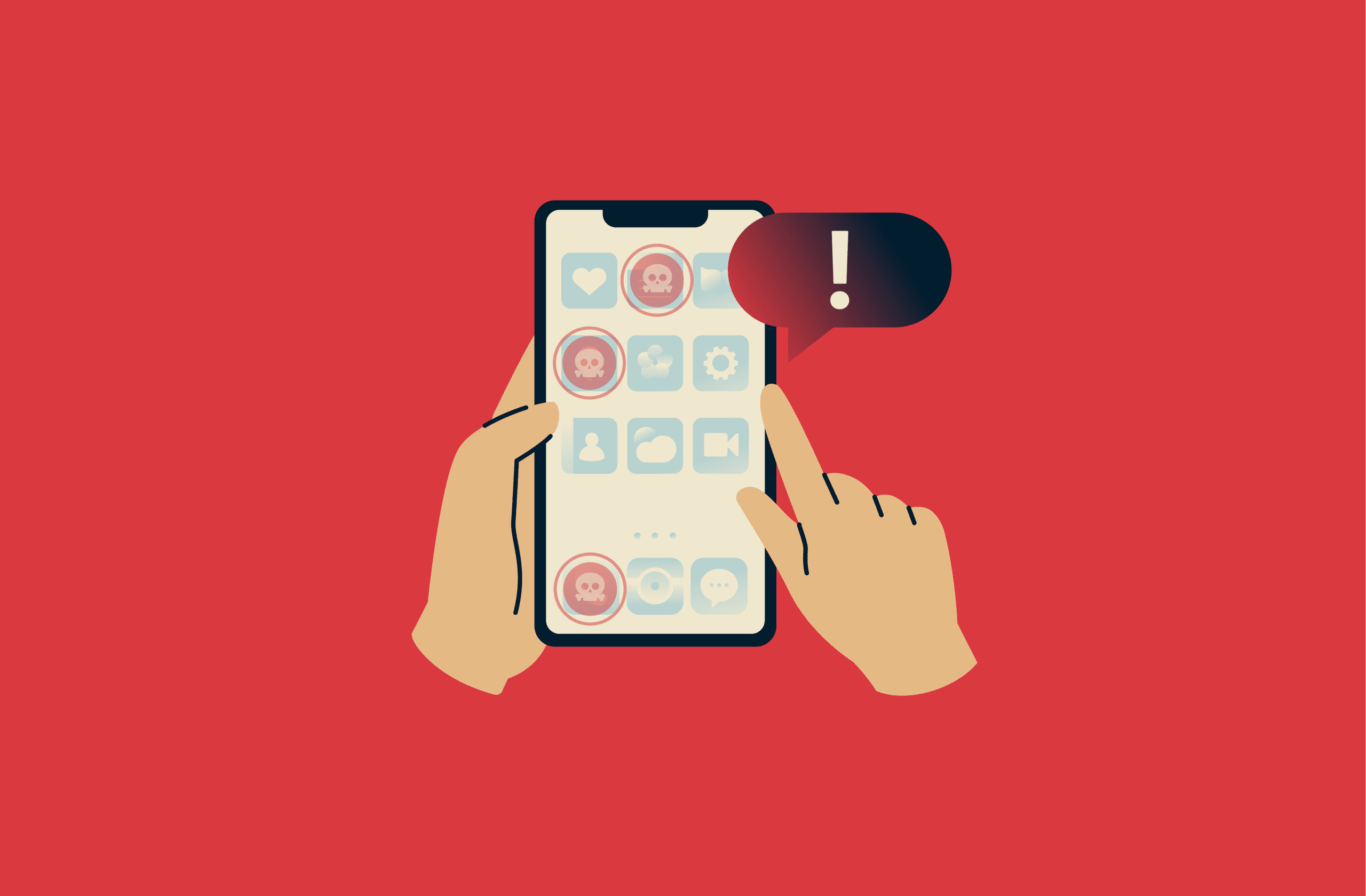
If your phone screen starts registering touches you didn't make, apps start opening on their own, or text appears in search fields without your input, you need to investigate.
These symptoms could stem from technical issues or from something more serious, like a hacked screen giving attackers unauthorized access to your device. Understanding the root cause is critical to protecting your personal information.
This guide helps you determine whether your phone has been hacked or is experiencing technical glitches. You'll learn the specific signs that your screen is hacked, how attackers gain control, and exactly what steps to take to secure your device and prevent future attacks.
What is screen hacking?
Screen hacking is the process by which a threat actor gains unauthorized access to your device's display, letting them monitor what’s displayed or remotely control the device. Screen hackers can also record the screen, capture sensitive information like passwords, and even perform actions on your behalf.
Screen hacking can be executed through malware or compromised apps. These threats can operate silently in the background, making detection difficult until damage starts to occur.
Both Android and iOS devices can be targeted by screen hacking attacks, though Android's more permissive app ecosystem makes it a more frequent target because it allows app installation from third-party sources and grants broader permission controls. However, iOS devices aren’t completely immune and remain vulnerable to sophisticated malware.
Common screen hacking methods
Below are some key methods hackers use to compromise device screens.
Remote Access Trojans (RATs)
RATs are malicious programs that give attackers complete remote control over your device. Once installed, they operate silently in the background while allowing cybercriminals to monitor your screen, access your camera and microphone, or execute commands.
Mobile RATs like SpyNote disguise themselves as popular apps to trick users into granting permissions. Once activated, these Trojans can function as spyware that intercepts messages, records screens, and steals banking credentials.
RATs usually infiltrate devices through phishing emails, malicious attachments, or compromised websites. They establish persistence by abusing accessibility permissions or establishing themselves as background services, making them difficult to remove.
Screen overlay attacks
Screen overlay attacks place malicious screens on top of legitimate apps, tricking you into entering sensitive information and potentially leading to identity theft. Some common screen overlay attack types include the following:
- Tapjacking: Tapjacking is the smartphone equivalent of clickjacking, where hackers attempt to trick users into clicking an invisible element laid on top of another one, which could lead to a malicious download link.
- Phishing overlays: This is when attackers overlay fake pages on top of legitimate apps, like a fake login page. Any information entered into these fake pages is redirected back to the attacker.
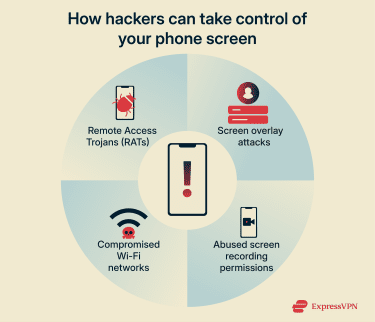
Malicious screen recording permissions
Malicious apps can abuse screen recording functionality. A notable example is the iRecorder app for Android, which initially functioned normally before receiving an update that added malicious capabilities like exfiltrating files from user devices.
Even iOS, generally considered the safer platform, faces these threats. For instance, apps containing SparkCat malware have previously made it onto Apple's App Store. This malware uses optical character recognition (OCR) to scan screenshots and extract sensitive text like cryptocurrency wallet details from photo galleries.
Compromised Wi-Fi networks
Compromised networks provide attackers with opportunities to intercept your device's communications. Public Wi-Fi networks are particularly vulnerable to man-in-the-middle (MITM) attacks, where attackers position themselves between your device and the network to capture data and spy on your phone’s activity.
Attackers can also employ HTTP or Domain Name System (DNS) spoofing, other forms of MITM attacks, to redirect you to malicious websites that install malware, leading to screen compromise.
These attacks don’t grant direct screen access, but they can lead to malware installation or account compromise, which may later enable screen monitoring.
Warning signs of a hacked phone screen
Hacked phone screen symptoms manifest in various ways; your device may behave erratically or perform actions you didn't initiate. Monitoring these signs can help you tell if someone’s spying on your phone.
Ghost touches
Ghost touches are when your device registers swipes and taps without physical contact. Your phone may unlock itself, answer calls automatically, or navigate apps without your interaction. These behaviors are often caused by hardware faults, software bugs, moisture, or faulty chargers. In rarer cases, similar symptoms may result from malicious software, such as a RAT that allows an attacker to interact with the device remotely.
Unauthorized screen control
Seeing your phone open URLs, change settings, or type without your input are signs your screen is hacked. Attackers with screen control can install tracking programs, view your messages, and access social media accounts you’re logged into.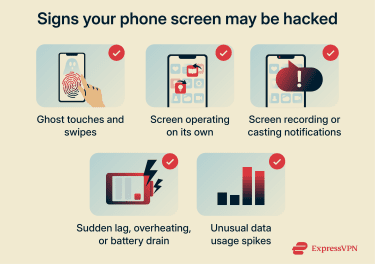
Unexpected screen recording or casting notifications
Notifications indicating screen recording or casting when you haven't initiated these functions warrant immediate attention. On Android, apps that perform long-running background tasks, such as screen recording, are required to display a persistent notification, though the notification text can be customized. If you see a notification you can’t dismiss, even if it doesn’t explicitly mention screen recording, it may indicate an app is running continuously in the background.
While some apps legitimately use these features, like Zoom or YouTube, seeing them unexpectedly could mean an app is capturing your screen without your knowledge. Check which app is responsible and review its permissions to rule out unauthorized activity.
Screen flickering or visual glitches
Screen flickering or distorted visuals may indicate malicious software interfering with your display. While these issues more commonly stem from hardware defects or software glitches, persistent flickering accompanied by other suspicious behavior may signal screen monitoring spyware.
Performance issues and system instability
RATs running in the background consume processing power, causing overall system lag. Your device may feel slower than normal, with apps taking longer to launch and respond. You may also notice increased battery drain or overheating. However, all these symptoms can also result from normal device aging, too many apps running simultaneously, background system updates, or poor network coverage. Consider these to be warning signs rather than proof of a screen hack.
Apps that run secretly in the background to monitor your screen and exfiltrate information also consume data, so it’s worthwhile to monitor your data consumption patterns. Sudden spikes in data usage without corresponding increases in your activity may signal malware communicating with remote servers.
How to confirm your phone screen is really hacked
Before taking security measures, it’s worthwhile to verify whether your device is genuinely compromised.
Simple diagnostic steps
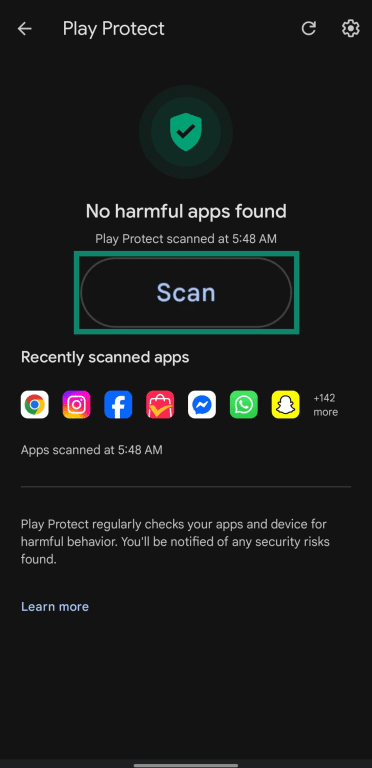
The first steps to take are enabling Google Play Protect on Android and running a Safety Check on iOS. Google’s Play Protect checks your device for malicious apps and removes them if it detects any. It can also reset privacy settings to ensure apps aren’t spying on your microphone or camera. On the other hand, Safety Check lets you see what permissions different apps have access to and restrict them.
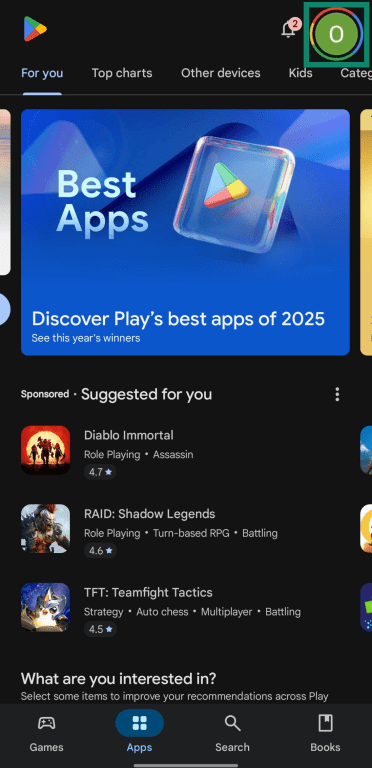
How to do a Google Play Protect scan on Android
- Access the Google Play Store and tap your initial on the top-right.
- Tap Play Protect.
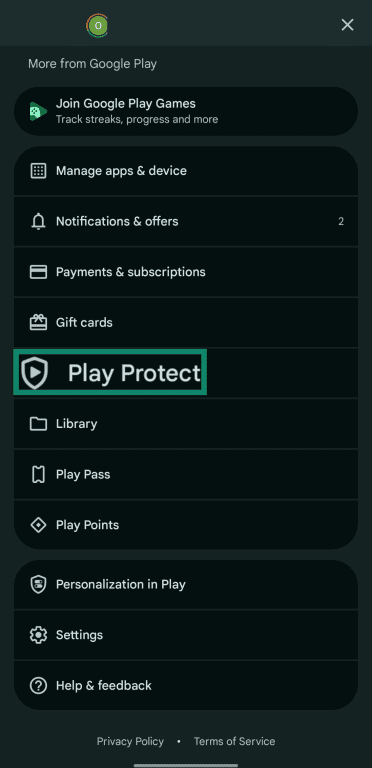
- Tap Scan to check for malicious apps.
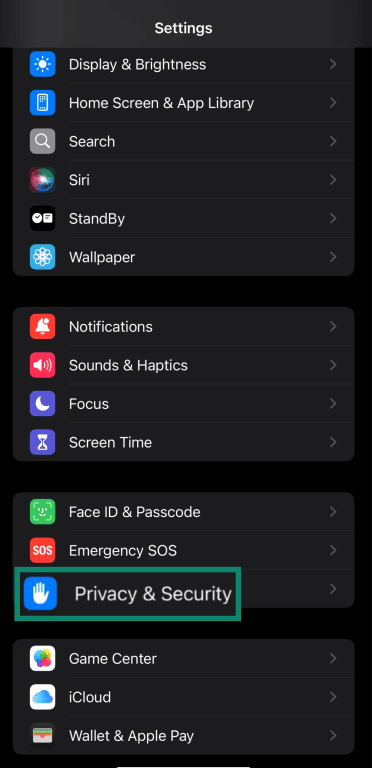
How to do a Safety Check on iOS
- Navigate to Settings on your iOS device and tap Privacy & Security.
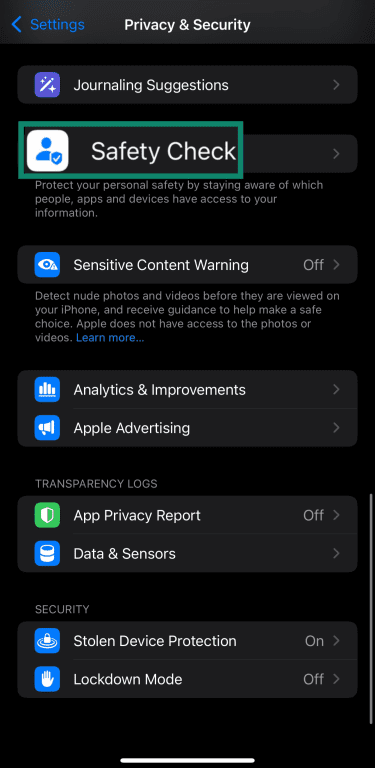
- Scroll to the bottom of the Privacy & Security menu and tap Safety Check.
- Tap Manage Sharing & Access.
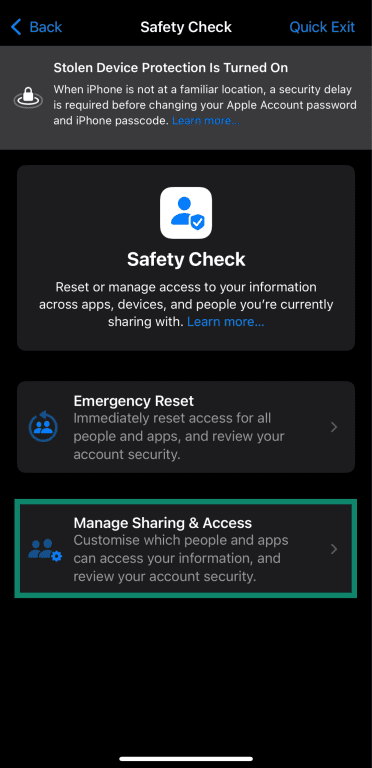
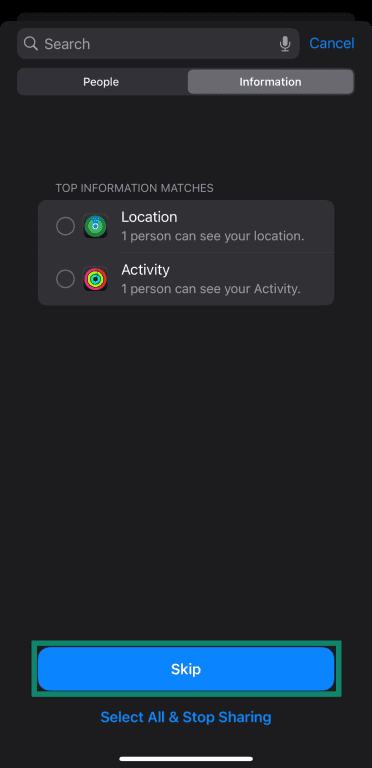
- The first step of the Safety Check checks for information you’ve shared with people. Since we’re focusing on apps here, you can tap Skip at the bottom.
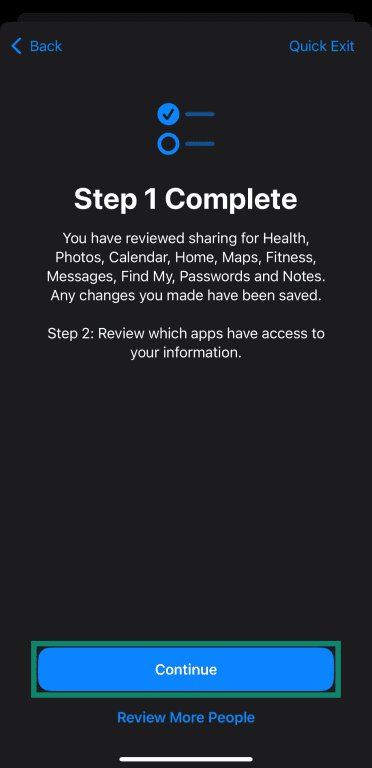
- Tap Continue.
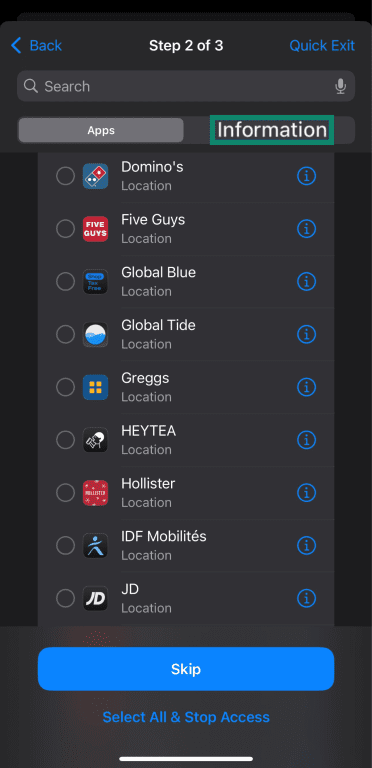
- Step 2 shows all apps with their various permissions, and you can select any that you wish to revoke access to. For more information, you can tap Information on the upper right of this menu to see specific details about various permissions.
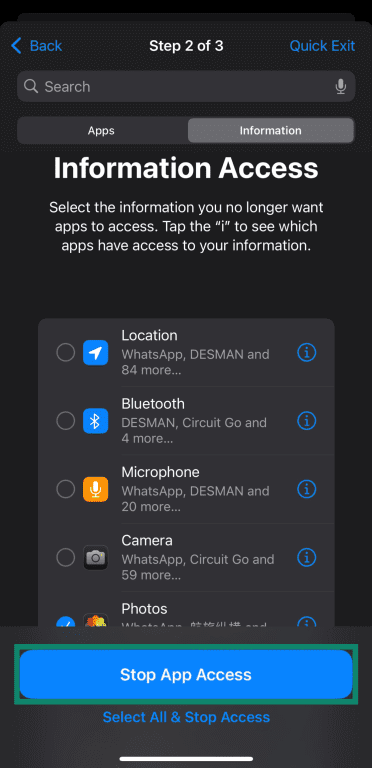
- The Information menu shows how many apps have access to a specific permission, and you can tap the ‘i’ next to a permission to see the list of apps accessing it. This menu also lets you revoke all apps’ access to a certain permission by selecting it and tapping Stop App Access.
To be extra safe, you can manually check all installed apps on your device and remove any you don’t recognize. Additionally, check your apps' permissions to ensure they have no more than necessary.
How to check installed apps and permissions on Android
- Navigate to Settings and tap Apps.
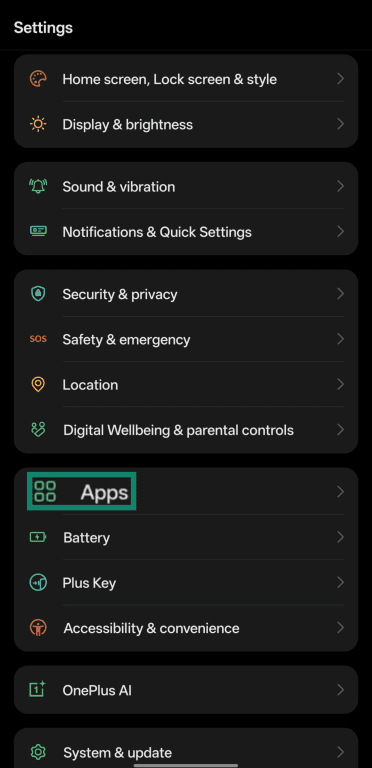
- Tap App management.
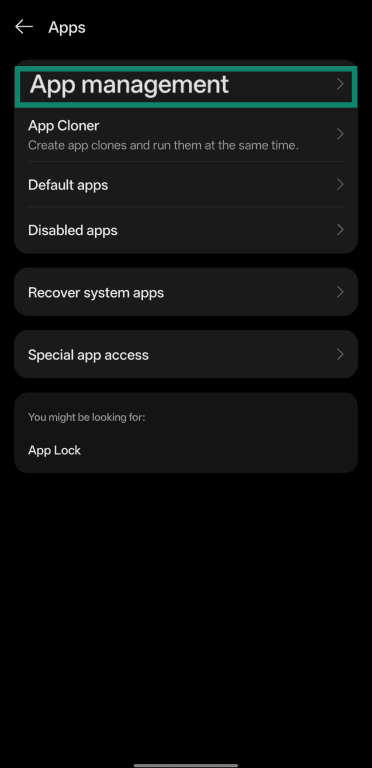
- Review the list of apps and tap any that seem suspicious. To see permissions, tap any of the apps to bring up the next menu.
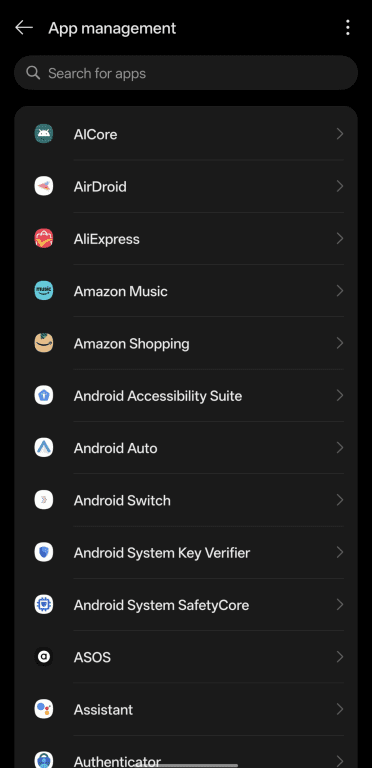
- Tap Permissions in the app menu.
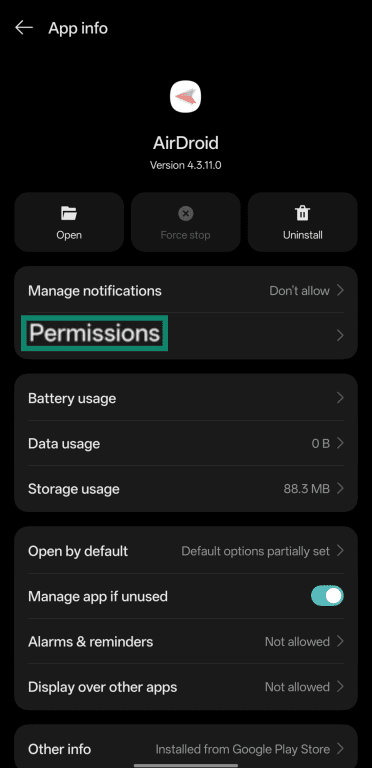
- Review whether the app you’ve chosen has any unnecessary permissions and remove them as necessary. Note that some apps may require certain permissions to function correctly, so only revoke permissions you’re confident are unnecessary.
How to check installed apps and permissions on iOS
- Tap General in the Settings menu.
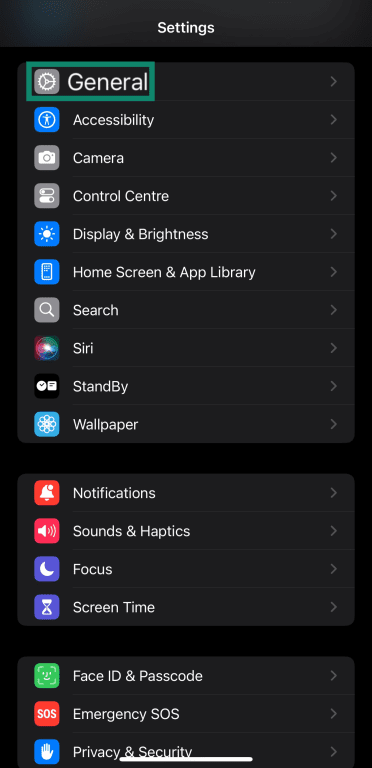
- Tap iPhone Storage.
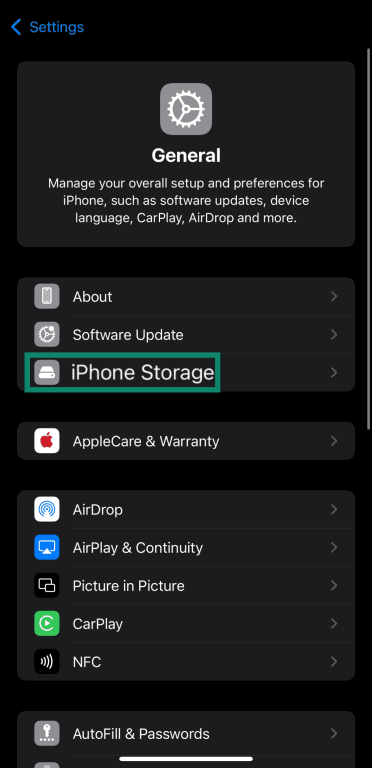
- Scroll through the list of installed apps to see if there are any that seem suspicious.
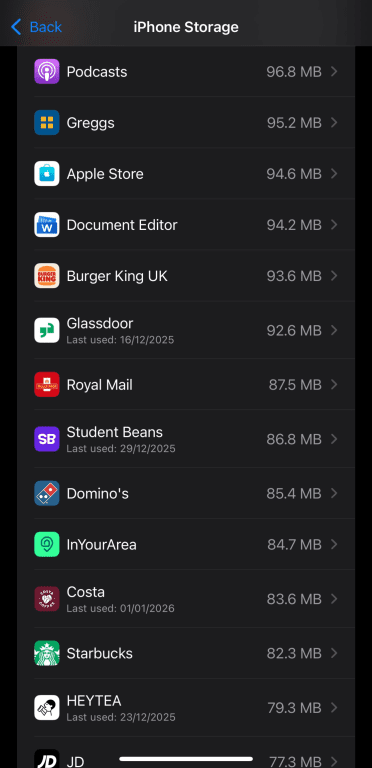
- To check permission access, navigate to Privacy & Security in the Settings menu.
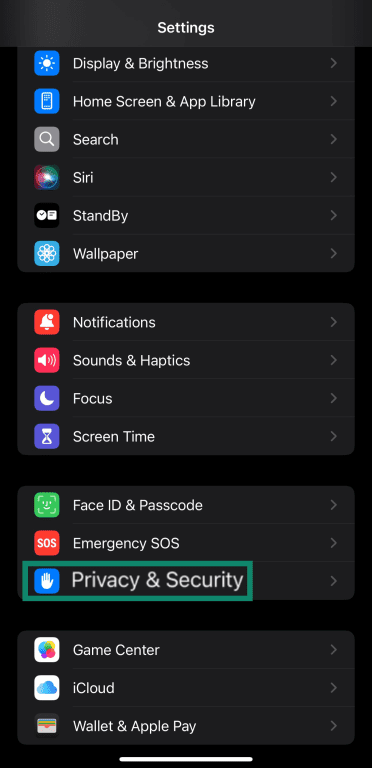
- You’ll see a list of what information apps have access to, like location services, contacts, files, and more. Review the apps accessing the information to ensure there aren’t any suspicious or unrecognized ones.
How to check app accessibility permissions on Android
Another important step on Android devices is to review your device's accessibility settings. Malicious apps often abuse Android's accessibility services to intercept device inputs. Only a small number of apps (like screen readers, automation apps, or certain device management tools) should require accessibility access, and revoking unnecessary access can prevent apps from performing potentially harmful actions in the background.
- Navigate to Settings and tap Accessibility & convenience (on some devices, it may appear as Accessibility).
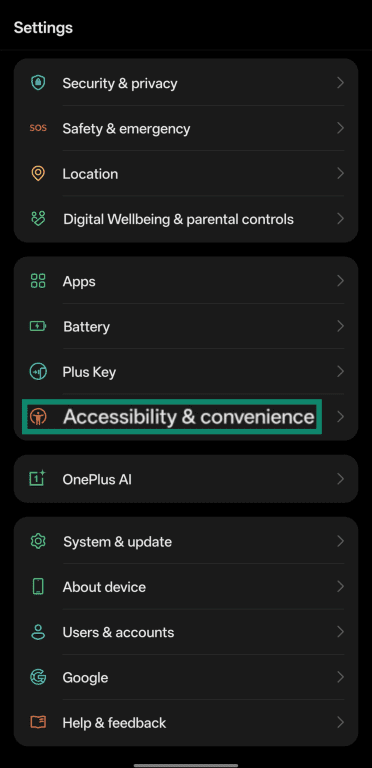
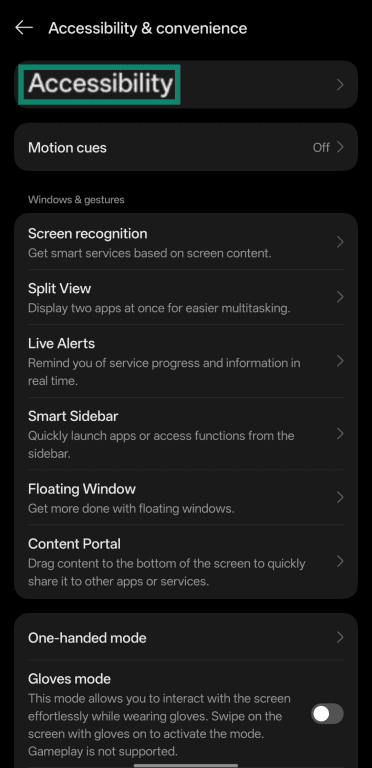
- Tap Accessibility.
- Tap Downloaded apps (or Installed services, depending on your device).
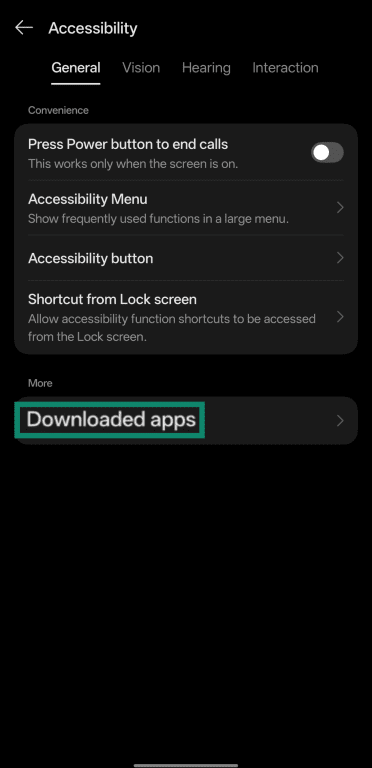
- Verify that there are no suspicious apps with access to accessibility permissions.
It’s also worth checking your recent activity and account login attempts. Unauthorized logins from unfamiliar locations can indicate screen compromise. Review your email, social media, and banking accounts for any suspicious activity.
If you still think your phone has a virus after following the above steps, following our guide about removing malware from Android can walk you through more in-depth processes for finding and removing screen-hacking malware.
Using security tools to detect compromise
Many mobile security apps can scan for malicious software, flag suspicious background processes, and detect unauthorized remote access tools. Look for reputable security apps in official app stores that offer real-time protection and regular malware database updates. These tools can provide an additional layer of detection beyond the built-in security features of Android and iOS, helping identify threats that might otherwise go unnoticed.
Next steps if you suspect your phone is hacked
If you find that your phone screen really is hacked, following a systematic approach to secure your device is critical.
Actions to take immediately
The steps below can help halt ongoing attacks and prevent further data loss after a screen compromise.
Disconnect from the internet
Immediately turn off your Wi-Fi and enable airplane mode on your phone. Cutting off internet access blocks an attacker’s ability to control your device remotely by breaking the connection between malware on your device and the malware’s control servers. Note that this won’t remove any malware or threats from your device, but it can temporarily limit their capabilities.
Run security and malware scans
Doing a Google Play Protect scan on Android and running the Safety Check on iOS helps root out malicious applications from your device. Safety Check will also help you find apps with unnecessary permissions. Remove any suspicious apps that are flagged during these scans.
For Android devices, consider using a reputable third-party antivirus app for an additional layer of malware detection. Remove any apps flagged as suspicious by the scan.
Change passwords and revoke permissions
Change passwords for all critical accounts immediately after securing your device. Start with email, banking, and social media accounts. Additionally, ensure you use strong and unique passwords for each service. A reliable password manager can help generate and store secure passwords to use with all your accounts.
After resetting your passwords, check for any unauthorized account changes. Review security settings, recovery options, and connected devices for all your online accounts, then remove any unfamiliar devices or sessions. If you haven’t set it up already, using two-factor authentication (2FA) will add a crucial extra layer of security to your accounts.
Advanced steps for severe compromise
If you still see symptoms of a hacked screen after following the above steps, a factory reset is your last resort. This nuclear option removes all data, apps, and potential malware, restoring your device to its original state. Back up important data first, but avoid backing up apps that might contain malware.
After resetting your phone, reinstall only essential applications from official sources. Set up security measures before restoring any data and ensure you’re using an up-to-date operating system with the latest security patches.
Preventing screen hacking
Prevention is the best defense against screen compromise. Following mobile security best practices significantly reduces your risk of falling victim to hacked screen attacks.
Strong security practices
The key security best practices you should be following on your phone are as follows:
- Update everything: Keep your operating system and apps updated with the latest security patches. Software updates fix vulnerabilities that hackers exploit to break into devices.
- Download official apps only: Download apps exclusively from official stores and avoid sideloading them from unknown sources. The Google Play Store and Apple App Store verify apps for malware and security issues, but even when using these, you should double-check that an app is legitimate by assessing its reviews, developer reputation, and what permissions it asks for.
- Review all permissions: Grant only necessary permissions to applications. Don’t give apps access to your camera, microphone, location, or screen unless really necessary.
Securing your network connections
You should avoid connecting to public Wi-Fi networks when accessing any sensitive accounts on your phone. If you use a public network, using a reputable virtual private network (VPN) can help reduce risk by encrypting your internet traffic and preventing others on the same network from easily intercepting it.
A VPN encrypts data traveling between your device and the VPN server, which helps protect against passive eavesdropping on unsecured networks. However, it doesn’t make unsafe networks risk-free.
You should also use HTTPS connections whenever possible; look for the padlock icon and "https://" in website URLs. HTTPS encrypts data transmitted between your device and websites, making it harder for attackers to intercept information.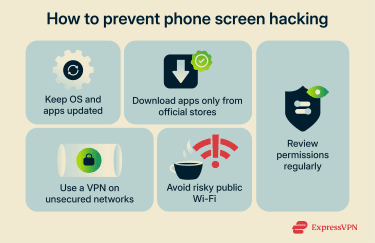
How a VPN reduces the risk of screen compromise
A VPN helps protect your network traffic by encrypting it, which reduces the likelihood of MITM attacks that rely on intercepting or manipulating unencrypted connections.
Some VPN services also include security features that block known malicious domains, such as ExpressVPN’s Threat Manager. This can help prevent devices from connecting to attacker-controlled servers used for data exfiltration or remote command-and-control.
That said, a VPN doesn’t directly prevent screen recording, screen sharing, or device compromise, and it can’t remove malware already installed on your phone. It’s most effective when used alongside other security practices, such as installing apps only from official stores, keeping your device up to date, and carefully reviewing app permissions.
Safe day-to-day usage habits
Ensure you have a strong passcode or biometric authentication enabled to access your phone, and be mindful of where you put it in public spaces. Avoid leaving your phone unattended on tables in cafes, airports, or conference rooms. Keeping it close and in view reduces the risk of unauthorized access, casual tampering, or opportunistic malware installation, as even brief physical access can allow attackers to install malicious apps if your phone isn’t secured by a lock screen.
Also, be mindful of phishing red flags with links received through text, email, or social media, as RATs often spread through phishing links that appear to come from trusted sources. Verify sender authenticity and check before clicking any links or downloading attachments. Also, monitor your device for unusual behavior regularly; early detection of hacked screen warning signs can allow you to respond before attackers cause serious damage.
FAQ: Common questions about screen hacking
Can hackers see what’s on my screen?
Yes, malicious actors can see what's on your screen if your device has been infected with malware like Remote Access Trojans (RATs) or spyware, which give attackers the ability to record your screen, take screenshots, and monitor your device activity.
What are the most common signs of a hacked phone?
The common signs of a hacked phone include ghost touches, unauthorized screen control, random screen recording or screen casting notifications, and performance issues like lag or increased battery drain. Note that hardware issues, software bugs, or resource-heavy apps can produce similar symptoms. Treat these as warning signs that warrant further investigation rather than definitive proof of hacking.
Does public Wi-Fi increase the risk of screen hacking?
Public Wi-Fi networks can increase security risks, but they don’t directly allow attackers to hijack your screen. While these networks aren’t inherently malicious, attackers on unsecured Wi-Fi can attempt man-in-the-middle (MITM) attacks to intercept traffic, inject malicious content, or redirect users to phishing pages. If a user is tricked into installing a malicious app or granting excessive permissions, that malware could later enable screen recording or remote control of the device.
Take the first step to protect yourself online. Try ExpressVPN risk-free.
Get ExpressVPN