How to fix the “Windows has detected an IP address conflict” error


You’ll usually get the “Windows has detected an IP address conflict” error message when two or more devices on your network are competing for the same IP address; this causes the network to get confused about where to send data.
Luckily, resolving this is straightforward, and often, quick fixes like restarting your device or router solve the problem. This guide covers a variety of Windows IP address conflicts, their causes, and how to fix and prevent them.
What is an IP address conflict?
IP addresses are unique numerical identifiers that specify a device's location and let it communicate with other devices on the network.
When multiple devices on a network share the same IP address, it can cause communication issues because the network can’t tell which device should send or receive data. To prevent a complete crash, Windows prompts you to resolve the issue.
Common symptoms in Windows 10 and 11
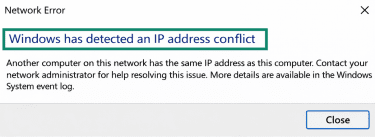
- IP Conflict notification: This message typically appears when the system detects a duplicate IPv4 assignment. IPv4 is the standard IP addressing system that assigns numerical addresses to devices on a network.
- No network access: Your device may appear connected, but it can’t reach the internet or communicate with other devices.
- Unstable connection: Network access may drop, reconnect, or fluctuate unexpectedly.
- Dynamic Host Configuration Protocol (DHCP) log warnings: Your router’s system logs may show messages about duplicate IP addresses or conflicting device entries.
- Incorrect device responses: Network requests might go to the wrong device, which can make certain apps or services behave unexpectedly. This is why Windows tries to resolve this issue. Without separate IP addresses, a crowded network could quickly become chaotic and unusable.
Causes of IP address conflicts
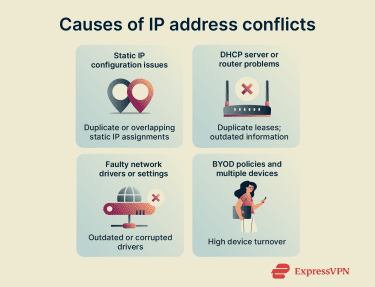 IP conflicts can happen for a few different reasons. Whether it’s a router problem or a device using the wrong IP address, fixing it starts with knowing why it occurred.
1. Static IP configuration issues
A static IP address is one that stays the same over time instead of changing automatically. Windows can show an IP address conflict when two devices use the same static IP or when a static IP is set to an address your router is also handing out automatically to other devices.
At home, this often happens with printers, security cameras, or older PCs that keep using a fixed address even after the network changes. In office networks, static IPs are more common, which increases the chance of overlap if the address plan isn’t kept up to date.
Learn more: Static IP vs. dynamic IP
2. DHCP server or router problems
Your router uses a service called DHCP to assign IP addresses automatically to every device on the network. If the router is misconfigured, overloaded, or running outdated firmware, it may incorrectly assign an IP address that’s already in use, which leads Windows to report a conflict.
When multiple routers or access points incorrectly connect and attempt to function as DHCP servers, this situation can arise. It’s a little rarer than static IP configuration issues, but it’s not unheard of.
In a home network, the issue might appear after a router restart, a firmware update, or when an older router struggles to keep up with many devices. In offices, overlapping DHCP settings or a second, unintended DHCP server can cause large groups of devices to receive conflicting addresses.
3. BYOD policies and multiple devices
In workplaces that have bring your own device (BYOD) policies, many personal phones, laptops, and tablets connect to the same network. When so many unmanaged devices join at once, the network can run out of available addresses or experience IP conflicts if IPv4 is being used.
In addition, some personal devices keep old network settings from previous connections, which can lead to conflicts when they join a new network.
This issue is less common at home, but in offices, schools, and shared workspaces, it can happen regularly. The more devices that connect without central management, the higher the chance that two of them end up using the same IP address.
4. Faulty network drivers or settings
Network drivers help your device communicate with your router and the internet. If these drivers become faulty, outdated, or corrupted, Windows may fail to request or renew an IP address correctly.
When apps, Windows updates, or security tools change network settings, these modifications can also cause your device to hold on to the wrong network information and lose connectivity. This might result in your connection dropping suddenly, websites refusing to load, or Windows showing network errors until the adapter is reset or the driver is reinstalled.
How to fix IP address conflicts in Windows
1. Restart your device
Restarting your device is one of the quickest ways to fix an IP address conflict because it resets the device’s network connection entirely. When the system reboots, it drops its current IP address and requests a new one from the router during startup.
A restart is especially effective if the conflict happened after switching networks, waking your device from sleep, or reconnecting to Wi-Fi.
2. Restart your router
When you restart your router, it can fix many IP address conflicts by resetting the router’s internal list of connected devices and any IP addresses it previously assigned. This is because a restart forces the router to begin a fresh DHCP cycle, which helps ensure that every device receives a unique address without overlap.
If the error appears suddenly or after adding a new device, a router restart is a fast and reliable first step.
3. Disable and re-enable your network adapter
If your device has the wrong network information, disabling and re-enabling your network adapter can help by clearing temporary connection data and forcing Windows to request fresh details from your router. This action doesn’t fix an IP conflict directly, but it can resolve issues that trigger the conflict message when your device fails to communicate properly with the network.
This is a good method to try when your device disconnects repeatedly or still shows the conflict message after restarting the router.
Here’s how to do it:
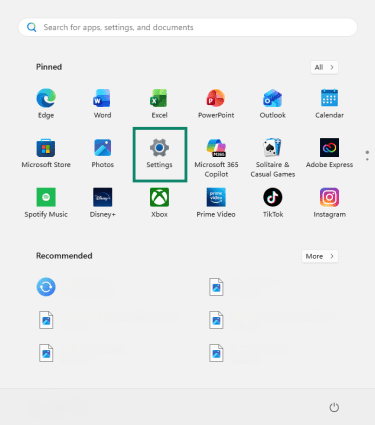
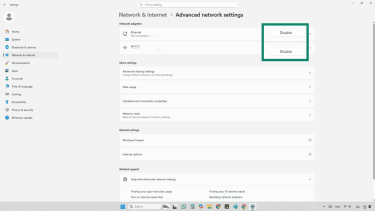
- Open Settings.
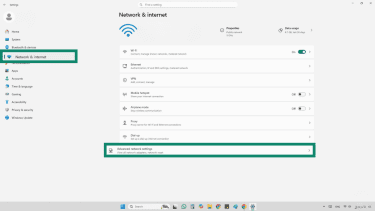
- Select Network and Internet > Advanced network settings.
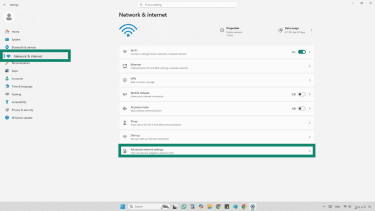
- Find your Wi-Fi or Ethernet adapter under Network adapters and select Disable.
- Wait a few seconds.
- Select Enable to turn the adapter back on and request fresh network information.
4. Release and renew your IP address
If another device is using the same IP address, releasing and renewing your IP address can help. This process involves clearing the current IP address your device is using and then requesting a new one from your router.
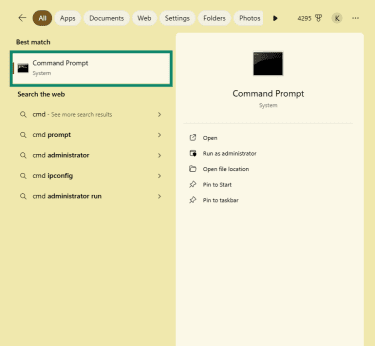
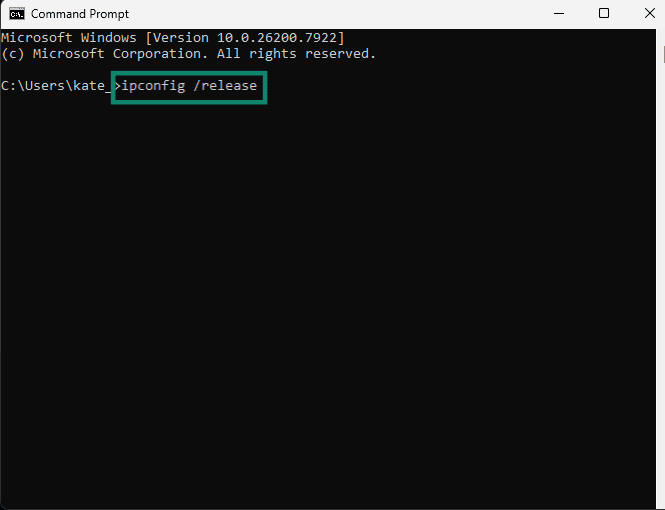
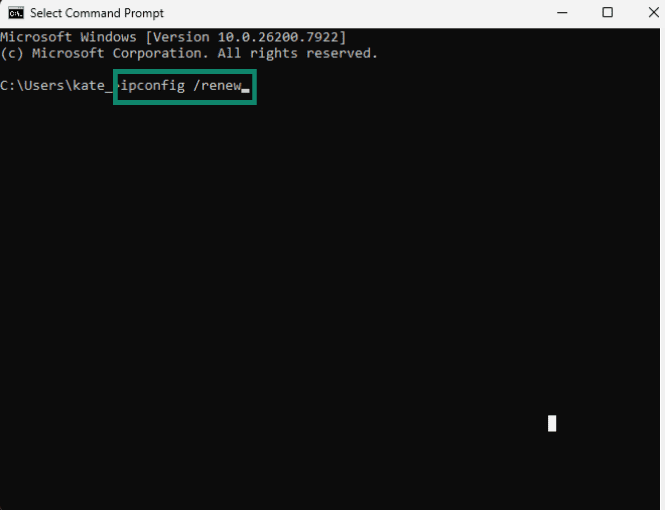
You can execute this by opening the Command Prompt and typing the exact commands.
- Select Start, type “cmd,” and choose Command Prompt.
- In the window that appears, enter ipconfig /release and press Enter.
- After it completes, enter ipconfig /renew to request a new IP address.
5. Remove or adjust static IP settings
Adjusting or removing static IP settings is a direct fix because it prevents multiple devices from using the same address. Switching the device back to automatic IP assignment is often the quickest solution. If you need to keep a static IP, choosing an address outside the router’s DHCP range helps ensure it stays unique on the network.
You can do this by following these instructions:
- Open Settings.
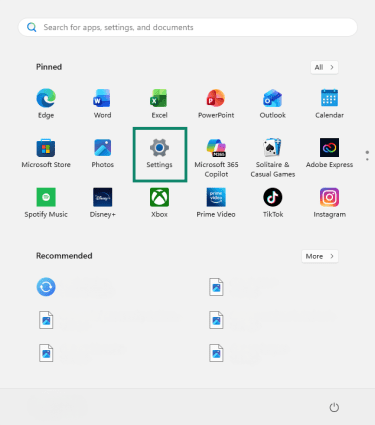
- Select Network and Internet > Advanced network settings.
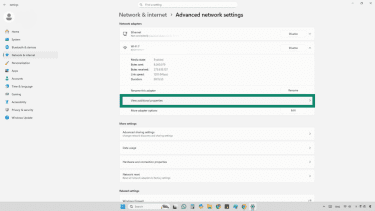
- Select View additional properties under your Wi-Fi or Ethernet adapter.
- Choose Edit next to IP assignment.
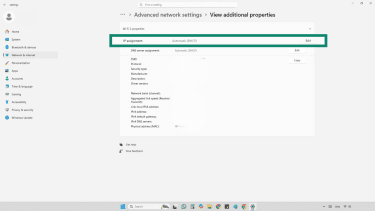
- Select Automatic (DHCP) to remove the static IP.
- Select Manual if you need a static IP and enter an address outside the router’s DHCP range.
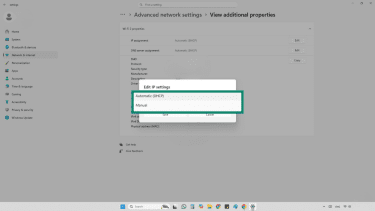
- Save your changes and reconnect to the network.
6. Update your network drivers
The network driver is responsible for how your device communicates with the network, so when it becomes outdated or corrupted, Windows may hold on to the wrong network information.
Learn more: Encrypted DNS traffic
Here’s how to update your network driver:
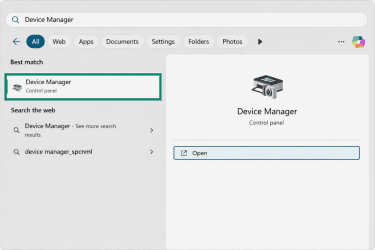
- Navigate to Device Manager.
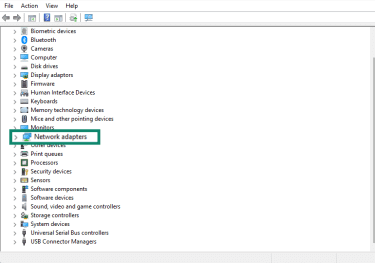
- Expand Network adapters.
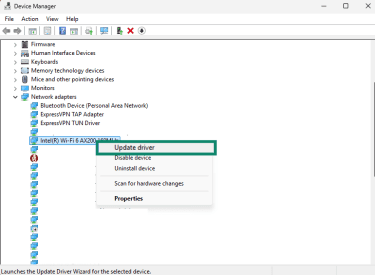
- Right-click your Wi-Fi or Ethernet adapter.
- Select Update driver.
- Choose Search automatically for drivers.
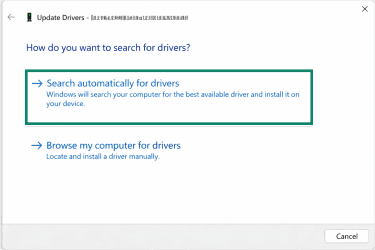
- Restart your device after the update.
7. Contact your network administrator
When other quick fixes don’t work, consider contacting your network administrator. They can help you diagnose and solve the problem by checking how IP addresses are assigned across the network and correcting any conflicts.
On work or school networks, IP settings often come from managed systems that only an administrator can access. A network administrator can review DHCP ranges, adjust static IP assignments, or resolve issues that affect multiple devices at once.
Advanced troubleshooting for IT and power users
1. Checking for DHCP conflicts
On larger networks, a common cause of repeated IP address errors is a conflict in the DHCP lease process.
On Windows DHCP servers, logs may show entries like “BAD_ADDRESS,” which directly indicate that the server attempted to assign an IP and found it was in use already.
What this means for IT teams is simple: If you see “BAD_ADDRESS” or conflict events in your DHCP logs, you’re likely dealing with a device or rogue server that already uses that IP. The next step is to identify the culprit, remove or exclude the conflicting address, and recycle it properly.
2. Identifying duplicate IPs with network tools
On larger or more complex networks, finding the devices behind an IP conflict often requires using network tools. Network tools make it easier to confirm which devices are using the same IP address.
A common method is to ping the IP and run arp -a to see the Media Access Control (MAC) address that responds. If the MAC address does not match the device you expect, another device is using the same IP.
On managed networks, switch logs and MAC address tables can show which port a device connects through. DHCP and PowerShell tools can also reveal which device last received the IP from the server. These checks help pinpoint the exact device creating the conflict.
These tools work because Address Resolution Protocol (ARP) responses, DHCP records, and switch tables map each IP address to a specific MAC address or network port.
3. Adjusting router DHCP lease time
DHCP lease time decides how long your router lets a device keep the same IP address. On busy networks, long leases can drain the address pool and leave old assignments stuck in place. Shorter leases free up unused addresses more often, which helps networks with lots of guest or mobile devices stay efficient.
Long leases still make sense for devices that rarely move, like printers or servers. The key is choosing a lease time that fits how your network actually works, so you avoid running out of available addresses.
Shortening the DHCP lease time helps prevent this by returning unused IP addresses to the pool sooner, reducing the likelihood of repeated conflicts.
4. Preventing recurring conflicts in large networks
If IP conflicts keep returning, the network is likely reassigning addresses incorrectly. Start by checking DHCP lease behavior.
Reserve static IPs for devices that should never change, such as printers or servers, to stop them from colliding with the DHCP pool. If errors continue, review your DHCP logs for repeated conflict entries to identify devices requesting or using the wrong address.
On larger networks, segmentation through virtual local area networks (VLANs) can reduce the number of devices drawing from the same pool, which lowers the chance of repeated conflicts. Periodic audits of DHCP scopes and connected devices also help catch misconfigurations and unauthorized clients before they trigger new conflicts.
How to prevent IP address conflicts
How you prevent IP address conflicts will look different for different networks. Let’s take a closer look at some best practices for home users and enterprise networks, along with some considerations for IPv4 and IPv6 addresses.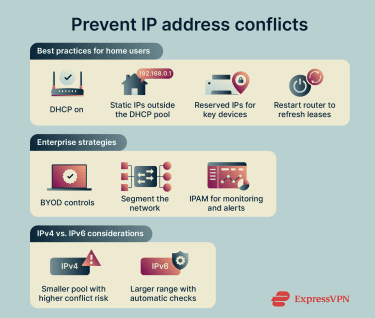
Best practices for home users
- Let your router handle IPs automatically: Keeping DHCP turned on lets the router assign addresses correctly and prevents devices from choosing conflicting IPs on their own.
- Keep static IPs outside the DHCP range: If you set a static IP manually, place it outside the router’s automatic pool. Mixing the two can cause overlap, where the router assigns an IP already used by another device.
- Use DHCP reservations for key devices: A reservation tells the router to always give the same IP to important devices like printers or storage drives. This keeps them easy to find on your network and prevents accidental duplicates.
- Restart the router to clear old IP assignments: Stale DHCP leases can stick around after devices disconnect. A quick reboot resets the list and helps the router hand out fresh, conflict-free addresses.
Enterprise strategies
- Enforce BYOD controls: Implementing device registration, approved onboarding methods, or network access control (NAC) can help each device get configured correctly, preventing accidental conflicts.
- Segment the network with VLANs: Creating VLANs for departments, device types, or security levels shrinks each IP pool and prevents conflicts in one segment from affecting the entire organization.
- Use IP address management (IPAM): IPAM systems can track your networks and IP address ranges. They can warn you if ranges overlap, if a device is using the wrong static IP, or if something is set up incorrectly.
IPv4 vs IPv6 considerations
IP conflicts are mainly an IPv4 issue. IPv4's limited address pool makes it easier for two devices to collide if network management isn't careful. IPv6, by contrast, uses an enormous address space and built-in autoconfiguration, so conflicts are rare.
To prevent issues, IPv4 networks need more hands-on management, like keeping DHCP ranges clean and avoiding accidental static overlaps. IPv6 IP address conflicts are rare compared to IPv4 networks because they offer a feature called Duplicate Address Detection (DAD). This function causes your device to check for duplicate addresses automatically and choose a new address if it detects one.
FAQ: Common questions about Windows IP address conflicts
How do I resolve an IP address conflict quickly?
The fastest way to fix an IP address conflict is to restart your device, and if that doesn’t work, your router. This forces it to clear old IP assignments and hand out fresh ones. You could also renew the IP address by running these commands: “ipconfig /release” followed by “ipconfig /renew”. This forces Windows to drop the old IP and request a new one, which fixes most conflicts in a few seconds.
What is the most common reason for IP address conflicts?
Most conflicts happen when two devices try to use the same IP address. This usually comes from a static IP that overlaps with your router’s automatic Dynamic Host Configuration Protocol (DHCP) range or from a router that misassigns an address during a DHCP refresh. If multiple routers are active on the same network, they can also hand out duplicate IPs.
How can I fix an IP address conflict in Windows 11 vs. Windows 10?
You can use the same methods to fix IP conflicts on both Windows versions. Restart your device, reboot your router, reset your network adapter, or renew your IP address. If the device has a static IP set, switch it back to automatic assignment. Windows 10 and 11 use similar menus for these steps, so the fixes should work the same across both systems.
Can I prevent IP conflicts permanently?
You can prevent IP conflicts from happening in most cases. Keep Dynamic Host Configuration Protocol (DHCP) enabled, avoid mixing static IPs with your DHCP pool, and use clear, non-overlapping ranges. Restarting your router occasionally helps clear stale addresses. On larger networks, IP address management (IPAM) tools dramatically reduce the risk of conflicts over time.
Are IP conflicts a security risk?
Not usually, but they can expose weak spots. Most IP address conflicts simply break connectivity, but if a network is poorly managed, a misconfigured device could grab an unused IP and connect without authorization. Keeping Dynamic Host Configuration Protocol (DHCP) organized and monitoring devices on the network helps prevent this kind of risk.
What tools can help diagnose IP conflicts?
You can use a few built-in tools to spot the device causing the conflict. Commands like “ping” and “arp -a” help you see which device responds to an IP. However, you can typically identify IP address conflicts by observing common symptoms. Your router’s Dynamic Host Configuration Protocol (DHCP) logs can show duplicate entries. On managed networks, switch logs, Media Access Control (MAC) address tables, and IP address management (IPAM) tools make it easier to trace the exact device using the wrong IP.
How does IPv6 impact network errors?
IPv6 makes many network issues less likely because devices get huge, automatically assigned addresses that almost never collide. It also includes Duplicate Address Detection (DAD), which checks an address before a device uses it. You can still run into errors if IPv6 is only partially configured or your router doesn’t fully support it, but overall, IPv6 networks see far fewer IP conflicts and far more stable connections than IPv4.
Take the first step to protect yourself online. Try ExpressVPN risk-free.
Get ExpressVPN