Which email attachments are safe to open?


Email attachments are a common way scammers try to install malware on your device or redirect you to a fake login page. Whether an email attachment is safe to open or not depends more on who sent it and why than on the file type alone. This guide ranks common attachment types by practical risk, shows quick checks to spot red flags, and explains safe ways to handle attachments before opening them.
Why email attachments can be dangerous
Email attachments are risky because they can be used to deliver harmful content in many different ways, and those methods change constantly. File types that were once considered safe are sometimes abused in new ways as attackers adapt to security controls. Because attachment-based threats evolve so quickly, there’s no single file type that is always safe.
Attachments also often arrive in messages that look normal or familiar. Attackers routinely impersonate coworkers, trusted companies, or existing email threads to make a file appear legitimate, even when it isn’t.
Common threats from unsafe attachments
Opening an unsafe attachment can lead to different types of compromise, depending on what the file is designed to do.
Malware installation
Some email attachments can install malicious software as soon as you open them. That software keeps running in the background even after you close the file, letting attackers spy on activity, steal data, or take remote control of the device.
Attackers achieve this by using attachment types that can run code or trigger advanced features. Scripts, installers, and macro-enabled documents give the file a way to execute instructions, which makes them capable of installing long-lasting malware.
Ransomware
Ransomware spreads through email attachments that look like ordinary business files, such as invoices, resumes, or delivery notices. When the file opens, the ransomware may run immediately or after additional user interaction and encrypt files on the device, making them inaccessible.
Attackers favor attachments that can launch programs or scripts because those formats let the ransomware execute without needing additional downloads. Once the encryption finishes, the attacker demands payment to restore access.
Exploiting vulnerable software
Some attachments don’t need to run their own code. Instead, they target weaknesses in the software used to open them, such as outdated PDF readers, document viewers, or archive tools. Opening the file in a vulnerable program triggers the exploit.
Attackers use carefully crafted files that appear normal but contain data designed to crash or take control of the application. Because the file type itself looks harmless and it may even open normally without any obvious signs of malware, this kind of attack often goes unnoticed until damage has already occurred.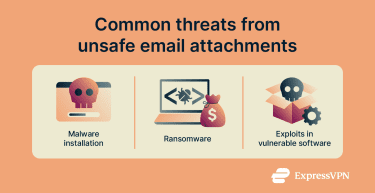
Safe email attachment types explained
If you’re trying to figure out which email attachments are generally safe to open, start with a simple rule: no attachment type is guaranteed absolutely safe. However, some formats carry less risk than others when you open them in an up-to-date app. The goal here is to understand what the file is, how it normally behaves, and what attackers commonly fake or abuse.
Understanding file extensions and their risks
A file extension is the letters after the dot in a filename. Your device uses it to decide what kind of file it is and which app should open it. For example, invoice.pdf usually opens in a PDF viewer and archive.zip opens in a file archive tool.
File extensions tell your device what a file can do. There are generally two types of files: those that only display content, like text or images, and those that can run instructions or install software. The second group poses a higher risk because attackers can use them to run malicious code when the file is opened, while the first group often requires a vulnerability in the underlying software to be dangerous.
Low-risk file types
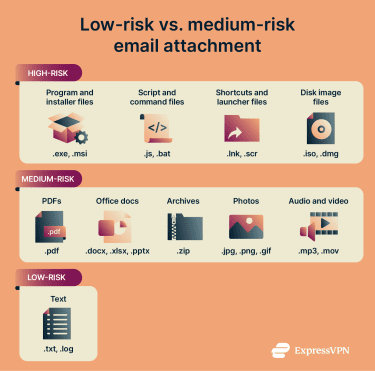
Plain text files (.txt, .log) are among the lowest-risk file type categories. This is because they don’t typically “run” anything (they don’t install software on your device) when you open them, making them much harder to abuse, as long as you’re using a trusted app to open them.
Medium-risk file types
There are two main types of formats in this category. The first group is file types that can include features that are easy to abuse or can hide the attachment's contents:
- PDF documents (.pdf): A PDF is often used for invoices, forms, and receipts, but PDFs can still contain harmful content. More precisely, PDFs can include hidden JavaScript and can be used to exploit vulnerabilities in a PDF viewer.
- Microsoft Office documents (.docx, .xlsx, .pptx): These are often legitimate, but they are also a common target because attackers can use them to push you into unsafe actions, such as downloading macro-enabled files. That said, Microsoft blocks macros in most Office files downloaded from the internet by default, so don’t allow/run any macros unless you’re sure that the file comes from a legitimate source.
- Macro malware in Office files (.docm, .xlsm, .pptm): These deserve extra attention because they’re specifically designed to preserve macro code. In legitimate files, macros automate repeated tasks, and they used to be very popular in corporate environments. However, malicious macros can run dangerous code as soon as you open an infected Office file.
- Archives such as .zip and other container files: These can bundle risky files together, and in some cases, attackers have even exploited vulnerabilities in archive tools themselves, especially when they aren’t kept up to date. Some providers, such as Gmail, reduce compressed file risks by scanning archive contents, blocking high-risk files, and flagging password-protected archives.
In the second group are media files, which are normally harmless, but they depend on complicated viewing or media software, and security flaws in that software have occasionally been exploited.
- Images (.jpg, .png, .gif, .webp, .tiff, .heic, etc.): Image files look simple, but the software that loads and decompresses them has to interpret a lot of structured data behind the scenes. In the past, attackers have created image files that deliberately break those rules in very specific ways, triggering bugs in the image decoder and allowing malicious activity in the background.
- Audio (.mp3, .aac, .m4a, .wav, etc.): Audio players work by continuously decoding streams of data. When that decoding logic has a flaw, a specially-crafted audio file can sometimes trigger it while the track is being processed.
- Video (.mp4, .mov, .m4v, .mpeg, etc.): Video formats are among the most complicated consumer file types: they combine audio, video, metadata, subtitles, compression, timing, and all are decoded at once. Because of that complexity, vulnerabilities have occasionally been found in media players and system video frameworks where a malicious video file could exploit a bug during playback.
Email attachments to avoid
These are file attachments designed to run code on your device, and many email services block these formats because they are a common way to spread harmful software. Avoid opening these unless you fully trust the sender and you expect the file:
- Program and installer files (.exe, .msi, .apk): These can install software when you open them. While .exe and .msi are used on Windows, .apk files are Android installers, which means both desktop and mobile platforms are affected.
- Script and command files (.js, .bat, .cmd, .vbs, .ps1): These files run a series of instructions on your device. Attackers can use them to make system changes, inject malware, change how your web browser behaves, and more.
- Shortcuts and launcher files (.lnk, .scr): A .lnk file is a shortcut icon in file form and doesn’t contain the document or app. It can be configured to open a program or run a command you never intended. A .scr file is a “screensaver executable file” and can run code just like an app installer.
- Disk image files (.iso, .dmg): These are digital copies of CDs, DVDs, and drives. When you open an .iso or .dmg file, your device “mounts” it, which means it shows like a standard drive with files inside. A disk drive can hide installers, scripts, and malicious code inside a single file type.
How cybercriminals use these files
Attachment-based attacks succeed because they appear to be normal emails. The attacker’s goal is simple: make a risky file look ordinary long enough for you to open it. To do that, they use several well-established techniques, including:
Using familiar filenames and believable scenarios
Attackers almost always choose names that match common workplace and personal tasks. Invoices, receipts, delivery notices, scanned documents, voicemails, and HR updates all sound routine, which lowers suspicion.
These messages often create mild urgency, a payment issue, a missed delivery, or an updated policy, so you feel pressure to open the attachment quickly. The file itself may look exactly like something you see every day, which makes the action feel safe and justified.
Manipulating file extensions to hide what the file really is
Attackers often rely on filename tricks to make a dangerous file look like a harmless document:
- Double extensions: A filename like invoice.pdf.exe can look like a PDF file at a glance, but the last extension is what matters. In this case, .exe means it’s actually a program, not a document.
- “Backwards text” filename tricks: An attacker can add a hidden character to the filename that makes part of the name display in reverse. A file can appear to end with something harmless, even though it actually ends with something riskier.
Packing dangerous files inside containers
Rather than attaching a risky file directly, attackers might hide it inside a container such as a ZIP archive or disk image file. Email providers are more likely to allow these formats, and users are accustomed to receiving them for legitimate reasons.
When you open the container, it may extract several files and present one that looks important or harmless, often with instructions like “Open this file” or “Double-click to view.” By the time you reach the dangerous file, the original email feels validated, and the warning signs feel less obvious. Containers also let attackers bundle multiple files together, including scripts, installers, or shortcuts that work together once opened.
Relying on multi-step delivery to stay unnoticed
In many attacks, the attachment you open is not the final malware. It acts as a small starter file whose only job is to download or activate additional malicious components. This approach keeps the original attachment simple and less likely to trigger automatic security checks. Once opened, it may quietly retrieve spyware, ransomware, or remote access tools from the internet without further interaction.
Asking you to enable unsafe features
Some files, especially documents, include built-in safeguards that prevent them from running active content. Attackers work around this by convincing you to disable those protections yourself. A common example is a document that asks you to enable macros or editing to “view the content properly.” The message may claim the file is protected, incomplete, or formatted incorrectly unless you allow these features.
How to identify if an attachment is safe
No single trick can prove an attachment safe. The best approach to identifying safe attachments is to check three things: the sender, the message context, and the fine details. Safe email attachments are usually expected, make sense in the context, and come from a sender you can verify.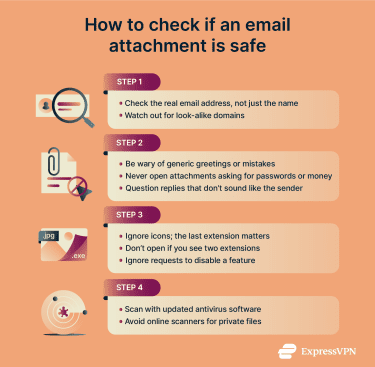
Check the sender’s identity
Start with the simplest question: did you expect this file from this person, at this time? Attackers rely on people opening attachments on autopilot, and you’ll want to do this instead:
- Look past the display name: Attackers can set the display name to “Apple Support” or “Accounting.” To see the email address of the sender, just click on the display name.
- Check the domain carefully: Watch for subtle misspellings or character swaps in an email address, which may be easy to overlook at first glance.
- Verify via a separate channel before opening: Malware can spread by emailing itself to contacts, which means that you can receive an email with malicious code even from someone in your contacts list. Call, text, or message the sender using contact details you already have, not anything inside the email.
Look for red flags in the subject and message
Even if the sender looks right, the message content often gives the scam away. Here’s what you need to keep in mind:
- Urgency or pressure: Messages that push you to “open now” or act immediately are a common phishing tactic.
- Generic greetings and sloppy writing: Generic openers and obvious grammar issues can be a warning sign of a malicious email message.
- Request for sensitive info or money: Legitimate organizations generally don’t email asking for usernames and passwords, while phishing often tries to steer you into “confirming” details.
- Out-of-context replies: Be careful when an attachment appears in an existing thread, but the request feels “off” for that specific person.
Analyze the file name and extension
When inspecting a file, look at the very last extension in the filename, not the icon or the first part of the name. Email programs sometimes hide or simplify attachment filenames, which means you may not see the true file type while the file is still in the message. To verify what type of file it actually is, save it first without opening it. Downloading a file doesn’t usually run it: opening it or enabling active content is what creates risk.
If you’re on Windows, you’ll need to make sure your device shows full file extensions to correctly identify a file’s type. Here’s how to do that:
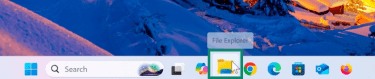
- Click the File Explorer icon in the taskbar. If you can’t find it, you can access the folder from the Start menu.
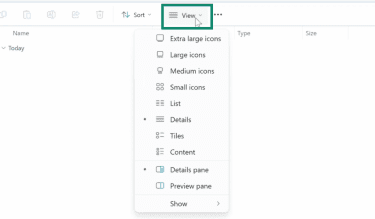
- Click View in the File Explorer’s toolbar.
- Click on Show and then select File name extensions.
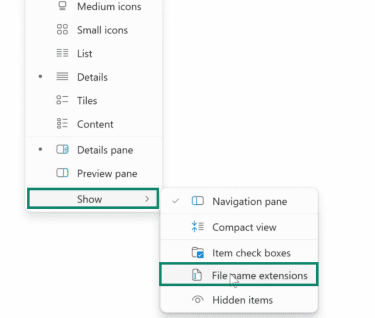
Windows will now display the file’s extension at the end of its filename in File Explorer, allowing you to see the file’s true type.
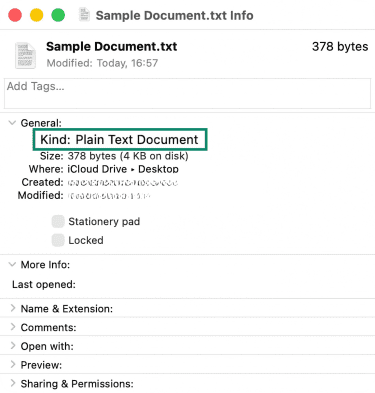
macOS typically shows file extensions, but here’s the most reliable way to confirm a file’s true type after downloading it:
- Right-click on the file you want to inspect and pick Get Info.
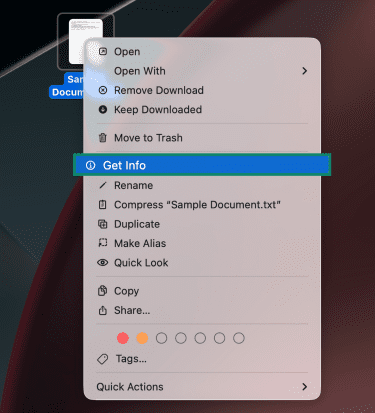
- Next to Kind, macOS will list the file type based on its extension.
Use security tools to scan attachments
An antivirus scan is the fastest way to catch common threats before anything opens. You should first save the attachment, then manually scan it with antivirus software before opening it. Use this workflow:
- Save the attachment instead of opening it from the email: Put it in a folder like Downloads, so it’s easy to find and scan.
- Make sure your antivirus has been updated recently: Scans work best when the tool is current. Updating it will ensure that the newest threats are caught.
- Scan the file before opening it: Use your antivirus to scan the file and treat a “clean” result as a green light only if the email also makes sense.
- Avoid using public antivirus scanners for sensitive files: Many online scanning tools upload files to their servers and may retain them for analysis.
Best practices for email attachment safety
These best practices don’t prevent every attack, but they reduce the impact when an attachment is opened by limiting permissions, blocking known threats, and improving recovery options.
Keep software and antivirus updated
Updates close known security holes that attackers can exploit through email attachments. That means you need to pay attention to two equally important things. Keep your operating system up to date and enable automatic updates where possible. It’s also a good idea to keep your antivirus, web browser, and email client set to receive updates automatically.
Use secure file-sharing platforms
Email isn’t a great place for sensitive files. It’s also not the best option if you need to send large files in one go. A solution would be to use a secure file-sharing platform. They deliver features such as encryption in transit and at rest, password protection, and multi-factor authentication (MFA) for sensitive data.
File-sharing platforms also allow data synchronization, ensuring that all participants have access to the latest version of each file. They also support better email attachment security, reducing how often high-risk files get passed around inboxes.
Turn off automatic attachment downloads
Some email apps can automatically download attachments for convenience. However, that convenience can also increase exposure if something malicious lands in the inbox. Even though you should download and check attachments manually, it’s best not to allow your email client to unarchive or open any files. You can also go one step further and use an encrypted email provider, which adds a layer of privacy to your emails.
Use a standard (non-admin) account for day-to-day email
Using a non-admin account doesn’t make a dangerous attachment “safe.” However, it can limit what a malicious program can modify while running. Using separate accounts with restricted privileges helps prevent malware infections that require administrator rights to make bigger changes.
In simpler terms, admin accounts can install software and make system-wide changes. Standard accounts have fewer permissions, so malware may have a harder time digging in.
Back up important files
Backups matter because some email attachment-based attacks attempt to lock files and demand payment to regain access. A solid backup means you can wipe the device and restore your files instead of negotiating with an attacker.
To be on the safe side, set backups to run on a schedule, and then check that new files are actually showing up in the backup.
FAQ: Common questions about the safety of email attachments
How do I know if an email attachment is safe?
Treat an attachment as “safe enough to open” only after it passes a few checks. First, confirm you were expecting a file from that person, right now. Then, check the file extension and watch for tricks like double extensions. Also, save the attachment, then scan it with an antivirus application before opening it.
Which attachments should I never open?
Never open any attachment if you don’t trust the sender or if you weren’t expecting the file, even if it looks “normal.” Some file types require special attention, such as .exe, .scr, and .lnk files (these can run as applications). Disk images (.iso) and macro-enabled Office files (.docm and .xlsm) can also pave the way for malware.
Are PDF files safe to open?
PDFs can be unsafe and should be treated with caution. Only open PDFs you expect and can verify and scan PDF files with an antivirus app before opening. It’s also crucial to keep your PDF reader updated so known security bugs get patched.
Are image files safe to open?
Most standard photo files like .jpg/.jpeg, .png, .gif, .bmp, .webp, .tif/.tiff, and .heic are lower risk than files that run like programs. However, they can still be abused if the viewing software has vulnerabilities.
What are the safest file extensions?
If the file is expected and the sender checks out, the safest file extensions are .txt, .jpg, .jpeg, .png, .gif, .mp3, and .mp4. These extensions carry the lowest risk of encountering malicious code. However, as a general rule, if the email feels suspicious, don’t open the attachment at all.
How do I avoid phishing and malware through email?
Phishing tries to get you to click a link or open an attachment that steals your information or infects your device. To reduce risk, don’t open attachments from unknown senders and be wary of forwarded attachments. Also, save and scan files before opening. You also need to treat “enable macros” prompts as a stop sign unless you've verified the sender.
What should I do if I open a suspicious attachment?
It’s best to act like the file might have tried to install something, even if nothing obvious happened. You’ll want to update your security software, run a full system scan, and remove anything it flags as suspicious. Also, check for any newly installed software and remove it. And if it’s a work account or work device, report it to your IT or security team.
Are there any tools that scan email attachments?
Yes, antivirus tools can scan email attachments. Most reputable antivirus software includes real-time scanning, eliminating threats as they reach your device. That way, dangerous email attachments and malware can be quarantined or removed before they can do any real damage.
Take the first step to protect yourself online. Try ExpressVPN risk-free.
Get ExpressVPN