Why the “server IP address could not be found” error happens, and how to fix it


The “server IP address could not be found” error is a common problem you might encounter while browsing the web or trying to access specific sites and services. It can have several possible causes, but there are also numerous ways to fix it, which we’ll explore in this detailed troubleshooting guide.
What does “server IP address could not be found” mean?
This error message means that your device couldn’t find the Internet Protocol (IP) address of the server that hosts the website you’re trying to visit. This specific message shows up when using Google Chrome, but the same error can appear with slightly different messaging on other browsers. On Safari, for example, it says, “Safari can’t find the server.”
When you enter a web address, your browser doesn’t connect to the website name itself. Instead, it needs to locate the specific server on the internet that stores and delivers that site. Each of those servers has a unique numerical IP address, which acts like its network location.
If your browser can’t determine that IP address, it can’t establish a connection to the server, and the website fails to load.
When this error appears
To find the IP address of the server for the website, your device uses the Domain Name System (DNS) to translate the text-based address, like expressvpn.com, into a computer-readable numerical one, which is the IP address. The DNS goes through a series of lookup steps, which involves checking different DNS servers until it finds the server that hosts the website and returns its IP address.
The “server IP address could not be found” error appears when any of those lookup steps fail. Because the browser can’t determine the server’s IP address, it doesn’t know where to send the request, and the connection never begins. This means the error occurs before any communication with the website’s server takes place.
Common causes of the error
There are many potential reasons why the “server IP address could not be found” error message might show up for you.
DNS server issues
One of the most common reasons this error message appears is a problem within the DNS process. Common causes related to the DNS process include:
- DNS server unavailability: If the DNS server your device is using is offline or not responding, it can’t translate the website name into an IP address.
- Incorrect or outdated DNS records: When a website’s DNS records are incorrect or in the process of being updated, the lookup may fail because the DNS server doesn’t have the correct IP address to return.
- Stale or invalid cached DNS data: Devices and networks store DNS results to speed up future requests. If this cached DNS data is outdated, the browser may attempt to use incorrect information and fail to locate the server.
Incorrect IP or DNS settings
Misconfigured IP or DNS settings on a device can also cause this error to appear. If a device is using an invalid IP address or an incorrect default gateway, it may be unable to reach DNS servers to perform the lookup. Similarly, a misconfigured static IP setup may point the device to DNS servers that are unreachable or do not exist.
In these situations, DNS requests never reach a valid DNS server, which prevents the browser from obtaining the server’s IP address and connecting to the server.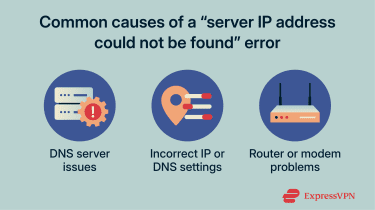
Router or modem problems
Routers and modems play a key role in connecting devices to the internet, and problems with either can prevent DNS requests from reaching their destination. Software bugs, temporary glitches, or outdated firmware can interfere with how these devices handle network traffic, leading to errors when attempting to access websites or online services. Physical issues, such as damaged ports or improperly connected cables, can also disrupt communication between the local network and the internet.
When these devices fail to forward requests correctly, the browser may be unable to reach DNS servers or the website’s hosting server.
Network configuration errors
Misconfigured networks can also be to blame when the “server IP address could not be found” error shows up. On some networks, multiple devices may be assigned the same IP address, which can interfere with normal network communication and prevent connections to external servers. In managed or business networks, access to certain domains may also be restricted through network rules or policies.
In these situations, DNS requests or connection attempts are blocked or misrouted at the network level, preventing the browser from obtaining the server’s IP address and triggering the error.
Server-side problems
In some cases, the website itself may be experiencing server-side issues that prevent it from responding to requests. This can include temporary outages, scheduled maintenance, or infrastructure failures that make the server unavailable. A website may also be affected by a cyberattack, such as a distributed denial-of-service (DDoS) attack, which overwhelms the server and forces it offline.
Server-side issues can also occur during DNS changes, such as when a website is updating its DNS records to point to a new IP address. During this process, DNS information may be temporarily inconsistent, causing lookup attempts to fail.
Step-by-step fixes for the error
There are several solutions you can attempt to resolve the “server IP address could not be found” error, depending on what’s causing the problem.
Check your internet connection
The first thing to do is verify your internet connection is functional and stable. Look at the Wi-Fi icon (if you’re using a wireless connection) to check that you’re connected, and inspect your router, if possible, to look for any red lights or error messages. You can also try accessing other sites to test that your connection is active or run a speed test using a free online tool.
Try an Ethernet connection
Wi-Fi connections are more susceptible to interference, signal drops, and congestion than wired connections. If the wireless connection becomes unstable, DNS requests may be delayed, dropped, or fail to complete, preventing the browser from resolving the website’s IP address.
Connecting your device directly to the router with an Ethernet cable provides a stable, uninterrupted connection that allows DNS lookups to complete successfully.
Restart your router or modem
Restarting your router and/or modem is a quick and simple way to refresh your network connection. This may resolve any temporary bugs or glitched or outdated pieces of data that could be interfering with your connection and preventing accurate DNS lookups. For best results, unplug your device(s), wait at least 30 seconds, then power back up and reconnect.
Clear browser cache and DNS cache
Outdated cached data can prevent your browser from locating websites correctly. Clearing both the browser cache and the DNS cache can resolve this issue. The exact process of how to do this varies from browser to browser, but the following steps show how it’s done on Google Chrome:
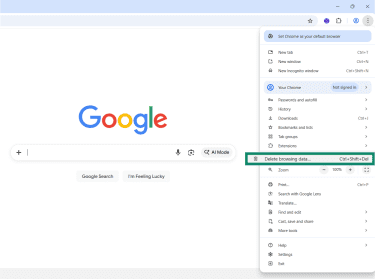
- Open Google Chrome and click the three dots button in the top-right corner. Then select Delete browsing data.
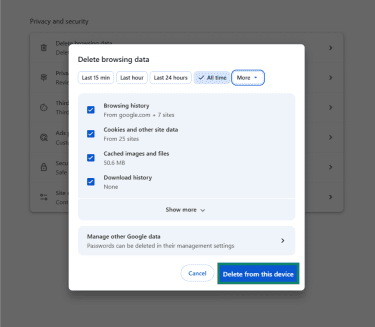
- Make sure the box labeled Cached images and files is selected, then click on Delete from this device.
- To clear the DNS on Chrome, go to chrome://net-internals/#dns and click the Clear host cache button. Note that this clears Chrome’s own DNS cache only.

Update or reconfigure DNS settings
Even a minor misconfiguration in your device’s DNS settings could make it difficult or even impossible for you to access certain websites. If you have the technical expertise to do so, you can access the DNS settings for your computer or even your router and adjust them to optimize your connection. View our system-specific guides to see how to adjust DNS settings on:
Disable VPN or proxy temporarily
When you use a virtual private network (VPN) or proxy server, it typically overrides your device’s default DNS settings and routes DNS queries through DNS servers operated by the VPN or proxy provider instead of your internet service provider (ISP)'s DNS servers. If those DNS servers fail to respond or time out, your browser may fail to translate a website’s domain name into an IP address, resulting in a “server IP could not be found” error.
If it’s safe to do so, temporarily disable the VPN or proxy and try loading the site again.
Run network diagnostics (Windows/macOS)
Windows and macOS include built-in network diagnostic tools that test key parts of the network connection, including whether the device has a valid IP address, can reach the local network, and can contact configured DNS servers.
If a DNS lookup fails during these checks, the tool may attempt corrective actions such as renewing the IP address, resetting the network adapter, or prompting you to reconfigure network settings that can help resolve an IP resolution failure.
Windows
Windows users can follow these steps:
- Open Settings by pressing the Windows and I keys together, then go to the System menu.
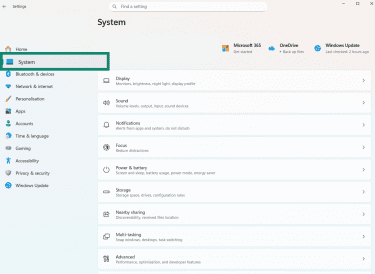
- Click on Troubleshoot, followed by Other trouble-shooters.
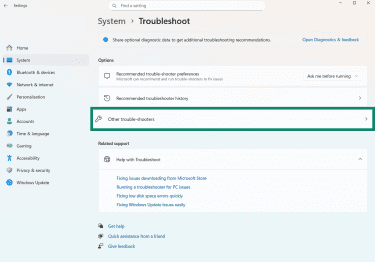
- Click Run next to the Network and Internet troubleshooter.
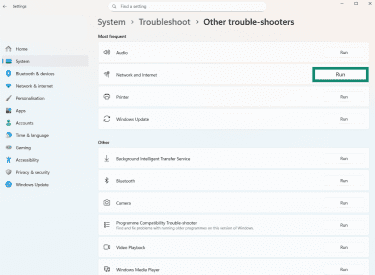
MacOS
On Mac, follow these steps:
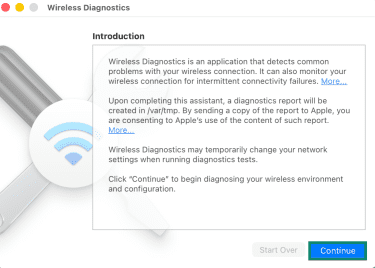
- Press and hold the Option key, then click the Wi-Fi icon in the menu bar and select Open Wireless Diagnostics.
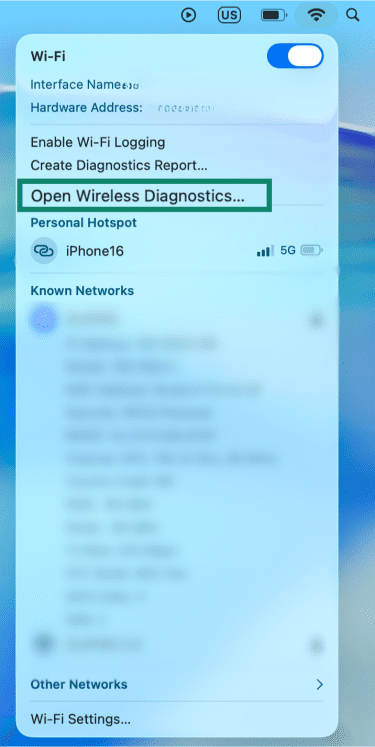
- Select Open Wireless Diagnostics and follow the on-screen instructions.
Advanced troubleshooting tips
If the error persists after completing the steps above, move on to the advanced troubleshooting tips below to isolate the underlying cause.
Reset network settings
If you’re not sure what triggered the error, a full network reset is often the easiest and most reliable option. Resetting network settings restores default IP, DNS, and routing configurations, which can resolve issues caused by conflicting or improperly modified settings that can lead to the “server IP address could not be found” error. Most operating systems provide a built-in option to reset network settings through system settings.
Important: Resetting network settings should only be performed as a last resort. Doing so will remove all saved Wi-Fi networks, stored passwords, VPN configurations, and other custom network settings. After the reset, all networks and VPN or proxy connections must be reconfigured manually.
Windows
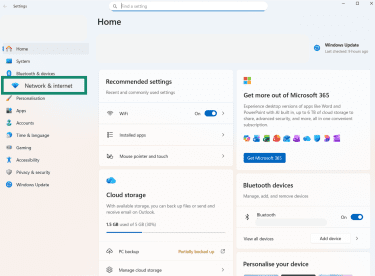
- Open Settings by pressing the Windows and I keys, then go to Network & internet.
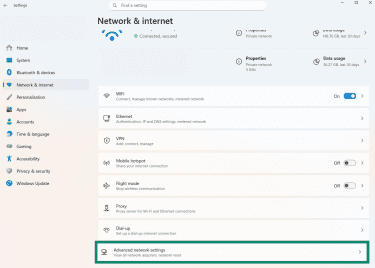
- Scroll down and select Advanced network settings.
- Scroll down to select Network reset, then click the Reset now button and restart your device when prompted.
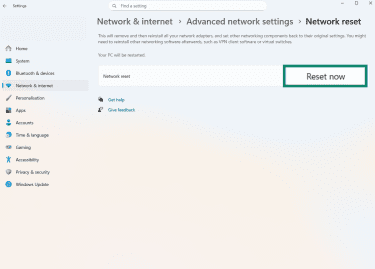
This removes and reinstalls network adapters and resets network configuration to default.
macOS
macOS does not have a single “reset network” button. Instead, you can reset network settings by removing the current network connection (such as Wi-Fi or Ethernet) and then adding it back. This forces macOS to discard the existing network configuration and create a fresh one using default settings.
- Open System Settings (or System Preferences on older macOS versions) and go to Network.
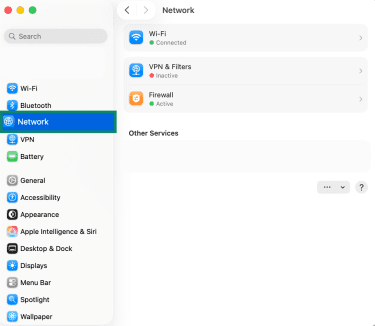
- Select your active connection in the list (Wi-Fi or Ethernet), then click the three dots next to your current network and select Forget This Network.
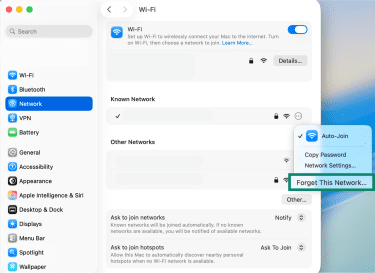
- Restart your Mac and reconnect to the network.
Linux
Linux also doesn’t offer a single, universal “reset network settings” option comparable to other operating systems. While it is possible to manually reset or reconfigure network settings using distribution-specific tools, those steps vary widely.
On most modern Linux distributions, restarting the network service, such as NetworkManager, can help resolve temporary connectivity issues by resetting active connections and requesting new IP and DNS information from the network. You can achieve this by running sudo systemctl restart NetworkManager in the terminal window. Then, disconnect from the network and reconnect, or restart the system.
Check network adapter configuration
Your network adapter is responsible for sending and receiving all network traffic, including DNS requests used to resolve website addresses. If the adapter is disabled, unstable, or using outdated drivers, those requests may fail, leading to a “server IP could not be found” error. If other fixes haven’t worked, checking the adapter can help rule out a hardware or driver-level issue. You can try the following:
- If you’re using an external adapter, make sure it’s connected correctly to the device and all cables are intact.
- Disable and then re-enable the network adapter.
- Try using a different adapter, if you have one.
You should also make sure your network adapter drivers are up to date. Outdated or buggy drivers can cause connection issues by interfering with how network traffic is handled, including DNS requests.
How to manually update network adapter drivers
On Mac, network adapter drivers are bundled with macOS itself, so updating to the latest version of macOS ensures you’re using the most recent drivers. However, if you’re using a third-party network adapter or other specialized networking hardware, check the manufacturer’s website for any available driver updates.
On Windows, you can install or update specific network adapter drivers through Device Manager:
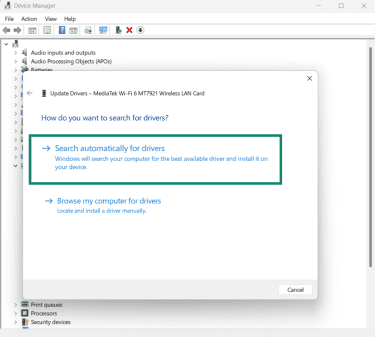
- Open the Device Manager, which you can find by typing “Device” into the Start menu.
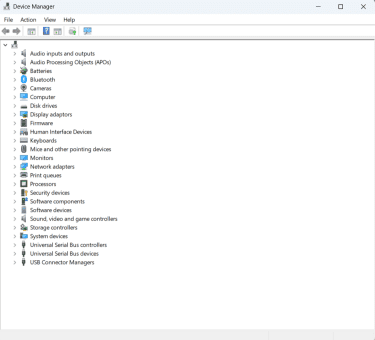
- Expand the Network adapters menu, right-click your network adapter, and select Update driver.
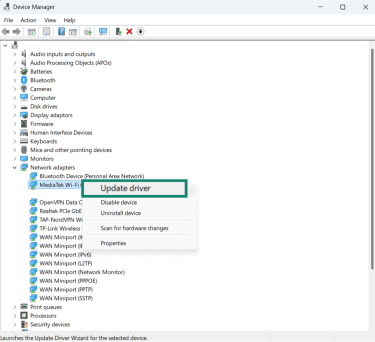
- Click on Search automatically for drivers, then wait for the installation to complete. You may need to restart your device during this process.
Verify firewall or antivirus settings
Firewalls and antivirus software can interfere with DNS requests by filtering outbound network traffic. If temporarily disabling your security software allows the site to load, that software is likely causing the IP resolution failure error.
If disabling your firewall or antivirus fixes the issue, the next step is to adjust its settings so DNS traffic and your web browser are allowed while keeping security enabled. The steps below show how to do this on Windows and macOS:
Windows
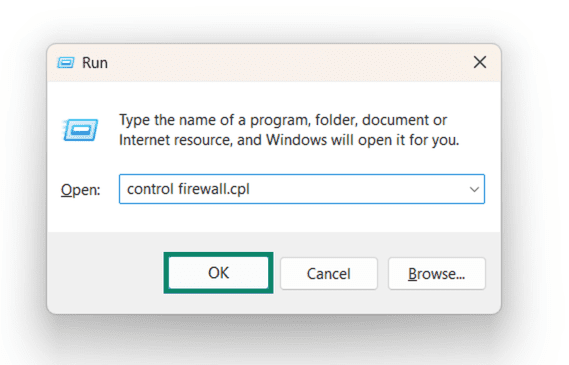
- Press the Windows and R keys to open the Run utility, then type in control firewall.cpl and press the Enter key or click on OK.
- Select Allow an app or feature through Windows Defender Firewall.
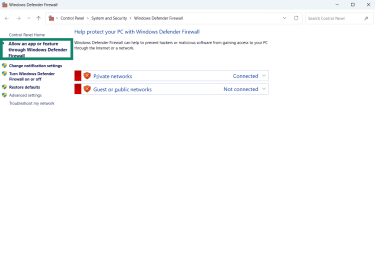
- You’ll then be able to select individual programs and check the boxes beside them to allow them to pass the firewall.
Note: Some antivirus or security suites manage firewall rules separately. In that case, you’ll need to check the settings within the security app itself.
macOS
On macOS, the built-in firewall is rarely responsible for DNS resolution problems because it focuses on blocking incoming connections, not outbound DNS requests. That said, it’s still worth checking the firewall settings to confirm that no applications or local network services are being restricted.
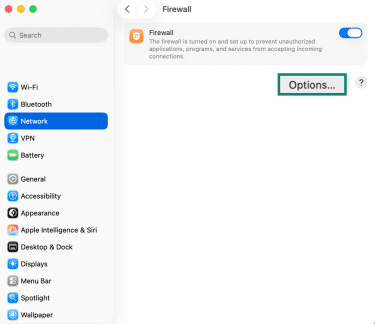
- Click the Apple icon to access the System Preferences, then go to Network and click on Firewall.
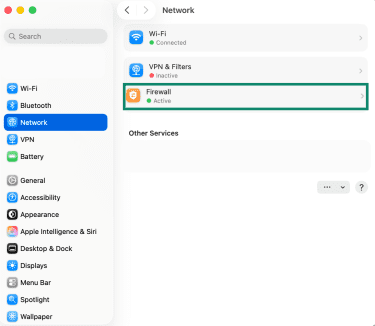
- Click the Options button.
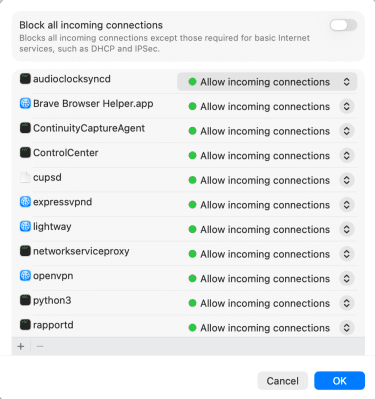
- Here, make sure your web browser is allowed to accept incoming connections. If the browser is blocked, remove the restriction or set it to allow incoming connections.
Refresh the DNS client service
Windows uses a background service called DNS Client to cache DNS responses and handle domain name lookups. If this service becomes stuck or holds outdated entries, your system may fail to resolve domain names correctly, resulting in a “server IP could not be found” error. Restarting the DNS Client service forces Windows to clear and rebuild its DNS cache:
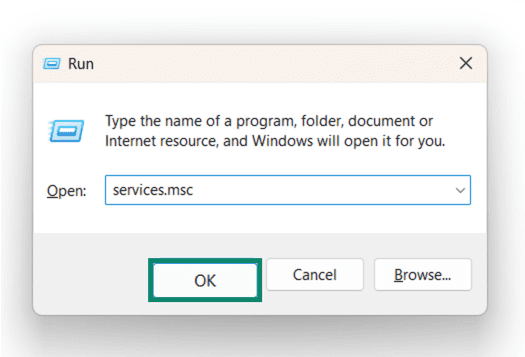
- Press the Windows and R keys together to open the Run utility, then enter the command services.msc and click OK.
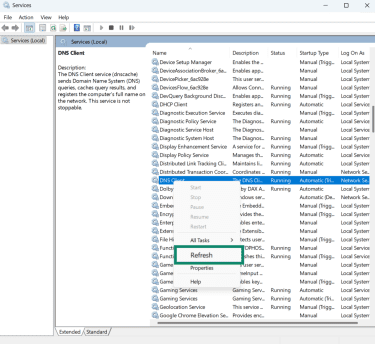
- Find your DNS client service, right-click on it, then click Stop, followed by Start. Or, if the Stop button is grayed out, try simply clicking Refresh.
Reset IPv4 settings and renew your IP address
If your device has an invalid, expired, or conflicting IP configuration, it may be unable to reach DNS servers correctly, even though you appear to be connected to the internet. Resetting Internet Protocol Version (IPv4) and renewing your IP address forces your device to request fresh network details from the router or network, including the correct IP address, gateway, and DNS information.
Release and request a new IP on Windows
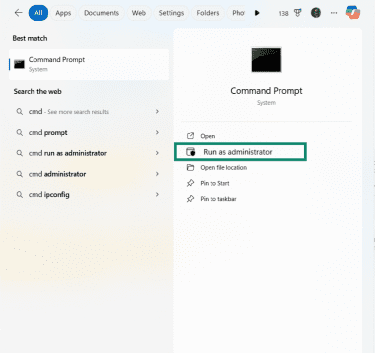
- Type cmd into the search bar to find the Command Prompt and click Run as administrator.
- Enter the following commands one at a time, pressing Enter after each:
- netsh int ip reset
- netsh winsock reset
- ipconfig /release
- ipconfig /renew
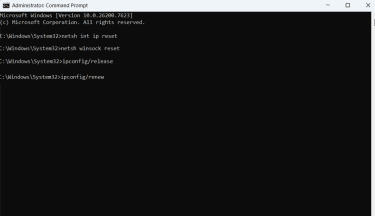
These commands reset Windows’ network stack, clear socket settings, release the current IP address, and request a new one from the network, which can resolve IP- or DNS-related misconfigurations.
- Restart your computer after the commands complete.
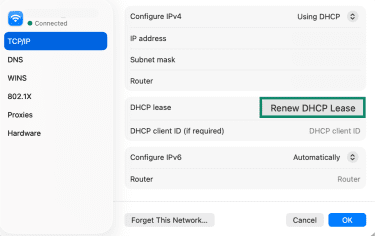
Renew the DHCP lease on macOS
Renewing the Dynamic Host Configuration Protocol (DHCP) lease requests a fresh IP address and updated network settings from the router, which can restore proper DNS resolution:
- Click the Apple icon and go to System Settings, then Network.
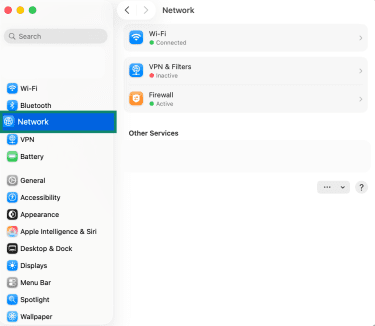
- Choose your current internet connection and select Details.
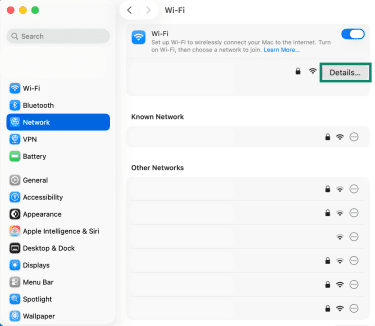
- Click on TCP/IP, then Renew DHCP lease, followed by Apply and OK.
Flush and renew IP configuration via command line
If a device is using an invalid, expired, or conflicting IP configuration, DNS requests may fail before reaching a DNS server. Flushing the DNS cache and renewing the IP address forces the system to discard old network data and request fresh configuration information.
On Windows, open Command Prompt and run:
- ipconfig /flushdns to clear cached DNS records
- ipconfig /release followed by ipconfig /renew to obtain a new IP address
On macOS, open Terminal and use the appropriate DNS cache flush command for your version of macOS. Next, refresh your IP configuration by disconnecting from the network and reconnecting, or by renewing the DHCP lease in Network settings. This forces macOS to request a new IP address and DNS settings from the router.
On Linux, flushing DNS and renewing the IP address depend on the DNS resolver and network manager in use, but the same result can usually be achieved from the command line. On most modern Linux distributions that use systemd-resolved, run sudo resolvectl flush-caches. This clears cached DNS lookup results. If your system doesn’t use systemd-resolved, DNS caching may be handled by a different service (or not cached at all), in which case flushing may not be necessary.
To then renew your IP, use sudo systemctl restart NetworkManager if your system uses NetworkManager (common on desktop distributions). This disconnects and reconnects network interfaces, forcing the system to request a new IP address and DNS settings.
On systems using a DHCP client directly, you can run:
sudo dhclient -r
sudo dhclient
Test DNS resolution directly
DNS resolution can also be tested outside of the browser to determine whether domain names are resolving correctly. This helps isolate whether the problem lies with DNS, network routing, or the browser itself.
On Windows, macOS, or Linux, open a command-line tool and use commands such as:
- nslookup to query a DNS server and see whether a domain resolves to an IP address
- ping to test whether the resolved IP address is reachable
If nslookup fails to return an IP address, the problem is likely related to DNS configuration or DNS server reachability. If nslookup succeeds but ping fails, DNS is working, and the issue is more likely related to network routing, firewall rules, or server availability.
If both commands work but the website still fails to load in the browser, the issue is likely browser-specific, such as cached data, extensions, or proxy settings.
When to contact your ISP or web admin
If you’ve tried some or all of the above solutions but keep on seeing error messages and struggling to access certain sites, it may be best to take the matter higher.
How to know if it’s not your fault
There are so many reasons why this error can occur, and while some of them may be your fault, others are completely beyond your control.
A good way to find out is to attempt to replicate the error on another device. If the same problem happens on different computers or even different networks, it’s almost certainly not your fault and not something you can fix alone. If it only happens on one device or network, it may be related to misconfigured settings, outdated software, or other apps disrupting your connection.
Reporting persistent DNS failures
If you continue experiencing the same DNS-related issues and error messages over an extended period of time, it’s best to seek professional assistance. Your ISP may offer a live chat, email, or phone support service you can contact if you’re on a home network. Or, if you’re on a business network, speak to the web/network administrator or IT team.
FAQ: Common questions about “server IP address could not be found”
What causes the “server IP address could not be found” error?
There are several potential causes of the “server IP address could not be found” error, including Domain Name Sysem (DNS) server issues, incorrect IP or DNS settings, problems with your router or modem, network configuration issues, or server-side problems.
How do I fix this error on Windows or Mac?
There are several possible solutions to try on both Windows and Mac devices, including verifying your internet connection, restarting your router or modem, clearing your browser's cache, switching to a wired (Ethernet) connection, or temporarily disabling any VPN or proxy service you’re using at the time.
Why does this happen only on certain websites?
This error only occurs on certain sites because it’s often caused by issues with specific sites’ Domain Name System (DNS) records and servers, or your local cache for those sites, rather than any sort of larger issue with the internet as a whole.
Can antivirus or VPNs cause this issue?
Yes, both VPNs and antivirus programs may cause this error. VPNs might have their own server issues, glitches, or overloads that prevent you from being able to access certain sites, and there are some sites that block known VPN IP addresses by default. Antivirus programs, meanwhile, may have built-in firewalls or strict security features that might block access to certain sites or interfere with your device’s ability to resolve Domain Name System (DNS) queries.
How can I check if my DNS server is down?
You can use free online Domain Name System (DNS) checker tools like DNSChecker to verify DNS server status. Depending on your device, you can also use tools like Command Prompt (Windows) or Terminal (macOS) to carry out DNS checks.
What Domain Name System (DNS) server should I use for best performance?
In general, Cloudflare and Google’s DNS servers are widely regarded as some of the fastest and most reliable to switch to. Cloudflare’s DNS addresses are 1.1.1.1 and 1.0.0.1, while Google’s are 8.8.8.8 and 8.8.4.4.
Take the first step to protect yourself online. Try ExpressVPN risk-free.
Get ExpressVPN














 Support Center
  FAQ
FAQ  VPN Setup Tutorials


