
How to reset your Steam password (step-by-step guide)



Whether you’re locked out or just being proactive about security, resetting your Steam password is an easy process once you know where to click. This guide walks you through the required steps, explains how to change your password through your account settings, offers troubleshooting advice, and shares helpful tips for securing your account.
When you should reset your Steam password
Resetting or changing your Steam login is usually necessary in situations that may pose a security risk to your account. Here are the most common reasons to consider a reset:
You haven’t updated your password in a long time
You don’t need to update your login details every few months if you already use a strong password. However, if you haven’t changed your Steam credentials in years, refreshing them is a good idea. Even a strong password you created years ago might fall short of today’s standards for length, complexity, or resistance to automated cracking tools. Refreshing it helps ensure your account aligns with current best practices.
You used the same password on multiple sites
Reusing a password can leave your Steam account exposed to attacks that rely on stolen credentials. If one platform experiences a data breach and your password is exposed, attackers can feed those leaked username-password pairs into credential-stuffing scripts that rapidly test them across popular platforms. They can also use brute-force tools that try predictable variations of a reused password to break into your account.
You shared your account info with someone
Once a password is shared, you lose control over how it’s stored, where it’s kept, and the security of the device it ends up on. Even a trusted friend may have weaker security habits, outdated software, or even malware on their computer. It’s also worth noting that sharing your account credentials violates Steam’s terms of service. For both security and compliance reasons, the safest option is to keep your login details to yourself.
Quick tip: For larger households, Steam Family Sharing offers a safer alternative by allowing family members or guests in the same household to access your games without sharing your credentials.
You installed suspicious software or mods
Not all mods are inherently dangerous, but even popular mods can become risky if a developer’s account is compromised or a distribution platform is targeted. Lesser-known or unofficial mods raise the risk further because they may include unwanted code or be packaged with malware. If you’ve installed a mod from an unfamiliar source, it’s a good idea to remove it and tighten your Steam account security to ensure your login details stay protected.
You notice unusual login activity
Steam notifies you when changes to your account password or email address are made. If you’ve enabled Steam Guard, you’ll also get new device sign-in notifications. If you receive a notification about a change you didn’t make or a device you didn’t use, secure your account immediately.
Common signs your account might be compromised
Your Steam account might have been hacked if you notice any of the following:
- You’re suddenly logged out of your account. In most cases, you won’t be able to log back in, although there are situations where you retain access.
- Steam notifies you about purchases you don’t recognize.
- You see unfamiliar devices on your Authorized Devices list.
- There are unexpected changes to your profile, such as updates to your linked email address, profile name, or avatar.
- You spot trade offers you don’t recognize in your account’s trade history.
- Your Steam friends receive suspicious links or messages from your account.
Step-by-step guide to resetting your Steam password
If you can’t remember your Steam password, you can reset it from the login screen. The tutorial below shows you how to do this using Steam’s website, but the process is the same on Steam’s desktop and mobile apps.
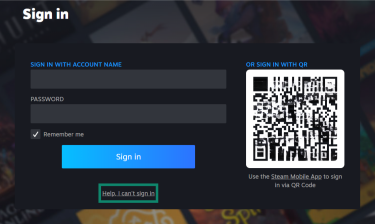
- On Steam’s login page, select the Help, I can’t sign in option. If you’re using the Steam mobile app, it’s called I need help signing in.
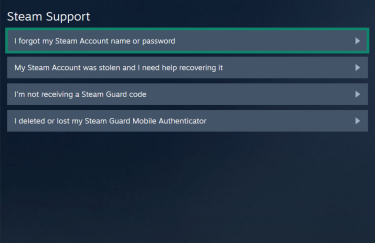
- Next, click I forgot my Steam Account name or password.
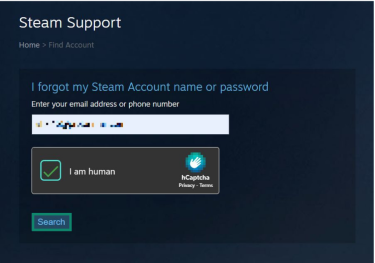
- Enter your email address or phone number. For this guide, we used the email method. Then, solve the CAPTCHA request and click Search.
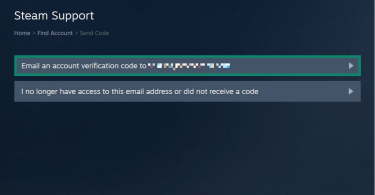
- Choose the first option, which sends you a verification link via email or a code via text message.
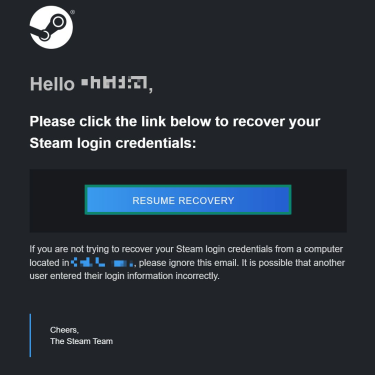
- Check your inbox, open the Steam email, and click the Resume Recovery button. If you’re using the mobile method, type in the code Steam messages you.
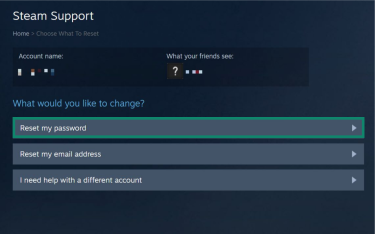
- On the new page, click Reset my password.
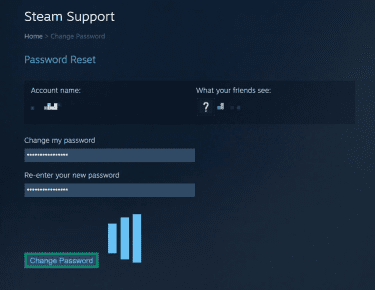
- Type in your new login, then select Change Password.
Step-by-step guide to changing your Steam password
If you have access to your account and want to update your password, follow the guides below to see how to do this on desktop and mobile.
Change password via the Steam website or desktop app
Note: The guide below shows how to change your Steam password through the website, but the process is the same on its desktop app.
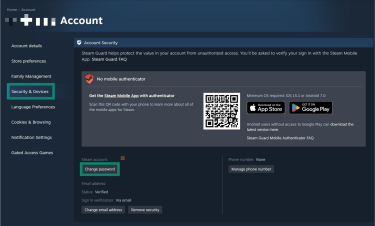
- Click the profile dropdown menu in the top right and select Account details.
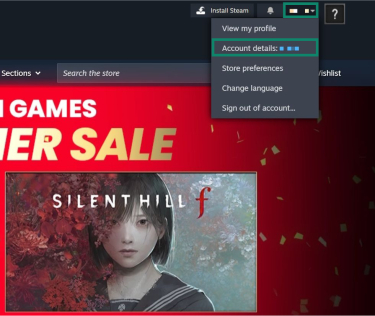
- Next, click the Security & Devices tab, then select Change password.
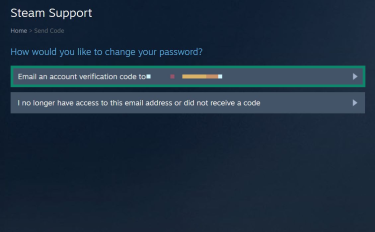
- Choose an account verification code option. If you don’t have access to the email address, choosing the “I no longer have access…” option will allow you to receive the code on your phone.
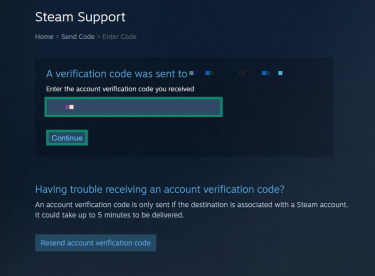
- Enter the code you receive via email (or phone) and click Continue, then type in your new password.
Change password via the Steam mobile app
- On the Steam mobile app, tap the profile icon in the top right, then select Account Details.
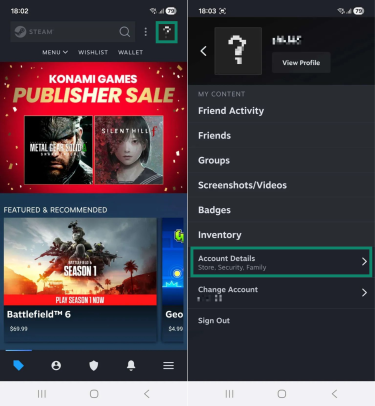
- Scroll to the Security & Devices tab and tap Change password.
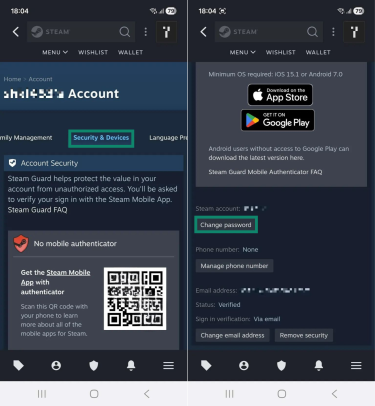
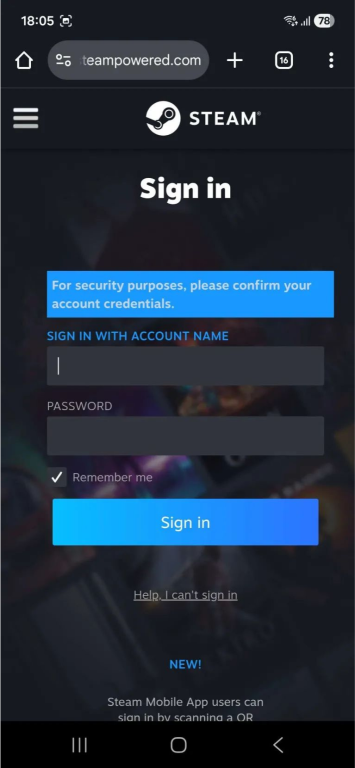
- On the next page, sign into your account, as Steam requires you to verify your credentials before proceeding.
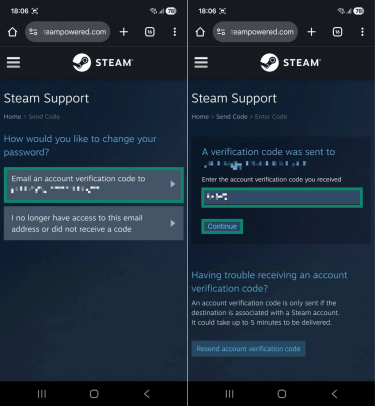
- Choose to email the verification code, enter it, and tap Continue.
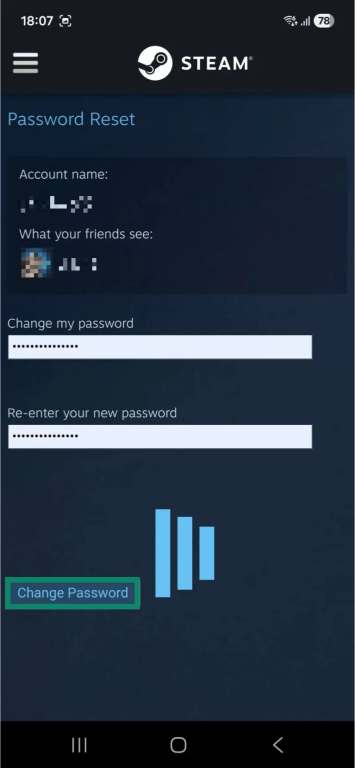
- Enter the new login and tap Change Password.
Didn’t receive the reset email? Here's how to fix it
Steam emails can take some time to be delivered. If the reset email is delayed, try the following:
- Check that you entered the right email address.
- Look in your spam or promotions folders, as the email might have been redirected there.
- Check the trash folder, as email filter misconfigurations can automatically delete Steam emails.
- Some users report that adding support@steampowered.com and noreply@steampowered.com to your email contacts may help.
- Make sure your email settings haven’t blacklisted any Steam-associated domains.
- Try sending the email again.
Contact Steam’s support team for further help
If none of the previous tips helped, you should try submitting a support ticket to Steam. Here’s how to do this:
- Access the Steam support page and select the My Account option.
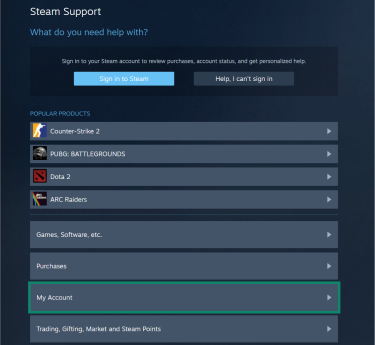
- Click either Help, I can’t sign in or Help me sign in to my account.
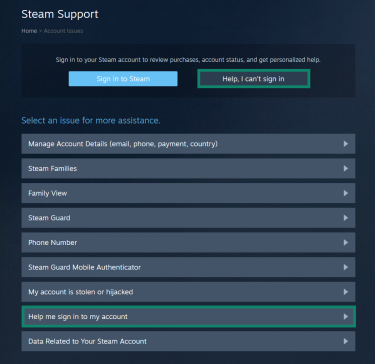
- Choose I forgot my Steam Account name or password, enter your account’s linked email on the next screen and click search. Then click “I no longer have access…” to continue to the support form.
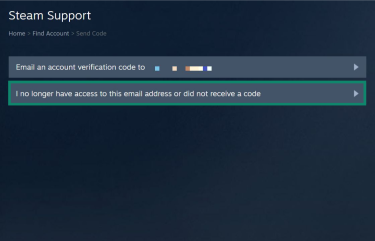
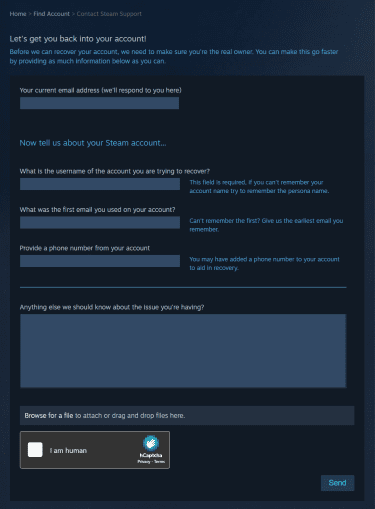
- Fill out the support form, complete the CAPTCHA request, and click Send.
What to do if you can’t recover your Steam account
If you lost access to your linked email and phone number, access Steam’s login assistance page, choose I forgot my Steam Account name or password, and follow these steps:
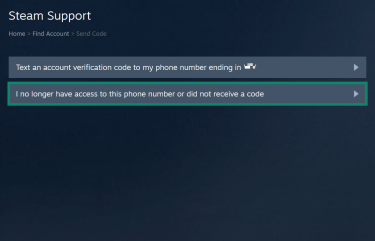
- Choose the second option, highlighting that you lost access to your phone number.
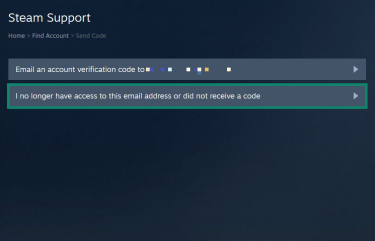
- Select the second button again to confirm that you don’t have access to the email address.
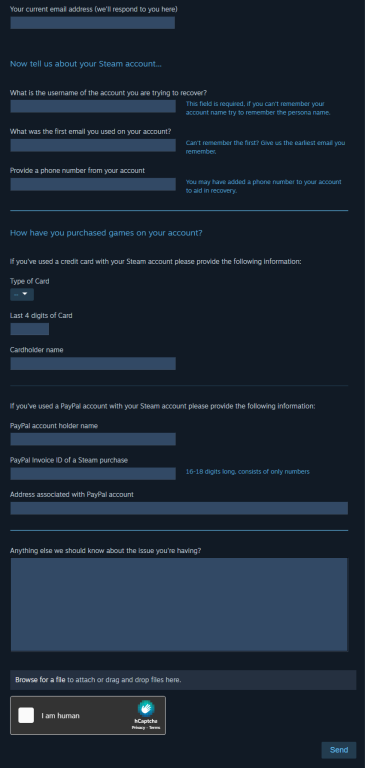
- Fill out Steam’s support form and submit it once you’re done. Be sure to include the new email Steam should use to contact you. Also, include information about the payment methods you used and screenshots of account transactions, if possible. Refer to Steam’s proof of ownership guide for instructions for each supported payment method.
How to secure your Steam account after a reset
Regardless of the reason for your Steam login reset, it’s important to take additional steps to further protect your account.
Enable Steam Guard (two-factor authentication)
Steam Guard is the platform’s two-factor authentication (2FA) feature, which helps secure your account by adding an additional identity verification step to the login process. When enabled, you’ll get a code via email or in the Steam app when you log into an unrecognized device. This makes it harder for hackers to take over your account, even if they get your credentials.
Here’s how to enable Steam Guard on the mobile app:
- On the app home screen, select the Steam Guard tab at the bottom, then tap the Add authenticator button.
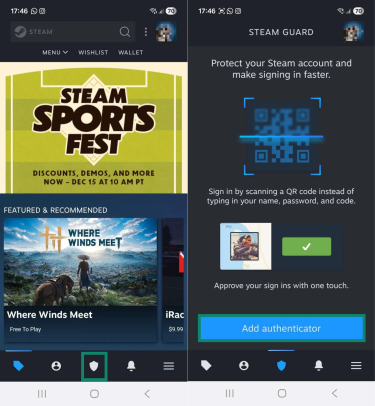
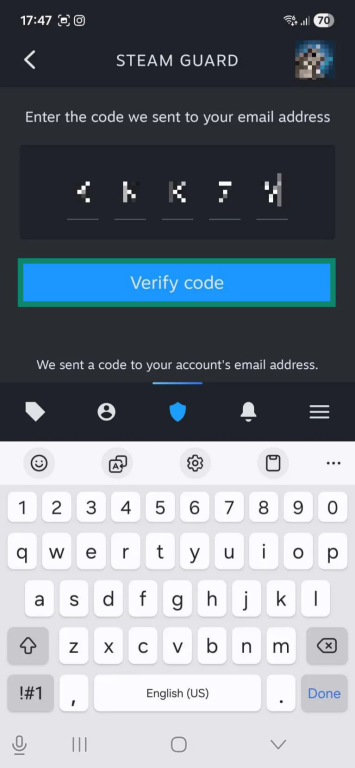
- Steam will send you a verification code via email. Type it in when you receive it, then tap Verify code.
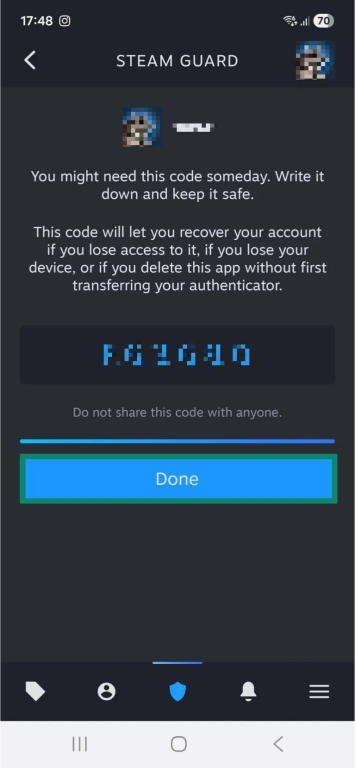
- The app will then display a code you can use to recover your account if you lose access to it. Write it down, then select Done.
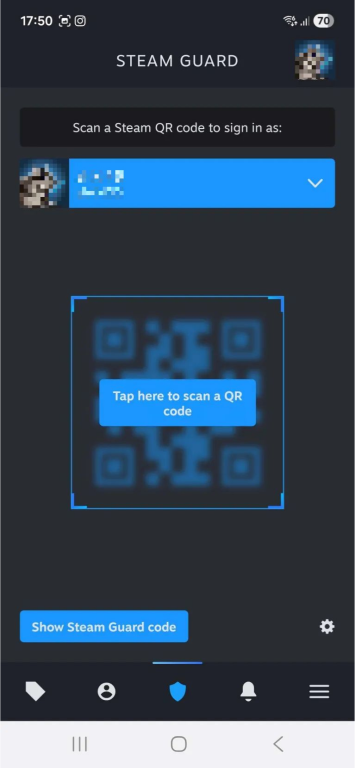
- You can now use Steam Guard to sign in by scanning a QR code or approving a login via username and password, then confirming the login in the app either by approving a notification or entering a code. If your phone doesn’t have internet access, you can tap Show Steam Guard code to verify your login attempt using a time-sensitive code.
Use a strong password
Even with Steam Guard enabled, it’s still important to use a secure login. Here are some best practices when creating a password:
- Create a long password that’s at least 12 characters long.
- Use a mix of uppercase and lowercase letters, numbers, and symbols.
- Avoid using common words or phrases, like “1234,” “password,” nicknames, or names of friends and pets.
Coming up with a strong password can be challenging, but using a password generator can save time and simplify the process. For example, ExpressVPN’s password generator lets you quickly create multiple logins that follow all the best practices mentioned above.
Note: You can also use a passphrase, which is a more secure version of a password. Passphrases consist of a series of random, unrelated words and can also include numbers and symbols for added protection.
How to store Steam passwords securely
There are several ways to keep passwords safe. If you only need to protect a single Steam login, writing it down in a paper notebook or memorizing it may be sufficient. However, if you want stronger security or need to manage multiple passwords, using a password manager is a better option. A password manager is an online tool that acts as a secure digital vault for all your logins, protecting them with a single master password. It can also autofill login fields on trusted websites, making it easier to sign into Steam.
Generate and save backup codes
If you enable Steam Guard but later lose access to it, you can use backup codes to recover your account. To generate the codes, you first have to link a phone number to your Steam account. After that, follow the steps below:
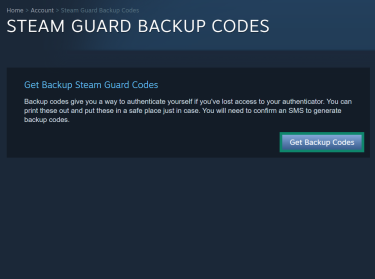
- Access your account settings, select the Security & Devices tab, and click Get backup codes.
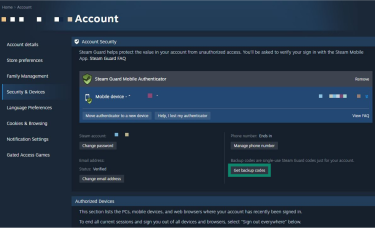
- On the new page, click the Get Backup Codes button.
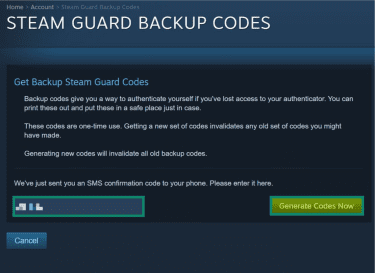
- Type in the code Steam sends via SMS, then click Generate Codes Now.
- Print or write down the codes, then click Done.
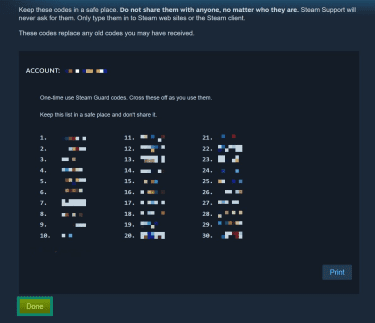
Note: Steam’s backup codes are one-time use, and generating a new pair of codes invalidates the previous ones.
Review and remove unauthorized devices
You can view all authorized devices in your account settings by doing the following:
- Access the Security & Devices tab.
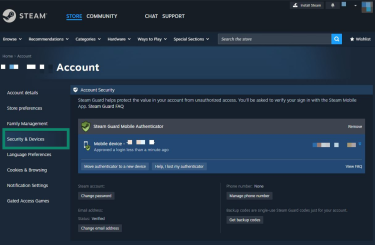
- Scroll down to see the connected devices. If you spot any issues, click the red Sign out everywhere button.
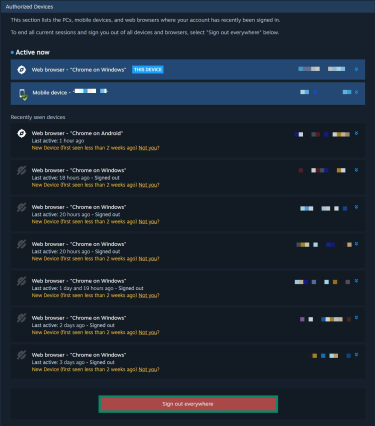
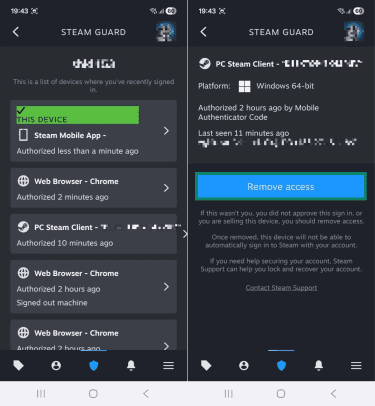
However, note that following the steps above will remove all connected devices, which can be inconvenient. To remove unauthorized devices individually, you need the Steam Mobile app, and Steam Guard has to be enabled. When ready, follow these steps:
- In the app, access the Steam Guard tab, tap the gear icon, and select the Authorized devices option.
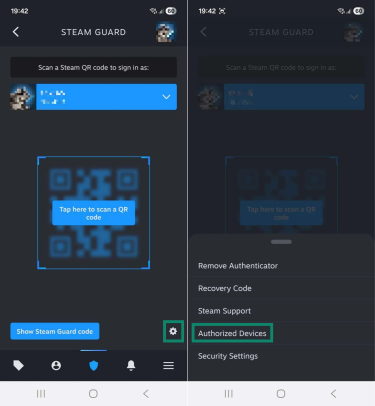
- Look through the list of devices, select the one you don’t recognize, and tap Remove access.
FAQ: Common questions about resetting your Steam password
Can I reset my Steam password without email access?
Yes, you have two options. The first is to use a linked phone number, as Steam can send a verification code via text message. If you haven’t linked a phone number to your account, you’ll need to submit a support form and provide proof of ownership so Steam can help you recover access.
How long does the reset email usually take to arrive?
Steam doesn’t provide an official timeline for how long it takes to get an email to reset your password. However, if you don’t receive it after a few hours, there are several troubleshooting steps to try, such as making sure you used the correct email address, checking your email spam, promotions, and trash folders, and adding support@steampowered.com and noreply@steampowered.com to your email contacts.
What if my Steam account is hacked?
If you suspect your Steam account has been compromised, Steam recommends scanning your device for malware, updating the password for your linked email address, and resetting your Steam password to help recover and secure your account.
What if my phone was stolen? Can I still reset my Steam password?
You may still be able to reset your Steam login if you have access to your linked email address. If you’ve lost access to both your phone and email, you’ll need to submit a support ticket and provide proof of ownership. Once Steam reviews the information, it can help you recover your account.
Take the first step to protect yourself online. Try ExpressVPN risk-free.
Get ExpressVPN





















Comments
I have the same problem!
I HAVE THE SAME PROBLEM AND HAVE SPENT ALOT OF MONEY on steam!